Jira The Basics
In this Page you will find:
Jira Project
Jira Project Definition
A Jira Project represents a Syensqo IT initiative (for example: Pricing, customer Portal, Lab Booster, ERP Rebuild, etc.)
Projects is the module you will use the most.
Click on (1) Projects → Click on (2) View all projects → Search and find the name of the IT Initiative(s) you are working on.
Note 1: Use the favorite Jira feature (Star icon) to mark your Jira Project(s) as your favorite so that it shows up as the first option(s) in the Projects menu.
Note 2: If you are admin of your Jira project, you can modify the configuration of you project by clicking on  at the bottom of the left panel.
Create a Jira Project
To create a Jira Project (Space), please create a SyRa Ticket or contact SHAIKH, Sahil .
Issue
Issue Definition
In Jira, an issue is a generic term for any task, bug, story, epic, or work item that needs to be tracked and managed within a project. It represents an unit of work that a team needs to complete.
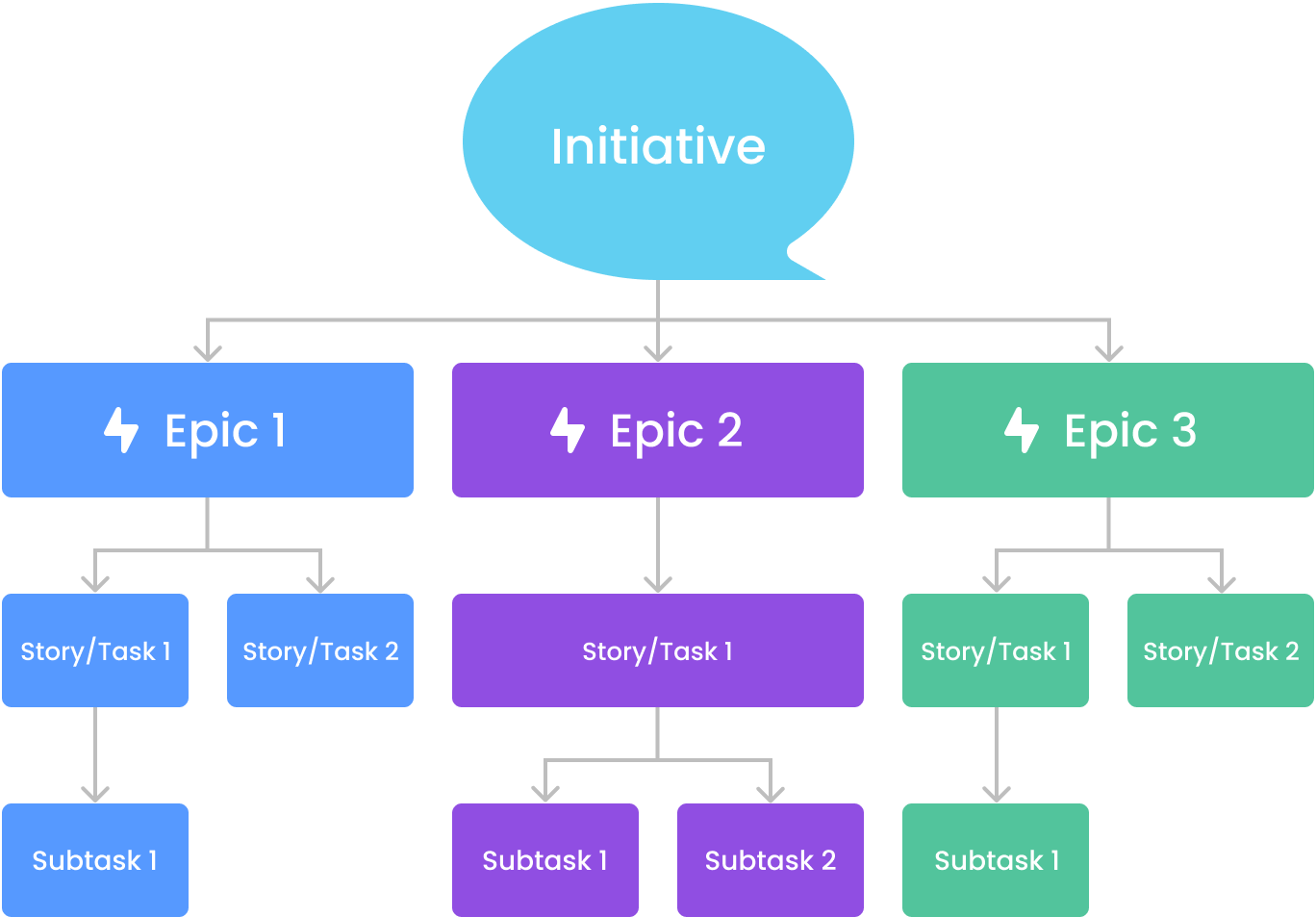
Below represents the hierarchy between the different type of issues:
| Hierarchy | Issue Type | Definition |
|---|---|---|
| #1 |
| IT Initiative (like the One-Pager) |
| #2 |
| In Jira, an Epic is a large body of work that is broken down into smaller, manageable issues such as stories, tasks, or bugs. |
| #3 |
| A bug is an issue that represents a defect, error, or unexpected behavior in the system. A spike is a research or exploration task used to gain knowledge or reduce uncertainty before implementing a feature. Spikes help teams make informed decisions about architecture, tools, or technical solutions. A Story in Jira represents a small, independent unit of work that delivers value to the user. It is written from the user's perspective and describes a feature, functionality, or improvement needed for the product. See HERE for more information on how to create a User Story A task is a standard work item representing a piece of work that needs to be done but does not fall under a Bug or Story. Tasks are often used for technical work, operational activities, or general to-do items. |
| #4 |
| A Subtask is a smaller unit of work that breaks down a Story, Task, Bug, or Spike into more manageable pieces. It is used when a larger work item needs to be divided among multiple team members. |



Create an Issue
You create Jira issues to track your team work within your project.
You can create these issues from:
Within a column of your board or backlog (if you have the option) by clicking  :
:
- With this option you do not need to fill out the all the fields within the issue, only the title called the summary in Jira.
The top main menu by clicking the  button
- Fill out the necessary fields to create the issue (Be careful fields marked with a red Asterix are mandatory)
To create a subtask: within a story/task/bug, click the  button and click
Note 1: When you need more information about what to select or type in a Jira field, HOVER on the title of the field, the tooltip icon "i" will show up, HOVER on the "i" and you will see a description if any.
Note 2: If there is no description please, contact Jira admins to ask or add/update description.
Main issue fields:
| Fields | Description |
|---|---|
| Summary | This is the title a Jira issue |
| Issue Types | 
|
| Parent | To link parent issue. The issue on top of the issue being created or edited. Example:
|
| Team | The team that will work on the issue |
| Start date | The start date of the issue |
| Due date | The due date of the issue |
 WATCH Jira Demo
Automation Rule to Create Epics (Milestones) - How to use it?
We have created a new Automation Rule in Jira to make your work easier, especially if you are managing a Waterfall project.
Portfolio and SyWay have agreed on the following recommended structure, which is strongly advised for initiatives using the Waterfall methodology—particularly those impacting SyWay. The structure is as follows:
- Plan [Design] – (Initiative/Sub-Initiative Name)
- Deliver [Build] – (Initiative/Sub-Initiative Name)
- Deliver [Test] – (Initiative/Sub-Initiative Name)
- Deliver [UAT] – (Initiative/Sub-Initiative Name)
- Deliver [Deployment] – (Initiative/Sub-Initiative Name)
- Go-Live – (Initiative/Sub-Initiative Name)
Replace (Initiative/Sub-Initiative Name) with your actual initiative or sub-initiative name.
Boards
Boards Definition
Boards are a fundamental component of Jira, serving as a visual representation of work being done within a project. Here's a detailed look at their definition and functionality:
- A Jira Project can have one or multiple boards;
- An IT Initiative can have multiple scopes/teams, then multiple boards;
- A Board encompasses a group of issues being worked on by one team;
- The Board(s) in a Jira project can be found at the top of the left panel.
Issues travel though multiple statuses from the first to the last column of the board.
Note: If you are admin of your Jira project, you can configure your board by clicking the  at the top right corner of your screen.
Create a board
Within your Jira Project:
Click the selection field on the top of the left panel under "Planning" and Click 
Choose between a Scrum or a Kanban Board
Select "Board from an existing project" and choose the current project you are in
Give it a name and save
Once create go to the at the top right corner of your screen and click "Configure Board"
Go to columns to edit the columns of your board
WATCH Jira Demo
Plan (Timeline)
A Plan shows you the whole hierarchy of your issues in a Timeline format (Gantt Chart).
To access a Plan, Click on  button in the top menu and pick an existing Plan
Note: Use the favorite Jira feature (Star icon) to mark your Timeline(s) as your favorite so that it shows up as the first option(s) in the Plan menu.
Once you are in the selected Plan: you can either choose the Timeline (Gantt Chart) or the List view (selected fields): 
WATCH Jira Demo
Search
In the top right corner you can conduct a search though Jira to find specific issue(s) you are looking for
Team
In the top menu you can create a team and add your team members
You can select the team(s) in you IT Initiative
WATCH Jira Demo
USEFUL LINKS