
There are two access paths to the application
| Info |
|---|
It is recommend to enter via the SAP Logon for the first access to the transaction, or if you did not access for a long time It is recommended to the frequent users to use the classical SAP Logon (requires authentication) but other users can use the portal through Solia (automatic authentication) |
Option 1 : With classical SAP logon
Step 1
Open the SAP logon 

Step 2
Enter your user & password
| Info |
|---|
If you password is invalid / expired, you need to contact your local Help Desk |
Click Syensqo ERP- Production - PF2


2. Click 
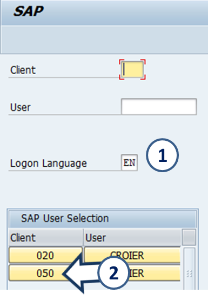
and
| Info |
|---|
You can add it to your favorites [menu System – User Profile – Expand Favorites] |
Option 2 : With Solia Intranet
through “Single Sign On”
Step 1
Open the page http://solia.solvay.com/irj/portal/MasterDataCreationRequest?NavMode=3

| Info |
|---|
Request for Master Data: Initial Screen |

On the first line of the transaction, you will find a menu where you can find the functions accessible at each moment
1. On the initial screen :
 List existing requests : « My request report »
 Modify an existing request
 Display an existing request
2. In case of Display or Update of an existing request, enter the request number here
3. In case of Creation, select the category of data you want to create / update
4. The text box at the bottom of the screen is an “info board”, giving the last information about the application (update, new functions,…)
After selecting a Data type, the application brings you to the creation screen

Status colour Blue title step 3
Fill the request
1. Select your need : 
2. Enter the title of the request which will be used in all emails.
3. Select the system landscape.
- CICC = PI2
- ERP Rodia Core = WP2
- ERP Solvay = PF2

4. Enter:
- the Company code (for WP2)
- or PRS CoCode (for PF2 & PI2)
It can remain blank if request spans over several companies of the same system
5. Select the Business unit. It can remain blank if several GBU are involved
6. It comes when you choose the ERP (see next step)
7. Select the project name when applicable
8. Flag during pre-closing and closing periods, it allows the identification of urgent requests necessary for the closing.
9. Flag to identify temporary request that need to be reversed
The new request must be saved by clicking  before going to the next step
