
| HideElements | ||||
|---|---|---|---|---|
|
There are 3 different ways to save information to Accolade:
- The data relative to your project : Save as a DELIVERABLE STREAM
- The tool you want to attach to you project : Save as a RELATED DOCUMENT
- The documents relative to the phase changes : Save as a GATE DOCUMENT
Using Excel

1. Save as a DELIVERABLE STREAM:
Another window opens :
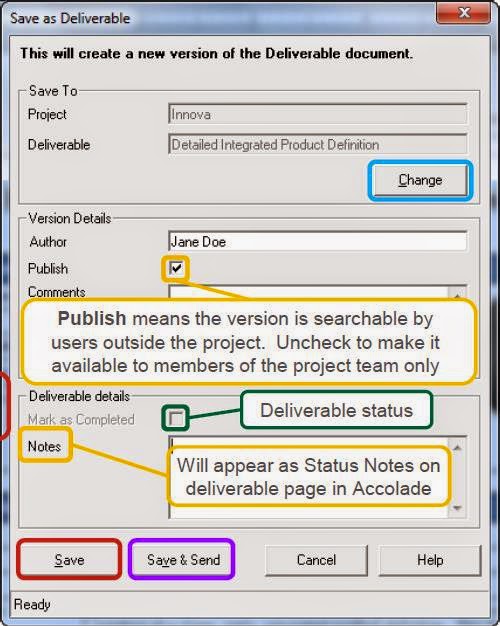
- Change : to be used if the document must be saved under another project
- Publish : it should be ticked to make the data available for dashboards and reports
- Mark as completed to let the project leader knows that this deliverable is done
- Note here relevant information regarding this deliverable
- Save
- Save and send by email, not available yet with Gmail
2. Save as a RELATED DOCUMENT:
Accolade offers the possibility to attach documents relative to the project: SPM analysis, Risk Analysis, etc… Open your document directly from your computer, then click File > Save to Accolade > Save as a related document.
This related document has to be attached to your project in the Production server : check the URL
...

Your file will be attached to the tab Reports in your project homepage.

3. Save as a GATE
...
DOCUMENT:
The 3rd way to attach a document is at gate level, and for each gate of the process. The number is limited to 3 documents per gate. For instance : the presentation Powerpoint made during the steering committee + minutes of the meeting + another file

| Content by Label | ||||||||||||
|---|---|---|---|---|---|---|---|---|---|---|---|---|
|