Attention!
Dear PSL contributor, you will not be able to create pages in the space for the foreseeable future due to the global documentation project, This action is being reserved to process experts, administrators and IS to ensure consistency and avoid duplication while the documents are under review.

Page History
| Excerpt | ||
|---|---|---|
| ||
Administrator guide for libraries AODOcs SBS - Procure to Pay - Accounts Payable or SBS - Procure to Pay - Country Specificities |
| Info |
|---|
Access the library SBS |
| Info |
To access the library SBS - Procure to Pay - Accounts Payable |
From the homepage you can administrate the library by clicking 
| Table of Contents | ||
|---|---|---|
|

1. Library Administration
Click  to
to
| Table of Contents | ||||
|---|---|---|---|---|
|
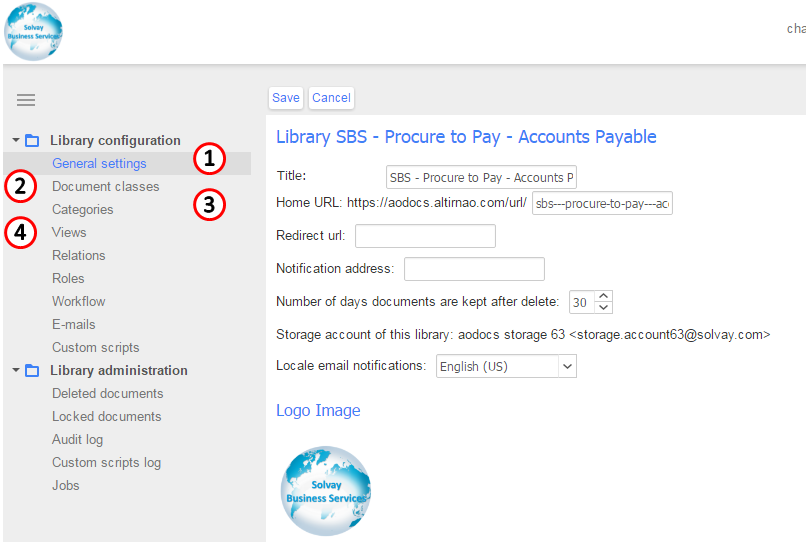
1. Update the home page of the library
Click "General Settings" to update the logo & the home page of the library

2. Update document classes
You can add and maintain document classes (=properties) by clicking "Document classes"
(Document classes are required when a new document is uploaded)
You can:
- add a new value
- Enable Mulitple values (when ticked)
- Tick if the field is manadatory
- Tick if you want to hide the field
- Select the field type (it can exist or you can create a new one = new category)

| Anchor | ||||
|---|---|---|---|---|
|
- You can create a new category
- Tick "Dynamic values" to enable users to create new values
- Click "Define values" to create a list of values

4. Manage views & filters
- Click on an existing view to update it
- Click " Add new value" to create a new view
- Select the default view

- Select the information to display in the view
- Select the information to filter in the view

2. Library Security
Select  to manage authorizations
Permissions are managed using google groups:
- users in the group $AODocs.PtP Accounts Payable-Admins can administrate the library
- users in the group $AODocs.PtP Accounts Payable-Contributors can contribute (=updload/update documents)
- users in the group $AODocs.PtP Accounts Payable-Readers can only read contents

Manage google groups here
Go to the group you want to update, select "Manage"

Select "Direct add members"
Enter the email of the person you want to add and click 

Overview
Content Tools
Tasks