
| group | confluence-users |
|---|
Tasks to be completed when documenting an operation (from creation to publication)
1. Enter the Title of the operation / page
2. Add the following Labels :
Scope of applicability: ww, country_accounting
Country or group of countries (if applicable): belux, china, france, italy, lam, nam, uk_ie, bulgaria, dach, netherlands, iberia, poland, latvia, australia, india, japan, south_korea, thailand, singapore, new_zealand, emea_transversal, apac_transversal
Unit and Domain according to the List of labels to be used in the Finance Service Line space
E.g. 1: WW Operation in Financial Accounting under domain "Central Finance Processes & Compliance":Labels to be used: ww, financial_accounting, central_fin_proc_compliance
- Labels to be used: country_accounting, france, financial_accounting
(for country operations, the Domain is always country_accounting)
3. Fill in all fields as described above
4. Name the title of each section using OPD methodology naming convention - Infinitive verb without the “to”, mainly action verb...something) - " I do something..."
5. Once the description of the operation is completed, ensure it is approved and published by launching the SBS-Finance approval workflow
| Panel | ||||||||
|---|---|---|---|---|---|---|---|---|
| ||||||||
| Domain: Costing |
| Panel | ||||||
|---|---|---|---|---|---|---|
| ||||||
Responsibility area: Ensure Costing Allocations |
Table of contents
| Table of Contents | ||
|---|---|---|
|
| Panel | ||
|---|---|---|
| ||
ScopeERPPF2
FrequencyReferencesFormsAttachmentsPrevious OP <<
|
1. Objective and Scope
1.1. Objective of this Operation
Describe The purpose of this document is to describe how to post massive upload COPA correctionprepare COPA mass reclassification in WP2/PF2 via KEFC macro template
1.2. Scope
WW
2. Definitions
See Finance Glossary:3. Tasks description
3.1. I am informed / I verify that COPA corrections are needed.
3.1.1. Step 1 of Task 1 (I do something...)
3.1.2. Step 2 of Task 1 (I do something...)
3.2. I perform massive COPA corrections.
3.2.1. Step 1 of Task 2 (I do something...)
The KEFC in a transaction in which the user can make manual entries directly in COPA without using the ticketing tool.
Corrections must be based on project or GBU demands. The SU MAC team is in charge of making the proposed changes.
3.2. I prepare template for COPA Corrections
- Access SAP t-code KE24 and enter information as below and execute

Layout for WP2 = /KEFC
Layout for PF2 = /KEFC_SPS
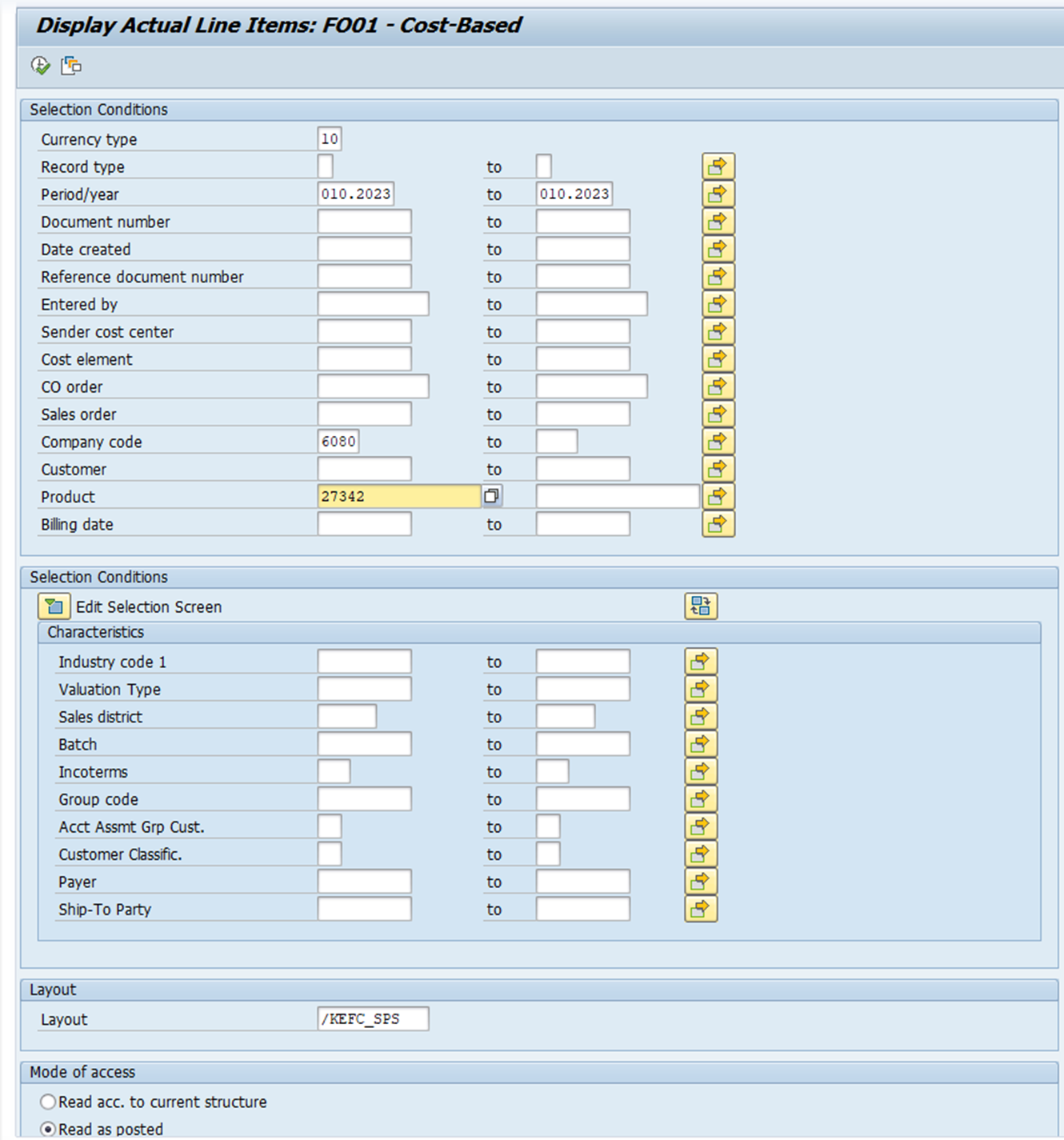
After data display, you need to export it to spreadsheet
Go to List/Export/Spreadsheet

Open the KEFC macro template and copy data from column G until the last one and paste in tab  from G2 onward into two sets, first one(set A) is to reverse the original data and the second one (Set B) is to correct the data
Details:
Client = 020
Currency type = 10
Record type = Z
Posting date= DD-MM-YYYY

To reverse the original data
Select data of set A from column BW to IR
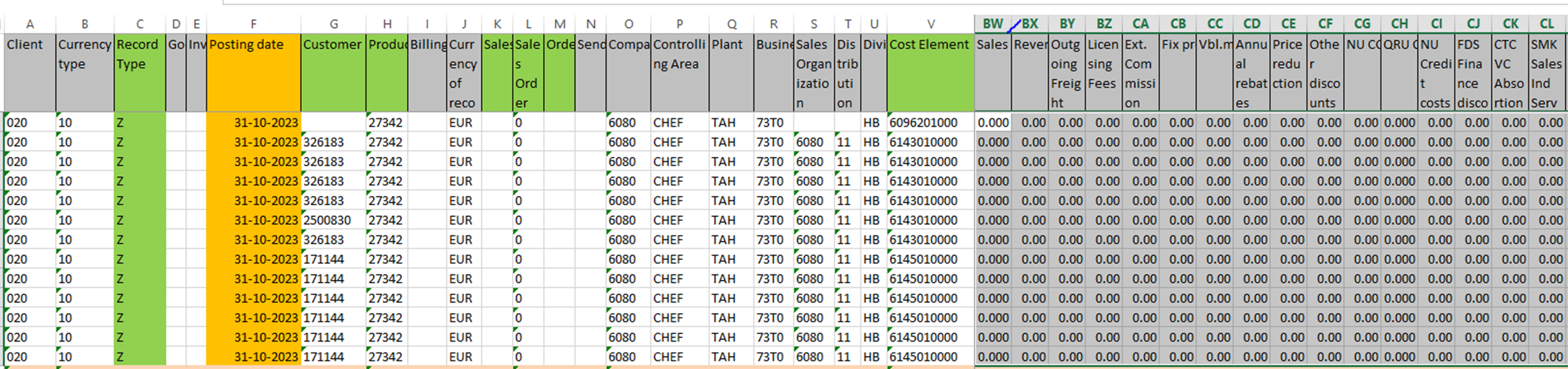
Go to view /Macros/view Macros

N2 reverse_qty and click Run

The selected data became green and the amount shown in opposite side with the original one after you ran macro

I run macro to prepare data for upload.
I select all data from roll A2 onward

Update the correct data (Set B). I update necessary information such as Business area, Activity market, New Business area, GBU and BU group

Click View/Macros/View Macros/N1_set_format/Run

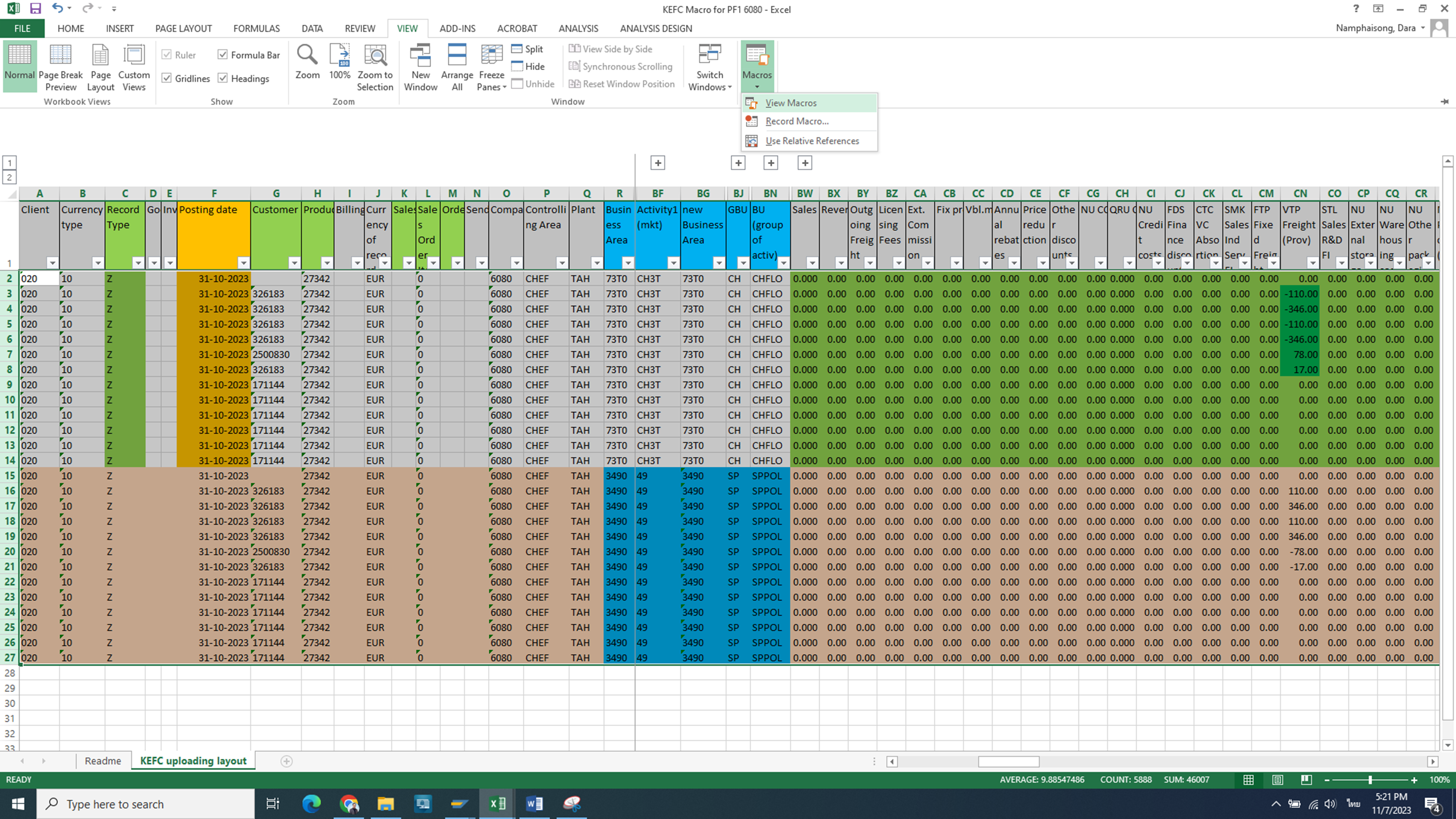

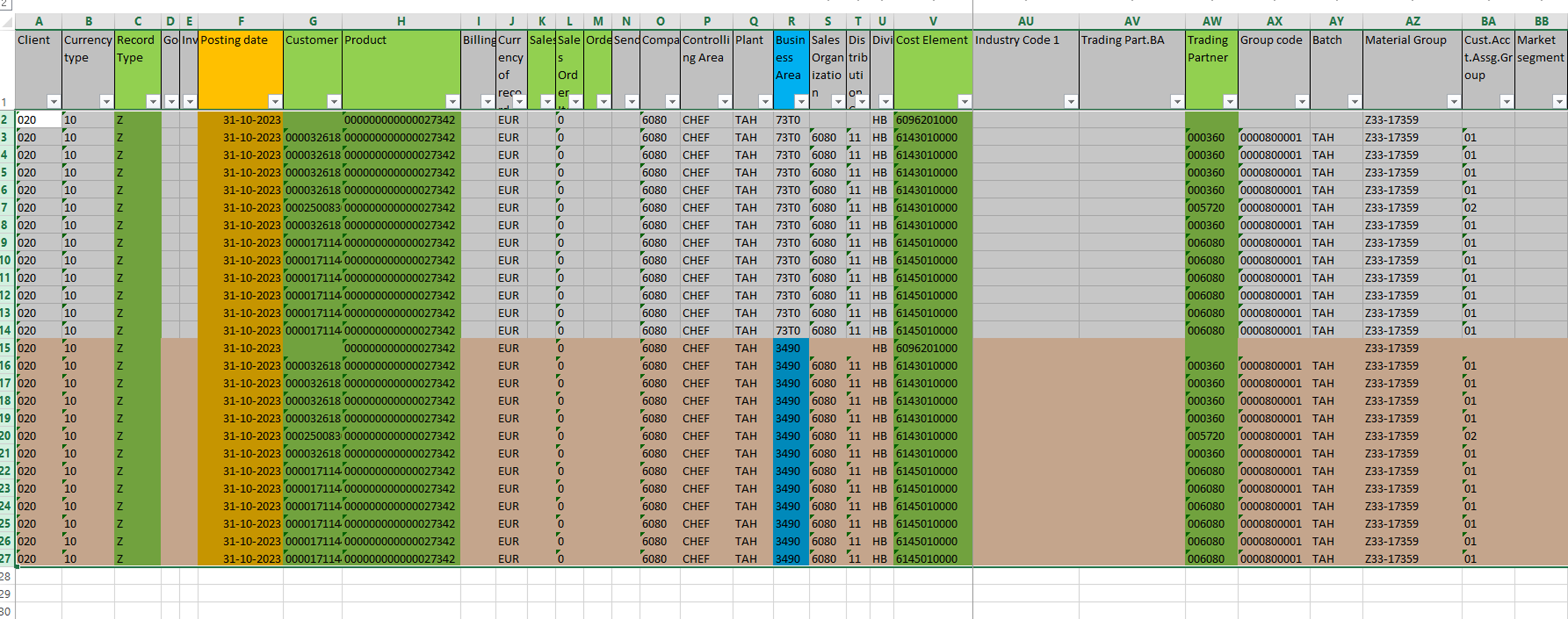
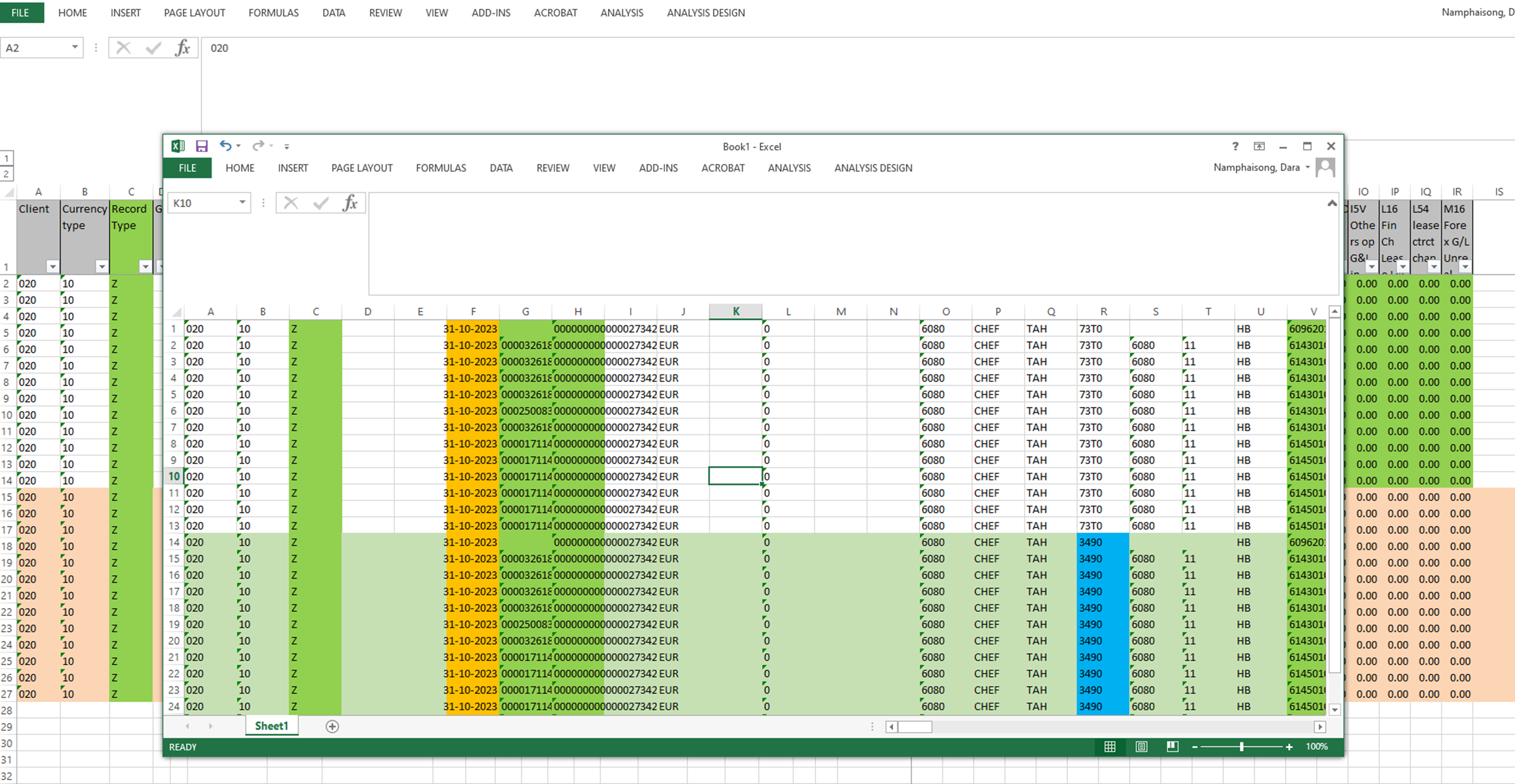
Copy data from A2:A27 to IR2:IR27 to a new workbook.
Delete the first row (heading) and last row (control check) and then save as text format
3.3. I perform massive COPA corrections
Upload to SAP via t-code KEFC - CO-PA Import File
| Include Content | ||
|---|---|---|
|
End of document.
| Viewtracker | ||
|---|---|---|
|