
Status colour Blue title Step 1
Log is in English to start with the creation of the profit center in English.
Start the transaction using the menu path or transaction code

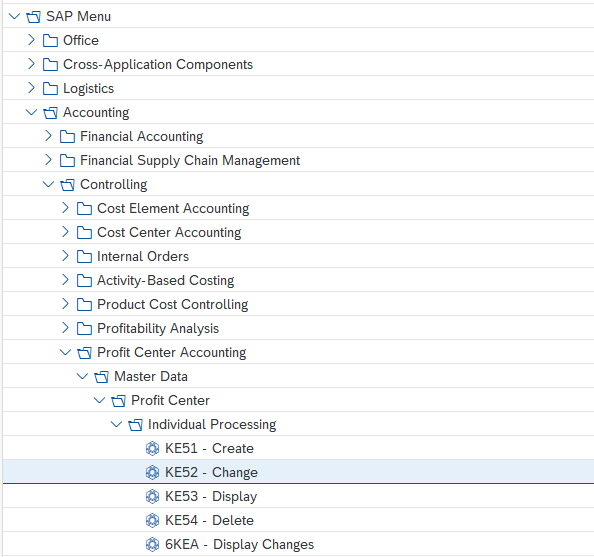
Status colour Blue title Step 2
Start the update of the profit center
- Enter the code of the profit center to be updated

Status colour Blue title Step 3
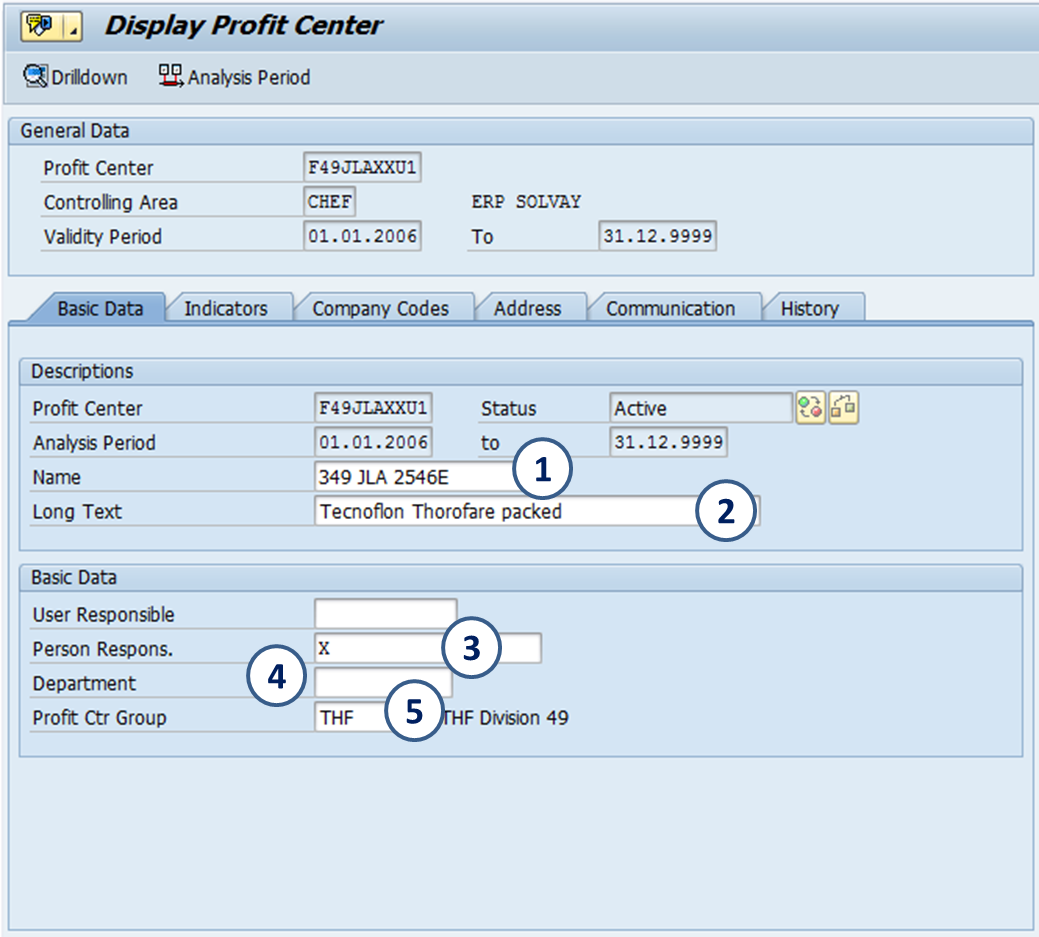
Update the profit center
- Name
- Long text
- Person responsible
- Department
- Profit Center Group
Status colour Blue title Step 4
Go to the next tab “indicators” to lock or unlock the profit center

Status colour Blue title Step 5
Go to the next tab “Company Codes”
The system assigns by default the profit center to all company codes within the controlling area.
| Info |
|---|
If for some reason, all the company codes are not automatically assigned, it has to be done manually. |

Status colour Blue title Step 6
Tabs “Address” & “Communication” are not used in WP1 WP2 & PF1PF2
The History tab is generated by the system to facilitate the identification of the user and the respective changes made by him in the master data of the Profit Center.
Save the profit center by clicking
The user will be automatically out of the profit center master data. It is required to enter again and click on the activation button 
Note: in profit centers usually it is not recommended to manage periods.

Status colour Blue title Step 7
If you want to update the description in another language, y ou must log in the language requested
| Viewtracker | ||
|---|---|---|
|