
| Status | ||||
|---|---|---|---|---|
|
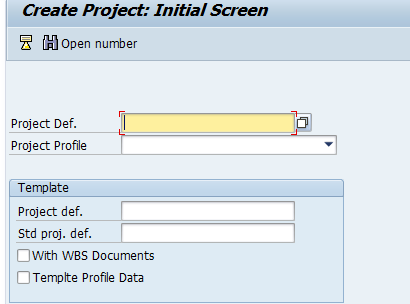
Enter Transaction CJ01
Status colour Blue title Step 2
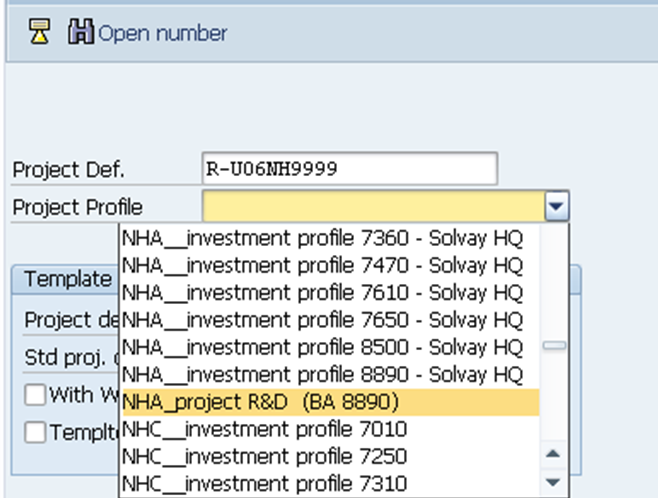
Insert the project definition and choose the project profile according to the plant of the company. This information is available in the template received.
| Info |
|---|
The Project Profile should be always “ XXX_project R&D (BA XXXX)”. |
Status colour Blue title Step 3
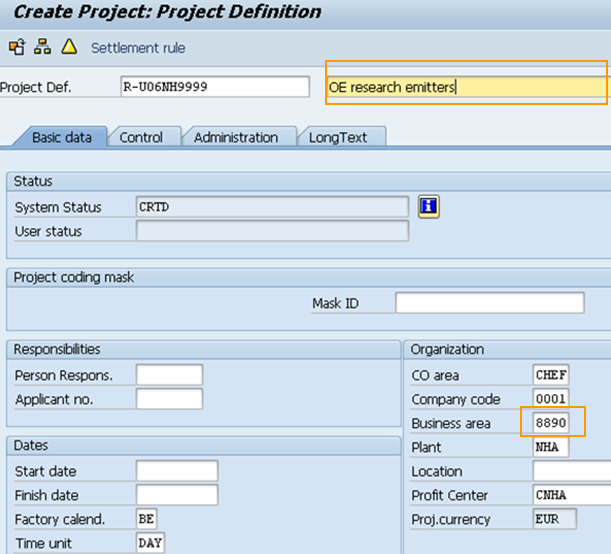
- Include the Project Name send in the template
- Check if the Business Area is correctly filled.
Status colour Blue title Step 4
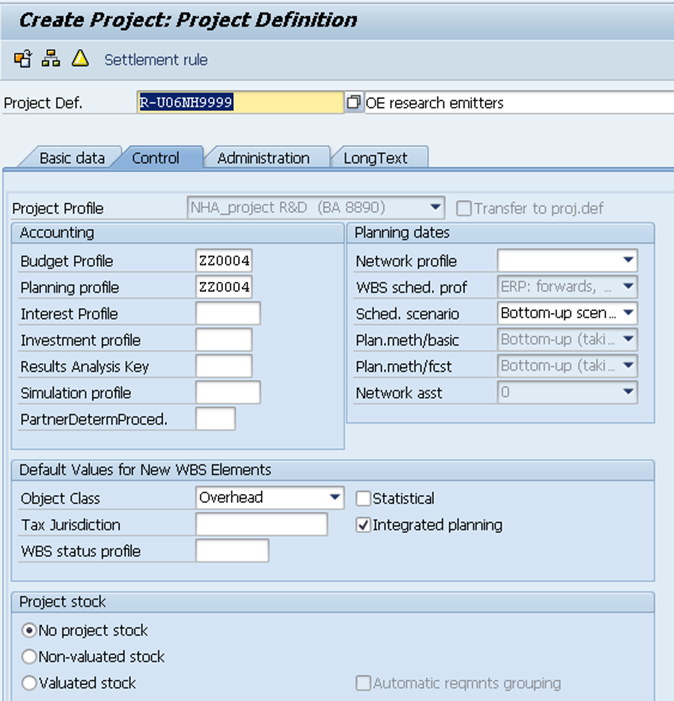
Enter the Control tab in order to confirm that the object class is “Overhead”.
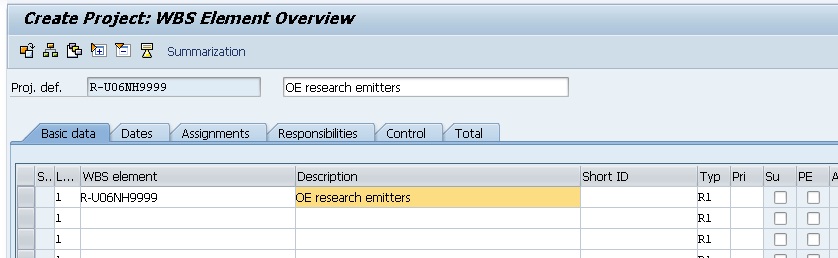
- Click on the WBS overview

Status colour Blue title Step 5
- Fulfill the level 1of the WBS by inserting the WBS element and Description as per the received template.
Status colour Blue title Step 6
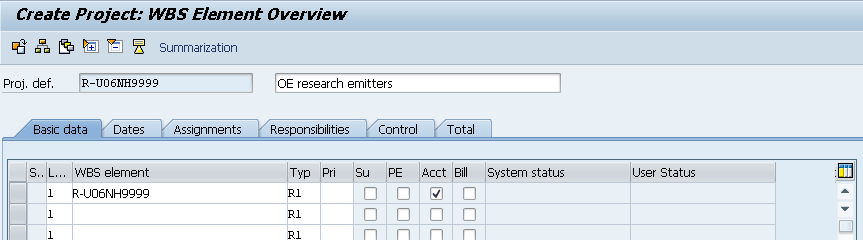
- Flag the "Acct" Column.
Column ''Typ'' is set by default to R1. Change it only if it's mentioned in the template file.
Status colour Blue title Step 7
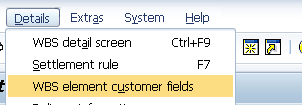
- Go to Details menu and enter in WBS element customer fields.
Status colour Blue title Step 8
Fill in the following fields, as per template:
- Proj. type
- GBU
- Sub-GBU
- Product
- Proj. Leader
- Proj. Manager
- Tax Cred. Local
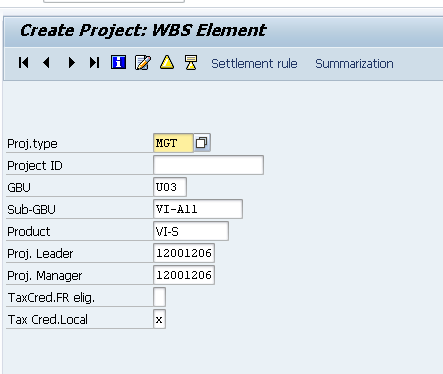
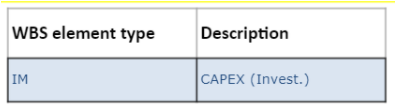
Note that the selection of the correct Project Type is very important when creating the WBS element, as it will have impact in some reports, namely CosTa and Capex ones.
In order to be considered Capex (both for CosTa and Capex Dashboard) the Project Type must be the one below:
Status colour Blue title Step 9
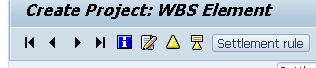
Click on  , in order to define the settlement rule of the WBS.
Status colour Blue title Step 10
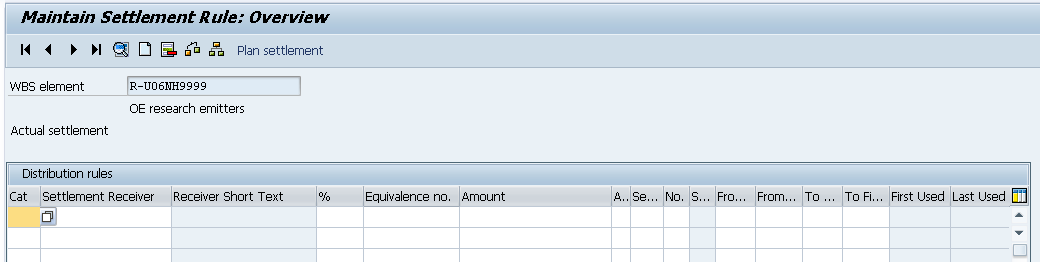
Click twice on the first line.
Status colour Blue title Step 11
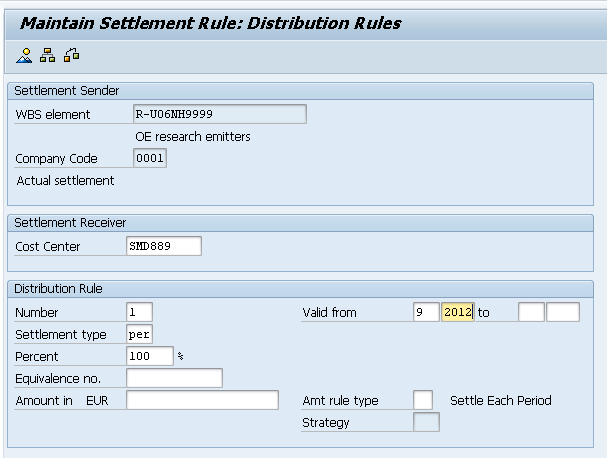
Fill in the following fields:
- Cost Center – (received in the template)
- Number – Usually 1, this field should be adapt according to the number of receivers
- Settlement type – PER
- Percent – Usually 100% it’s variable according to the number of receivers
- Valid from – month and year of the creation of the WBS
In the end go back by pressing until you arrive to the WBS first screen.
Status colour Blue title Step 12
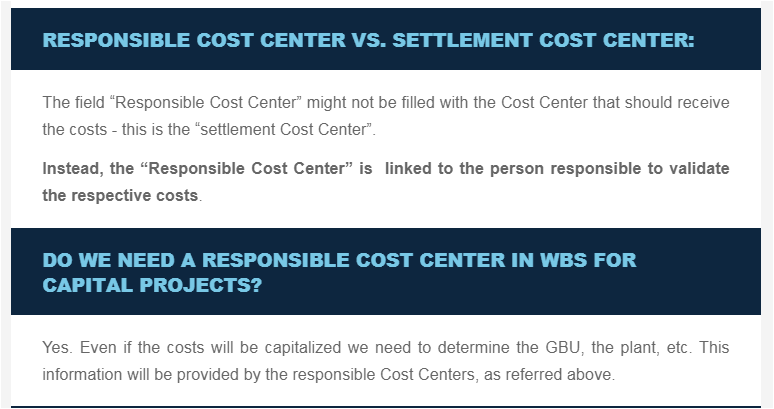
Important fields of the master data that will have an impact for CosTa Dashboards. NOTE: The "responsible CC" is not mandatory for Projects or WBS levels WITHOUT a flag in the operative indicator of "Account Assignment Element".
Status colour Blue title Step 1213
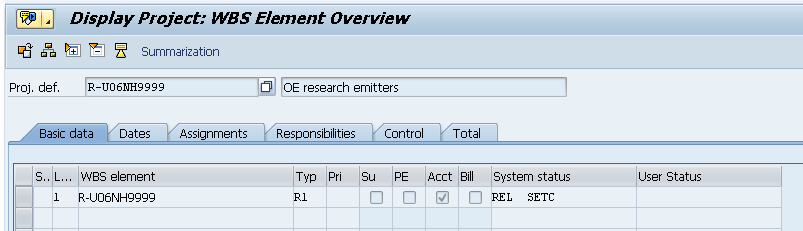
In order to release the WBS, you have to go to Edit > Status > Release.
Check if the status is now REL and SETC.
Status colour Blue title Step 1314
The WBS is now ready to be saved
| Viewtracker | ||
|---|---|---|
|