
[!! This article is obsoleted !!]

1. In the navigation bar, select your profile and settings
2. Click "Google Drive"
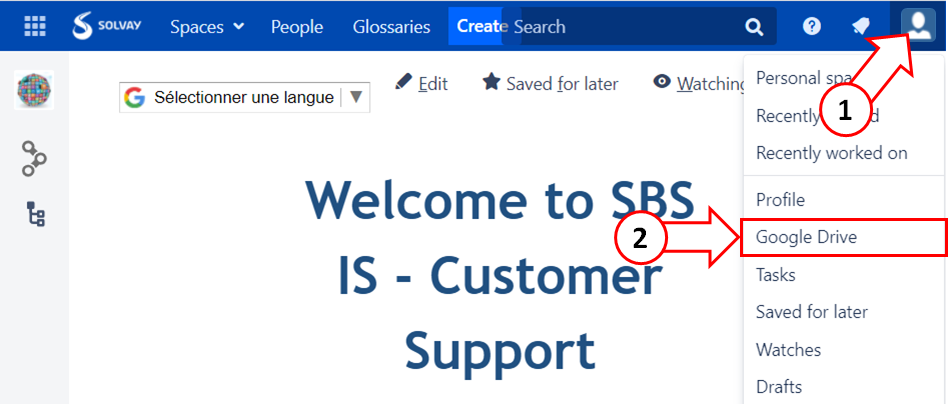
3. Click on "Authorize With Google Docs" will sign with Solvay account

4. Choose your account Solvay
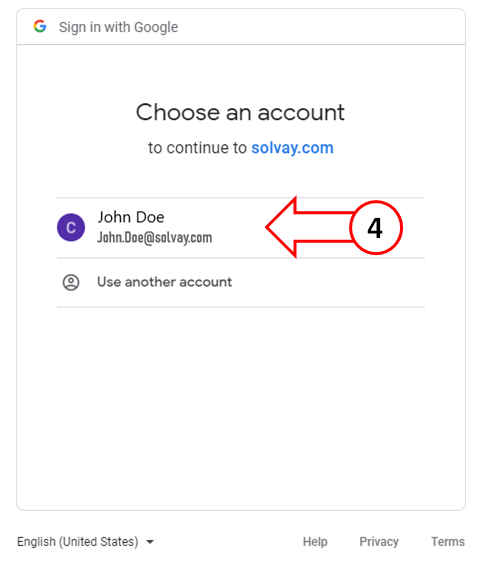
5. Click "Allow"

The issue is solved
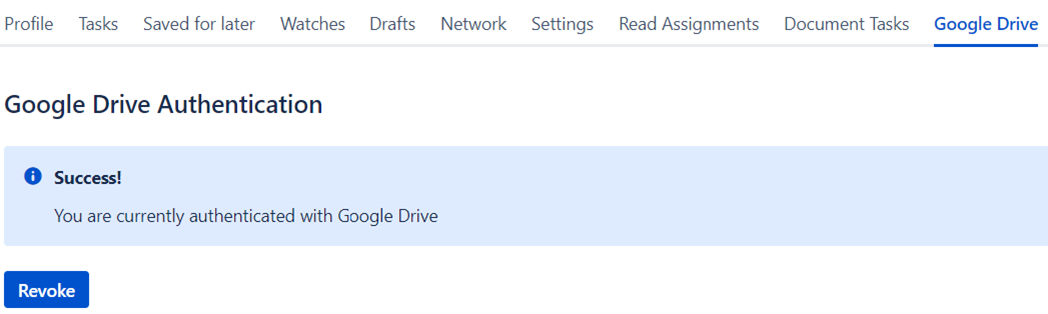
- To see/access the drive/document, please make sure you have at least the "viewer" permission to that drive/document.
You can request acccess via the "Google request for access" when you try to access the drive/document.
If no one response, please contact the respective team, who manage the content.