Attention!
Dear PSL contributor, you will not be able to create pages in the space for the foreseeable future due to the global documentation project, This action is being reserved to process experts, administrators and IS to ensure consistency and avoid duplication while the documents are under review.


Authors | Verification | Approval |
|---|---|---|
Adriano Almeida | Luis Dias | João Machado |
14/12/2016 | 17.08.2018 | XX/XX/XXXX |
| Version | Date | Description |
|---|---|---|
| 01 |
| Creation date |
| 02 |
| Review date |
Contents
1. Data Loader
The Data Loader tool for Convergence-Salesforce allows executing the import and export of Solvay's data stored in CSV files, to the three Convergence environments-UAT, PROD and TRAIN. Therefore, the Data Loader can be used not only to create new data in Convergence through the Initial Load, but also to transfer data between PRS and Convergence through the Regular Cycles and detect errors. Therefore, make sure you have downloaded the DATA LOADER from SOLVAY DRIVE and the respective mappings.
2. Pre-requisites
Before using Data Loader it´s necessary to select the comma separated list (only one time) according to the following procedure:
-Go to the Control Panel of the Windows and press the option "Clock, Language and Region and then "Region and Languages"
- A windows will be open as shown in the left of the figure and press "Additional settings".
- Select (.) on Decimal symbol and select (,) on List separator.
- Afterwards select "OK to save.

3. Initial Load
The Initial Load allows creating new data in Convergence-Salesforce by recurring to the Data Loader tool in order to import data stored in a csv file.3.1. GPS Axis (Dom/Seg/MG/Sub-MG (incl. Prod (Pur) List)
The procedure for creating data referent to GPS Axis in Convergence through Initial Load requires that: - GPS Pur prepares and approves an excel sheet shared in Drive, requesting Level 1 (L1) to proceed with the Initial Load, by sending an email or ticket
- Level 1 (L1) start by download, adapt and save the excel sheet shared in Drive in a csv format ready for being upload into Convergence
- After preparing this csv file, Level 1 (L1) proceeds to the Initial Load by opening the Data Loader tool stored in the desktop and executes the following steps:
Open Data Loader tool stored in the desktop and login with your user credentials, selecting the object Master Keys and the csv file stored in the desktop, as below:
Chose the field for matching External_key_c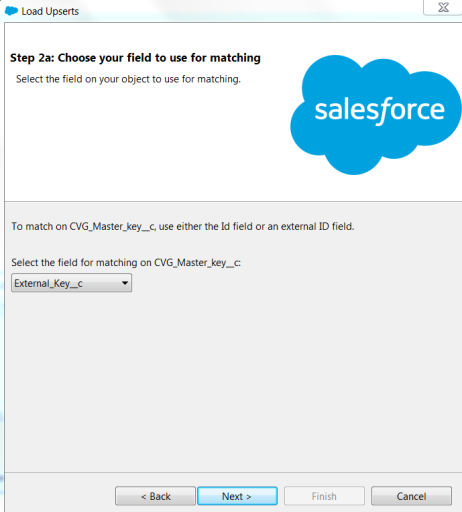
Choose the related objects External_Key_C for Parent_R and External_ID_C for Category_Manager
Select the mapping stored in your desktop and edit if necessary as below:
Select the directory for storing the success and error files and click on Finish
After running the upload you must verify the Success and Error csv files in order to analyze and correct them if possible, and always send the error file to L2 in order to be corrected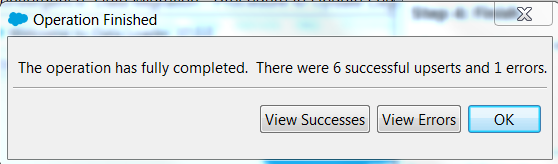
3.2. Geographical Axis
The procedure for creating data referent to Geographical Axis in Convergence through Initial Load requires that:
- GPS Pur prepares and approves an excel sheet shared in Drive, requesting Level 1 (L1) to proceed with the Initial Load, by sending an email or ticket
- Level 1 (L1) start by download, adapt and save the excel sheet shared in Drive in a csv format ready for being upload into Convergence
- After preparing this csv file, Level 1 (L1) proceeds to the Initial Load by opening the Data Loader tool stored in the desktop and executes the following steps:
Open Data Loader tool stored in the desktop and login with your user credentials, selecting the object Master Keys and the csv file stored in the desktop, as below:
Chose the field for matching External_key_c
Choose the related objects External_Key_C for Parent_R and External_ID_C for Category_Manager
Select the mapping stored in your desktop and edit if necessary as below:
Select the directory for storing the success and error files and click on Finish
After running the upload you must verify the Success and Error csv files in order to analyze and correct them if possible, and always send the error file to L2 in order to be corrected3.3. Organizational Axis (GBU, Business Lines)
The procedure for creating data referent to Organizational Axis in Convergence through Initial Load requires that: - GPS Pur prepares and approves an excel sheet shared in Drive, requesting Level 1 (L1) to proceed with the Initial Load, by sending an email or ticket
- Level 1 (L1) start by download, adapt and save the excel sheet shared in Drive in a csv format ready for being upload into Convergence
- After preparing this csv file, Level 1 (L1) proceeds to the Initial Load by opening the Data Loader tool stored in the desktop and executes the following steps:
Open Data Loader tool stored in the desktop and login with your user credentials, selecting the object Master Keys and the csv file stored in the desktop, as below:
Chose the field for matching External_key_c
Choose the related objects External_Key_C for Parent_R and External_ID_C for Category_Manager
Select the mapping stored in your desktop and edit if necessary as below:
Select the directory for storing the success and error files and click on Finish
After running the upload you must verify the Success and Error csv files in order to analyze and correct them if possible, and always send the error file to L2 in order to be corrected3.4. Supplier Group (GRP) from PRS to Convergence
The procedure for creating data referent to Supplier Group in Convergence through Initial Load requires that: - GPS Pur prepares and approves an excel sheet shared in Drive, requesting Level 1 (L1) to proceed with the Initial Load, by sending an email or ticket
- Level 1 (L1) start by download, adapt and save the excel sheet shared in Drive in a csv format ready for being upload into Convergence
- After preparing this csv file, Level 1 (L1) proceeds to the Initial Load by opening the Data Loader tool stored in the desktop and executes the following steps:
Open Data Loader tool stored in the desktop and login with your user credentials, selecting the object Accounts and the csv file stored in the desktop, as below: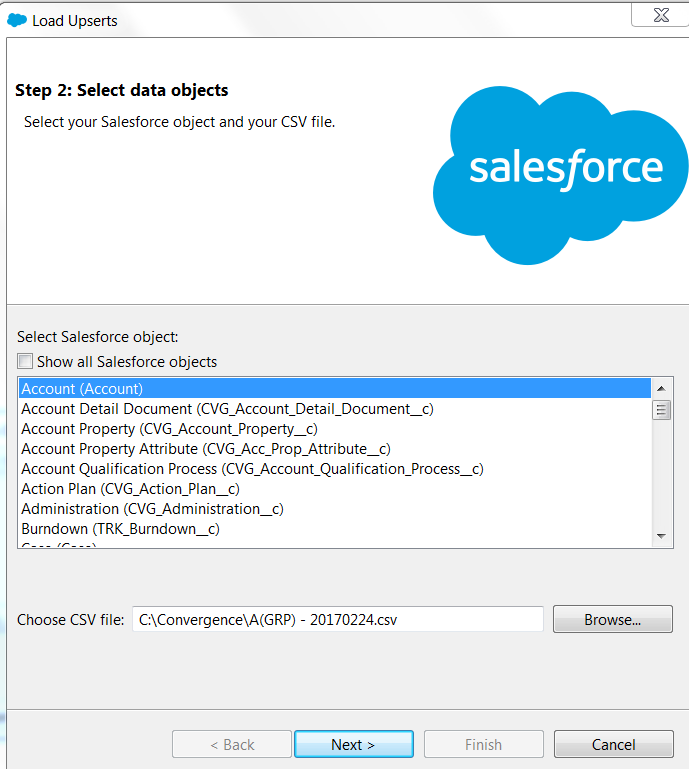
Chose the field for matching External_key_c
Choose the related objects as in the image below:
Select the mapping stored in your desktop and edit if necessary as below:
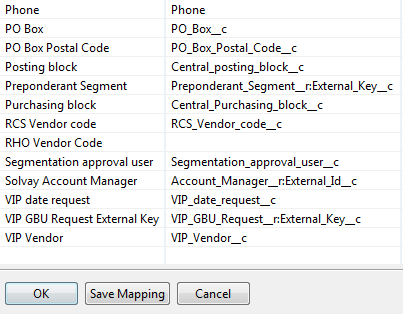
Select the directory for storing the success and error files and click on Finish
After running the upload you must view the Success and Error csv files in order to analyze and correct them if possible, and always send the error file to L2 in order to be corrected3.5. Legal Entity/Suppliers from PRS to Convergence

The procedure for creating data referent to Suppliers in Convergence through Initial Load requires that: - The buyers fill in the excel sheet shared in Drive "OPEN Vendor Request to Be Loaded" with the supplier information
- GPS Pur/L2 prepares and approves the excel sheet shared in Drive, requesting Level 1 (L1) to proceed with the Initial Load, by sending an email or ticket
Level 1 (L1) start by download, adapt and save the excel sheet shared in Drive in a csv format ready for being upload into Convergence. Thus, it is necessary to adapt the excel file as it follows:
Replace all "X" for "TRUE" and all " "(BLANK) for "FALSE" (by selecting the "Sort and Filter", or, "Find and Replace" tool by selecting the rows first, as can be seen in fig.
In the column "VIP Date Request" you need: select this column and change the cell's format by choosing date french (belgium); then create a new column for Timezone (T00:00:00.000Z); do a filter in both columns to select "all" and not "blanks"; expand the timezone; do the concatenation (Text(AG:AG, "aaaa-mm-dd"), AH:AH). Or, instead you can use the formula =CONCATENATE(TEXT(AG:AG,"aaaa-mm-dd"), "T00:00:00.000Z"), not being necessary to creating the column Timezone; at the end for format cells concerned just do copy paste in each column as "numbers" and then you can delete the original "VIP Date Request" column.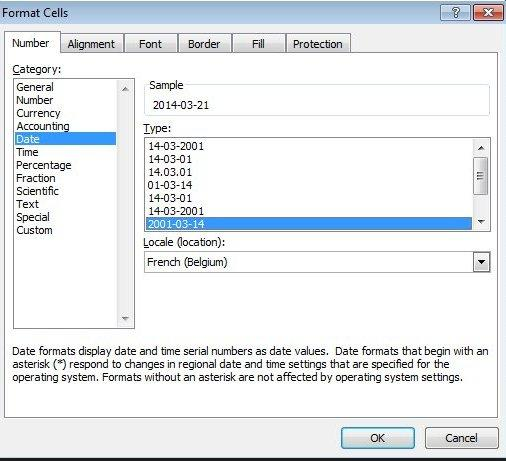


Save this document in your computer, as a CSV file
- After preparing this csv file, Level 1 (L1) proceeds to the Initial Load by opening the Data Loader tool stored in the desktop and executes the following steps:
Open Data Loader tool stored in the desktop and login with your user credentials, selecting the object Accounts and the csv file stored in the desktop, as below:
Chose the field for matching External_key_c
Choose the related objects as in the image below:
Select the mapping stored in your desktop and edit if necessary as below:
Select the directory for storing the success and error files and click on Finish
After running the upload you must view the Success and Error csv files in order to analyze and correct them if possible, and always send the error file to L2 in order to be corrected4. Regular data exchange- Convergence<>PRS
The Regular Cycles allows transferring data between PRS and Convergence by recurring to the data Loader tool, for executing the procedure correspondent to each type of data to be imported through a csv file. In the one hand, PRS contains the integrity of vendors with a PRS-ID (External Key). In the other hand, Convergence contains the integrity of supplier groups and suppliers (both existent in PRS) and the prospects (not existent in PRS).
4.1 Regular data transfer from PRS to convergence
- EXPORT from PRS
The procedure for transferring data from PRS to Convergence is described below:
- Open SAP PF1 050
- Select transaction ZZM_AQ_PURPROCVEN007 (allows to selecting the list of vendors to transfer in convergence through the internal key).
- The field "Prospect" should be in blank and then select "multiple selections".
- In multiple selections select "Not Equal to" and save.
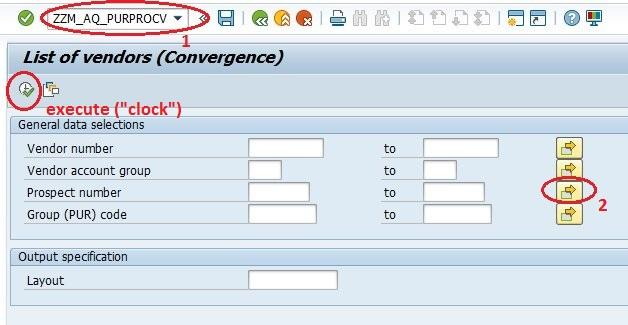

In the "List of Vendors" select the object "spreadsheet", choose the option "Select From All Available Formats" and also "08 Excel (In Existing XXL Format)"

In the window " Export List Object to XXL" chose "Table" and then "Microsoft Excel"

Execute the download and save the file.
-Create a 1st column named "Record Type" and expand through all the cells of this column: 01258000000TRny
-In the columns G, H,I replace all "X" for "TRUE" and all " "(BLANK) for "FALSE" (by selecting the "Sort and Filter", or, "Find and Replace" tool by selecting the rows first, as can be seen in figure (action replace all).
|
|
|


- Remove RHO vendor code column (company was sold).
- Filter on column country by excluding US and delete all region codes from the other countries.
- Adapation of the input file, downloaded from PRS:
- In a first step we only want to check the Region respectively the State/Province for the US. So, please set the Region in the file, downloaded from PRS, to blank for all countries - with the exception of the US!
- Remove the filter when it´s done
Related to column "VIP GBU Request":
- Copy to the right new column VIP GBU request (paste values)
- Format both columns to General
- Filter and remove all blanks on both columns
- On right column insert formula: =concatenate(AExx;0) and expand to all cells.
- Remove the filter copy and paste values on the right column and delete the left column.
Related to column "VIP Date Request":
- Format column date to French (Belgium) / aaaa-mm-dd
- Copy to the right new column VIP Date Request (paste values)
- Filter and remove all blanks on both columns
- On right column insert formula: =TEXT(AFxx,"aaaa-mm-dd") and expand to all cells.
- Remove filter, copy and paste values on the column.
- Filter and remove all blanks on both columns.
- On next new column insert formula: =CONCATENATE(AGxx,"T00:00:00.000Z") and expand to all cells.
- Remove filter, copy and paste values on the column and delete the two left columns.
Save this document in your computer as CSV file type.
Screening data quality:
- In order to assure the data quality from PRS we will perform a series of screening to make sure no strange caracteres is transferred into Convergence.
- This screening test must be performed to columns related to “account name”; “address”; “city”.
- Through a filter, sort data from “A to Z” and then “Z to A”. If any strange characters, it will be in the list as shows in the print bellow.

If any is found, correct it manually on the file to be import in Convergence and create a ticket to Vendor Master Data team to be corrected in PRS.
Open Dataloader and select upsert.

- Step 2 "Select data objects" select "Account" and choose the CSV file with the concerned list of vendors.
- Step 2a "Choose your field to use for matching" select "SF_Internalkey_C".
- Step 2b "Choose your related objects" select the "External_ID_c" for matching
- Step 3 "Mapping" select Data Exchange and add record type to the mapping
Step 4 "Finish" Select the directory where you want to save the error files
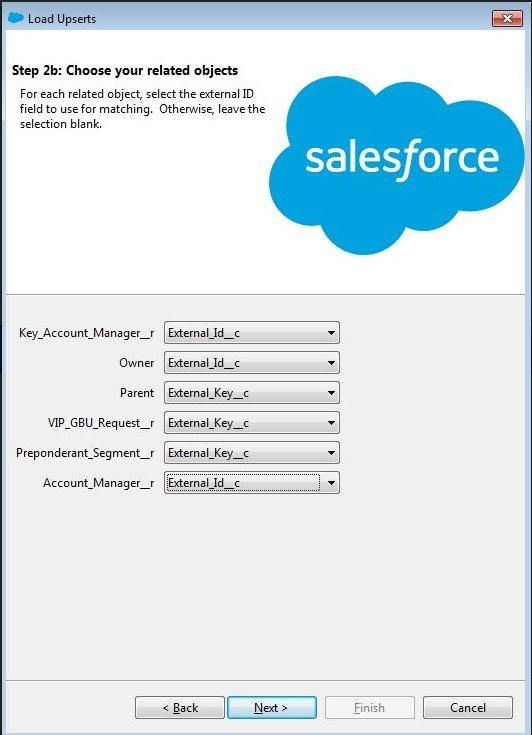


If there are errors on the transfer, the information should be saved on a file.
The errors messages are displayed in the last column.
L1 support must analyze the error messages and try to solve it, otherwise must be escalated to L2 (ticket from L1 to L2).
Most common errors in regular data exchange:- The salesforce internal number defined in the input file doesn't exist in Convergence
- Unable to create/update fields: SF_Internal_Key__c.
- The Supplier group is missing in Convergence
- Foreign key external ID: p06181000 not found for field External_Key__c in entity Account
In order to check this procedure changes, you can go to "accounts history" in Convergence and check the fields: date, user, and actions.
After transferring the data from PRS to Convergence through this procedure the commercial vendors migrated have:
-In PRS: each Commercial Vendor transferred to Convergence has a PRS-ID (External Key), but has not a Conv-ID (Internal Key)
-In Convergence: each Legal Entity transferred from PRS has a Conv-ID(Internal Key) and also a PRS-ID(External key)
This procedure is to be carrying out from PRS to Convergence by D&A EMEA Purchasing Team biweekly, and is divided in two steps as following:

4.2 Regular data transfer Supplier Group
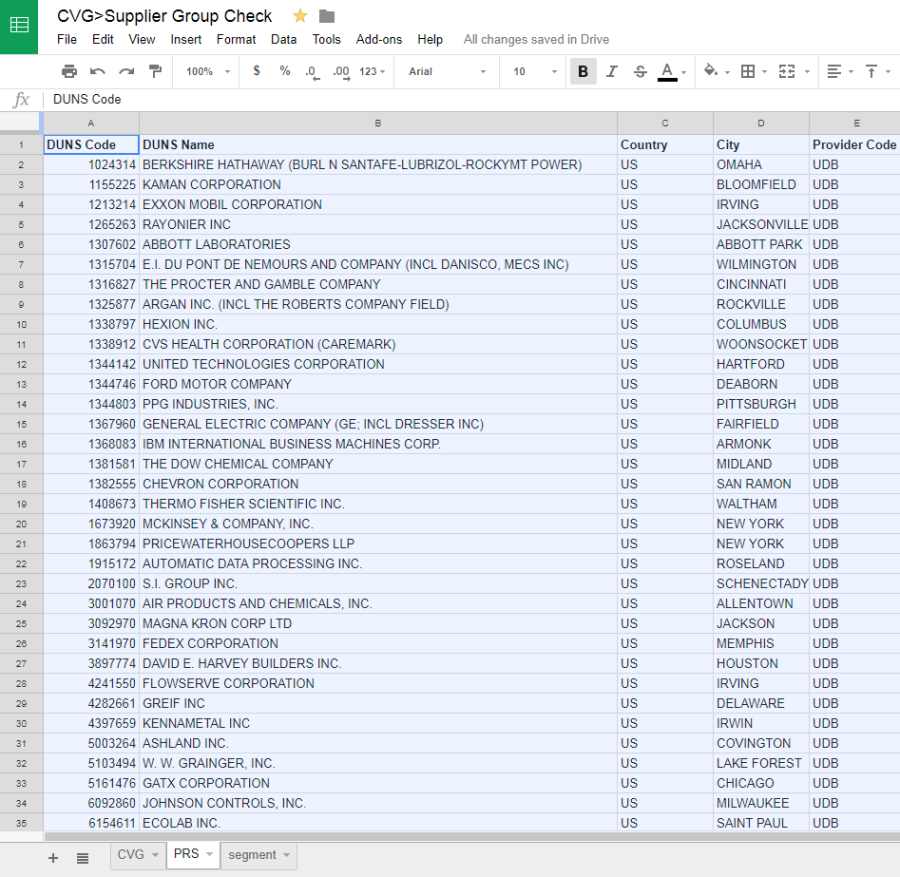
Reference File: CVG>Supplier Group Check
{+}https://docs.google.com/spreadsheets/d/1fd6CDex_WdIfLQNuzkOMFtWt8b-GxRlPGQtz3vGrKuc/edit#gid=0+
1) Download the "ZZR_DUNS_ATTR" table in transaction SM30 in PF1-050
- Insert "ZZR_DUNS_ATTR" in Table/View
- Click on Display to run the table


- Select table view and Print
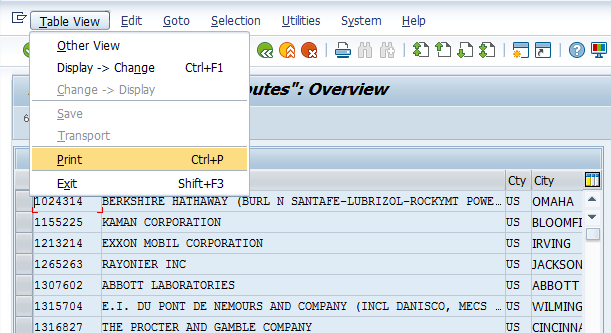
- Print view display

- Download the table to XXL format


- Delete all the information from reference file tab PRS
- Copy (paste values) the information from saved XXL file to reference file tab PRS
Reference file below:
{+}https://docs.google.com/spreadsheets/d/1fd6CDex_WdIfLQNuzkOMFtWt8b-GxRlPGQtz3vGrKuc/edit#gid=0+
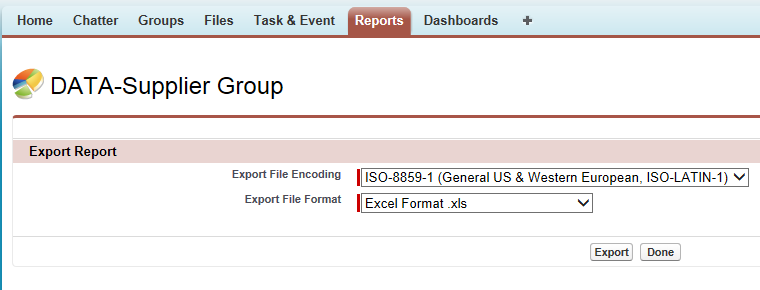
2) Download the DATA-Supplier Group report in Convergence from the below link:
https://solvaysrm.my.salesforce.com/00O58000004JAQw

- Export details and export
- Delete the information of the first 3 columns on the reference file tab CVG
- Copy (paste values) information of the first 3 columns from the saved file to reference file tab CVG.
- Delete the information on column Updated by PtP
132 
- Filter the column "To be Updated" and select YES.
- Don´t updated rows that are filled with red.

- Copy information from External key to City and save on CSV file format.
- Remove the column of External key and saved file.

3) Update the information in Convergence trough Data Loader
Open Dataloader and select upsert.
- Step 2 "Select data objects" select "Account" and choose the CSV file with the concerned list of vendors.
- Step 2a "Choose your field to use for matching" select "SF_Internalkey_C".
- Step 2b "Choose your related objects" select the "External_ID_c" for matching
Step 3 "Mapping" select AGRP
Step 4 "Finish" Select the directory where you want to save the error files 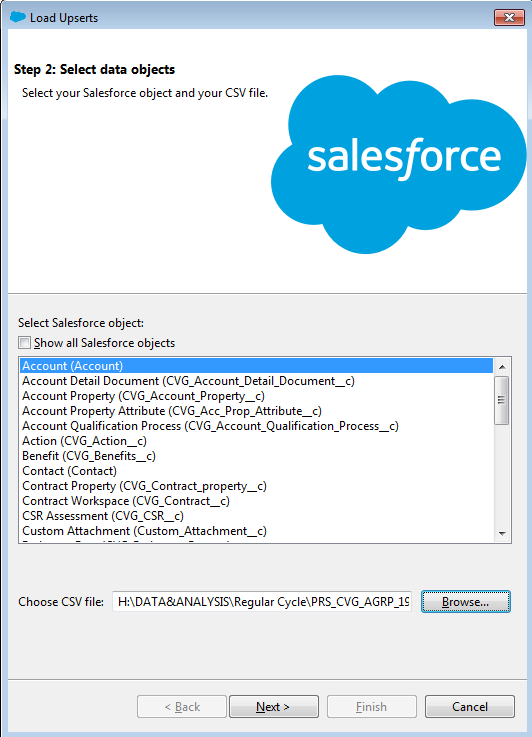
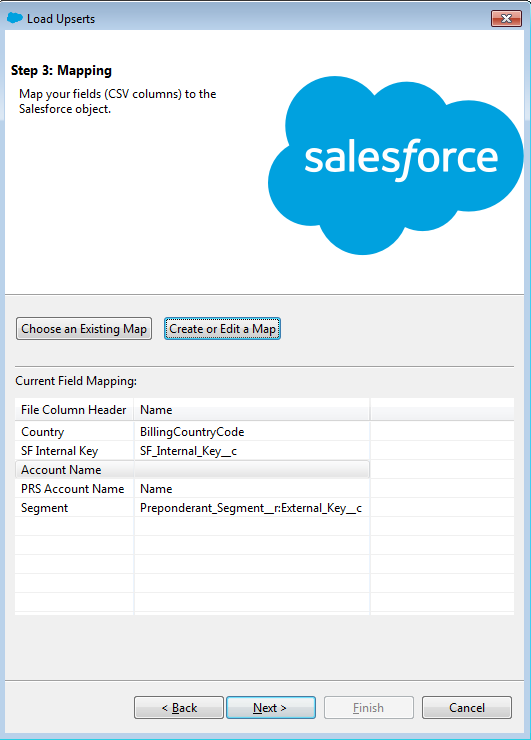
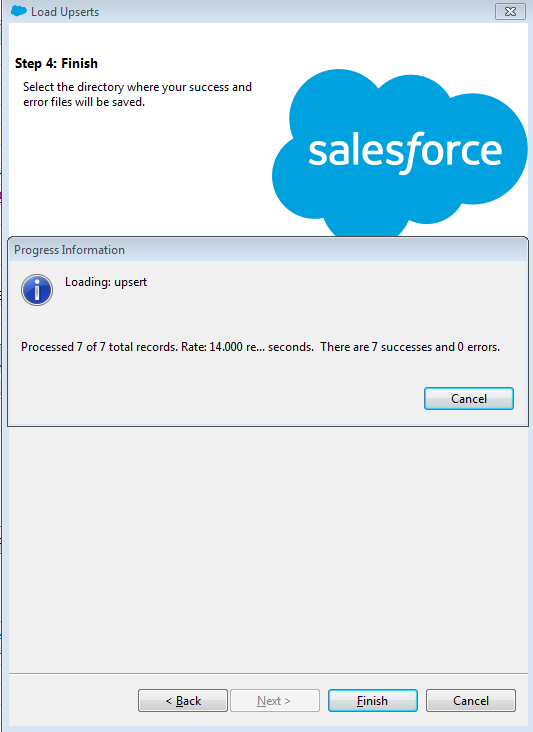
If there are errors on the transfer, they should be analyzed and corrected.
4.3 Regular data transfer Addtional Supplier
1) Clean the External Key for supplier conversion
- Open Report: DATA-Additional Supplier and sort the report by the external key for supplier conversion.
- Clean the obvious external key that is a proper system code but in a wrong format:
Ex: PRS-100101445 → 100101445
SAP # 302316160 → 302316160
Cytec-11001283 → PE1_300-11001283 (search in QlikView)
CBA-100103280 → BAAN-100103280

The following external keys are normal, no need to update:
(1) Maritime*
(2) SUB/KON-001
(3) T&E]
2) Additional Supplier Conversion
- Export Report: DATA-Additional Supplier (Convergence Report) to excel as a work file.
- Remove duplication of External Key for supplier conversion by rows
[select all the rows and click on remove duplicates].

- Sort the Data A-Z by External Key for supplier conversion
- Copy all the External Key for supplier conversion and paste in SAP (Vendor Segmentation mass treatment) to download the supplier data.
- Different procedures to be followed based on whether the External Key for supplier conversions are PRS codes or RCS codes
- Case 1: PRS codes
- To download the supplier data with the external keys being PRS code, paste in the first row (Transaction: ZZM_VEN_SEG_00100).

- Insert the PRS code (Vendor) from the vendor segmentation file to the column B of work file, and highlight duplicate values of column A&B
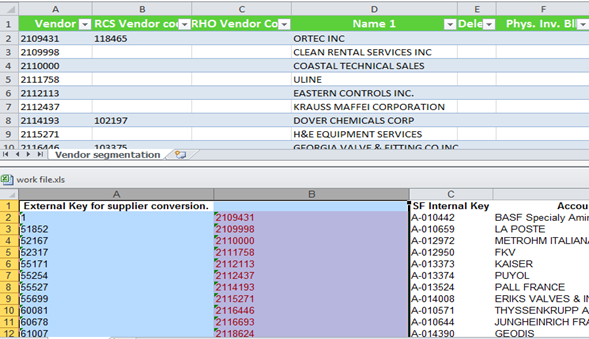
- Remove all the non duplicate (not highlighted) keys in column A by row [filter by color > No fill, then remove all the filtered rows by pressing “Alt+;” to select only visible rows before deletion]
- Delete column B and insert again the PRS codes, adjust the rows to make sure the first column of the two files are matching
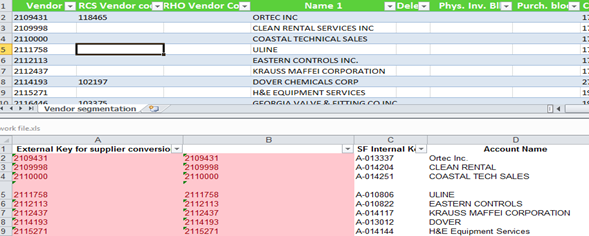
- Add Segment code from the vendor segmentation file to the work file
- Check if the segment code in PRS and CVG are the same. If not, send the list to gps for correction.

- Proceed with the conversion if the segments are validated. Assign the account manager as gps.pur if missing.
- If the supplier groups linked to the suppliers do not exist in CVG, create them in CVG. Assign the account manager [If the account manager is a LPR, put GPS as the account manager of the group] and the segment of the group as the same as the supplier.
- Case 2: RCS codes
- To download the supplier data with the external keys being RCS code, paste in the second row
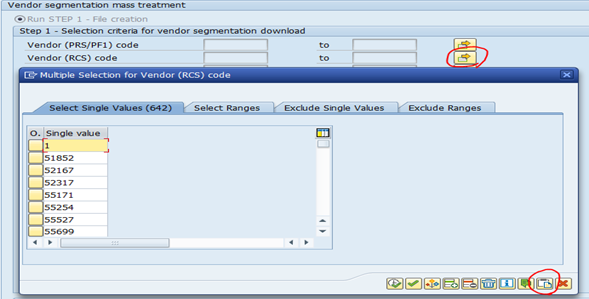
- Insert the RCS code (RCS Vendor code) from the vendor segmentation file to the column B of work file, and highlight duplicate values of column A&B
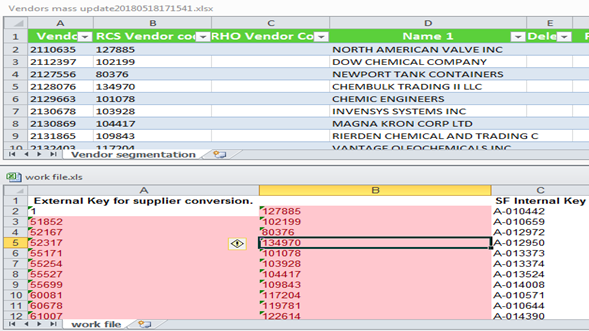
- Remove all the non duplicate (not highlighted) keys in column A by row [filter by color > No fill, then remove all the filtered rows by pressing “Alt+;” to select only visible rows before deletion]
- Click “Unprotect sheet” and sort the vendor segment file by RCS code
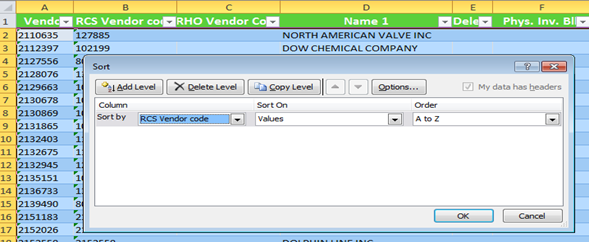
- Delete column B in the work file and insert again the RCS codes, adjust the rows to make sure the key columns of the two files are matching
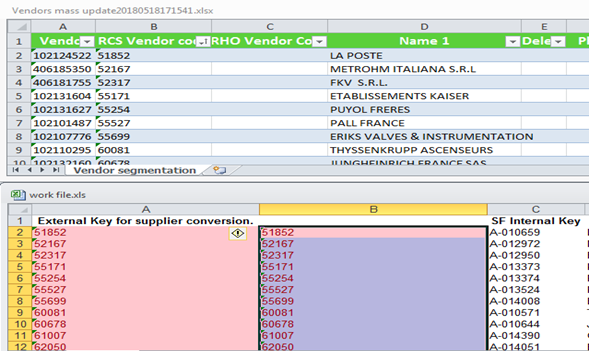
- Add Segment code from the vendor segmentation file to the work file.
- Check if the segment code in PRS and CVG are the same. If not, send the list to gps for correction.
- Make sure to replace the RCS code in CVG(external key for conversion) with the correct PRS code before proceeding the conversion > Copy vendor column from vendor segmentation file.
- Proceed with the conversion if the segments are validated. Assign the account manager as gps.pur if missing.
- If the supplier groups linked to the suppliers do not exist in CVG, create them in CVG. Assign the account manager [If the account manager is a LPR, put GPS as the account manager of the group] and the segment of the group as the same as the supplier
> Conversion if the segments are validated
- Open Dataloader and select upsert.
- Step 2 “Select data objects” select “Account” and choose the CSV file with the concerned information.
- Step 2a “Choose your field to use for matching” select “SF_Internalkey_C”.
- Step 2b “Choose your related objects” select the “External_ID_c” for matching
- Step 3 “Mapping” according the information to be updated.
- Step 4 “Finish” select the directory where you want to save the files.
If the update has duplicate error, proceed with merge of the supplier in Convergence.
- Select vendor number and search in Convergence
- Go to additional supplier and transfer info to supplier (Solvay Account Team / Contact / Contract /Visit Minutes…). In this case use the SF Internal key to transfer info.
- Delete the information on all fields of the additional supplier after the transfer to the supplier.
- Finally confirm if the information was correctly transferred to supplier and delete the additional supplier.
4.4 Regular data transfer from Convergence to PRS
- EXPORT from CONVERGENCE
Open the DATA LOADER and click on EXPORT button. 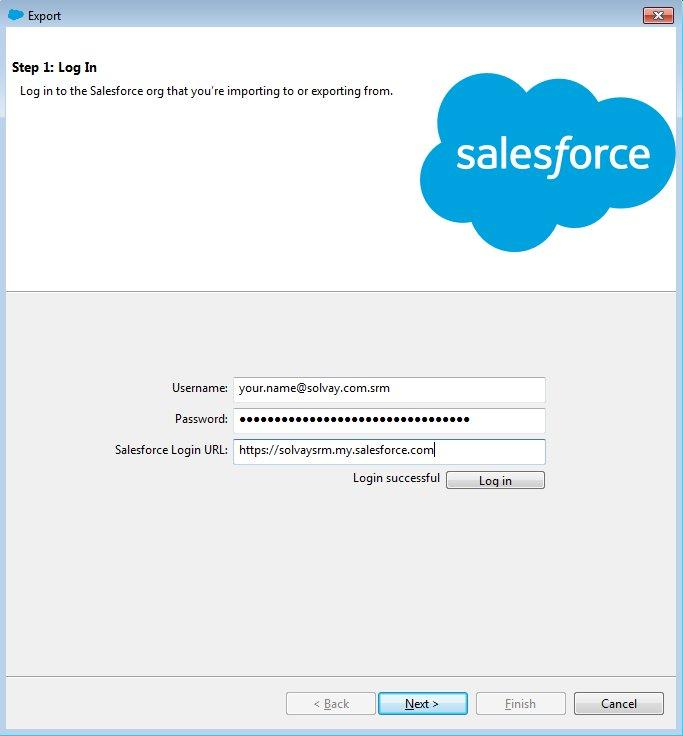
Now, you are asked for your login information. Make sure to fill as seen in the figure.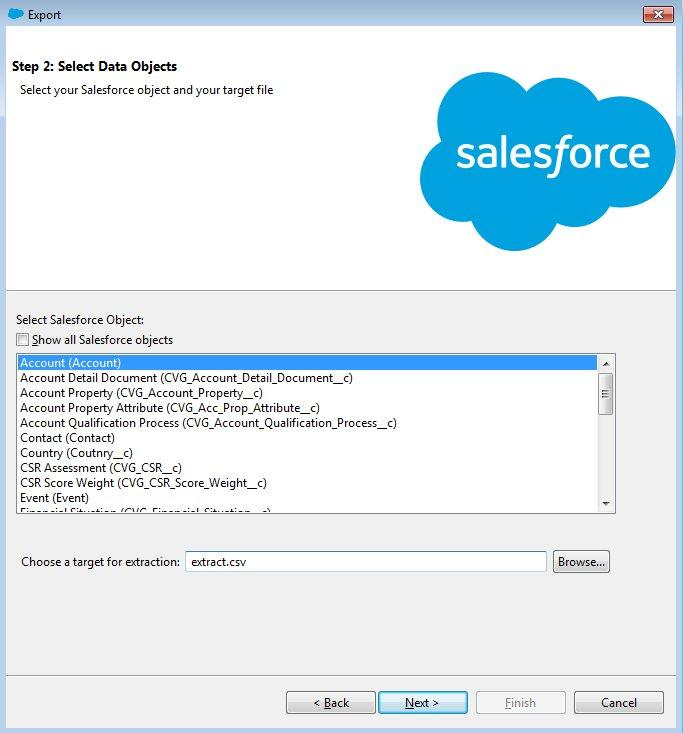
Then, we select the type of object that we want to download from Convergence, so we select ACCOUNT (object in Salesforce that represent all Suppliers/Vendors Designation for suppliers on SAP PRS)
We recommend to not change the entry of "name extraction" as it might occur an error. So leave this field as shown in the fig (extract.csv). 
The external key and the internal key have to be selected from the account object. However, this is only true for records assigned to the record type 'Supplier'. Therefore the following query has to be entered: 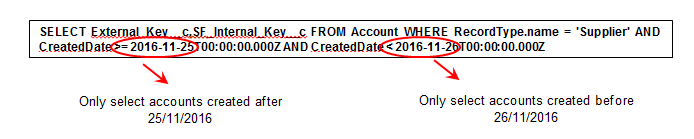
In this command (query) it is said that only records created in Convergence in 25/11/2016 to be selected.
This is so, because that day were performed a data loader with new vendor from PRS to be loaded in Convergence. So, only the accounts created on Convergence the 25Th will have its internal key updated into to PRS.
It has to be copied into the Data Loader tool.
The download is started by pressing the Finish button. 
The process of extraction is now completed and must click now on "view extraction" to see the results/output to be saved as a CSV file on your computer.
|
|


Go to "open in external program" and the output will opened in an excel sheet.
The output is now shown in excel sheet and is ready to be saved as a CSV file. If the output doesn't look like as shown in figure, further configuration must be carry out in windows. To do so check this steps (to be done only one time).After the CSV file is saved you are now ready for the second step that is import the CSV into PRS.
-IMPORT the data into the PRS system
In this step all the vendors that is in use in Salesforce will have its Internal Key (Conv-Key) updated.
Remember that PRS PF1 (50) is the Core System of SOLVAY which means that it feeds all the others systems.
First run the transaction ZZM_SF_NUMBER in PRS (before doing so, ask your superior as in this step your are going to update information the Solvay Core System). For training purpose you can run the simulation programa (SF1). 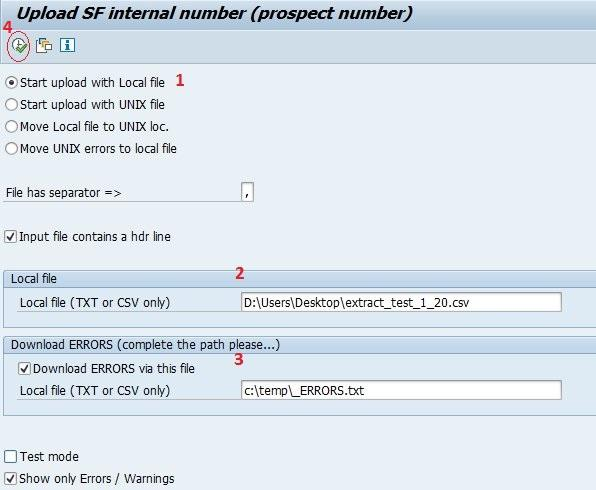
Select "Start upload with Local file"
Select the CSV file saved from the convergence export procedure
Check the box "Download ERRORS via this file" and set where the file containing errors will be saved.
Now press execute and the system will start the procedure of updating internal Keys onto the PRS system. This step when cary out on SIMULATION SYSTEM (SF1) will take longer.
At the end of this procedure you can check the ERROR file if there is any error to be corrected.
This procedures is to be carry out from Convergence/Salesforce to PRS by D&A EMEA Purchasing Team biweekly, and is divided in two steps as following: 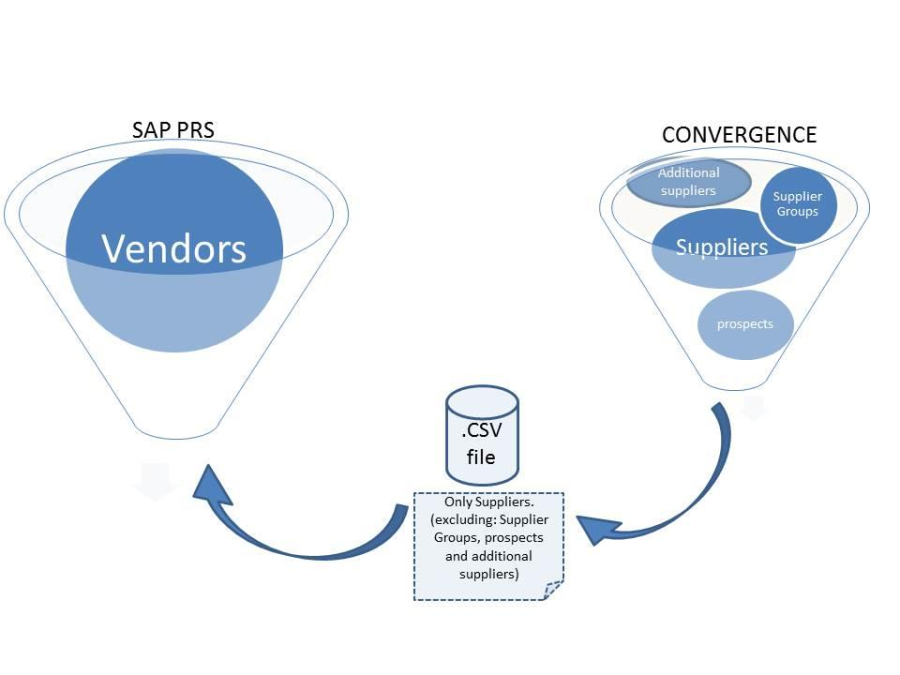
4.5 How to update manually a single VENDOR on PRS:
Once in a while you will be asked to update a single vendor (supplier) on PRS with a SF-internal key. To do so, in SAP run the transaction XK02 and insert the supplier external key to be updated as can be seen in the fig. 
Make sure the right boxes are checked and press enter to see the details of this vendor. 

Press Extra Master Data > Solvay Cross Reference and fill the field SF INTERNAL KEY with corresponding Supplier Internal Key and save. Now you have update the SF-Internal Key of this Vendor. You can do the same procedure for others Vendors that must be eventually updated.
5. Mass Upload of 3rd Party CSR Assessments (Ecovadis) into Convergence
The procedure for creating data referent to CSR Assessments (Ecovadis) into Convergence requires that:
Buyers download and fill in a pre-defined template via the following link: Link, sending an email or ticket with the file in attachment for request Level 1 (L1) to proceed with the upload
Level 1 (L1) start by download, adapt and save the template in a csv format ready for being upload into Convergence, accordingly to the following : Uplaod format. The following adaptations must be done:
In the column "VIP Date Request" you need: select this column and change the cell's format by choosing date french (belgium); then create a new column for Timezone (T00:00:00.000Z); do a filter in both columns to select "all" and not "blanks"; expand the timezone; do the concatenation (Text(AG:AG, "aaaa-mm-dd"), AH:AH). Or, instead you can use the formula =CONCATENATE(TEXT(AG:AG,"aaaa-mm-dd"), "T00:00:00.000Z"), not being necessary to creating the column Timezone; at the end for format cells concerned just do copy paste in each column as "numbers" and then you can delete the original "VIP Date Request" column.
|
|
After preparing this csv file, Level 1 (L1) proceeds to the Initial Load by opening the Data Loader tool stored in the desktop and executes the following steps:
Open Data Loader tool stored in the desktop and login with your user credentials, as below:
Open the data loader and login
Select the data objects
Chose the related objects, as below
Edit the mapping as below 
Select the directory for storing the success and error files and click on Finish
After running the upload you must view the Success and Error csv files in order to analyze and correct them if possible, and always send the error file to L2 in order to be corrected
6. Mass Upload CSR Questionnaire (historical Data) into Convergence
The procedure for creating data referent to CSR Questionnaire into Convergence requires that:
Buyers download and fill in a pre-defined template via the following link: Template, sending an email or ticket with the file in attachment for request Level 1 (L1) to proceed with the upload
Level 1 (L1) start by download, adapt and save the template in a csv format ready for being upload into Convergence, accordingly to the following : Uplaod formatThe following adaptations must be done:
|
|
In the column "VIP Date Request" you need: select this column and change the cell's format by choosing date french (belgium); then create a new column for Timezone (T00:00:00.000Z); do a filter in both columns to select "all" and not "blanks"; expand the timezone; do the concatenation (Text(AG:AG, "aaaa-mm-dd"), AH:AH). Or, instead you can use the formula =CONCATENATE(TEXT(AG:AG,"aaaa-mm-dd"), "T00:00:00.000Z"), not being necessary to creating the column Timezone; at the end for format cells concerned just do copy paste in each column as "numbers" and then you can delete the original "VIP Date Request" column.
|
|
After preparing this csv file, Level 1 (L1) proceeds to the Initial Load by opening the Data Loader tool stored in the desktop and executes the following steps:
Open Data Loader tool stored in the desktop and login with your user credentials, as below:
Open the data loader and login
Chose the data objects, as below
Chose the related objects, as below
Edit the mapping as below 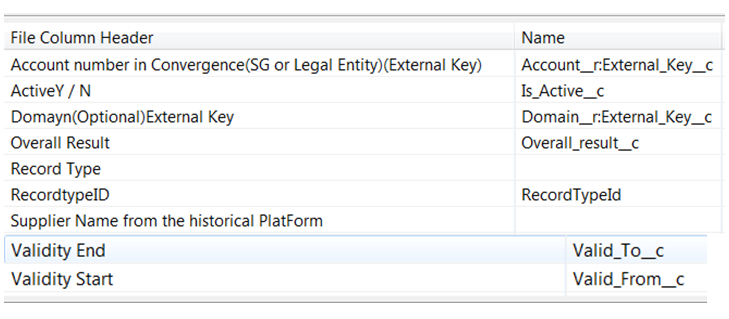
Select the directory for storing the success and error files and click on Finish
After running the upload you must view the Success and Error csv files in order to analyze and correct them if possible, and always send the error file to L2 in order to be corrected
7.Visit Minutes - Historical Data
The procedure for creating data referent to historical Visit Minutes requires that:
GPS Pur download and fill in a pre-defined template via the following link: Visit Minute, sending an email or ticket with the file in attachment for request Level 1 (L1) to proceed with the upload taking the following into account: Topics discussed has to be set to 'Other'; Other Topics discussed: has to be set to 'Historical Data'; the link to the related account can either be made via the External key or the SF internal number.
Level 1 (L1) start by download, adapt and save the template in a csv format ready for being upload into Convergence, accordingly to the following : Uplaod formatThe following adaptations must be done:
|
|
In the column "VIP Date Request" you need: select this column and change the cell's format by choosing date french (belgium); then create a new column for Timezone (T00:00:00.000Z); do a filter in both columns to select "all" and not "blanks"; expand the timezone; do the concatenation (Text(AG:AG, "aaaa-mm-dd"), AH:AH). Or, instead you can use the formula =CONCATENATE(TEXT(AG:AG,"aaaa-mm-dd"), "T00:00:00.000Z"), not being necessary to creating the column Timezone; at the end for format cells concerned just do copy paste in each column as "numbers" and then you can delete the original "VIP Date Request" column:
|
|
The user data of the users have must be exported from Convergence, for using the External ID in the user record (through a VLOOKUP function) for filling in the column OWNER ID: 
After preparing this csv file, Level 1 (L1) proceeds to the Initial Load by opening the Data Loader tool stored in the desktop and executes the following steps:
Open Data Loader tool stored in the desktop and login with your user credentials, as below:
Open the data loader and login:
Select the data object: 
Choose the field for matching: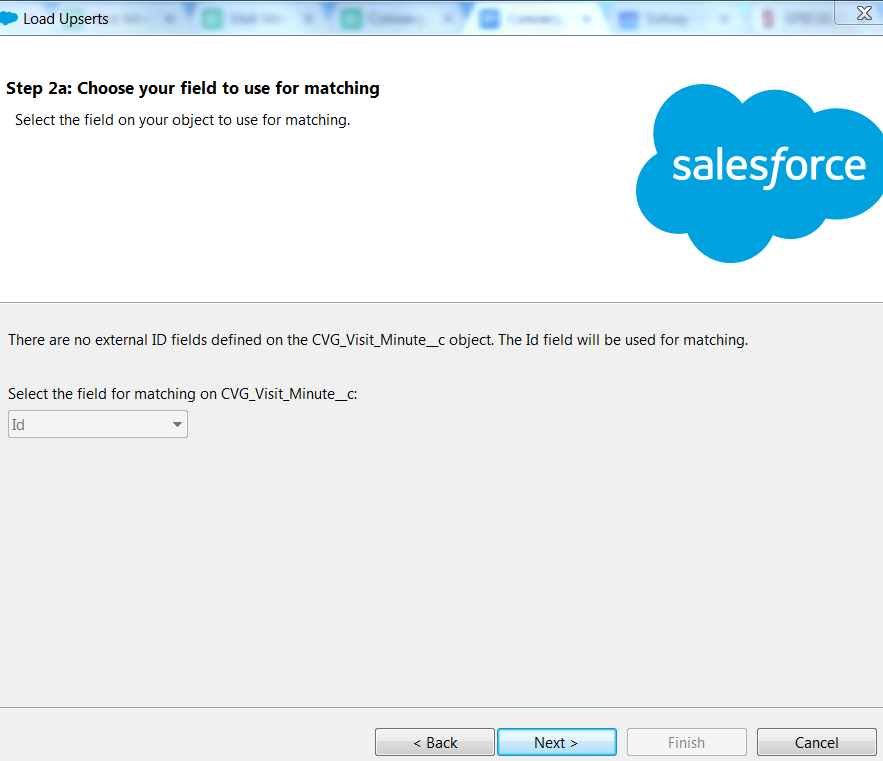
Chose the related object: 
Do the mapping, accordingly: 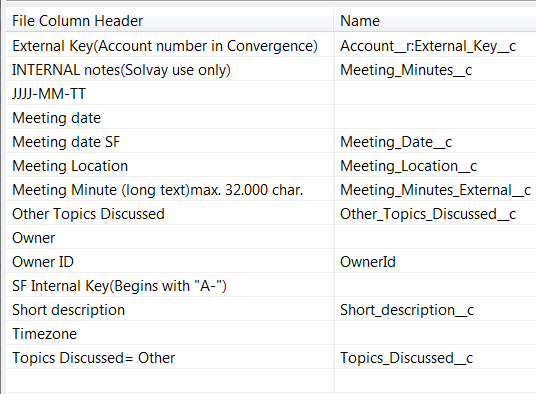
Select the directory for storing the success and error files and click on Finish
After running the upload you must view the Success and Error csv files in order to analyze and correct them if possible, and always send the error file to L2 in order to be corrected
8.RFI Specific Part - Create the Container
The procedure for creating data referent RFI requires that:
For the attachments: The users have to fill in the template in this Link for being uploaded manually
For the records containing the RFI specific templates: are upload in mass
Level 1 (L1) start by download, adapt and save the template in a csv format ready for being upload into Convergence
|
|
After preparing this csv file, Level 1 (L1) proceeds to the Initial Load by opening the Data Loader tool stored in the desktop and executes the following steps:
Open Data Loader tool stored in the desktop and login with your user credentials as below:
Open the data loader and login:
Select the data objects
Select the field for matching
Select the mapping correspondence 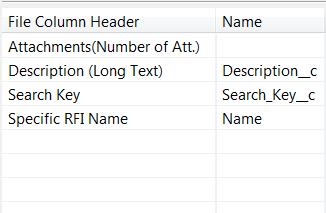
Select the directory for storing the success and error files and click on Finish
After running the upload you must view the Success and Error csv files in order to analyze and correct them if possible, and always send the error file to L2 in order to be corrected
9. Contact
The procedure for creating data referent to Contacts requires that:
Gps/L2 prepares data in the template that contains data for being upload in mass, which is in the Link
Level 1 (L1) start by download, adapt and save the template in a csv format ready for being upload into Convergence, accordingly to the following : Uplaod format.
|
|
After preparing this csv file, Level 1 (L1) proceeds to the Initial Load by opening the Data Loader tool stored in the desktop and executes the following steps:
Open Data Loader tool stored in the desktop and login with your user credentials, as below:
Open the data loader and login:
Select data objects:
Choose the related objects:
Do the mapping: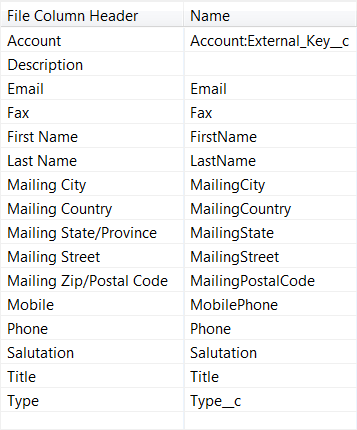
Select the directory for storing the success and error files and click on Finish
After running the upload you must view the Success and Error csv files in order to analyze and correct them if possible, and always send the error file to L2 in order to be corrected
10.Account Properties
The procedure for creating data referent to Account Properties into Convergence requires that:
GPS Pur prepares data for being upload which can find through the link: here, sending an email or ticket with the file in attachment for request Level 1 (L1) to proceed with the upload taking the following into account.
Level 1 (L1) start by download, adapt and save the template in a csv format ready for being upload into Convergence. The following adaptations must be done:
|
|
In the column "VIP Date Request" you need: select this column and change the cell's format by choosing date french (belgium); then create a new column for Timezone (T00:00:00.000Z); do a filter in both columns to select "all" and not "blanks"; expand the timezone; do the concatenation (Text(AG:AG, "aaaa-mm-dd"), AH:AH). Or, instead you can use the formula =CONCATENATE(TEXT(AG:AG,"aaaa-mm-dd"), "T00:00:00.000Z"), not being necessary to creating the column Timezone; at the end for format cells concerned just do copy paste in each column as "numbers" and then you can delete the original "VIP Date Request" column.
|
|
After preparing this csv file, Level 1 (L1) proceeds to the Initial Load by opening the Data Loader tool stored in the desktop and executes the following steps:
Open Data Loader tool stored in the desktop and login with your user credentials, as below:
Open the data loader and login:
Select the data object:
Select the field for matching and the related objects:
Do the mapping: 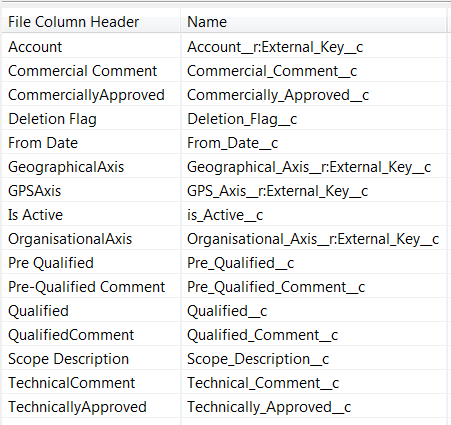

Select the directory for storing the success and error files and click on Finish
After running the upload you must view the Success and Error csv files in order to analyze and correct them if possible, and always send the error file to L2 in order to be corrected
11. Users Creation
- The procedure for creating users into Convergence requires that:
Buyers/GPS Pur/L2 send a ticket requesting for users creation and L1 fill in the template for user's creation in convergence, or instead, GPS Pur prepares data to be upload in the Input file format
Level 1 (L1) start by download, adapt and save the template in a csv format ready for being upload into Convergence. The following adaptations must be done:
The profile ID and Role ID have to be entered
The Id for the Profile and Role can vary according to the system used
The assignment of Permission Sets has to be carried out manually according to the user type: Convergence user rights
After preparing this csv file, Level 1 (L1) proceeds to the Initial Load by opening the Data Loader tool stored in the desktop and executes the following steps:
Open Data Loader tool stored in the desktop and login with your user credentials, as below:
Open the data loader and login:
Select the data object:
Choose the field for matching:
Choose the related Objects: 
Do the mapping: 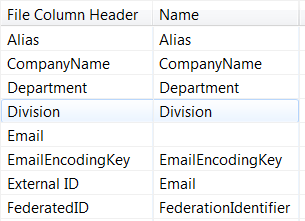

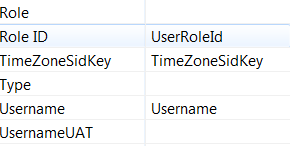
Select the directory for storing the success and error files and click on Finish
After running the upload you must view the Success and Error csv files in order to analyze and correct them if possible, and always send the error file to L2 in order to be corrected
12. Users Deactivation
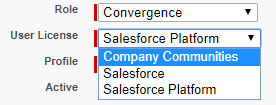
To deactivate a user some fields on Convergence should be changed.
- User License > Select > Company Communities
- Active > Remove flag
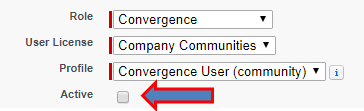
- User type > Select > Community

- Save all changes
Overview
Content Tools
Tasks