Table of Contents
Scope
1. Remove the icon(s) when not applicable

2. Add countries when the procedure is for a specific country (optional)
ERP
3. Remove the icon(s) when not applicable


References
4. Add the link to SAP procedures (when it exists)
Attachments
5. Add the link to attachments (to be stored in AODocs or GDrive) or external links
1.Objective and Scope
1.1 Objective of this Procedure
The objective of this procedure is to explain the Non Concur Process from start to end including user actions, payment process and monitoring.
1.2 Scope
The scope of this procedure includes trainees, apprentices, VIE, temporary workers and some spot cases (guests, expatriates family, etc) which do not have access to Travel & Expenses Concur tool.
2. Reference Documents
Presentation - Official presentation sent to employees which includes the 3 steps from the user's side.
Record file - To keep record of information such as vendor creation, audit, current known population and payment monitoring.
Vendor creation form - Sent by users to request vendor creation which contains all information relevant for vendor creation (users send another document with the bank details).
D&A team's record file - Used by Data & Analyses team to keep record of all the vendors created for this process.
Gform - Users fill this form to request the bookings through the Travel Agency.
Expenses submission form - Sent by users to request expense reimbursement where it is also included the posting file used by the T&E operator to send to payment.
Affidavit - This document is a declaration of honor used when there is a missing receipt or the user can not obtain any other document to justify expenses.
3. Definitions
PTP - Procure to Pay
T&E - Travel & Expenses
Concur - Travel & Expenses tool to submit expenses and arrange business trips bookings.
Non Concur - Employees who do not have access to Concur
EMEA - Europe, Middle East and Africa
PF1 - SAP scope for Solvay legacy
WP1 - SAP scope for Rhodia legacy
PI1 - SAP scope for CICC
D&A - Data & Analysis
Vendor - A profile in SAP which contains employees data used for payments created by the D&A team
HtR - Hire to Retire
Fee - An amount charged for using certain services
4. Introduction
The submission of expense reports happens due to business trips.
We have the T&E Concur tool which allows to submit expenses and make reservations, however this program uses information from the HR system and some employees will not appear due to not having a profile created, therefore they were excluded and this procedure was created - in some countries this population has profile created in HR but it was decided to exclude it entirely.
The process operator will audit all the expense reports to avoid any fraud and non compliance that could be made by the users.
The trips and expenses are managed by themselves and, for legal reasons, no corporate cards will be delivered to this population, therefore the costs are handled with their own credit card and then reimbursed by Solvay.
5. Audit
5.1 Audit Rules
Expenses require a receipt/document to justify its spending.
When receipts are available no other proof of payment is required.
A receipt is any document that contains the following five fiscal elements:
Name of vendor (person or company which provided service)
- Transaction date (when the expense was paid)
- Detailed description of good or services purchased (what was bought)
- Amount paid
- Form of payment (how it was paid - cash, check, or last digits of credit card)
If there is no receipt available then it is mandatory that the user fills the Affidavit provided by the auditor and sends it on the same ticket.
Expenses that do not require a receipt:
- Kilometers
- Tips
- Allowances - #2174530
Keep in mind:
- Bank fees need to have attached a full view of the bank statement where these are included.
- Comments are not enough justification for a missing receipt, an affidavit has to be added.
- Non T&E related expenses, should be sent back and request submission in the correct department (out of policy).
6. Profile creation
6.1 Requirements
In order to have all of the necessary information for payment in one place, users are created as vendors.
They are created based on a form each employee has to fill and have the manager send to us (it can be the user sending the request if the manager is in copy of the ticket).
When we receive this ticket we need to complete the fields in our record file - Vendor tab:

This form includes the following information:
- Address, postal code, city (professional);
- Employee number (if they have one);
- Solvay company code;
- Solvay Internal referent name (responsible contact);
- Bank account information.
It is required that, together with the form, the user needs to send a document with bank details on the side.
For Portuguese users, we need to request the Tax ID number (NIF) and the current address for us to prove that this is a real user. If the user refuses to give the number explain that these business expenses are associated with company's own Tax ID number, it is not related with user's income and there will be no taxes charged to him. All of the expenses will be charged to account "6150000001 Entertainment" which is Non Deductible for SBS.
For German users, since it is very difficult for them to request an official document with the bank details, we accept a card photo, confirming that it shows all the necessary information (name, IBAN, BIC).
We need to always register who is the user's referent name in our record file in the population's tab. This is important in case we need to confirm the approval in future submission of expense claims and to assign any orphan lodge transactions that belong to Non Concur users.
After confirming everything is in order send it to Data & Analysis team - they will create the vendor profile.
Properties of the ticket being sent to D&A team are the following:
- Group: PTP D&A EMEA
- PTP-Process: Data & Analysis
- PTP-Subprocess: Vendor Master Data
- PTP-Category: Creation
The tickets are kept on their side unless the user has sent an expense submission form in the same ticket, therefore we need to add a note requesting to have the ticket being returned to T&E.
If any information is missing or is incorrect in the form ask the employee to confirm.
You can search the master data (if available) of the user in SAP PP2 in transaction PA20 and compare.
7. Expense claim submission
7.1 Record
When we receive the ticket we need to fill the record file - Audit tab (of current year).

- T&E: the team operator who is processing the expense report
- Ticket: Helpdesk ticket number where the expense claim is being requested reimbursement
- Audit date: date that the operator starts the processing of the expense report
- Employee name: in this field there is a drop down which is obtaining information from the Population tab, if the name does not appear look if the employee has been added in there
- Vendor, SAP, Company Code, CC/Order/WBS: these fields will fill automatically once chosen an employee from the list, with information in the Population tab
- Amount: introduce the total amount of the expense claim
- Decision: as well a drop down to identify what is the process stage of the expense claim - options are Delay (waiting actions from employee), Approved (processing payment), Rejected (no response from user/not compliance)
There is also a column "Reason for delay" which has to be filled with a small comment explaining the reason the process was put in delay.
When opening the template we need to confirm if our information matches the information available in the header. We should question changes that the user makes and/or add is any is missing but is available in our file.
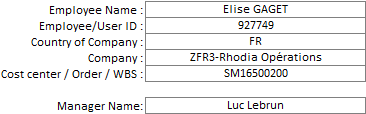
Fill information on tabs with the following order:
- Before audit - T&E | Ticket | Audit date | Employee name | Amount
- After audit - Decision | Reason for delay
- After posting - Posting date | Posting document
The tabs "Payment date" and "Payment document" are filled by the Payments team, all other fields are locked for them.
The CICC (payment tool) code added in the "Payment document" column is used by us to match the payment transactions in SAP and the submission of expenses when performing clearing.
7.2 Posting
When the audit is completed, all the information has been confirmed and is now correct, we can continue the process.
The excel form of the expenses submission has a posting file attached to it which gathers all information from the form and makes it easier/faster to perform the posting in SAP by simply uploading the file in a transaction and running it automatically - created by Diogo Oliveira (he is the contact if any issue with the excel occurs).
Still inside the template that the users use we need to confirm the following situations to avoid any errors during posting:
No special characters in the Employee ID field
Correct company code/country in accordance with the information in our monitoring file
- Check if cost center is the same in our file, if not, check if it belongs to the same company code as the user otherwise it is not possible to perform posting
- The dates range need to include all of the expenses dates; Format has to be 00-00-0000
- The amounts can not have dots, change to commas
- The currency has to be according to Company Code (UK user will have GBP)
- Expense type and Business purpose can not be empty
Once all this information is confirmed we can proceed with the posting preparation:
- Unhide the posting file by RIGHT CLICK on the expense claim tab

- Open posting file option

- It was agreed to add a P at the start of all vendors which would allow to distinguish Non Concur users from Merchants, however this interferes with the posting and therefore we substitute the entire field with the correct vendor created by D&A team; some users also do not use the vendor that was provided, it is another reason why we need to substitute and pay attention to this
- Copy the vendor number from the record file
- Delete the function from the vendor cell and paste it
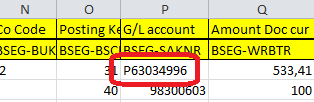
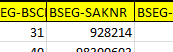
- If the user provides a WBS or Order we need to change its location


- After checking all the fields for any errors, click START at the top left corner of the posting file
- Insert the password: teonly;

- Choose Step 1;

- Copy the ticket from the record file, paste it in front of the text and save;
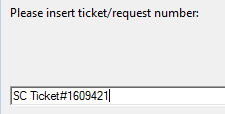
- Verify if all added expense lines have Cost Center (remember if it's a WBS or Order all needs to be changed to the correct place);

- Save the file in the desktop


- Open the SAP system which will be used (PF1/WP1)

- Click START, again
- Choose Step 2 and wait for it to signal that the posting has been performed
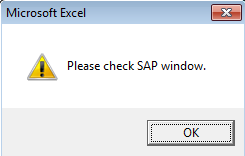
- If the posting has any errors, analyse again, it won't upload until everything is in order. You have some specified in the Inconsistency of data (9.2) section which may help to find the problem and it also indicates the solution.
- When the posting is completed, CTRL+Y and copy the document number
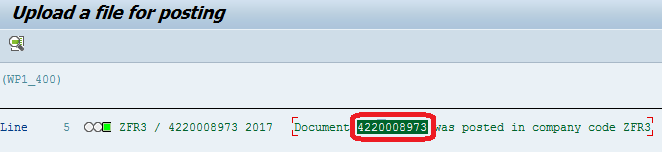
- Paste on the record file in the Posting doc. column
- Zip the paste with the form and receipts inside, double click the line of the posted document and attach it


7.2.1 Germany exception
When performing a posting for a German Company Code we encountered the following error which refers to a requirement when creating an invoice for a foreign vendor - the user is actually not german. It also is required if the document currency is not the same as the local currency, or payment is effected via a foreign bank.
Example:
Mr. Joachim Schmidt is in Germany with information all regarding company code 4060, however his address is defined as French. Only for Germany this error will appear.
Solution:
- Enter the mountain icon and open the credit line of the vendor
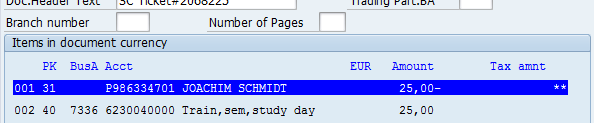
- Enter the option "More data"
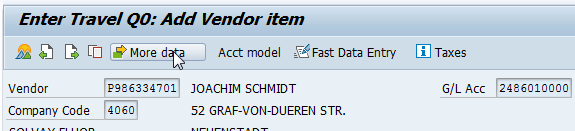
- Open the list of the option "SCB Ind." and select indicator 540

7.3 Corrections
If something was incorrect during the posting and the payments team has yet not processed it we can make the necessary adjustments:
- Open SAP system (PF1/WP1)
- Transaction: FB02 - Change document
- Reverse Document icon as seen below

- Fill with the necessary information

There are some options in the reversal reason.
If the reverse of the posting is performed:
1) the same period of the posting we should use 01 and add the posting date;
2) in a different posting period (period already close) we should use 05 and add the day of the posting;
- Open another tab from SAP

- Transaction: FB01 or FBR2 (Post with reference)
- Select: Post with reference

- Insert deleted document and its company code

- Make the necessary corrections and save
- CTRL+Y and copy/paste the new document in our record file (add the previous document to the comment to keep record of T&E team actions)

7.4 Monitoring payments
It has been defined a procedure to monitor the payments after the postings have been performed:
- Every Tuesday we send a ticket to the payments team with information of all the pending payments for the Non Concur process;
- Every Wednesday the payments team will run the job for these pending documents, with payment day of the next Thursday;
- And finally, every Monday we will perform the clearings .
7.4.1 Pending payment ticket
Send a ticket to the payments team that there are payments to be done with information relevant to them such as Employee name, vendor, company code, amount, posting doc…
Simply copy from the Record file, delete irrelevant information and send to:

8. Clearing of Accounts
It was discussed with the payments team a flow for the payment monitoring .
When payments are complete, we need to perform the clearing between the submission and the payment document.
8.1 PF1 companies
To open G/L bank accounts where all payments performed through CICC Online became open:
- Transaction: FBL3N
- G/L Accounts PF1: 50600EUR23/ 50600EUR24/ 50601EUR22
- G/L Accounts WP1: 58999920
- Variant: TE Clearing
- User: PT300121
- Layout: Non Concur

Result overview:

In this extraction you will be able to find all of the amounts open (not cleared) in the T&E payment accounts.

Normally the ones linked with Non-Concur process don't have information in the text and for that reason you will have to verify the CICC session available in the Assignment tab which is the code that the payments team will introduce in our monitoring file in the "Payment document" tab.
With the number of the session you need to make a control in your Monitoring Non Concur file and identify the user linked (delete initial zeros).

Following the example above, the amount from 16.02.2018, with CICC Session 0000027320 is linked with Mrs. Lisa Vanetti.


If you open the vendor in PF1 with this user you will be able to find the counterpart document:
Transaction: FBL1N
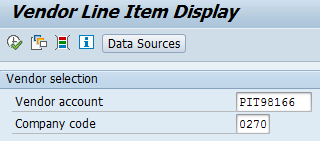

Result:

The next step is to perform a clearing between both companies with one of the transactions:
F-44 (clear with vendor)
F-03 (clear with G/L account)
The steps for both transactions are the same although with small differences according with nature of the account (both allow clearing).
Using the Transaction F-44 as an example:
- Copy the user's vendor from the file and open F-44
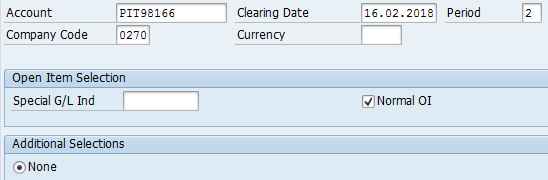

If F-03 select others


- Select the line to clear and


- Add the Company Code
- Add the G/L account where the counterpart document is available
- Add an S in Account type
(S - For G/L Accounts (F-44); K - For Vendor Accounts(F-03))
- In the "Additional selections" tab choose the Assignment
Overview of the screen filled using F-44 (if F-03 Select None):

- Add the assignment (available in the FBL3N transaction):
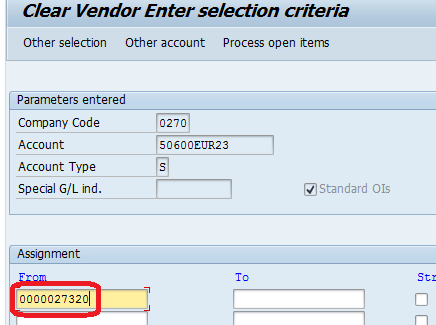

- If the balance is 0 you can perform the clearing:


If the balance is not 0 you need to make another selection, the amounts have to match.
When the posting number is generated, refresh in the vendor account and in G/L account to confirm if the open items disappeared (FBL1N and FBL3N).

Inside the cleared items of the vendor (FBL1N) you will now see the result

8.2 WP1 companies
For WP1 companies the CICC document will be directly allocated to the vendor, therefore the clearing is automatic, however if it's not, perform it following the instructions from PF1.

9. Non compliance
9.1 Chasing in delay
When a report has something incorrect we need to warn the employee and keep record of all the changes we make throughout the process.
To review the issues with the employee we must send him an email (ticket) and describe everything that is wrong and explain what should be done for each different situation.
After everything is solved, do not forget to update the status of the expense claim on the record file (audit tab).
9.2 Inconsistency of data
- Company Code belongs to a different SAP system (PF1/WP1) than the one used when creating the vendor.
Check vendor's company code:
- Open SAP system (PF1/WP1);
- Transaction: FK03;
- Copy/paste the vendor (available in the record file) and proceed as shown below:

- Paste again the vendor in place and execute - select employee from the list:


- If you simply click ENTER it will give you the name and which company the vendor was created:

Check Cost center/WBS/ORDER's company code and analyse - it was provided by the manager and most likely it will be the employee's company code as well (how to in the 2nd point).
- Cost Center/WBS/Order is incorrect (or doesn't exist) - request another to the employee.
Check Cost center/WBS/ORDER's company code:
- Open SAP system (PF1/WP1)
- Transaction: Cost center - KS03 / WBS - CJ03 / Order - KO03
- Copy from the expense submission form:

- Fill in the fields (choose random controlling area - remove it when you are inside) and click ENTER:


- Look for the one which ends in 9999 (current) and ENTER:

- In the first page you will find the Company Code which is associated:
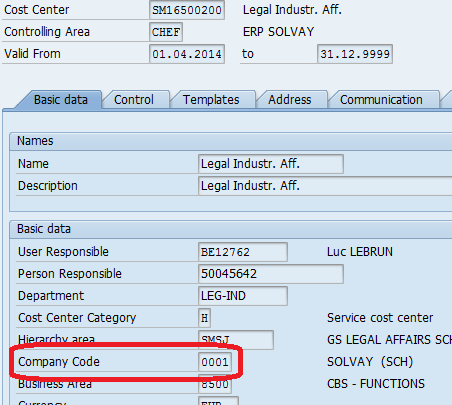
If the company code of either the Cost center/WBS/ORDER, or in which the vendor was created, is different than the one provided on the form, confirm with employee which company code should be used - keep manager in CC as employee might not be aware - if necessary, request D&A team changes to the vendor.
- Remove special characters from the employee number in the header otherwise an error will appear when making the posting:

10. Travel process
10.1 AMEX GBT form
The Non Concur user will have to send information to the agency for them to create a profile on their system through filling the AMEX GBT form . To make bookings, they need to call the agency of their country and, by using the profile previously created and the information of the desired trip which the employee must provide, they will send an email to the employee with all the details of the booking which will be sent by the agency after everything is confirmed.
- Choose country's form

- Choose the Non Concur/external option (last question of the first page):

- Enter the Solvay Internal Referent information:
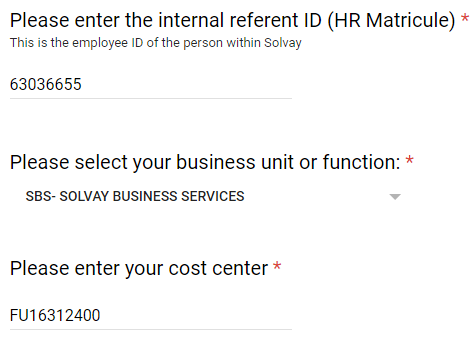
- The form will only be complete after clicking SUBMIT on the last page:

10.2 Frequently asked questions
The Travel process is handled between the employee (Non Concur user) and the agency (AMEX GBT) therefore there are not many questions which we are able to give a proper response, however below is listed the type of questions we receive and the answer to give.
What is my Solvay Internal Referent?
R: The person inside Solvay which will assume the costs and is our direct contact for the Non Concur user specified.
What is my Cost Center/Company Code?
R: Employee must request this information to manager or the local HtR.