So what do I do?
Welcome to the Business Warehouse troubleshooting documentation. You will find here most of the error messages, their meaning and solutions
This troubleshooting relates to the BW Analysis 2.X (21SP3, 25SP2) - former troubleshooting docs about the Bex Analyzer 7 has been moved here. |
How to find some help ?e
At first, please read carefully this Troubleshooting page. You'll find here the most common issues spotted by the users and the way to solve it by yourself.
In a second time, if you need further assistance, contact SBS Support
Please do not forget to describe as accurately you can your issue, insert screenshot(s), error messages...
In case of wrong values indicate what the figures should be.
When opening Analysis
Server list is not available (Blank page).

Click the link : How to get the server list
Do not Find my document (Query or Workbook?)
Be aware that the way to open a query or a workbook from the server are quite different.
| How to open a Query | How to open a Workbook |
|---|---|
|
|


Take care that when clicking "Open Workbook" no workbooks are assigned to a role that one is not displayed in your list of granted roles. It's the same if no queries are assigned to a role that one is not visible by clicking "Open Data"
|
After an Excel crash, the Analysis menu is no longer visible
Problem: After a Microsoft Excel crash, you reopen Analysis but the Analysis bar is no longer visible in the menu with the following error message :

Solution: To solve this you need to reactivate the Analysis add-in which has been deactivated by the Excel application.
Open Excel -> File - >Options

Open "Options" -> Add-Ins" -> In Manage, select "Disabled Items“ -> Go.

In the "Disabled Items" dialog box, select the Analysis Add-In one and click on "Enable".

In Manage box, select "COM Add-ins", press Go

Check the box in front of "Analysis", then click OK.

Then Analysis ribbon is reactivated.

To avoid that we recommend when you get the following message to answer No instead of Yes
Clicking Yes button disable the add-in Analysis, No button bypass that and it's what we need.
|

"The launcher is exited with error... " when opening "Analysis for Microsoft Excel"
Problem : With the version 2.1.3, for some users, when they open Analysis by the icon "Analysis for Microsoft Excel", the following error message will be displayed.

Solution : So far, we haven't found*.
Workaround : the user need only to open Excel application ("Microsoft Excel 2010/13") instead of the Analysis for Microsoft Excel one.
After Excel is opened, Analysis add-in is enabled and so available too.
The Launcher fails with TYPE_E_LIBNOTREGISTERED message
Problem :With the version 2.5.2 you try to start Analysis Office by using the launcher (e.g. from the Windows start menu :Analysis for Microsoft Excel).
Excel is started but the launcher shows an error.
The log file contains the entry:
ERROR|addins.launcher|Com.Sap.Cof.Launcher.CrLauncherUtils.GetOfficeAddin|1
|System.Runtime.InteropServices.COMException (0x8002801D): Library not registered.
(Exception from HRESULT: 0x8002801D (TYPE_E_LIBNOTREGISTERED)) at Microsoft.Office.Interop.Excel._Application.get_COMAddIns()
reason : Microsoft Office 2010 (Win7) or Microsoft Office 2013 (Win10).Additionally Skype for Business 2016 is installed.
Thus : installation of Skype for Business creates an invalid registry node that causes this error.
Solution : follow the following excerpt of a Microsoft article about that
- In the registry check the nodes below HKEY_CLASSES_ROOT\TypeLib\{2DF8D04C-5BFA-101BBDE5-00AA0044DE52}
- For Excel 2010 there is a node "2.5", for Excel 2013 there are "2.6" and "2.7".
- Skype for Business 2016 creates an empty node "2.8".
- Remove the node "2.8".
Finally start the launcher of Analysis Office again.
Follow all these instructions from above only when using version of Excel (2010 or 2013)!
Installation and troubleshooting : Installation Check
How to check your installation in case of an error message :
- 1. Press Start - Run
- 2. Enter nwcheckworkstation
- 3. Continue the appearing wizard
- 4. Before clicking Finish make sure Checkbox "Collect diagnostic
- 5. information for SAP Support" is checked
- 6. Press Finish
- 7 when the process is finished you get that screen

- 8 Click to end it.
By clicking on the Error report you get a list of errors as referred hereunder.
If you get that list the installation is a correct one, if the list is different an installation must be redone.
:

My report and Analysis are opened in two Excel programs
You need to first open "Analysis for Microsoft Excel", then open your BW file ( by File --> Open or Recent ).
Go to Open a workbook ( saved on your local drive ) for more detail.
Error message "Cannot run the macro "CallbackAfterWorkbookClosed""
Problem : Get the following error when opening Analysis, and the mouse cursor is all the time in "refreshing" status even no refreshing at all.

Solution : In Analyzer 7 , change the following Workbook setting to "Run Macro on Refresh".

Error message "Installation error "Missing Active X""
Problem : the user is trying to use a reporting tool that is no more installed in his/her computer

Solution :
- Check the tool you are trying to use is already installed (Start / All programms / ...)
- If the tool is BW Analyser 3.x, please use Analysis tool instead.
- If the tool is BW Analyser 7.x or Analysis, please contact your local Service Desk Infra to reinstall the tool
Can't access to SAP Logon
With the version 2.1 SP3 the following paragraph is useless. But if you need to follow it that would mean than your setup AO config file implemented on your computer is not the good one. |
Problem :
When opening a query/workbook, this screen is displayed, instead of the SAP Servers list.

Solution :
- Click SKIP button
- On the File >Analysis menu, go to Settings :

- On Platform Settings, select option "NetWeaver" as your Preferred Plaform.

- Close all eXcel files and restart Analysis (or eXcel) to get that screen

- then select the server either PQ1 or WBP to access the BW reports.
Why the folder/query/labels names are not as usual when I logon BW Analysis?
Problem : The folder/query/labels names look as below


Analysis :
The reason might be the user's default logon language being not EN or FR or PT.
In the following example, it's ZH(Chinese), but the folder names in ZH are not well maintained.

Solution 1:
Apply the following process
For short term, when logging
via the SSO mode :

Change the language to EN as schown.
w/o SSO mode :
Click on "Options >>" , then language box appears and so type in EN to select the English language.


Solution 2:
The automatic logon with SSO select your native langage which is not English. The solution is to force Analysis to use EN language.
- File / Analysis / Parameters / Advanced parameters
- Check "Allow Client and Language Selection for SSO Logon"
- Activate the option by ticking it

- Press "OK", close eXcel, restart Analysis. you can select the "EN" language via the following popup .

When insert Data source, get errors like "Value cannot be null" ,"Index out of range", "Item already ..., "Object reference is not an instance...
In case of the following messages :
Value cannot be null, Index out of range, An Item with the same Key has already been added, Object reference is not an instance of an object


The cause of these issues : the SAPUILandscape.xml which contains the path to the server list is corrupted.
Solution : Go to the directory C:\Users\<UserID>\AppData\Roaming\SAP\Common
delete the existing SAPUILandscape.xml file, then opening the saplogon that will automatically generate a new SAPUILandscape.xml file in the directory (see process herebelow).
AppData is usually an hidden folder, so to display it you need to open first the configuration panel > Folder Options and click the corresponding unhide option.

A potential source of a corrupted SAPUILandscape.xml is to connect a server via the Variable logon tab (saplogon launchpad) |
- Close Analysis.
- Open SAPLogon

- Click on "Connexions" folder and its sub-folder, make sure there is a list of servers here. If there is no server list here, please contact IS Infra-structure team to install it.

- Select a server ex WBP and drag & drop it in "favorites"
- Close the saplogon
Analysis is very slow for opening file
One of the reason is that program error in Excel and it causes excel creating a lot of custom styles. Analysis will try to read them all before opening the file, which may cause more than 10 minutes to open the file

Solution
The solution is SAP note 1899658 :
Run following macro to delete the custom styles
Sub DeleteStyles()
Dim style As style
Dim counter As Long
counter = 0
For Each style In ActiveWorkbook.Styles
If style.BuiltIn = False Then
style.Locked = False
style.Delete
counter = counter + 1
End If
Next
MsgBox (counter & " styles were deleted.")
End Sub
After run the marco (may spend a few minutes depending on how many styles in the file), it will show result like this

Delete the macro and save the file as .xlsx the same. If macro is not deleted, it may be force to save as .xlsm
When saving workbook
Can't save workbook onto WBP server
Problem: Users can't save a workbook onto the "My documents" folder in WBP server

In accordance with the fact that you are working on the production server nobody has granted rights to save documents.
Why there is no data after I save the workbook ?
Problem : Why there is no data after I save the workbook ?
Solution :
In Design Panel / Components tab, on workbook level, uncheck the "Remove Data Before Saving" option.
BW team use this option to save a template ( with no real data ) on the server. So for many workbooks on the server, this option is checked by default.

When Refreshing
Can't refresh a workbook from others
Problem : I can't refresh a workbook from my colleague with error message :

Solution :
The issue is due to your SAPLogon.ini being different from your colleague. You may need to ask local IT to upgrade your SAPLogon.ini.
Or a temporary solution :
In Design panel / Components tab, relocate the data source:

The variants can not be used
Problem : when refreshing a query, it's not possible to use, modify or save a variant

Reason : The option "Merge variable" is selected on the Analysis Design Panel (components tab), so you need to deselect that option to enable the variants.
Today the default value is "False" meaning that the check box Merge Variables (design panel > component tab) is no more preselected when a workbook is saved either on your PC or on the server. Previously the default value was set up to True, and so without any specific action workbooks were saved with the merge variables option ticked. That parameter is managed and set-up in the Ao_app file, hereunder an extract of the today version.
|

Solution :
1/ Uncheck the "Merge Variables"

2/ Refresh one query at a time

When you open a Core Query or a document saved locally containing a unique Data Source to access the "Use Variant" functionnality within the prompt you must select the Prompts for Data Souce option. In case you choose The Prompts for Workbook the "Use Variant " will be unabled. To get the both options, your cursor must be in a crosstab cell, if not only the Prompts for Workbook will be available and so the variant option greyed . Example on the left screenshot no choice (cursor cell I1), on the right one "Prompts for Data Souce option" is available and so the varaint option is ungreyed (cursor cell A1)
|


3/ You can now use variants

The message "Size limit of result set exceeded" returns
Problem : when you refresh with a broad condition, there are a lot of data to retrieve, the message "Size limit of result set exceeded" is displayed in AO instead of the data.

Reason : In Analysis for Office, there is a default limit of 500.000 data cells for the result set. This limit exists because of a memory limitation in .NET framework.
When the report retrieves too much data from the backend and end up reaching the limit of data cells, the message "Size limit of result set exceeded" will be shown in AO instead of the expected data.
SAP does not recommend to change the result set default limit of Analysis for Office.
The limit of data cells has been set up to take into account the BW backend system limitation parameter
- , BWP : size limit = 1 000 000 cells.
I Get the message "No Authorization"
Problem : you get that error message when you try to refresh a query/workbook because you do not have the correct authorization to execute the query or to select this perimeter.
In order to exclude divestments from Solvay's scope, the Authorization management process has changed : it's now necessary to select, at least, one Company and Plant
For applications WCAP and P&L, the Company PRS is mandatory too.
Please note that the issue will occur when you open a local document. Please take into account for each of your local document you have to open the prompt and change the previous values with correct ones. If you open directly a query or a WB from the server, the Company, PRS Company and/or Plant codes will be automatically filled with the whole values you are granted to. |
Solution : Be sure you select at least one Company , one Plant or one PRS code in the Prompt area, even if the field description indicates it as optionnal!
Depending to the Application rules you need to fulfill either one code (ex PRS one) or several ones (ex Company & Plant)
If you need to access all Companies or Plants, please fill the prompt with the following values :
|


to remind : How to fill an interval of autorized values in your local Workbook :

If necessary, please contact your BW Support team (SBS Support) to check your authorizations.
When Filter by Member
Unable to see the list of all members
Problem : when you do "Filter by Member", you can't select from a list.


Analysis : The reason for the two windows above is that the items number exceeds the Maximum number.
So open the Settings and look at the "Maximum Number of Members......." paragraph .

Solution 1 : Change the Maximum if it's too small. Otherwise,
Solution 2 : Click "Add" to get the "Find Members" window. Then do a search.


Solution 3 : Choose "Paste from Clipboard" way as below.

In Design Panel
In Design Panel the windows width of Rows and Background Filter are not maximized
Unable to maximize the width of the windows. |

Solution
1. Right click on desktop, and select "Personalize".
Alternative : Open the Windows Control Panel, then navigate: Appearance and Personalization > Display.

2. Click on display

3. Select "Smaller - 100%(default)", and apply. You need to relog to make the change effective.

Red Cross in Columns or Rows
Problem :

Solution :
- Save your work
- Close all Excel files
- Restart Analysis tool
- Refresh your query/workbook
Can't click on the right Analysis Design panel
Problem : After opening a workbook, users receive an error message if they click on the Analysis Design Panel, at the right side of the screen
 ==>
==> 
Solution : Refresh the workbook first, and then click on the Analysis Panel
How to duplicate a crosstab
Purpose: You want to duplicate your existing query to filter the new one in an other way (ex a different perimeter, a different lay out).
You have duplicated the eXcel sheet to get a new sheet, but you are unable to refresh the new one (query).
Solution:
By using the eXcel sheets Duplication functionality you only copy/paste Data but none BW links.
So you can't refresh the copied crosstab.
- Go to the Components tab within the Analysis Panel
- Click on "By Sheet" to see the Excel sheets which are linked to a BW query (the ones which have a "+").
In the example, only the sheet "Novecare" is linked to BW query.

Solution :
- On excel, go to the new sheet (in the example, "Energy Serv").
Please remind that your new table will be build where you have clicked. - Go to the right Analysis Panel / Components.
- Click on "By Sheet".
- Unroll the "+" to see the existing crosstab linked to BW query.
- Right click on the crosstab and select "Copy"


- Your excel file now have 2 similar queries that can be refreshed/filtered/modified independently.

Miscellaneous
Mouse is always displayed as a Timer
Once the refresh is over, the mouse still appears as a Timer, even if the user can normally works on Analysis. |
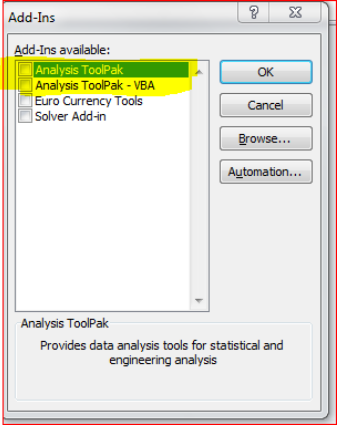
Step 1 - In Excel, go to File / Options

Step 2 - Check in the Add-ins – Excel Add-ins

Step 3 - Untick the « Analysis Toolpak and the Analysis Toolpak-VBA
Click 
Whenever Analysis is closed, a "MS Excel has stopped working" window will show
After Analysis is opened, when we try to close it, the following window shows. Then some seconds later, Excel was reopened without Analysis tab.  |
Step 1 - Go to Excel / File / Options / Add-ins, then select "Excel Add-ins" in "Manage", click Go.

Step 2 - Uncheck all the boxes below.

Workbook takes several minutes to open or crash when Analysis for Office is activated
Opening a workbook with Analysis, edition for Microsoft Office is either very slow or causes Analysis, edition for Microsoft Office to crash. There’s a glitch in Excel 2010 and 2007 (fixed in Excel 2013) that can be the source of the problem |
Are you affected ?
Open your Excel Files, go to the
- Home Ribbon
- Click on the drop down
 for Cell Styles.

If you have hundreds of weirdly named styles as shown in the illustration then it's indicative of problems to come.

So what do I do ?
To restore cell styles to the default setting you need to ask someone in the IS team to run the program XLcleanerDotNET4.0.exe and follow the procedure.
When changing password, Analysis displays "Password not allowed".
It might be due to the following rules :
must be at least 8 characters long
must include at least one letter
must include at least one number
must mix lower and uppercase characters
new password must be different from last 5 passwords
Other things about passwords
a newly created account has to be used within the 14 days
a user must be locked after 6 failed attempts.
a password must be changed at the latest every 90 days
How to index a cell from an Analysis crosstab in a new sheet
When you are on a non Analysis tab and wish to define a formula in a cell using symbol = and go to an Analysis tab for obtaining the reference of the needed cell, this operation doesn’t work because of the behavior of the Analysis tool which deceives eXcel.
The workaround solution to solve that “bug” : on the bad tab (Analyis one) select the cell where you deposit the link and before erasing it, copy the needed reference from the bar of formula at the top under the ribbon of icons.
Then paste this formula in the appropriate cell.
Why after upgrade of SAPLogon(to V7.40) and Analysis(to V2.1.3), Analysis becomes very slow to response ?
Solution :
Analysis for Office Word Error (2010, 2013, 2016)
Analysis version 25SP2
Trouble : When opening Microsoft Word you get the hereunder error message :

To fix locally the trouble, you need to open The Word Options tab
Within the options choose the Add-ins one :
|
|
|---|


