The editor allows you to enter or change the title of your page; insert content including text, images, and links; and format your content using the toolbar.

The editor toolbar is where you format your page layout and text, and add links, tables, images, attachments andmacros. You can also perform a find and replace, or get help using the editor by choosing the help icon  .
.
Screenshot: The editor toolbar
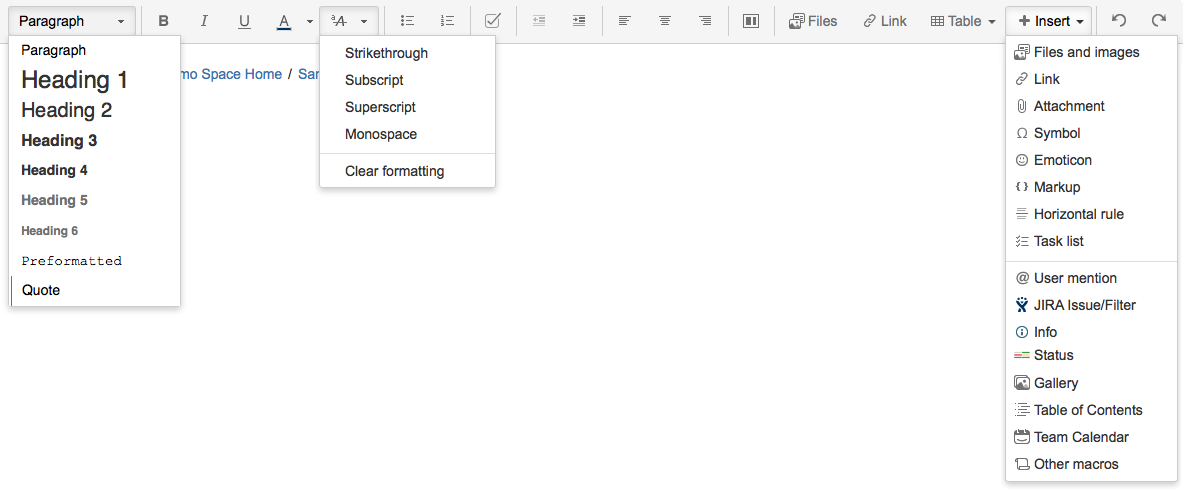
The Insert menu
The Insert menu is particularly useful. Use the Insert menu to include any of the following content types on your page:
You can also use keyboard shortcuts to insert links, images, and macros. Try out the shortcuts listed below:
Typing any of the above shortcuts will trigger the autocomplete functionality, prompting you with a list of suggestions to finish off the entry. For more shortcuts, click the help icon on the editor toolbar.
When editing a page, you may want to set restrictions on who can view or edit the page, or add labels to the page to make it easily searchable.
Auto-formatting
Autoconvert for pasted links
When you paste certain URLs into Confluence, the editor will analyze what you're pasting and automatically convert it into something that will display well in Confluence. Examples include:
You can drag files, like images, multimedia, Office files and PDFs, from your computer and drop them directly into the editor. The contents of the file will be embedded into the page or blog post.
In the editor panel, you can drag an image or a macro from one location to another on the page. Hover your cursor over the image or the macro placeholder and your cursor changes to a drag-and-drop icon. Click the image or macro and drag it to a new location.
Note: For the drag-and-drop of images and macros in the editor, Confluence supports the following browsers: Chrome, Firefox, and Internet Explorer 10 (desktop mode).
To view the available keyboard shortcuts, choose the help icon in the editor toolbar.
Click the  icon on the toolbar, or use the keyboard shortcut Ctrl+F (Windows) or Cmd+F (Mac OS).
Search matches are highlighted in yellow. You can step through the results one by one, replace the matching text strings one by one, or replace all matching strings at once. Find and replace works only within the current page.
For more information: https://confluence.atlassian.com/doc/the-editor-251006017.html