This OP shows how to mass modify some data in SAP which can be performed in PF1_050, PF1_020 and WP1_400.
You are recommended to download existing data before you mass change something inside the system.

# | Main activities | Tips/Best practices | Key points |
1 | Double click on the system you want to update data | If you are new for mass update data, please be advised to try on quality system first QF1 = PF1_050, PF1_020 WQ1 = WP1 |
|

# | Main activities | Tips/Best practices | Key points |
2 | Insert T-code “XK99” and press “Enter” on keyboard |
|
|

# | Main activities | Tips/Best practices | Key points |
3 | Click | You can click more than 1 table |
|
4 | Click |
|
|

# | Main activities | Tips/Best practices | Key points |
5 | Click | You can click more than 1 field |
|
6 | Click |
|
|

# | Main activities | Tips/Best practices | Key points |
7 | Click | Vendor code is commonly used as the reference information If you are mass change in company or purchasing view, you might need to specify company code or purchasing organization |
|
# | Main activities | Tips/Best practices | Key points |
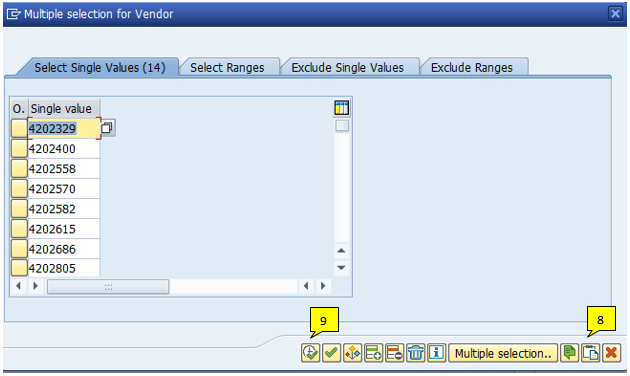
8 | Copy information for the template and click | You can check how many items you need to change from number in blankets |
|
9 | Click |
|
|

# | Main activities | Tips/Best practices | Key points |
10 | Click to execute |
|
|
# | Main activities | Tips/Best practices | Key points |
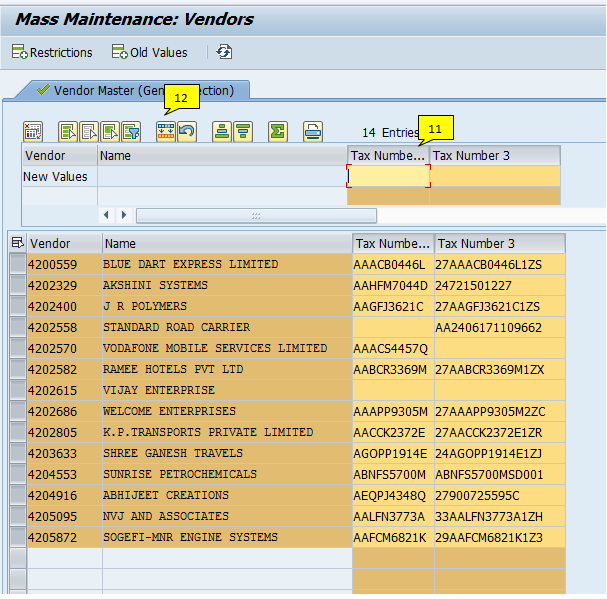
11 | Click on the field you want to clear the old data and make sure the entire column is highlighted | You can select more than 1 field | There are some cases the system already has the existing data inside the particular filed , you need to remove all data before upload new data |
12 | Click |
|
|

# | Main activities | Tips/Best practices | Key points |
13 | Copy data and paste them to the field you want to change | The list of reference will be listed in ascending order You can paste data only what you can see in the window, if you have a long list, please split into 10-20 items at a time |
|
14 | Click | If you are working on the large amount of data, it will take some time for the system to finish it |
|

# | Main activities | Tips/Best practices | Key points |
15 | Click | You may or may not have this message |
|
# | Main activities | Tips/Best practices | Key points |
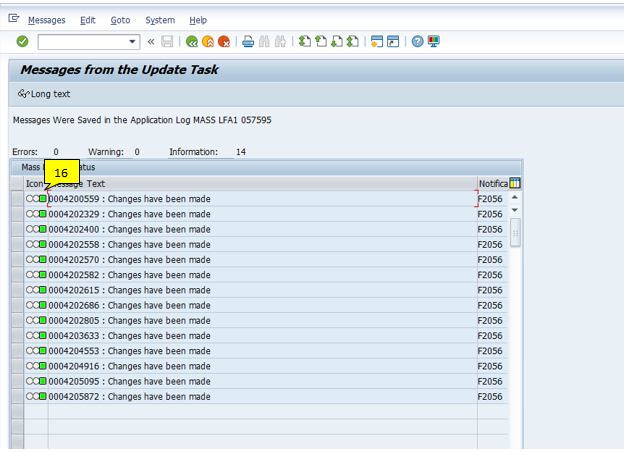
16 | The successful mass upload status is green | If it is red, it means that there are some errors, please see the reason in ‘Message Text’ |
|
 on the line of table you want to mass change
 on the field you want to update
 to execute
 to insert the reference information
 to paste all values
 to execute
 to clear existing data
