For web intelligence Applet cannot be loaded error, please follow the steps to rectify
1) Log into BI4 portal, once logged in select ‘Preference’ as shown in the screen below

2) Once you have selected preference you will get the screen below,once in the below screen select ‘Web intelligence’

3) Once you select ‘web intelligence’ you will get the screen as below,
in it please check if ‘HTML’ is selected if it is ‘HTML’ select ‘Applet’ as shown in the screen below

4) Once you have selected ‘Applet’ in both the places ‘scroll down and select ‘save and Close’
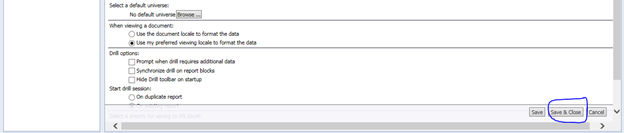
5) Log off and log in now ,once your trying to open a report it will open in java mode, if any pop up screen arises say yes.
Export issue
1) Once you are in the Report you want to save

2) Select the drop down icon marked in the screen below

3) Once you have selected the Icon you will get the list as shown below

4) You can export the Report in the desired format you required as shown in the Image below

5) Once you have done the above step you will get a pop up screen below where it will pop to save the report

6) You can save the report in the desired location using ‘ save as ‘ option.

if you are not able to find the solution here, please contact SBS Support to our customer support team. |

Account related
I don't remember my password or my login is locked
- Please contact SBS Support.
- Specify your need
- Business Objects password reset
- Business Objects login unlock
- Wait for Help Desk to open an UR (User Request)
- Help Desk will contact you when the solution is executed
How to change my BO password?
- Log on to BO link: http//boxi.priv.rhodia.com/InfoViewApp/logon.jsp
- On the top right there is a Preferences option. Click on the Preferences button.

3. Select on CHANGE PASSWORD
4. Key in old password

5. Key in new password. Twice to confirm.
6. Click on OK button. It will bring you back to the HOME page.
7. If still encountering difficulties, please contact the SBS Support
How to request an account deletion/deactivation ?
To request the deactivation or deletion of an existing BO account, you can fill the online form. Select the Application Type "User Deletion" and enter the login of the account to be deleted.
 How to set my Preferences?
1.Log into BO link: http://boxi.priv.rhodia.com/InfoViewApp/logon.jsp
2. On the top right there is a Preferences option. Click on the Preferences button.
3. Please refer to the screen shot for a guide on the preferences setting.

General Navigation
What to do if I receive a Timeout error message?
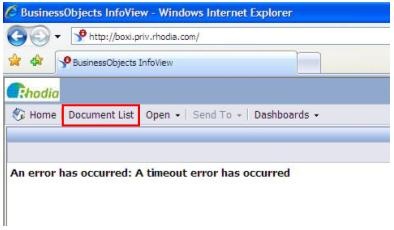
- This occurs when Business Objects window is idle for a long time
- If you receive this message, click the above button to make Business Objects active again without needing to close and reopen it
How to save a core report in my favorites folder
1) Right click the report and choose the option: Organize > Copy

2) Go to your favorites folder and click it to select it

3) Click on Organize in the toolbar and choose Paste to create a copy of the report in your favorites folder

How to send a query to another user (to BO inbox)?
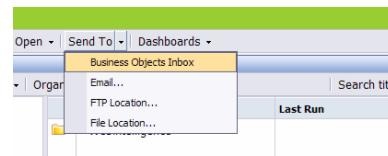
- Select a report, then click on Send To button ? Business Objects Inbox
2. Uncheck the “Use default settings” option to enable the user selection box
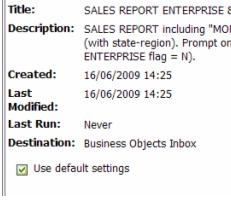
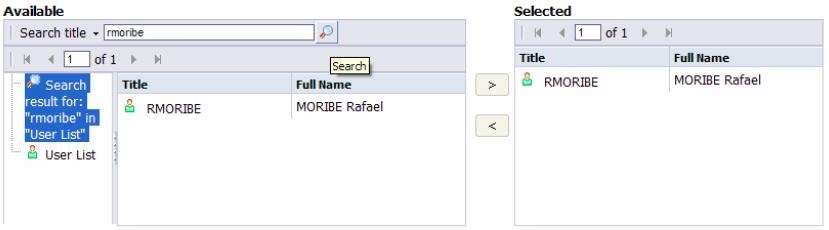
3. Select the desired recipients by searching their names and moving them to the right panel by clicking on the > arrow. While searching, remember to select Users List from left panel before typing in the second and the following recipients names in the search field.
How to send a query to another user (to Email)?
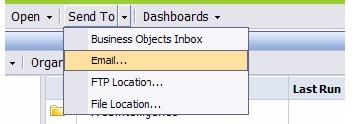
- Select a report, then click on Send To button Email
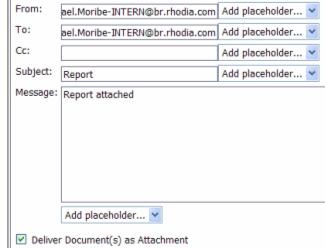
2. Populate the fields and select “Deliver Document(s) as Attachment”
Broadcasts (Reports sent automatically)
What is a broadcast ?
A broadcast is a report that is sent automatically to users on a scheduled basis.
The report can be sent in several formats (Excel, PDF...) to an email or to a business objects inbox. It can be scheduled to be sent on a daily, weekly or monthly basis.
How to create or modify a scheduled report (broadcast) ?
As a user you cannot create new broadcasts or modify the existing ones.
For any new broadcast, or a change in an existing one, please contact the ISF Application Helpdesk.
For a new broadcast make sure you mention :
- The report to be broadcasted (where to find it and the name)
- The schedule of the broadcast (which day to start and frequency : weekly, daily, monthly...)
- The format : PDF, Excel
- The targets : emails or BO account lists (If Email, specify the Subject to be used).
For an update, please make sure you mention the name of the report or the subject of the email
How to get removed from a broadcast ?
To be removed from a broadcasted report list, please contact SBS Support saying that you would like to be removed from that broadcast.
Report navigation
How to visualize and refresh a core query?
- With the report opened you can refresh data by clicking the highlighted button

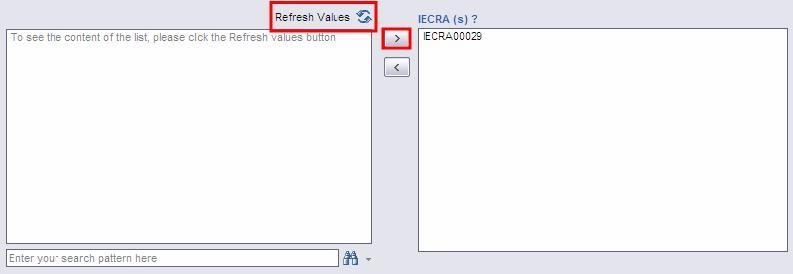
2. Here you can find the available data to fill the prompts. Replying to all prompts is necessary to refresh data. •Here you can find the available data to fill the prompts. Replying to all prompts is necessary to refresh data
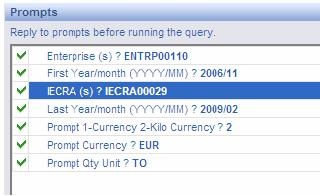
3. Here you can find the available data to fill the prompts. Replying to all prompts is necessary to refresh data. This window displays the selected data to be used as a filter. To select data click the Refresh Values button, highlight all required data from the left panel and move to the right panel by clicking the > button.
How to export the report to Excel or PDF?

- Go to "Document"
- Click on "Save to my computer as"
- Select PDF and save the document
What are the differences between each type of filter?
In Business Objects there are 5 types of filters :
- Predefined filter :
Defined by the Admins directly in the universe.
Cannot be removed by End Users .Can be used in the queries by Key Users.

- Custom filter
Defined by the Key User in the query.
Cannot be removed by End Users.

- Prompt filter (For Key Users)
Value is dynamically determined when executing the report via a prompt
Defined by the Admins. Can be added by the Key Users in the queries.
Cannot be removed by an End User.

- Report filter
Added directly in the report. It can be added either on one full page (report) or one table.
End users can edit.

- Simple filter
Added directly in the report.
Allows to filter only on a single value
End users can edit.
Can BO show all report results in one page ?
In BO WEB there is a limit on how much data will be shown in the same page. If there are too many rows, it will be displayed in several pages.
Usually the BO report will have an indicator showing the page number.
You can navigate on the other pages by using the Page Arrows in the BO tool bar (see picture below).

The only way to display all the data at once in the same "Page" is to export the report to Excel. You will then have all the data in the same Sheet.
I changed the filter. Do I need to re-execute?
NOTE : If you are using Internet Explorer 7 or 8, you may need to check the tabs inside your browser as well.

Sometimes the object names are different from what they are in SAP, how can I know their meaning?
In BO some object names are different from what they are in SAP, in the description of object we can know the corresponding fields in SAP. If the objects are coming from non-SAP system, we can also know the relevant information in description.
In the "available objects" tab, we just easily put mouse on the object name, it's description can show.

Design
How to create a custom version of the reports?
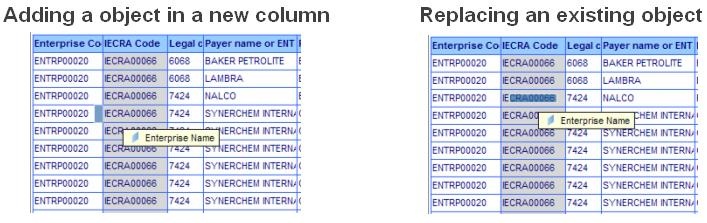
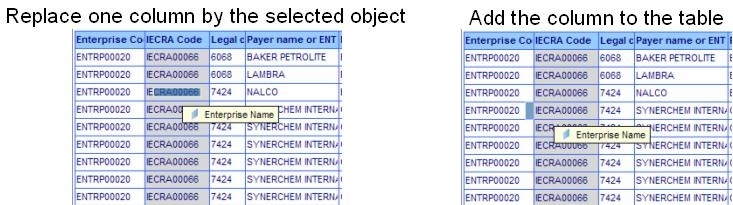
- You can drag and drop the objects at the scope of the report. You can associate many objects on the same table.
Note: You can add an object in a new column or replace existing objects on the same table. The images below shows how to do these different actions.
How to turn a report into a chart?
- Select the table to be transformed
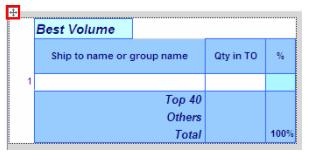
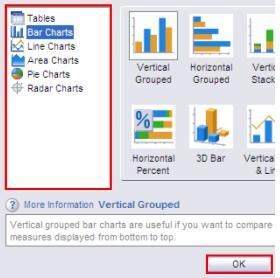
2. Right click the four-way arrow and select “Turn table to…”
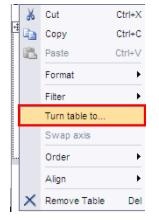
3. Select the desired chart aspect and click on the OK button
What are the differences between sections and breaks?
- Break is the BO functionality where you can group a column’s cells according to the left column of this cells group.
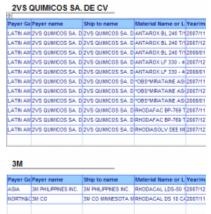
Section is when you drop a header (object) to the top of your report’s scope.
Note:
The main difference between section and break is:
The breaks generate sub-totals and general total.
A (object) column set as a section generates sub-totals but no general total.
We advise you to use break (Ship-to carat zone and Ship-to country name columns), add the calculation (sum on Actual Sales (EUR) for an automatic display of sub-totals and general total and then assign the section concept to the Ship-to geographical zone (ML) for both parameters to be simultaneously taken into account.
How to insert a break or set as section
Inserting a break
1. Right click the column and choose Break ? Insert.

2. Done. You’ve made a break at Payer Name

Setting as section
1. Drag and Drop the object that you want to set as a section
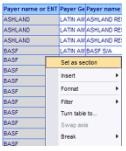
2. Done. You’ve made a section at Payer Name
How to modify the report layout?
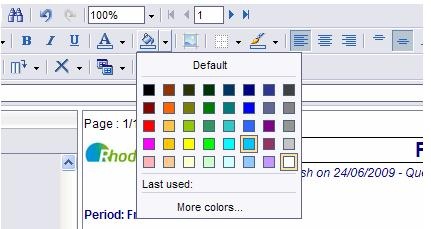
- Step1: Select the cells or the table that you want to format.
- Step2: Use the format toolbar to modify the layout.
- Note: When you use this functions, you should use the View Structure
How to add a filter?
- Choose the column that you want to filter
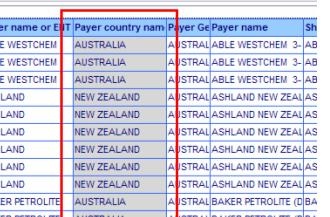
2. Right click it and select the Add Filter function

Conditions:
In list: this option displays the selected data (data moved to the right window).
Not in list: this option displays all data except the selected data.

How to remove one filter?
- To delete a filter right click the column affected by it, and choose:

2. “Filter ? Remove Filter”
How to remove many filters?
- Choose Document Structure and Filters view

2. Find the tab where the filter you want to remove is
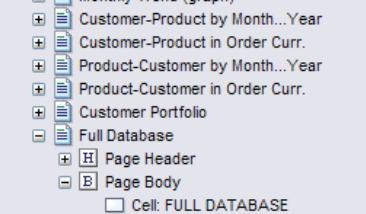
3. Look for the table/chart you want the filter to be removed
4. Left click on the filter you want to remove or update to select it. Be sure you selected the filter before deletion to avoid deleting the report instead

5. Right click the button at Filter Structure and select the Remove Filter option

How to add an object?
- Choose the Available Objects view
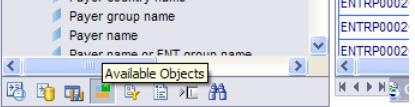
2. Drag and drop the objects at the scope of the report. It is possible to:
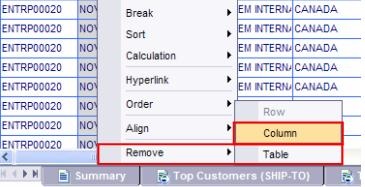
How to remove an object?
1.Right click the column containing the object to be removed
2. Choose “Remove” option
3. Choose “Column” option
Errors messages and main issues
Go to Business Objects Troubleshooting section