Board structure
On monday.com, the structure of your board is very similar to what you can find on other spreadsheet software. Here, you'll find :
- Rows : maily meant for tasks
- Columns : meant to indicate the type of data.
- Groups : meant to organize data within your board (group by theme, by date, by market...)
One of the main strenght of the tool is the columns templates you can choose from to easily personalize your board.

The first column of your board will always be the name of your task. You can't move this column. It's especially important to keep in mind when importing data from an existing sheet. |
Subitems
You can create subitems - or subtasks - under an already existing item. You can use different columns for your subitems than on your items.
However, the columns used in your subitems have to be the same for all your subitems accross different items and groups inside your board.
You can't create subitems for subitems.
May 2020 : Subitems are currently being beta tested at monday.com, meaning that all the features are not available yet. For exemple, subitems don't appear on the Gantt view yet. |
Columns templates
There a lot of column templates to chose from on monday.com. You can see them all by clicking on "Adding a column" then by clicking on "View more". New templates are often added.
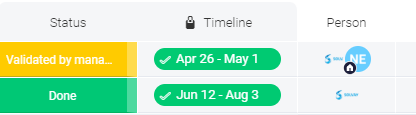
The most important one are :
- Status column : allows you to personalize your workflow
- Timeline column : allows you to enter dates and to access the Gantt view
- Person column : allows you to assign someone to a task
They are the most useful to manage your project, but you can of course use and explore other options depending on your needs.