
3. Select on CHANGE PASSWORD 4. Key in old password

5. Key in new password. Twice to confirm.
6. Click on OK button. It will bring you back to the HOME page.
7. If still encountering difficulties, please contact the [|APPLICATIONS HELPDESK||mailtoHDISF:HELPDESKAPPLICATIONS-RHD-ISF@solvay:com||rel="__blank"][|||mailto:HDISF:HELPDESKAPPLICATIONS-RHD-ISF@solvay:com] |
To request the deactivation or deletion of an existing BO account, you can fill the online form. Select the Application Type "User Deletion" and enter the login of the account to be deleted.

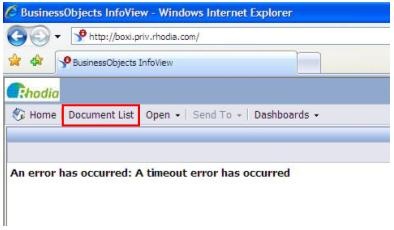
•If you receive this message, click the above button to make Business Objects active again without needing to close and reopen it
1) Right click the report and choose the option: Organize > Copy

2) Go to your favorites folder and click it to select it

3) Click on Organize in the toolbar and choose Paste to create a copy of the report in your favorites folder

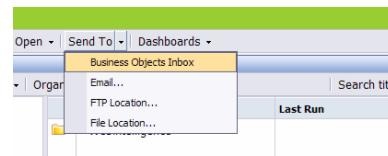
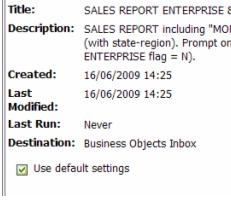
2. Uncheck the “Use default settings” option to enable the user selection box
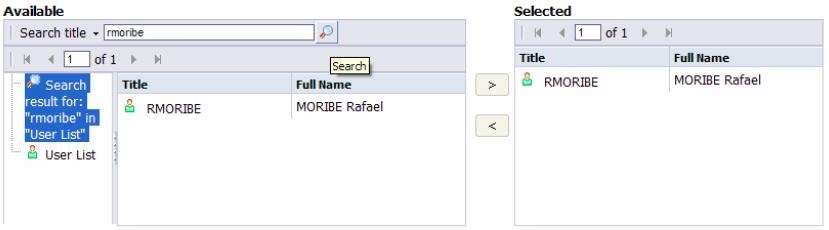
3. Select the desired recipients by searching their names and moving them to the right panel by clicking on the ? arrow. While searching, remember to select Users List from left panel before typing in the second and the following recipients names in the search field.
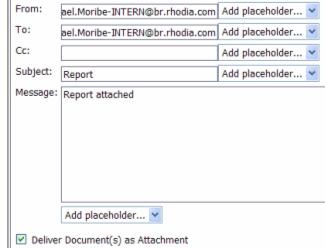
2. Populate the fields and select “Deliver Document(s) as Attachment”
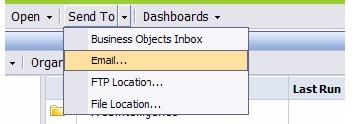
The report can be sent in several formats (Excel, PDF...) to an email or to a business objects inbox. It can be scheduled to be sent on a daily, weekly or monthly basis.
As a user you cannot create new broadcasts or modify the existing ones.
For any new broadcast, or a change in an existing one, please contact the ISF Application Helpdesk.
For a new broadcast make sure you mention :
For an update, please make sure you mention the name of the report or the subject of the email
To be removed from a broadcasted report list, please forward the email you received to the Application Helpdesk saying that you would like to be removed from that broadcast.

2. •Here you can find the available data to fill the prompts. Replying to all prompts is necessary to refresh data. •Here you can find the available data to fill the prompts. Replying to all prompts is necessary to refresh data
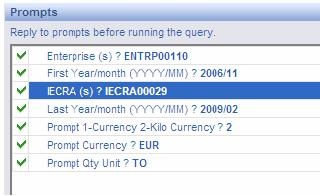
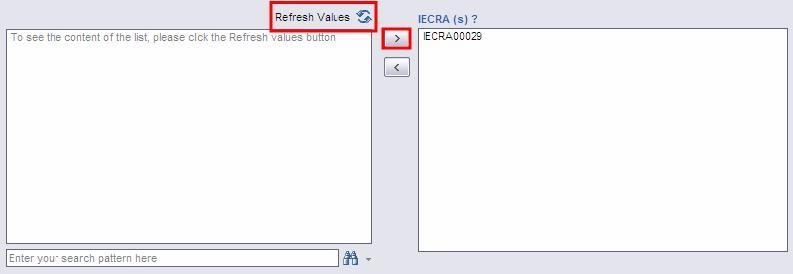
3. •Here you can find the available data to fill the prompts. Replying to all prompts is necessary to refresh data. This window displays the selected data to be used as a filter. To select data click the Refresh Values •button, highlight all required data from the left panel and move to the right panel by clicking the > button.

In Business Objects there are 5 types of filters :

!Attachment Library^FilterQuery.jpg|alt="Custom Filter" !

In BO WEB there is a limit on how much data will be shown in the same page. If there are too many rows, it will be displayed in several pages.
Usually the BO report will have an indicator showing the page number.
You can navigate on the other pages by using the Page Arrows in the BO tool bar (see picture below).

The only way to display all the data at once in the same "Page" is to export the report to Excel. You will then have all the data in the same Sheet.
•NOTE : If you are using Internet Explorer 7 or 8, you may need to check the tabs inside your browser as well.

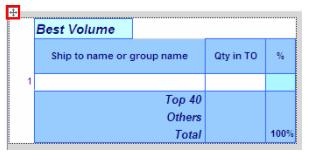
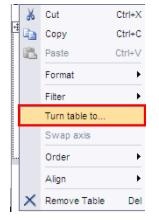
2. Right click the four-way arrow and select “Turn table to…”
 3.
3.
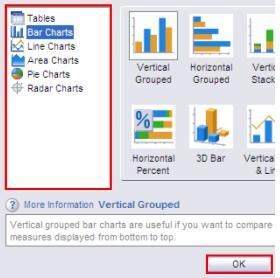
3. Select the desired chart aspect and click on the OK button
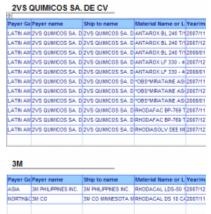
•Section is when you drop a header (object) to the top of your report’s scope.
•Note:
The main difference between section and break is:
•The breaks generate sub-totals and general total.
•A (object) column set as a section generates sub-totals but no general total.
•We advise you to use break (Ship-to carat zone and Ship-to country name columns), add the calculation (sum on Actual Sales (EUR) for an automatic display of sub-totals and general total and then assign the section concept to the Ship-to geographical zone (ML) for both parameters to be simultaneously taken into account.
Inserting a break
1. Right click the column and choose Break ? Insert.

2. Done. You’ve made a break at Payer Name 
Setting as section
1. Drag and Drop the object that you want to set as a section
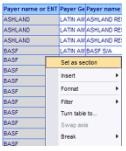
2. Done. You’ve made a section at Payer Name
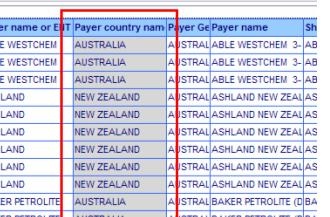
2. Right click it and select the Add Filter function

Conditions:
In list: this option displays the selected data (data moved to the right window).
Not in list: this option displays all data except the selected data.


2. •“Filter ? Remove Filter”
!Attachment Library^HowToRemoveManyFilters01.JPG|cleanup="null" kids="null" pendingsrc="null" !
2. Find the tab where the filter you want to remove is
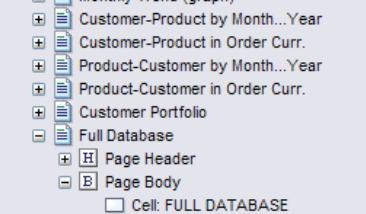
3. Look for the table/chart you want the filter to be removed
4. Left click on the filter you want to remove or update to select it. Be sure you selected the filter before deletion to avoid deleting the report instead

5. Right click the button at Filter Structure and select the Remove Filter option
!Attachment Library^HowToRemoveManyFilters04.JPG|cleanup="null" kids="null" pendingsrc="null" !
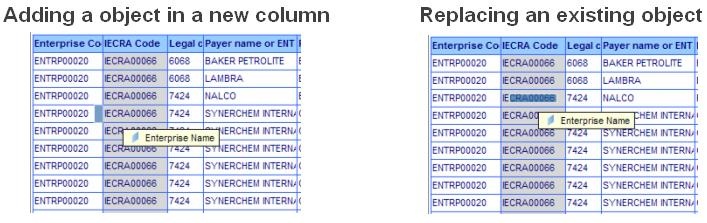
2. Drag and drop the objects at the scope of the report. It is possible to:
!Attachment Library^HowToAddObject02.JPG|cleanup="null" kids="null" pendingsrc="null" !
2. Choose “Remove” option
3. Choose “Column” option
!Attachment Library^HowToRemoveObject.JPG|cleanup="null" kids="null" pendingsrc="null" !
Go to Business Objects Troubleshooting section