Tasks to be completed when creating an operating procedure (from creation to publication)
|
Table of contents
By default the table of contents displays Heading 1 & Heading 2 (other levels can be added)
1. INTRODUCTION
1.1. Objectives and scope of this procedure
1.2. Material groups not in scope
1.3. Process step described in this procedure and expected end product
1.4. Abbreviations
2. STANDARD OPERATING PROCEDURE DESCRIPTION
Scope
1. Remove the icon(s) when not applicable

2. Add countries when the procedure is for a specific country (optional)
ERP
3. Remove the icon(s) when not applicable


References
4. Add the link to SAP procedures (when it exists)
Attachments
5. Add the link to attachments (to be stored in AODocs or GDrive) or external links
1. INTRODUCTION
1.1. Objectives and scope of this procedure
The OP explains how create a ticket on Freshdesk, in order to handle a situation with one of our customers or suppliers. We use tickets to register information we received via phone, manage requests, ask for additional data, and any general situation where the tool might help us communicating.
Who uses this document? | What is the nature of the need | What provisioning channel does this document concern? | |||||||||||
User / PREQ creator | Approver | LPR/buyer | PS | Goods | Services | e-catalogue | Goods managed in stock | Goods and services – spot buys | Goods on contract | Services on contract with SES | Emergency cases | Urgent needs | |
X | X | X | X if on contract | X | X | X | X | ||||||
1 1.2. Material groups not in scope
- Not applicable.
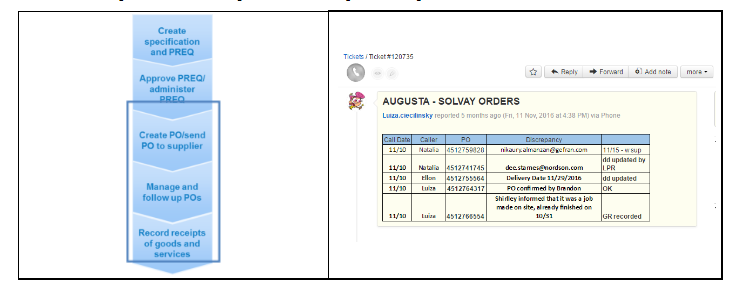
1.3. Process step described in this procedure and expected end product
1.4. Abbreviations
Abbr. | Description | Abbr. | Description |
PREQ | Purchase Requisition | LPR | Local Purchasing Representative |
PO | Purchase Order | P2P | Procure to Pay |
PS | Provisioning Specialist |
2. STANDARD OPERATING PROCEDURE DESCRIPTION
2.1 Opening the ticket
# | Main activities | Key points | Tips / Best practices |
1 | Enter the tool using the link: https://sbs-support.solvay.com/helpdesk or the shortcut on Solvay ONE main page. | ||
2 | On the right corner of the screen, enter NEW TICKET. | If you create a ticket, you can edit its subject after the submission. |

# | Main activities | Key points | Tips / Best practices |
3 | Fill in fields and describe your request. | The mandatory fields are highlighted with a red asterisk (*) | |
4 | When appropriate, select the template that best fits your needs. | The template will automatically fill in the mandatory fills accordingly. |

# | Main activities | Key points | Tips / Best practices |
5 | We can also create a ticket via ‘E-mail’. | In this option, we cannot edit the subject anymore, and the ticket is automatically open with the e-mail sent. |

End of document.