Tasks to be completed when documenting an operation (from creation to publication)1. Enter the Title of the operation / page2. Add the following Labels :
3. Fill in all fields as described above4. Once the description of the operation is completed, ensure it is approved and published by launching the SBS-Finance approval workflow |
| Domain: Country Accounting |
Responsibility area: N/A |
By default the table of contents displays Heading 1 & Heading 2 (other levels can be added)
Table of contents
- Table of contents
- 1. Objective and Scope
- 1.1. Objective of this Operation
- 1.2. Scope
- 2. Definitions
- 3. Responsibilities
- 4. Periodicity
- 5.1. I Prepare detailed information within the excel File
- 5.2. I store the file in Aodoc's Library
Scope3. Remove the icon when not applicable |

1. Objective and Scope
1.1. Objective of this Operation
The purpose of this document is to help you perform the calculation of the amounts regarding withholding taxes that need to be payed to Portuguese Tax Authority (AT).
1.2. Scope
This procedure applies to the following Portuguese companies in PF1:
6414: SOLVAY BIOTECNOLOGIA PORTUGAL - UNIPESSOAL, LDA
6424: SLV SPECIALTIES PORTUGAL, UNIPESSOAL, LDA
2. Definitions
See Finance Glossary:
3. Tasks description
This procedure consists in 2 parts basically. The first is to collect the information from SAP and fill in the excel file to help in submission.
The second part is to submit the information collected in Tax Authority site and generate the declaration for payment.
3.1. Responsibilities
Accounting Platform – Prepares all information and submits the declaration.
CAM – Does the payment.
It has, with no exception, to be registered by case in BMC Helix.
3.2. Periodicity
This declaration and related payment to Tax Authority must be done until day 20th of M+1. In order to enable CAM to have time to do it, the deadline for Accounting Platform to send the information to pay is the 10th of M+1.
3.3. I extract SAP information
Use the excel template file stored in Share drive Z : ( the file its used for both companies)
Z:\1_SCO\6414_Solvay Biotecnologia Portugal – Unipessoal, Lda\IVA & SAFT & Impostos & Imposto de Selo & AT\RETENÇÕES & IRS & IS
Z:\1_SCO\6424_SLV Specialties Portugal, Unipessoal, Lda\IVA & SAFT & Impostos & Imposto de Selo & AT\RETENÇÕES
3.3.1 I Verify the postings in SAP
Go to transaction FBL3N, and use variants:
IMPOSTOS 6414 - for company 6414;
IMPOSTOS 6424 - for company 6424.
Verify if all documents have text written. Example for 6414:

3.3.2 I use the macro to extract the data from SAP
To extract the information from SAP, click on "Extract Macro" in sheet "Extract PF1".

After the macro is done and you receive the message "Process is complete", check the header information in the sheet for each company, if the reporting month is correct.
Example for 6414:
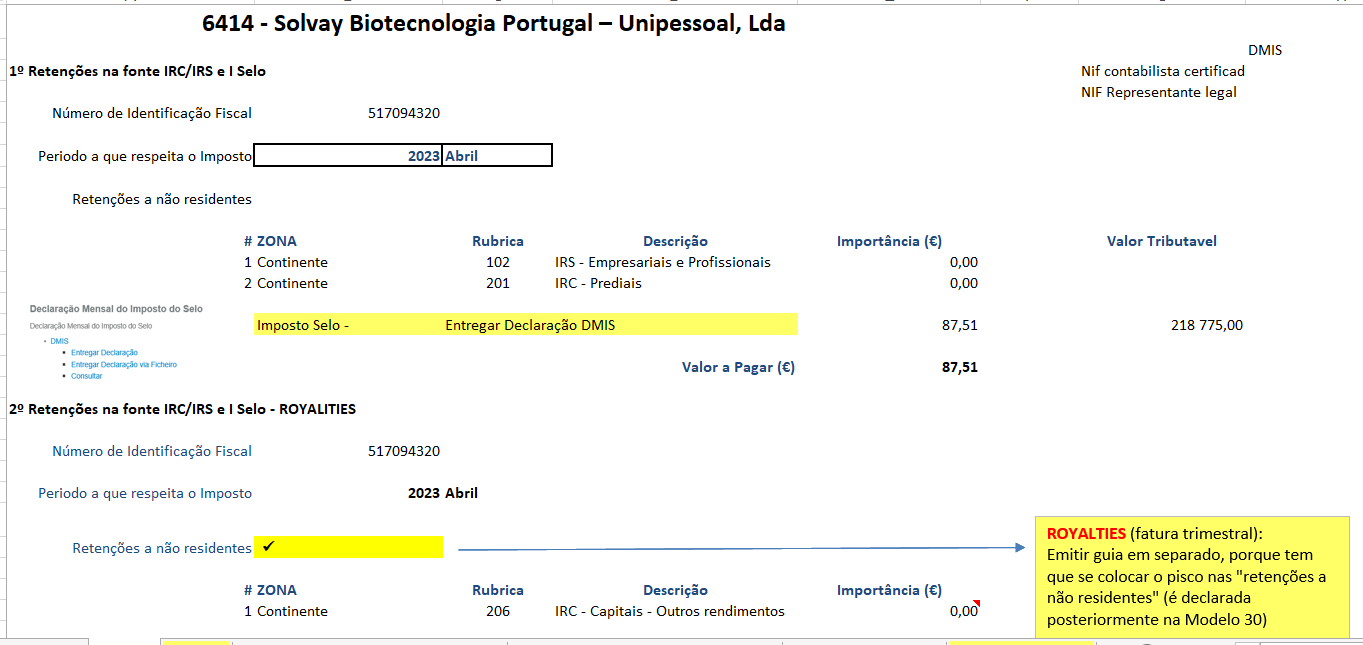
Also, if applicable, at the end of the quarter, we need to perform two declarations, due to amounts related to royalties in account 2452000000.
Royalties are reported in a separate declaration, as we need to flag the option "Retenções a não residentes").
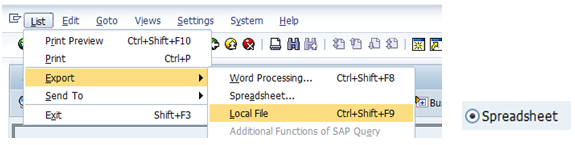
Go to transaction FBL3N, and use variants:
This variant has the following accounts and selection:2452090000 Withholding taxes payable-others |


3.4. I submit in Portuguese Tax Authority website
3.4.1 I entry in Tax Authority website
Go to the link Tax Authority Website.
After click in "Inicar Sessão" and put NIF and password for the company that you want to make the report.
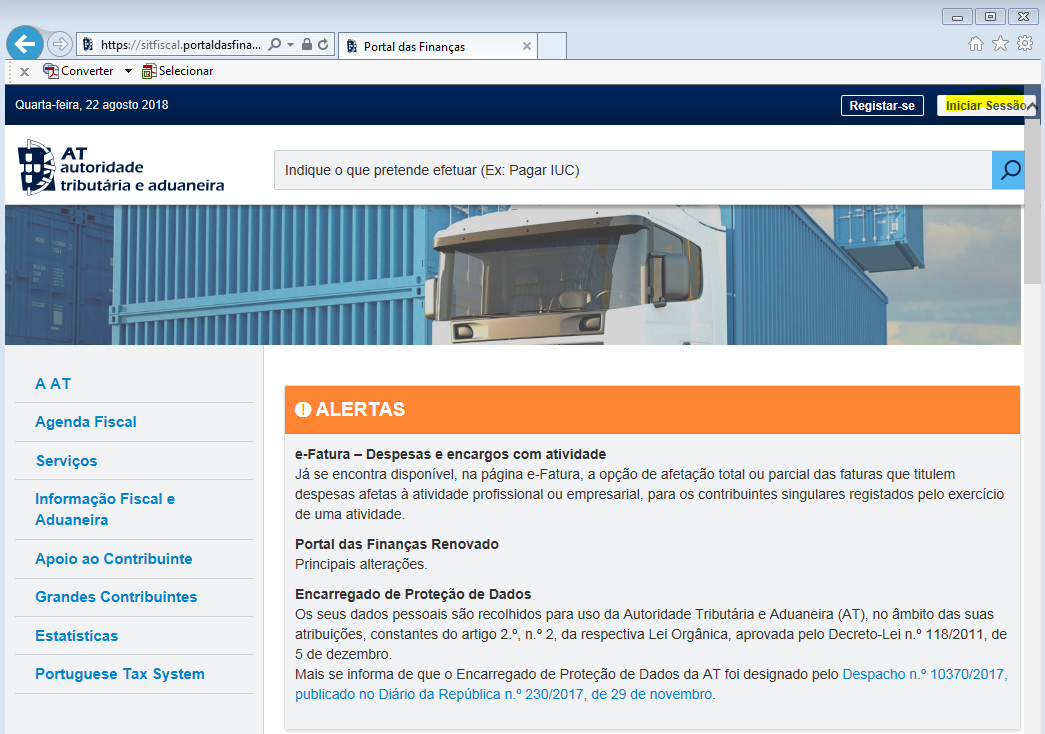
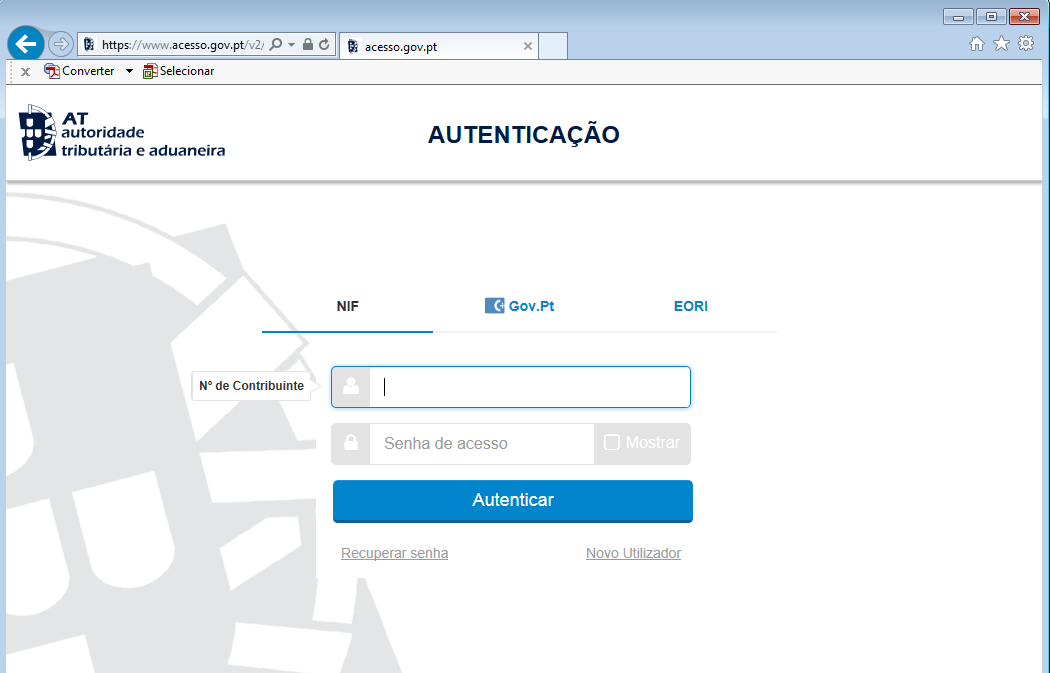
Now click in "Serviços".

Afterwards click Ctrl+F and write "Retenções IRC/IRS e I. Selo" select "Preencher Declaração".

3.4.2. I submit information in Tax Authority website
3.4.2.1. I submit the information for company 6424
Fill with the information that you have in excel file.

For Tax Stamp ("imposto de selo") we need to deliver DMIS declaration in Tax Authority Website:
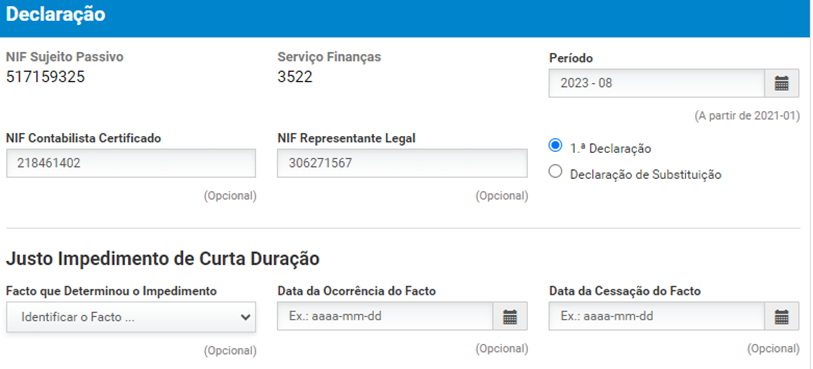
According to the amounts retrieved in excel template, fill as the example below:

Then after you have declaration exactly with the same total that you have in excel you will click in "Entregar".
Save the (PDF) as it will be necessary create the payment in BNP e also to be attached to the bank posting.
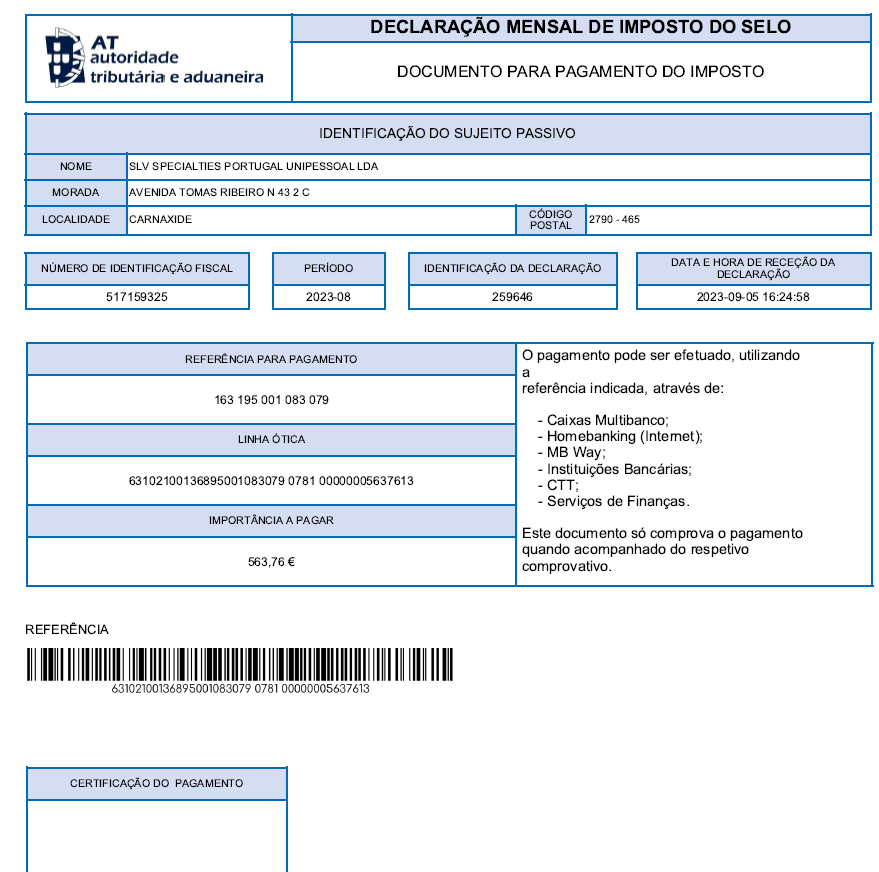
3.4.2.1. I submit the information for company 6414
Fill with the information that you have in excel file.
For Tax Stamp ("imposto de selo") we need to deliver DMIS declaration in Tax Authority Website:
According to the amounts retrieved in excel template, fill as the example below:
Then after you have declaration exactly with the same total that you have in excel you will click in "Entregar".
Save the (PDF) as it will be necessary create the payment in BNP e also to be attached to the bank posting.
3.4.2.3. I submit the information of IRC - Prediais and Royalties
Fill in with the information that you have in excel file.
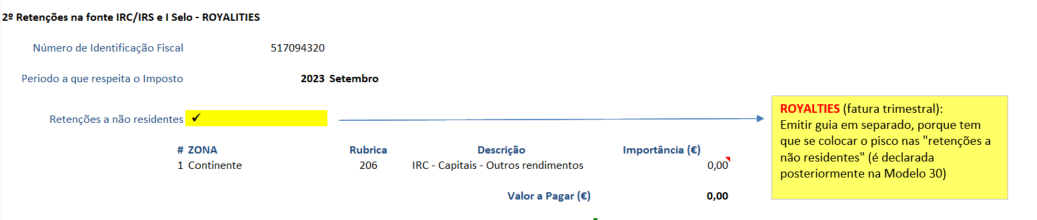
In this example, you need to fill one declaration for "IRC - Prediais" and another for Royalties (has to be flagged the option "RETENÇÕES A NÃO RESIDENTES").
For "IRC - Prediais":
Example of ECO company 6387:

Then after you have declaration exactly with the same total that you have in excel you will click in "Confirmar".
And it will appear:

Then click in "Imprimir Comprovativo (PDF) and save.

For Royalties (has to be flagged the option "RETENÇÕES A NÃO RESIDENTES"):

Then after you have declaration exactly with the same total that you have in excel you will click in "Enviar".

Then click in "Imprimir Comprovativo (PDF) and save.

Pay attention in "Retenções a não residentes" you need to put |
 .
.In case company 6387 when it will be paid Royalties, it's necessary send too the information to Olivier Gaspar <olivier.gaspar@solvay.com> .
End of document.