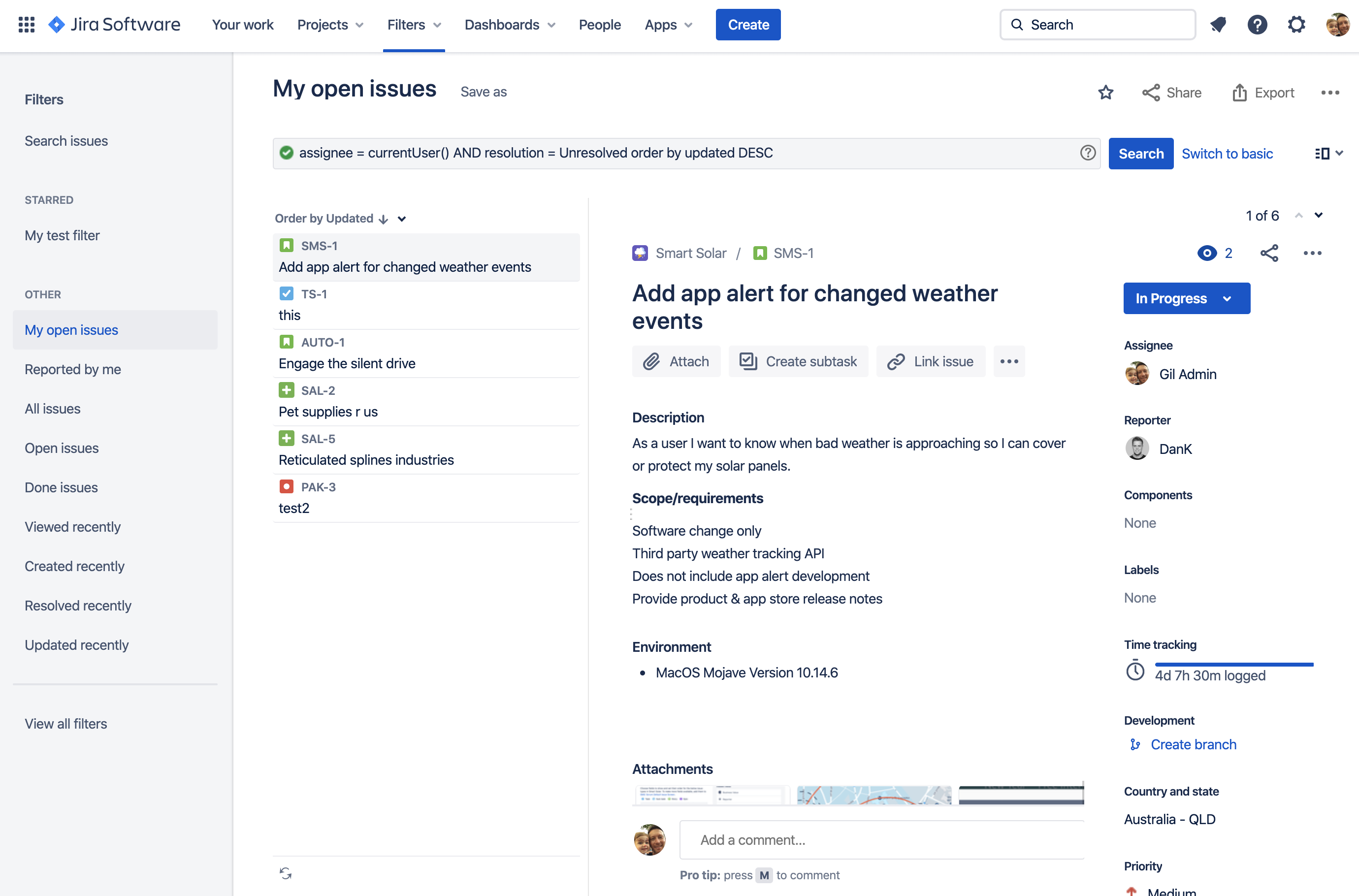
Product switcher: Switch to other Atlassian cloud products, like Bitbucket and Confluence, and go to recent projects.
Jira logo and product name
Your work: Get an overview of the things you care most about in Jira. Find issues, projects, boards, and queues you’ve visited, work assigned to you, and your starred items.
Projects, Filters, and Dashboards: Quickly find and resume work on the things you use most. You starred items appear at the top of each menu, followed by your recently visited items.
People: See the people and teams you work with, and create new teams.
Plans: See and manage your plans (premium users only).
Apps: See and manage apps installed on your Jira site.
Create: Create issues.
Search: Find issues, projects, boards, queues, filters and people.
Notifications, help, Jira settings, and your profile and settings: See what's happening in Jira, get help, and customize Jira’s settings (Jira admins only) and your personal settings.
Use basic search to find specific issues. The basic search provides a user-friendly interface that lets you define complex queries, without needing to know how to use JQL (advanced searching).
If you don't have complex search criteria, try quick search instead.
If you're comfortable with the Jira Query Language (JQL), you can try the advanced search.
To use basic search:
Select Search () > View all issues.
If you see JQL (advanced search), instead of basic search, select Switch to basic.
Set your search criteria, like Project, Status, and Assignee.
Optionally, enter text to search for and add more criteria by clicking +More.
Select Search.
If you're searching against a field and can't find the field you want, or the field is displaying greyed-out text, see the Troubleshooting section below.
When searching for text, you can use special characters and modifiers in your search text, such as wildcards and logical operators. See Search syntax for text fields.