| Status | |
|---|---|
| Owner | |
| Stakeholders | |
| Jira Request ID | |
| Jira Development ID |
High- Level Specification
| Parameter | Value |
|---|---|
| Application System | SAP S4/HANA SyWay |
| Business Process Reference | 04.06 Manage Production Execution 06.10 Manage Inventory and Logistics 06.11 Manage Warehouse and Logistics 06.12 Manage Transportation |
Functional Overview
The Neptune Mobile Admin app will display the relevant user organizational settings, allow the user to change settings and allow the user see the postings made from all mobile apps in the Logistics Mobility Solution.
This functional specification also includes the general aspects of the Logistics Mobility Solution with regard to login and logout.
The tile will show the plant of the user and, when the plant has EWM, the EWM Warehouse number, EWM Resource, EWM Resource Group and EWM Queue of the user.
Within the app, the following options will be available:
- Set/Change user plant parameter (WRK)
- List today's posting messages from Logistics Mobility Solution mobile apps postings made by user
- Set/Change EWM resource
- Change EWM resource group
- Set/Change EWM queue
Scope and Objectives
This Admin app lets the user see the currently selected user settings for the Logistics Mobility Solution and allows these settings to be changed. The app will also allow the user to see all the postings that have been made from the Logistics Mobility Apps.
The Logistics Mobility Solution is mandatory for all SyWay plants that manage stock.
Process Flow Diagram
Not applicable. The Central Functions Mobile Admin app will be used by all users of the Logistics Mobility Solution.
Assumptions
None
Dependencies
None
Security, Integrity and Controls
To start this app, the user must have display access for the selected plant. Check object M_MSEG_WMB for Activity 03 and the selected plant. If no access, show the message "No authorization for plant <9999>".
Configuration Requirements
None
Language Requirements
This app will be available in all SyWay languages.
Special Requirements
None.
Design Rationale
Functional Requirements
Logon to Logistics Mobility Solution
On starting the Logistics Mobility Solution on a mobile device, the user will logon using their single sign on network credentials and an agreed form of multi-factor authentication. The authentication method will be OAuth.
The user will be asked to set a PIN at the time of logon. This can later be used to re logon on a shared device, instead of having to repeat the full logon process.
After a successful sign on, the launchpad with the tiles for all the available apps will be shown. The first tile at the top left of the screen will be the Admin app, covered in this functional specification.
If the plant of the user is relevant for EWM and the user already has an EWM default resource defined in /SCWM/V_USER-RSRC for the userid, then a logon event is to be processed for this resource.
If the plant of the user is relevant for EWM and the user does not have an EWM default resource defined in /SCWM/V_USER-RSRC for the userid, then check to see if a resource exists with the same name as the userid. If a resource exists for the user then a logon event is to be processed for this resource.
To log on a user to a resource, you use the http method POST to call the LogonToWarehouseResource function import and update the status of the WarehouseResource entity.
Admin App Tile
The tile for the Admin app will show the relevant parameter details for the user: Plant number and description, EWM Warehouse, EWM Resource, EWM Resource Group and EWM Warehouse Queue.
If the plant is not relevant for EWM then only the plant number and name will show on the Admin app tile.
See the Application Screens section for examples.
At the time of first logon for a user, the plant on the app tile will show "<To be set>". The user must choose the required plant in the option "Set/Change Plant".
Admin App Start Screen
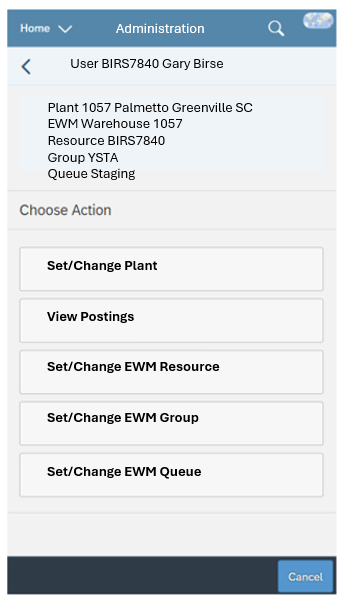
On starting the Admin app the user will see their current parameters at the top of the screen and buttons allowing the applicable parameters to be changed and a button to allow the postings to be reported.
If the plant is not relevant for EWM then the only parameter option is to change the plant itself.
If the plant is relevant for EWM then there are also options to Set/Change the EWM Resource, the EWM Resource Group and the EQM Queue.
See the Application Screens section for examples.
EWM parameter changes will be made in the same way as available in the standard SAP Mobile Data Entry transaction for EWM.
Set/Change Plant
When choosing this option, the screen will show the current plant of the user and a field to allow the user to choose a new plant.
The user will be prompted to choose a plant from a drop down list that shows all Syensqo plants.
The plant of the user will be stored using the standard SAP Parameter ID WRK.
At the time of first logon for a user, the plant on the app tile will show "<To be set>". The user must choose the required plant in the option "Set/Change Plant".
When the user selects a new plant, the user must have display access for the plant. Check object M_MSEG_WMB for Activity 03 and the selected plant. If no access, show the message "No authorization for plant <9999>".
View Postings
All postings made from Logistics Mobility Solution apps will be stored in a custom table, as described in the Custom Tables section of this functional specification.
This View Postings option will list all the postings made by the user for today's date, sorted by time descending.
All the fields stored in the custom table will be shown: App name, plant, warehouse, document, userid, date, time, SAP message type, SAP message.
Filters will allow the user to filter by App name, plant and SAP Message Type (e.g. to show only errors).
A date field (defaulted to today's date) can be changed to dates in the past, to allow the user to see older postings if needed.
Set/Change EWM Resource
When choosing this option, the screen will show the current EWM resource and a field to allow the user to change to a new resource from a drop-down list.
When changing resources, first a logoff event needs to be posted for the current resource, followed by a login event for the new resource.
To log off a user from a resource, you use the http method POST to call the LogoffFromWarehouseResource function import and update the WarehouseResource entity.
To log on a user to a resource, you use the http method POST to call the LogonToWarehouseResource function import and update the status of the WarehouseResource entity.
Set/Change EWM Group (Resource Group)
When choosing this option, the screen will show the current EWM resource group and a field to allow the user to change to a new resource group from a drop-down list.
The post the EWM Resource Group change, use the standard SAP Mobile Data Entry app for reference.
Transaction /SCWM/RFUI. Menu: 05 Internal Processes / 05 Resource Management / 02 Change Resource Group.
Set/Change EWM Queue
When choosing this option, the screen will show the current EWM Queue and a field to allow the user to choose to change to a new Queue from a drop-down list.
The post the EWM queue change, use the standard SAP Mobile Data Entry app for reference.
Transaction /SCWM/RFUI. Menu: 05 Internal Processes / 05 Resource Management / 01 Change Queue
Switching User / Logout
At any time the user can choose to return to an initial screen that will list all users actively logged on to the mobile device. From this screen the user can choose to fully logout of the Logistics Mobility App, or to logon again using the PIN that was entered at the time of the initial logon.
CMMC 2.0 requirements must be followed. This includes the requirement that idle sessions must be logged out after an agreed period.
Recommended UI Technology
This app will be developed using Neptune DXP Open Edition.
Application Screen
Wireframe or Mock-Up
App tile for plant without EWM

App start screen for plant without EWM

App tile for plant with EWM

App start screen for plant with EWM
Screen Behavior
No special behavior required.
Screen Navigation
Within the app, there will be different buttons for each of the options available.
Data Integration
| Field | Table-Field Name | Comments / Calculation / Field Manipulation / Input / Output / Validation rule / Value help |
|---|---|---|
| Plant | USR05-PARVA | Record for userid and parameter ID WRK. |
| EWM Warehouse | /SCWM/TMAPWHNUM-WHNUMWME | For the plant of the user, check for records in table T320. For the first record found use the WM warehouse T320-LGNUM to search for a record in table /SCWM/TMAPWHNUM where field WHNUMERP = T320-LGNUM. For the first record found, the EWM warehouse is /SCWM/TMAPWHNUM-WHNUMWME. In the SyWay design each plant will have a maximum of one EWM warehouse. Where no EWM warehouse is found for the plant, then the plant is not relevant for EWM. |
| EWM Resource | /SCWM/V_RSRC-RSRC | All resources for the EWM warehouse, for the drop down list in the option to Set/Change EWM Resource. At the time of logon, if there is a resource default for the user in table /SCWM/V_USER-RSRC, then this is the initial EWM Resource for the user. |
| EWM Group | /SCWM/V_RSRC_G-RSRC_GRP | All resource groups for the EWM warehouse, for the drop down list in the option to Set/Change EWM Group. At the time of logon, if there is a resource group default for the user's EWM Resource in table /SCWM/V_RSRC-RSRC_GRP, then this is the initial resource group for the user. |
| EWM Queue | /SCWM/V_T346-QUEUE | All queues for the EWM warehouse, for the drop down list in the option to Set/Change EWM Queue. At the time of logon, if there is a queue default for the user's EWM Resource in table /SCWM/V_RSRC-QUEUE, then this is the initial EWM Queue for the user. |
Custom Tables
A custom table will be used to store the details of all postings made from the Logistics Mobility Solution mobile apps.
Postings from Logistics Mobility Solution Apps
LMS Postings
This table will store the details of all the postings made from Logistics Mobility Solution Apps, including the app name, document processed, username, date, time and message back from SAP.
The user has the option to see all their own postings for the day in this mobility admin app. The desktop admin app will allow all postings to be shown.
| Field | Description | Data Type/Length | Validation rule / Value help |
|---|---|---|---|
| App Name | CHAR 30 | ||
| Plant | CHAR 4 | ||
| Warehouse | CHAR 4 | EWM warehouse number for EWM postings | |
| Document | CHAR 10 | The primary document processed in the posting | |
| Username | CHAR 10 | ||
| Date | DATE | ||
| Time | TIME | ||
| SAP Message Type | CHAR 1 | Success or Error. | |
| SAP Message | CHAR 100 | Last message received back from posting |
Tooltips
Not required.
Front-End
This mobile app will mainly be used on handheld scanners but can also be executed on the desktop.
Mobile Services
Not applicable
Authentication & Authorization
The logon to the Logistics Mobile Solution will use the OAuth authentication method in conjunction with an agreed form of multi factor authentication.
Users must authenticate against the Syensqo SSO infrastructure. The postings to S/4HANA must be made under the authenticated context of the person that made the posting from the device.
Logon to the Logistics Mobility Solution can be via WiFi, GSM or a wired LAN connection, depending on the available connection methods at the plant.
Accessibility
Not applicable
Volumetrics
This solution will be used at approximately 150 plants. The total users is estimated to be between 800 and 1200.
Performance Consideration
Changes to the user plant or user EWM data should be made within 2 to 3 seconds and reflect on the updated screen in this time.
Error Handling
Any error back from SAP from the updates made by this app are to be displayed to the user in a pop-up window, requiring confirmation. e,g, If an update to the user's EWM resource fails, due to that resource already being used by another user.
Testing
How to Test
Please provide some guidance and/or test data to help the developer unit test the user interface. This can be included here or in a separate document. If possible, testing is to be done prior by Functional team, for those transactions or business processes to be automated. Please include both positive and negative testing (to validate error situations handling)
Test Conditions and Expected Results
List all test conditions – this will then be used as a basis to execute both the technical and functional unit tests
| ID | Condition | Expected Result |
|---|---|---|
| 1 | Logon on mobile device with no plant selected | Successful logon using SSO/OAuth and MFA. Entry of PIN. Admin tile shows that plant needs to be set. |
| 2 | Logon on mobile device with IM plant selected | Successful logon using SSO/OAuth and MFA. Entry of PIN. Admin tile shows details of IM plant. |
| 3 | Logon on mobile device with EWM plant selected | Successful logon using SSO/OAuth and MFA. Entry of PIN. Admin tile shows details of plant, EWM Warehouse, resource, group and queue. |
| 4 | Start Neptune Launchpad on desktop | Admin tile shows correct display of plant and EWM settings |
| 5 | Switch user via PIN | User can exit launchpad and then restart using the pin code entered at initial logon |
| 6 | Start admin app for IM plant | Only options to set/change plant and display postings are available. |
| 7 | Start admin app for EWM plant | Options to set/change plant, display postings, set/change EWM resource, EWM group and EWM queue are available. |
| 8 | Use the Set/Change Plant option to set a plant for the first time to an IM plant | Plant correctly set. Admin initial screen and tile shows details of IM plant. |
| 9 | Use the Set/Change Plant option to set a plant for the first time to an EWM plant | Plant correctly set. Admin initial screen and tile shows details of plant, EWM Warehouse, resource, group and queue. Logon to EWM resource successful. |
| 10 | Use the Set/Change Plant option to change to an IM plant from an EWM plant. | Plant correctly set. Admin initial screen and tile shows details of IM plant only. |
| 11 | Use the Set/Change Plant option to change to an EWM plant from an IM plant. | Plant correctly set. Admin initial screen and tile shows details of plant, EWM Warehouse, resource, group and queue. Logon to EWM resource successful. |
| 12 | Use the option to display postings. | All the postings made by the user with today's date are correctly displayed. |
| 13 | Use the Set/Change EWM Resource option to change to a new resource. | EWM resource correctly set. Logoff of previous resource successful. Logon of new resource successful. Admin initial screen and tile shows details of plant, EWM Warehouse, new selected resource, group and queue. |
| 14 | Use the Set/Change EWM Group to change to a new resource group. | EWM resource group correctly set. Admin initial screen and tile shows details of plant, EWM Warehouse, resource, new resource group and queue. |
| 15 | Use the Set/Change EWM Queue to change to a new queue. | EWM queue correctly set. Admin initial screen and tile shows correct details of plant, EWM Warehouse, resource, resource group and new queue. |
| 16 | Logoff Logistics Mobility Solution on mobile device. | Logoff successful. |
Test Considerations/Dependencies
This app needs to be tested initially on a smartphone and then later on the actual mobile devices that will be used by the business. The app also needs to be tested on the desktop.
Other Information
Development Details
Package
| Package Name | Parent Package |
|---|---|
UI Implementation
UI Type | UI Name | Fiori Catalogue | Design Rationale Reference |
|---|---|---|---|
API Implementation
| API Type | API Name | Purpose / High Level Logic | API Product | Design Rationale Reference |
|---|---|---|---|---|
Other Development Objects
| Object Type | Object Name | Purpose/High Level Logic | Design Rationale Reference |
|---|---|---|---|
Appendix
See also
Insert links and references to other documents which are relevant when trying to understand this decision and its implications. Other decisions are often impacted, so it's good to list them here with links. Attachments are also possible but dangerous as they are static documents and not updated by their authors.