Tasks to be completed when documenting an operation (from creation to publication)1. Enter the Title of the operation / page2. Add the following Labels :
3. Fill in all fields as described above4. Name the title of each section using OPD methodology naming convention - Infinitive verb without the “to”, mainly action verb...something) - " I do something..."5. Once the description of the operation is completed, ensure it is approved and published by launching the SBS-Finance approval workflow |
| Domain: 1. Enter the Domain identified in OPD matrix (for Country specific operations, Domain = Country Accounting) |
Responsibility area: 2. Enter the responsibility area described in OPD matrix ("N/A" for Country Accounting Operations) |
Table of contents
By default the table of contents displays Heading 1 & Heading 2 (other levels can be added)
Scope3. Remove the icon when not applicable |


1. Objective and Scope
1.1. Objective of this Operation
WHY - Describe the objective of the operation
1.2. Scope
Detail the scope (legal entities, etc.)
2. Definitions
Definitions should be added in the Finance Glossary - Add definition and link it to respective Letter in Finance Glossary
See Finance Glossary:
- ...
3. Tasks description
WHAT and HOW - Main content of the operation
The content should be mainly organized in 2 levels of Headings to ensure a proper link with the Table of Contents.
Select the level of heading in the "Paragraph" option.
3.1. I do something...
3.1.1. I access “CASSETTO DOGANALE”
1) In order to access into “CASSETTO DOGANALE” you must connect to Website:
https://cassettodoganale.sp1.it
2) After clicking on https://cassettodoganale.sp1.it this image will appear:
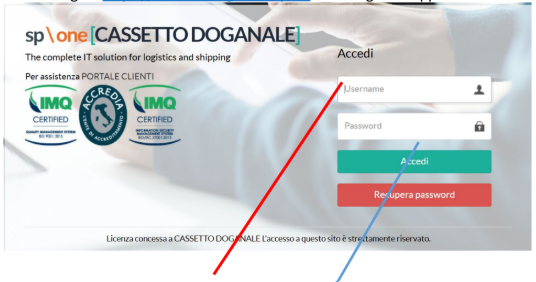
In the Username box you have to digit all capital letters: XXXXXXX
In the Password box you have to digit all capital letters: XXXXXX
For Syensqo Specialty Polymers Italy >> IT03521920961
User: SOLVAY.SPECIALTY
Password: SOLVAY25
For Syensqo Solutions Italy >> IT12290050157
User: SOLVAY.SOLUTIONS
Password SOLUTIONS25
3) Click on “ACCEDI”
3.1.2. I download the data from “CASSETTO DOGANALE”
After clicking on “Accedi” this image will appear:
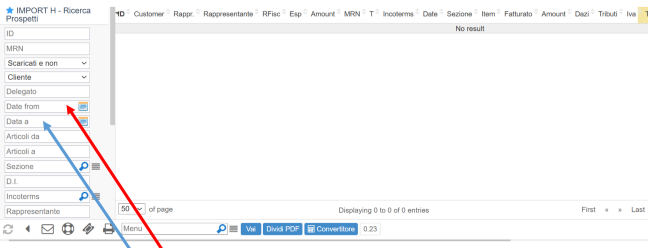
1. Search for box “DATE FROM”, select and it will appear a calendar. You have to select on the start day (i.e.: 01/01/2025)
2. Then do the same in the box “DATA A” to select the last day (e.i.: 31/01/2025).
After digiting both Calendar Dates, scrolling the sidebar down you have find the box “SEARCH”. Click on it to get the list of customs bills.
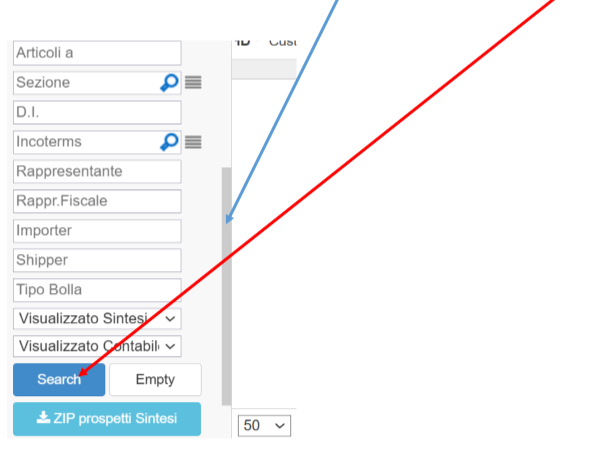
This image will appear:
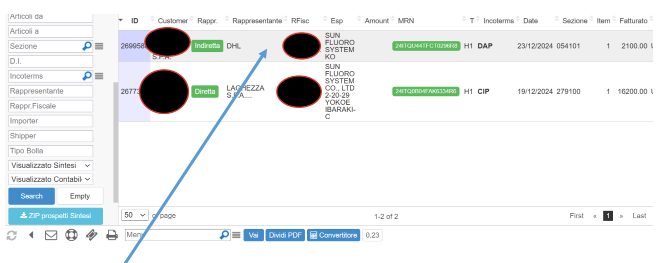
Clicking twice on the selected Customs Bills this image will appear:
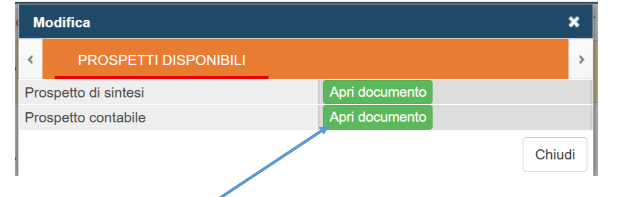
Clicking on the box “Apri documento” of the item “Prospetto contabile” will appear the Customs Bill, which you can download to justify or entries.

3.2. I do something...
3.2.1. Step 1 of Task 2 (I do something...)
3.2.2. Step 2 of Task 2 (I do something...)
...
End of document.