Tasks to be completed when documenting an operation (from creation to publication)1. Enter the Title of the operation / page2. Add the following Labels :
3. Fill in all fields as described above4. Name the title of each section using OPD methodology naming convention - Infinitive verb without the “to”, mainly action verb...something) - " I do something..."5. Once the description of the operation is completed, ensure it is approved and published by launching the SBS-Finance approval workflow |
| Domain: 1. Enter the Domain identified in OPD matrix (for Country specific operations, Domain = Country Accounting) |
Responsibility area: 2. Enter the responsibility area described in OPD matrix ("N/A" for Country Accounting Operations) |
Table of contents
By default the table of contents displays Heading 1 & Heading 2 (other levels can be added)
Scope3. Remove the icon when not applicable |


1. Objective and Scope
1.1. Objective of this Operation
You are responsible for posting data retrieved from the 'Cassetto Doganale' portal to our financial accounts.
The “CASSETTO DOGANALE” is an online portal provided by the Italian Customs Agency (Agenzia delle Dogane e dei Monopoli). It is designed to give companies and authorized users access to a wide range of customs-related information and services and based on this list we will prepare and post data from the 'Cassetto Doganale' portal into company accounts.
This procedure is born from a simplification of the process to take advantage of new tools put in service by the tax agency. Posting customs data from the 'Cassetto Doganale' portal to accounts is essential for legal compliance, accurate financial management, transparency, and operational efficiency.
1.2. Scope
This procedure is applied to Italian entities 5835 SYENSQO SPOL IT (PF2) and 8090 SYENSQO SOLUTIONS IT (WP2).
2. Definitions
Definitions should be added in the Finance Glossary - Add definition and link it to respective Letter in Finance Glossary
See Finance Glossary:
- ...
3. Tasks description
WHAT and HOW - Main content of the operation
The content should be mainly organized in 2 levels of Headings to ensure a proper link with the Table of Contents.
Select the level of heading in the "Paragraph" option.
3.1. I manage the download of customs documents from the 'Cassetto Doganale' portal
3.1.1. I access “CASSETTO DOGANALE”
1) In order to access into “CASSETTO DOGANALE” you must connect to Website:
https://cassettodoganale.sp1.it
2) After clicking on https://cassettodoganale.sp1.it this image will appear:
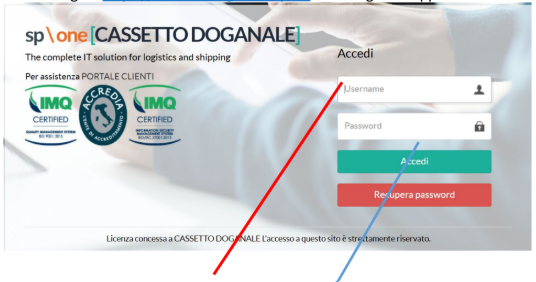
In the Username box you have to digit all capital letters: XXXXXXX
In the Password box you have to digit all capital letters: XXXXXX
For Syensqo Specialty Polymers Italy >> IT03521920961
User: SOLVAY.SPECIALTY
Password: SOLVAY25
For Syensqo Solutions Italy >> IT12290050157
User: SOLVAY.SOLUTIONS
Password SOLUTIONS25
3) Click on “ACCEDI”
3.1.2. I download the data from “CASSETTO DOGANALE”
After clicking on “Accedi” this image will appear:
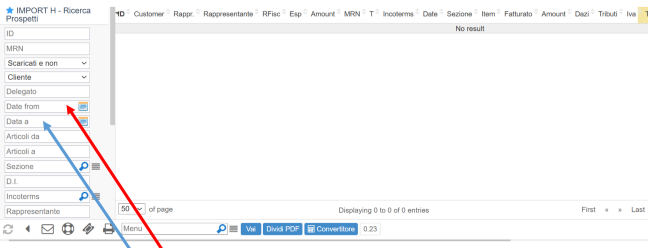
1. Search for box “DATE FROM”, select and it will appear a calendar. You have to select on the start day (i.e.: 01/01/2025)
2. Then do the same in the box “DATA A” to select the last day (e.i.: 31/01/2025).
After digiting both Calendar Dates, scrolling the sidebar down you have find the box “SEARCH”. Click on it to get the list of customs bills.
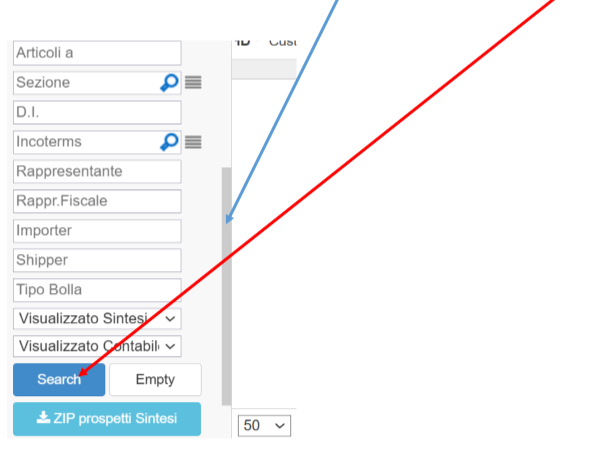
This image will appear:
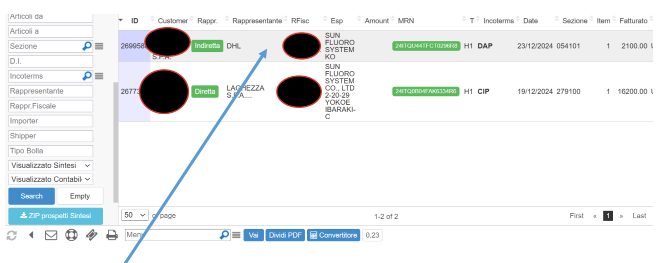
Clicking twice on the selected Customs Bills this image will appear:
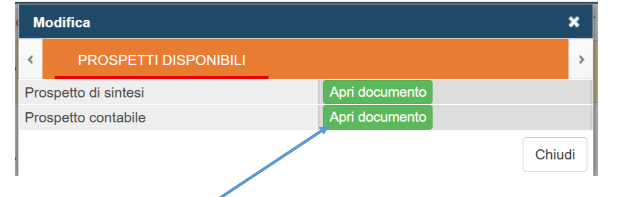
Clicking on the box “Apri documento” of the item “Prospetto contabile” will appear the Customs Bill, which you can download to justify or entries.

3.2. I prepare and post data from the 'Cassetto Doganale' portal
3.2.1. I prepare data from the 'Cassetto Doganale' portal
I handle the posting of customs data to accounting records using information from the 'Cassetto Doganale' portal with the support of an excel file (of easy maintenance in case of need).
For that, you just need to copy to sheet "STEP1 CUSTOMS DECLAR" the list downloaded from the “CASSETTO DOGANALE” website.
This will automatically update and create the accounting entry for all the submitted customs declarations.
3.2.2. I post data from the 'Cassetto Doganale' portal
Ficticious Invoice is fully automatted you just need to double check if entries are missing and update the path of the pdf file from the customs.
Document type KR
Debit Supplier “dogana” as table below
Credit Waiting Account
Credit VAT (if applicable)
Credit Supplier “dogana” To clear the supplier account
Debit Waiting Account
3.2.3. I prepare and post data from the 'Cassetto Doganale' portal
End of document.