Process to raise PAM request
📝Note: Use of PAM from requester Point of View
PAM access provides elevated permissions and must be requested only for valid business or emergency needs.
Clearly document the reason, scope of work, and expected activities when raising the request.
Requests with insufficient or incomplete information will be rejected.
All activities are logged and monitored, and users are accountable for their actions.
If reviewed, users must explain why access was used, confirm approvals for any direct production changes, and provide accurate details including before and after values where applicable
Overview of Process to raise PAM request
Step 1: Login to IAG to raise the access request
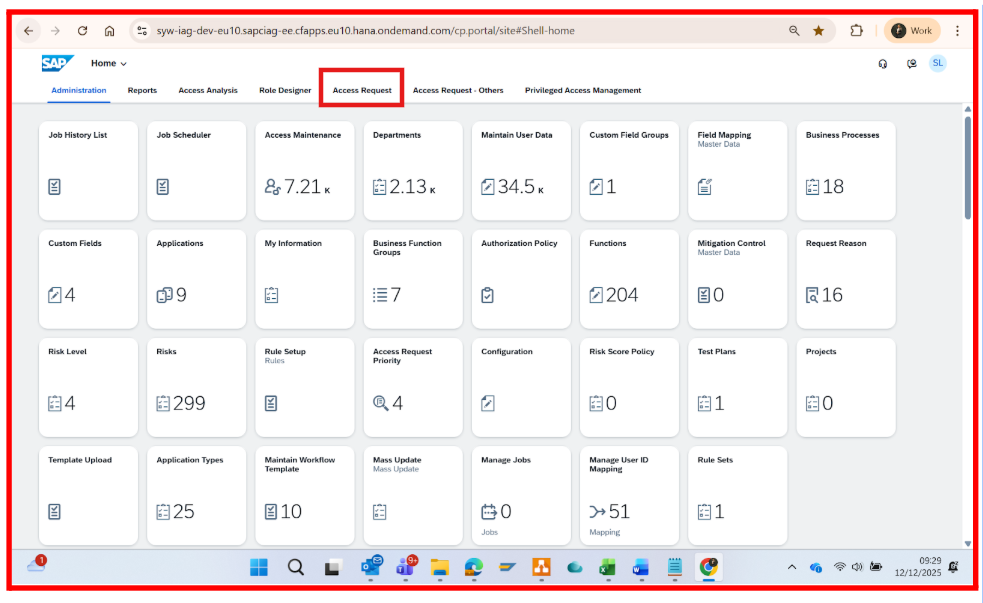
Step 2: Navigate to Access Request
Step 3: Select Role and Create Request
Step 6: Receive email notification for submission and approval of request
Step 8: Login and Use of Privileged Access in Target Applications
Step 1: Login to IAG to raise the access request
Step 2: Navigate to Access Request

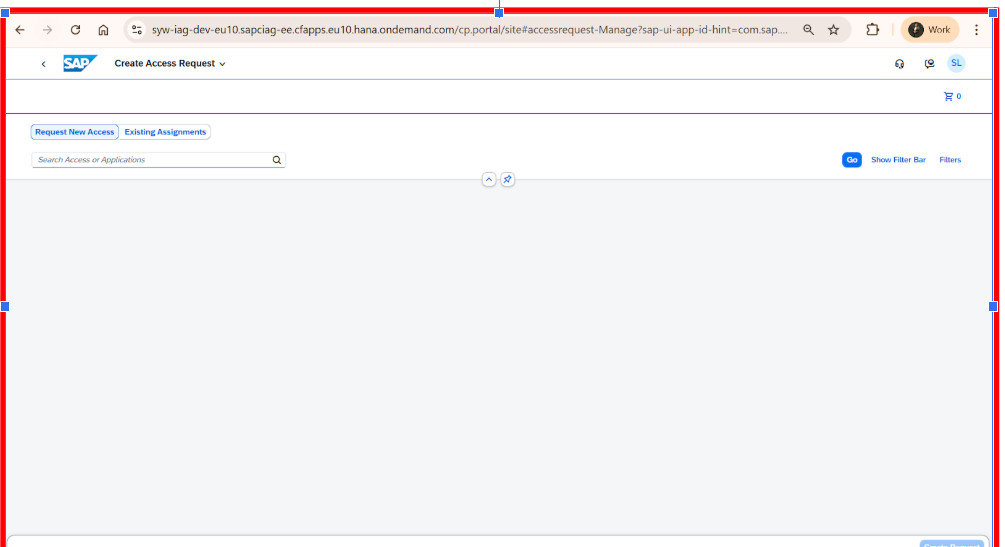
 , search the role by prefix string PAM_ and all PAM related Business roles will be visible here.
Step 3: Select Role and Create Request
Choose from the available PAM roles as below with justification explained in the description section after PAM role selection
SAP Ariba PAM Roles
Ariba Template Manager – Creates and maintains sourcing templates.
Ariba User Admin – Monitors correct user provisioning from IAG to Ariba.
Ariba Master Data Manager – Reviews integration of master data into Ariba.
Ariba System Admin – Super user for exceptional tasks or defect fixes.
Icertis PAM Roles
IT Icertis Master Data Admin – Manages master data only; no system/workflow access.
IT Icertis User Management Admin – Administers users, groups, orgs, and technical role assignments; no transactional data access.
IT Icertis Admin Extended – Same as Support + access to transactional data (excluding confidential contracts).
IT Icertis Config Admin – Full system configuration control; no access to contracts or transactional data; technical roles assigned via User Management Admin.
Step 4: Fill Request Details
Provide the below information for the PAM access request.
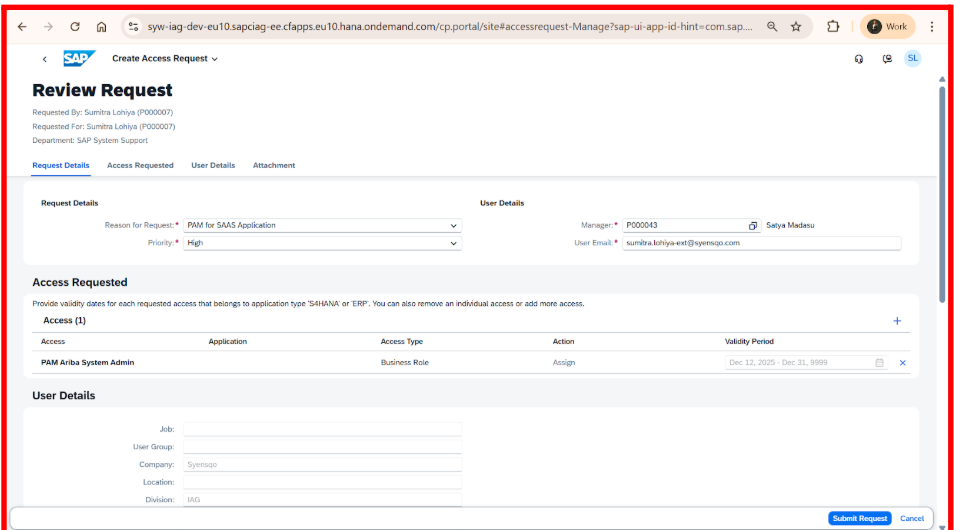
Step 5: Submit Request


Step 6: Receive email notification for submission

Step 7: Receive email confirmation for approval status

Step 8: Login and Use of Privileged Access in Target Applications