1. How is a new SharePoint list created?
Steps
- Go to your SharePoint site / M365 Lists
- Click New → List

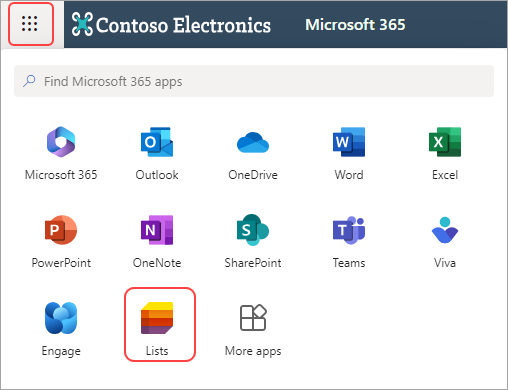
3. Choose one option:
- Blank list
- From existing list
- From Excel
- Template

2. How is data entered?
Methods
Option 1 – Manual entry
- Click + New item
- Fill in the form
- Save


Option 2 – Grid view
- Click Edit in grid view
- Enter data like Excel (rows & columns)

Option 3 – Forms
- Click Forms
- Generate Forms


Key points
- Each row = one record
- Each column = one attribute
- Grid view enables fast multi-line input
You can add items directly using “Add new item” or grid view editing
3. How can data from Excel be copied/saved into a SharePoint list?
Option 1 – Create list from Excel
- Click New → List
- Select From Excel
- Upload file
- Select table
- Validate columns
- Create list
✔ Automatically creates structure + data
Option 2 – Copy / Paste
- Open Excel file
- Copy rows
- Open SharePoint list (grid view)
- Paste data
⚠ Requires matching columns
Copy/paste works for small volumes if structure matches between Excel and SharePoint
Option 3 – Automated import (Power Automate)
- Store Excel file in SharePoint / OneDrive
- Create flow
- Use:
- “List rows present in a table”
- “Create item”
✔ Best for recurring or large datasets
Power Automate allows structured import of Excel rows into SharePoint lists