| Open the Fiori Tracker (Google Sheet) |
Non-Signavio App Selection process update. See section How to Select non-Signavio Apps. |
Signavio is the primary source for identifying, capturing, and managing application requirements.
All functional consultants must capture required Primary Executables and Associated Executables in Signavio, linked to the relevant business processes.
Suggested Executables require approval from the Integration Team. Once approved, the Signavio Team converts them into Executables in Signavio (see section Suggested Executables for details).
The project relies on Signavio as the authoritative source for determining which applications are required.
Exception – Non-Signavio Apps: Some applications are configuration, support, or administration-related apps that are required by functional consultants or business super users, but do not naturally belong to a specific business process in Signavio. These may be requested through the Non-Signavio App Selection sheet in the Tracker (see section How to Select non-Signavio Apps).
The Tracker is primarily a deployment monitoring tool used by the Tech Team to track application deployment in ERD and subsequent environments.
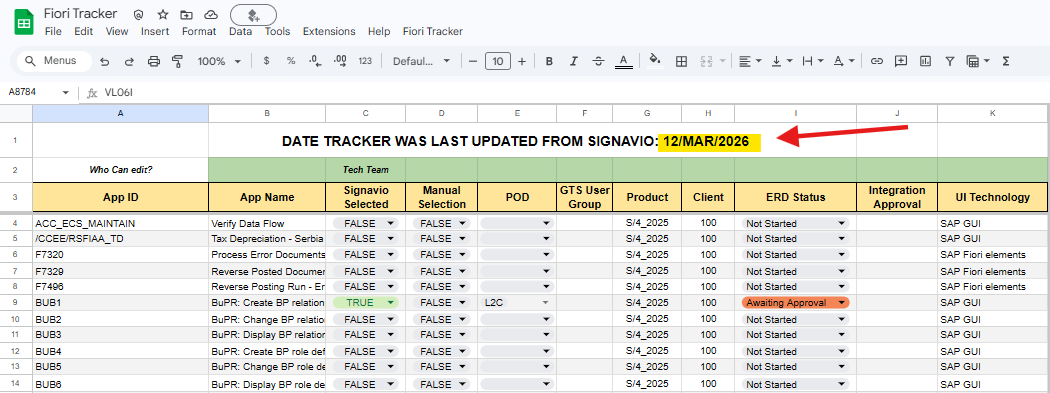
The Tracker is automatically updated from the Signavio export every Thursday.
Functional and business consultants should therefore use the Tracker only to verify the status of applications already captured in Signavio or approved through the Non-Signavio App process.
Applications must be modelled in Signavio within the relevant business process using:
Primary Executables
Associated Executables
Functional and business consultants should consult the Tracker to verify:
whether the application has been deployed in ERD
whether the application requires approval from the Integration Team
whether there are technical notes or deployment issues recorded by the Tech Team
whether the application was rejected during governance review
Examples:
The image below shows applications that have been deployed in ERD and are ready for testing.

NOTE: If ERD Status = "Deployed in ERD" but the application is not accessible in the ERD Launchpad, create a Jira task for the Tech Team (see “How to raise a Jira Task?”).
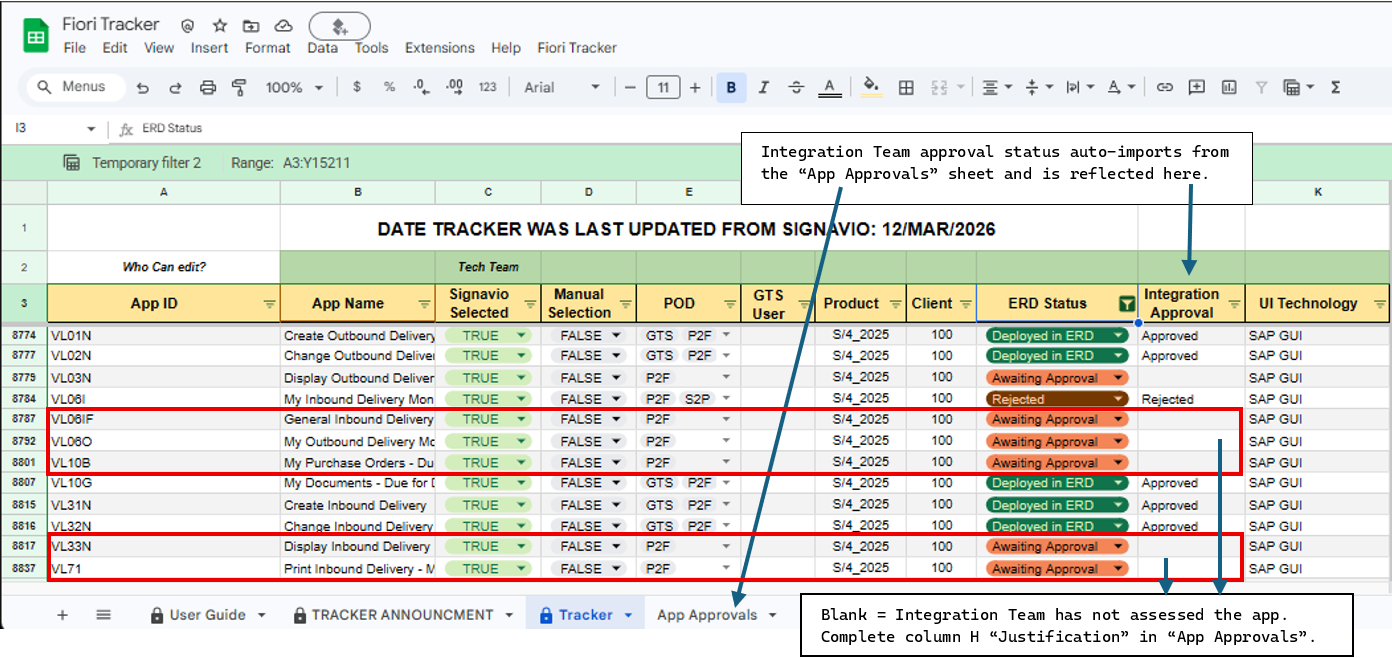
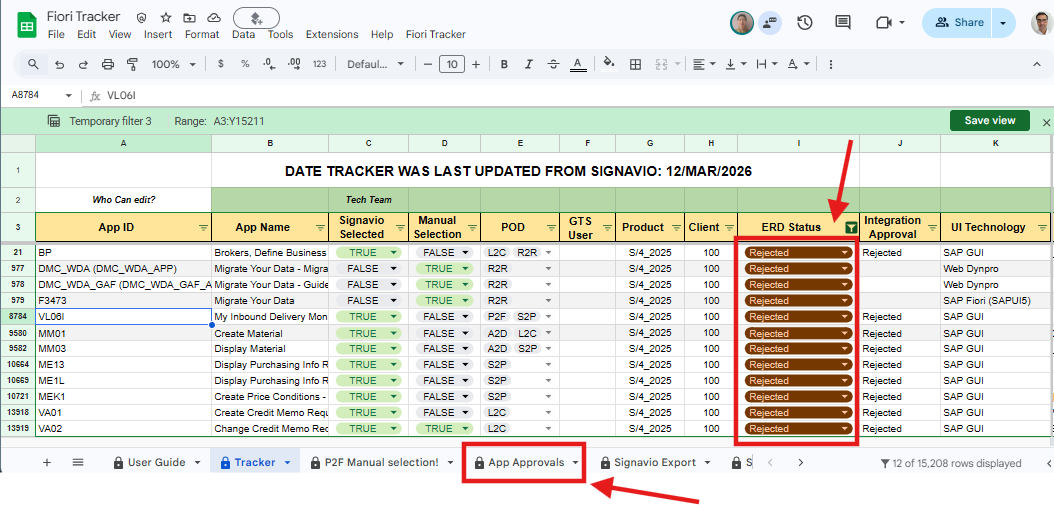
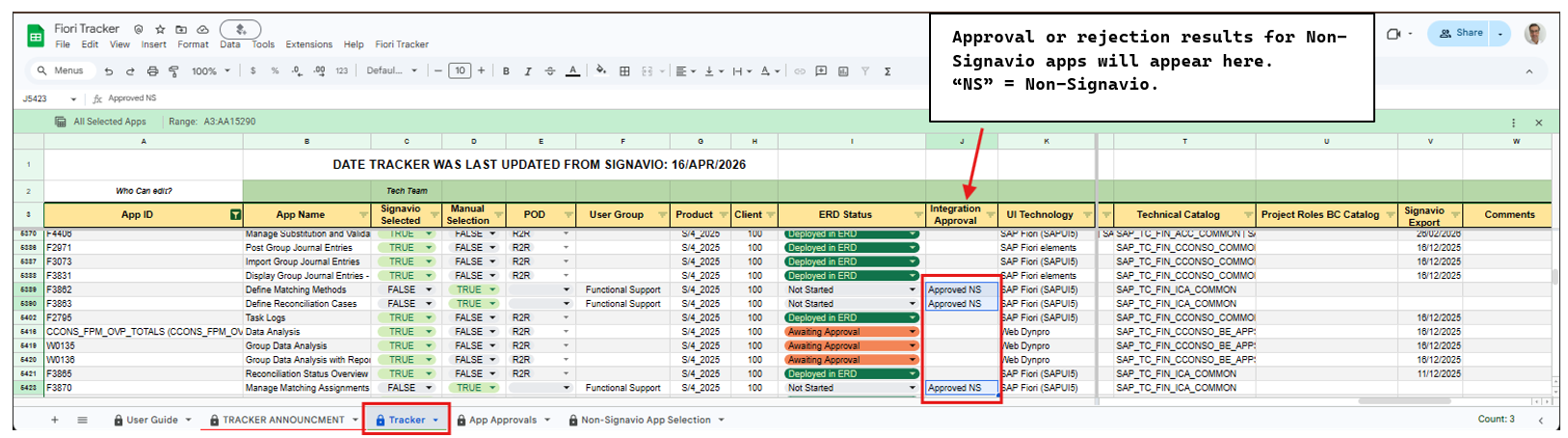
The next two images show applications awaiting Integration Team approval and applications with an approval status (Approved or Rejected). See the Governance section for details.

The image below shows examples where the Tech team recorded technical notes or deployment issues during ERD deployment.

Whether the application was rejected during Integration Team governance review. Check the App Approvals sheet or contact the Integration Team for the reason.
Technical Team deployment activities start immediately for apps that do not require approval.
The Integration Team reviews approvals on an ad-hoc basis. Follow up with them directly for status.
The Fiori App Tracker is a central governance and deployment tracker for SAP applications selected for the project. It is used by the Tech Team to deploy applications, by the Integration Team to assess and approve requests, and by functional teams to track selection status, approvals, and deployment progress.
The Tracker is pre-populated with the complete SAP Fiori app catalogue for the target release (SAP S/4HANA Private Cloud 2025), sourced from the SAP Fiori Apps Reference Library. This baseline catalogue explains why the Tracker contains a large number of applications and should not be interpreted as project scope.
Some solutions are not part of the SAP S/4HANA Private Cloud 2025 Fiori catalogue (for example GTS or AFC). For these cases, the POD must capture the applications in a spreadsheet and send them to the Integration Team for approval. After approval, the Signavio Team loads the applications as Executables in Signavio, and the UX Team adds the applications to the Tracker.
Project scope is defined by selection indicators, which bring together two sources:
Signavio-Driven Apps
Applications captured as Executables within business processes modelled in Signavio. These are imported from Signavio into the Tracker every Thursday.
Non-Signavio Apps
Applications that are required but do not naturally belong to a Signavio business process (for example system setup or technical/admin applications). These require a selection process through the “Non-Signavio App Selection” sheet (see section How to Select non-Signavio Apps).
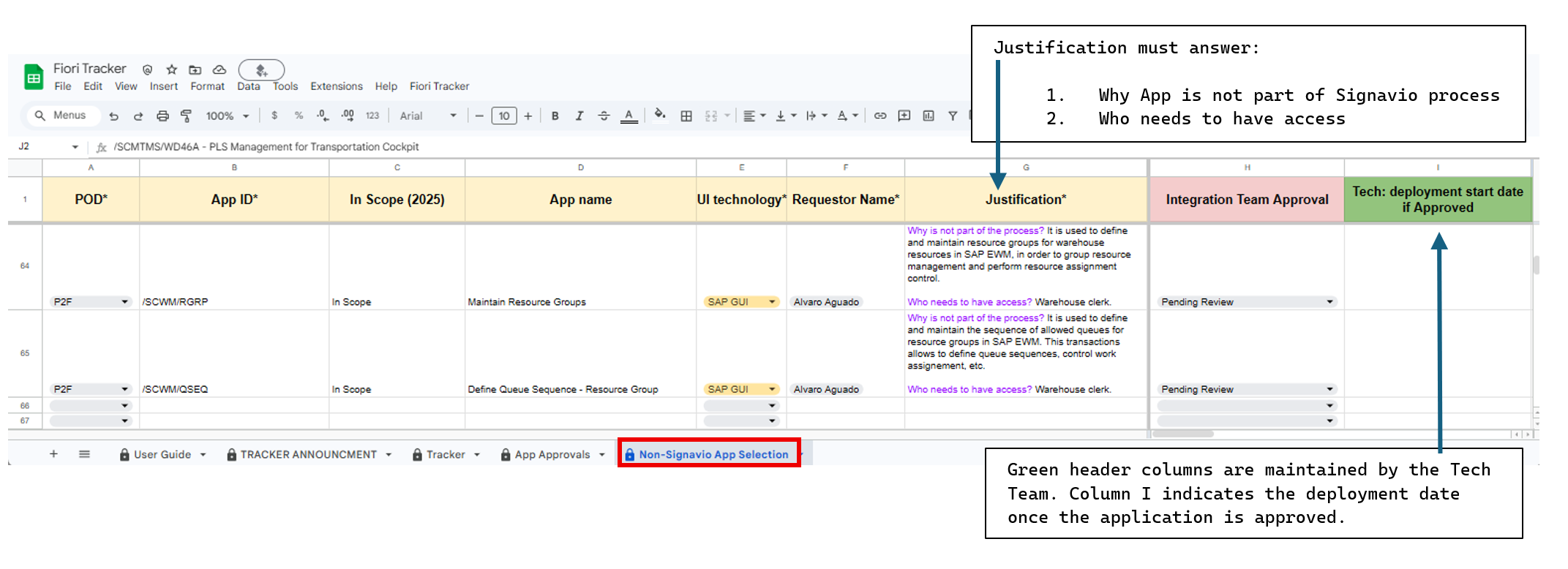
“Non-Signavio App Selection” sheet
This sheet is used to request applications that are not captured in Signavio, typically technical, administrative, or support applications.
Approval is part of a governance step managed by the Integration Team, so requestors must coordinate with Integration Team. Once approved, the Tech Team will enter the deployment date in column I.
Complete the following (* mandatory)
POD* → select from dropdown
App ID* → enter App ID or T-code
UI Technology* → select from dropdown
Requestor Name* → your name
Justification* → Why App is not part of Signavio Process? Who needs to have access? (see example)
Optional:
App name
System fields (do not edit)
In Scope (2025) → auto check against S/4 2025 product
For questions or urgent deployment requests, contact the Integration Team.
Example:
If the app is approved, BASIS will include it in the weekly deployment job, which runs every Thursday.
A governance step managed by the Integration Team applies to SAP GUI transactions, Web Dynpro applications, and Suggested Executables imported from Signavio. To support this process, a separate sheet called “App Approvals” has been created in the Fiori Tracker spreadsheet.
The approval process differs for Suggested Executables compared to SAP GUI and Web Dynpro applications. The explanation is therefore split into the sections below.
Approval Flow
Tracker is updated each Thursday by a weekly Signavio extract job.
Non-Fiori executables (GUI & Web Dynpro) are automatically set to “Awaiting Approval” in the ERD Status column in the Tracker sheet.
These applications are automatically copied to the App Approvals sheet.
POD teams enter a Justification (Column H) in App Approvals sheet.
The Integration Team reviews and assigns the approval status in App Approvals sheet.
The approval result is automatically reflected in the Tracker sheet Integration Approval (Column J).
If approved, the Tech Team deploys the application.
If rejected, the Tracker ERD Status is set to Rejected.
For questions or urgent deployment requests, contact the Integration Team.
Example 1: SM35 Added to Tracker and Set to “Awaiting Approval”
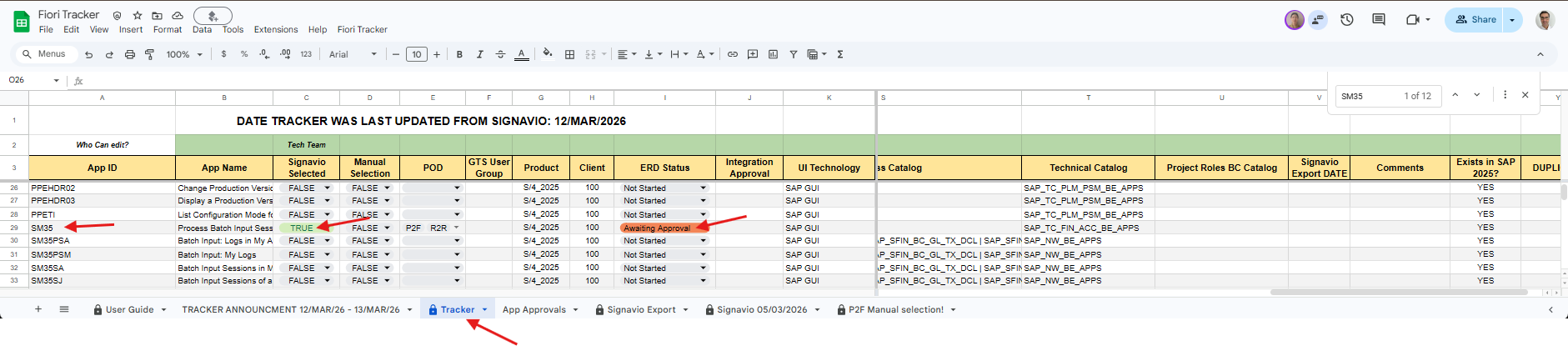
SM35 Entry Created in App Approvals for POD Justification

Example 2: Integration Approval Status Reflected in the Tracker
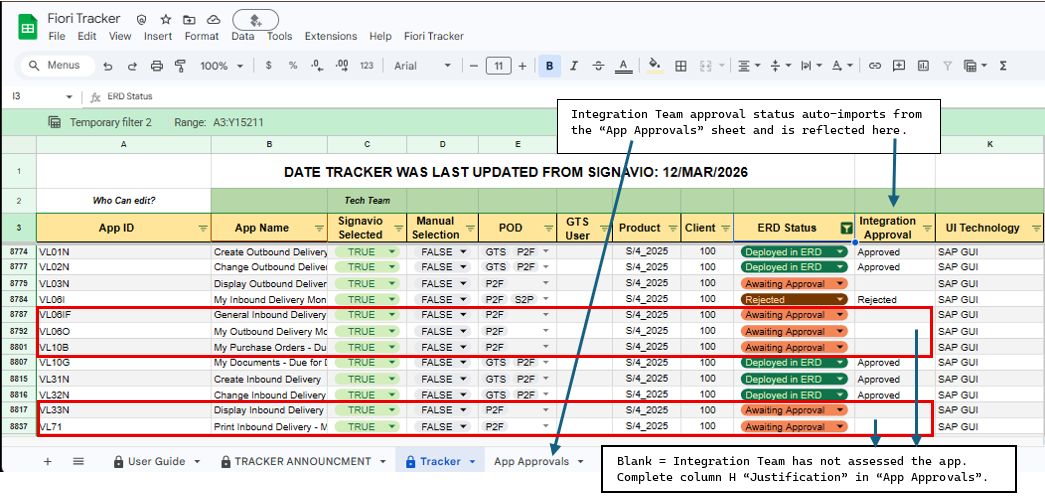
Suggested Executables imported from Signavio are automatically captured in the App Approvals sheet and require approval from the Integration Team before they can be converted to Executables in Signavio and appear in the Tracker.
Approval Flow
The Fiori Tracker spreadsheet is updated from Signavio every Thursday. Suggested Executables automatically appear in the App Approvals sheet.
POD teams enter a justification in Column H (Justification) in the App Approvals sheet.
The Integration Team reviews the request and sets the status to Approved or Rejected.
If approved, the Signavio Team converts the Suggested Executable into an Executable in Signavio.
During the next weekly update, the Tracker reflects the change because the application now appears as an Executable from Signavio. The approval status remains recorded in the App Approvals sheet.
For questions or urgent deployment requests, contact the Integration Team or Signavio Team.
Example:

Suggested Executables do not appear in the Tracker. They must first be approved and converted into Executables in Signavio before they are captured in the Tracker. |
Application capture and Signavio modelling questions – Contact the Signavio Team (Alex Helme, Niclas Palmströmer)
Governance and app approvals – Contact the Integration Team (Narahari, Bhargavi, Dean Leighton, Antonio Gonzalvez, Tiago Mendes)
Technical issues after deployment in ERD – Raise a Jira task for the Tech Team (see section How to raise a Jira Task)
Examples:
Jira tickets should be raised for the Tech Team to resolve technical issues.
If an application shows “Deployed in ERD” but you still experience issues in the ERD Launchpad, follow the instructions in this guide:
Jira Task – How to raise a ticket for the Tech Team ( The image below is extracted from the guide and highlights the most relevant section)

Cadence and steps may evolve as we fine-tune the process and as team capacity changes. This page will be updated as the tracker matures.