

Responsibility area: to be completed
Table of contents
1. Objective and Scope
1.1 Objective of this Operation
The aim of the procedure is to explain how to request the creation of a new cost center
1.2 Scope
Worldwide, for PF2, WP2 & PI2
2. Definitions
Scope

ERP


Frequency

References
Forms
Attachments
Previous OP << I request the creation of a new cost center >> Next OP
3. Tasks description
3.1 I access the application PRS_50
STEP 1
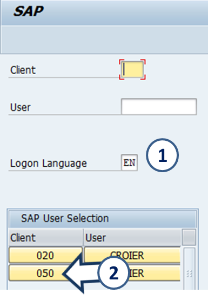
Open the SAP logon 
Click Syensqo ERP- Production - PF2

1. Enter Logon Language = EN
2. Click 
STEP 2
Enter transaction code ZZF_MDWF_REQUEST and 
You can add it to your favorites [menu System – User Profile – Expand Favorites]

Request for Master Data: Initial Screen

On the first line of the transaction, you will find a menu where you can find the functions accessible at each moment
1. On the initial screen :
 List existing requests : « My request report »
 Modify an existing request
 Display an existing request
2. In case of Display or Update of an existing request, enter the request number here
3. In case of Creation, select the category of data you want to create / update
4. The text box at the bottom of the screen is an “info board”, giving the last information about the application (update, new functions,…)
After selecting a Data type, the application brings you to the creation screen

STEP 3
Fill the request
1. Select your need : 
2. Enter the title of the request which will be used in all emails.
3. Select the system landscape.
- CICC = PI2
- ERP Rodia Core = WP2
- ERP Solvay = PF2

4. Enter:
- the Company code (for WP2)
- or PRS CoCode (for PF2 & PI2)
It can remain blank if request spans over several companies of the same system
5. Select the Business unit. It can remain blank if several GBU are involved
6. It comes when you choose the ERP (see next step)
7. Select the project name when applicable
8. Flag during pre-closing and closing periods, it allows the identification of urgent requests necessary for the closing.
9. Flag to identify temporary request that need to be reversed
The new request must be saved by clicking  before going to the next step
3.2 I submit a request for a cost center creation or modification
It is highly recommended that you input the parameters in the "master data" tab when you are requesting the creation / update of cost centers as it reduces the processing time. Nevertheless, if you have difficulties in putting the data in the "master data" tab, you can attach an excel file with all the mandatory parameters:
- Type of cost center (production, commercial, administrative);
- BFC heading/value field where the costs should be reported;
- Profit center (WP1)/Business area (PF1);
- Person responsible.
STEP 1
In SAP PRS 050 go to transaction ZZF_MDWF_REQUEST. Select "Cost center" in category field and "Create" in action field. Populate the title and the system landscape.


STEP 2
Open the tab  , click "append row" button
  (1) and create as many rows as cost centers you want to create / update (2).
Never use the yellow line to enter your request, it is a technical line used for mass changes only.

STEP 3
Fill mandatory fields listed below and press check .
.
- Company code
- Cost center Code
- Valid from
- English short name & long description
- Person responsible
- Cost Center Category
- Standard hierarchy area
- Alternative hierarchy
- Business area (in PF2 only)
- Profit center
- Foreseen amount
- IECRA (for WP2 only)
Create from reference
You can use an existing cost center to pre fill the information and replace the existing cost center codes by the ones to be created and adapt the information to your requirement.
Use Excel
When you are dealing with a larger number of entries it might be more efficient to use Excel:
Prepare an Excel document with the list of cost centers you want to process.
Copy and Paste it into the request.
Press the <check> button. As a result the data are loaded.
<Submit> the request when it is completed.
PF2

WP2

STEP 4
Correct any errors identified by the system, save and submit the request. SAP will generate a ticket number.
You can only submit a request once you have corrected all errors [red border around the cell]

STEP 5
Return to the transaction ZZF_MDWF_REQUEST, insert the ticket number and press "Take in charge" followed by "Approve".


STEP 6
In Master Data Tab, click "Check" button followed by "Call transaction - Force call transaction on errors".


STEP 7
Approve the creation of the cost centers by clicking "Approve" button.
This should be the expected result. The cost centers are created.

