

Responsibility area: to be completed
Table of contents
1. Objective and Scope
1.1 Objective of this Operation
The aim of the procedure is to explain how to request the creation of a new cost center
1.2 Scope
Worldwide, for PF2, WP2 & PI2
2. Definitions
Scope


Frequency
On demand
References
ZZF_MDWF_REQUEST - Workflow for Master Data
Attachments
Previous OP << I manage a finance master data request in the workflow >> Next OP
3. Tasks description
3.1 I access the application PRS_050
STEP 1
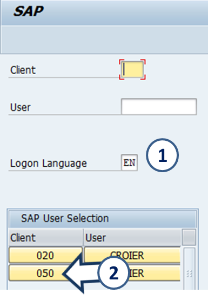
Open the SAP logon 
Click Syensqo ERP- Production - PF2

1. Enter Logon Language = EN
2. Click 
STEP 2
Enter transaction code ZZF_MDWF_REQUEST and 
You can add it to your favorites [menu System – User Profile – Expand Favorites]

Request for Master Data: Initial Screen

On the first line of the transaction, you will find a menu where you can find the functions accessible at each moment
1. On the initial screen :
 List existing requests : « My request report »
 Modify an existing request
 Display an existing request
2. In case of Display or Update of an existing request, enter the request number here
3. In case of Creation, select the category of data you want to create / update
4. The text box at the bottom of the screen is an “info board”, giving the last information about the application (update, new functions,…)
After selecting a Data type, the application brings you to the creation screen

STEP 3
Fill the request
1. Select your need : 
2. Enter the title of the request which will be used in all emails.
3. Select the system landscape.
- CICC = PI2
- ERP Rodia Core = WP2
- ERP Solvay = PF2

4. Enter:
- the Company code (for WP2)
- or PRS CoCode (for PF2 & PI2)
It can remain blank if request spans over several companies of the same system
5. Select the Business unit. It can remain blank if several GBU are involved
6. It comes when you choose the ERP (see next step)
7. Select the project name when applicable
8. Flag during pre-closing and closing periods, it allows the identification of urgent requests necessary for the closing.
9. Flag to identify temporary request that need to be reversed
The new request must be saved by clicking  before going to the next step
3.2 Overview of a request in the workflow
1 General info on the present module
2 Workflow navigation buttons : actions you can do in the present status / situation
3 Main request information
4 General info tab – contains details of the request
5 Masterdata tab - where the detailed data must be filled for cost centers and G/L accounts at company code level
6 Communication Tab – communication channel between the requester and the Data Team
7 Attachment(s) region, allows you to list the files attached to the request
8 General description: free text zone where the requester must enter his/her requirements and justification of the request
9 Optional list of persons that will receive a copy of the email notifying the workflow progress

3.3 Request follow up
You can check all the finance data requests in several ways. The most common are:
- By person in charge
- By Category of the data
- By Cost center
If you just want to have a full overview of the pending requests, just select the day's date in "Ignore requests closed before" and  .
.
You will retrieve a list of the finance master data requests by status, category of the data, requester, etc.
Make regular follow up of pending requests:
- unassigned requests
- Own requests
- Give priority for “urgent for closing” and near “expected completion date” requests.


STATUS:

3.4 Actions on a request - Finance data mgt user

❶ The action menu is located at the top of request screen.
If the request is in a “final” status (cancelled, rejected, completed), only “display” buttons are available.
For you to access most actions, the requests must be in status “2 – taken in charge”.


| 3.4.1 Action: take in charge or assign to somebody |
|---|
When a new request is submitted using the workflow, this request has to be taken in charge by someone inside of the Finance data mgt Team:
1) The user who opened the request can click on “take in charge” to set him/herself as the person in charge

2) The user can assign the request to another member of the team. In this case, a new field is available to select the required SAP user ID.


If the request is already taken in charge by someone else then you will get the following message:

3.4.2 Action: reject a request |
|---|
The rejection of a request is a “final” action.

Afterwards, it is “frozen”: no further action is possible. That's why it should only be used in specific situations (the user is not an authorized requester). In most cases, we should use the option to return it and ask the requester to cancel it.
❶ After clicking on the reject button, you will get a new “Reason tab”. This tab, will automatically contain the default text that will be send to the requester + person in copy.
❷ You can update this email (Title + Body) in 2 ways : only add text at bottom [normal case], or set the whole text in “modify fixed text” mode and access the whole text [only exceptionally – in that case, the whole text is stored in the request]
❸ You can save “temporarily” your update
❹ Once completed, you can reject the request, via the “send” button
❺ You can also cancel the action and go back to the previous status

3.4.3 Action: return to requestor for modification |
|---|
When we need to challenge the request [because it is unclear, incomplete…], we need to “return” it to the requester, with our comments / questions.

❶ After clicking on the return button, you will get a new “Reason tab”. This tab, will automatically contain the default text that will be send to the requester + person in copy.
❷ You can update this email (Title + Body)
❸ You can save “temporarily” your update
❹ Once completed, you can finalize the return with the “send” button
❺ You can also cancel the action and go back to the previous status

3.4.4 Action: ask for Process Expert validation |
|---|
In case the request needs to be validated by a Process Expert, we can use the function “ask PE validation”.

❶ After clicking on the “Ask for PE validation” button, you will get a new “Reason tab”. This tab, will automatically contain the default text that will be send to the Process expert
❷ You need to enter the Process Expert SAP user ID
❸ You can update this email (Title + Body)
❹ You can save “temporarily” your update
❺ Once completed, you can “send” the request to the PE
❻ You can also cancel the action and back to the previous status

3.4.5 Action: partially completed |
|---|
You can also choose to inform the requester that a part of the request has been completed and update the request with the status “7 – Partially completed”

❶ After clicking on the “Approval” button, you will get a new “Reason tab”. This tab, will automatically contain the default text that will be send to the Requester + CC
❷You can update this email (Title + Body)
❸ You can save “temporarily” your update
❹ If completed, you can set the request as “partially completed” and inform the requester
❺ You can also cancel the action and back to the previous status

3.4.6 Action: process/complete a request |
|---|
Once the request is completed, you have to update the request to inform the requester and set the completion status (T).

❶ After clicking on the “force to completion” button, you will get a new “Reason tab”. This tab, will automatically contain the default text that will be send to the user
❷You can update this email (Title + Body) – in this case, we can leave the default unless you need to send a specific message to the requester.
If the request is for a cost center, you first need to add the Operational team mailboxes in the “copy to list” for the assessment cycles
❸ You can save “temporarily” your update
❹ When completed, you can “send” the mail and thus set the request as completed
❺ You can also cancel the action and back to the previous status

3.5 History of changes on a request: LOG
You can display the history of the changes that occurred in a given request

❶ After clicking on the “History of changes” button, you will get a report showing:
- Which field has been changed
- When
- Who has made the change
- What was the value before / after ?
❷ You can also check the log of the request in the related tab.


