

Table of contents
Scope


ERP



References
Attachments
INTRODUCTION
Objectives and scope of this procedure
This OP explains how to create, update and delimit a Technical approval position in SRM7.
Requirements
- GENERIC users never can be assigned to an approval position.
- Check Technical Organization structure.
- Check if users, involved in the request, are created.
- BIP Application Manager requesting must create a ticket.
- Check the Application Manager on table:{+}https://docs.google.com/spreadsheets/d/1_5H3sPBO7bN3HJvOcx_hRUsmujwLHhYKoTXEpmRxU3M/edit#gid=2051071738+
Freshdesk ticket handling
When a ticket arrives to the PTP D&A SRM Freshdesk Group, the ticket is pick up by a team member.
The ticket needs to be updated (if needed) to the correct classification "PTP Request ", PTP-Process "Data & Analysis, PTP-Subprocess "SRM7" and PTP-Category "Approval structures maintenance".
- Make analysis of the request to see the person responsible to validate the request.
- Check if the ticket requester is the Site Application manager /WW Controller/Purchaser Key User or was validated by Site Application manager/WW Controller/Purchaser Key User. To check the person responsible to validate see the link below:
{+}https://docs.google.com/spreadsheets/d/1_5H3sPBO7bN3HJvOcx_hRUsmujwLHhYKoTXEpmRxU3M/edit#gid=2051071738+
If not an approved requester, the team contact the Site Application manager (AM)/WW Controller/Purchaser Key User to validate the request. (1)
§ Change the status of the ticket to "Need for more information"
If yes, proceed with the changes
- Make the necessary changes
- After the modifications are done the team member Inform all involved parties in the loop of the changes made.
The ticket can now be closed.
§ Change the Ticket status to "Closed".
(1) When an email is sent asking for more details (requester) or some kind of approval (AM + WW Controller), always put all involved parties in the loop (Requester + AM/WW Controller);
- If no feedback was provided, after 3 days we send the 1st reminder asking for feedback;
- If no feedback was provided, after 3 days we send the 2nd reminder asking for feedback;
- Finally if no feedback was provided, after 3 days we send a 3rd message with the following text:
*Dear xxxx,
As we didn't received any feedback for our question/s it's not possible to our Team proceed with your request.
Please be informed that we need your site Application Manager/ WW Controller/Purchaser Key User approval to proceed with your account creation as requested (for example).
Dear Application Manager, we will proceed with the closure of this ticket.
If you can provide us the requested feedback please just reply to this message and the ticket will automatically re-open in order to our Team proceed with requested actions.
Always at your disposal,
SRM Team*
STEPS OF THE PROCESS
Create Technical approval position
The creation of the approval position consists in 2 steps.
- Creation of the approval department for the country
- Creation of the approval position in the new department
Create approval department for the country
If no department exists for the country, you have to create one first.
If the department is already created, you can proceed with the 2.1.2. Creation of the approval position.
Go to BP2 – Tcode PPOSA_BBP
 #1#2#3#4#5#6#7
# | Main activities | Tips / Best practices | Key points |
1 | Click on the icon " |
|
|
2 | Click on "Structure Search" |
|
|
3 | Double click on the Zone of the Country |
|
|
4 | Right click on the department |
|
|
5 | Select "Create" |
|
|
6 | Click on the "Is line supervisor of" |
|
|
7 | Click on icon " |
|
|


Double click on the new department and fill the necessary information:
 #1#2#3
# | Main activities | Tips / Best practices | Key points |
1 | Select the tab "Basic Data" |
|
|
2 | Fill with ("TC" + Zone code + Country code) |
| All in capital letters |
3 | Fill with (Country + "TECHNICAL APPROVERS") |
| All in capital letters |
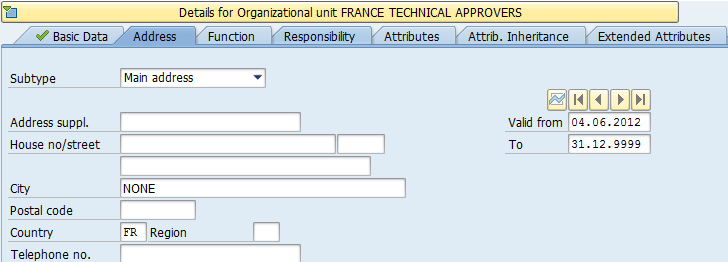 #1#2#3
# | Main activities | Tips / Best practices | Key points |
1 | Select the tab "Address" |
|
|
2 | Fill with "NONE" |
|
|
3 | Fill with Country code |
|
|
Create approval position
Go to BP2 – Tcode PPOSA_BBP
 #1#2#3#4#5#6#7
# | Main activities | Tips / Best practices | Key points |
1 | Click on the icon " |
|
|
2 | Click on "Structure Search" |
|
|
3 | Double click on the Country of the position |
|
|
4 | Right click on the department |
|
|
5 | Select "Create" |
|
|
6 | Click on the "Incorporates" |
|
|
7 | Click on icon " |
|
|
Double click on the new position and fill the necessary information:
 #1#2#3#4
# | Main activities | Tips / Best practices | Key points |
1 | Select the tab "Basic Data" |
|
|
2 | Fill with ("TC" + Zone code + Country code + plant code and number) |
| All in capital letters |
3 | Fill with (Zone code + "TC"+ plant name + description) |
| Zone code and TC in capital letters |
4 | Tick the square "Head of own organizational unit" |
| This is what makes a position an approval position |
Extended attributes:
Product categories
 #1#2#3#4
# | Main activities | Tips / Best practices | Key points |
1 | Select tab "Extended Attributes" |
|
|
2 | Click on the circle "Product Categories" |
|
|
3 | Enter the Product categories | Can be inserted an interval or individually |
|
4 | Select the system (BP2_400) |
|
|
Locations
 #1#2#3#4
# | Main activities | Tips / Best practices | Key points |
1 | Select tab "Extended Attributes" |
|
|
2 | Click on the circle "Locations" |
|
|
3 | Enter the plant code |
|
|
4 | Select the system of the plant |
|
|
Assign user to approval position
Go to BP2 – Tcode PPOSE
 #1#2#4#5#3
 #6
#6
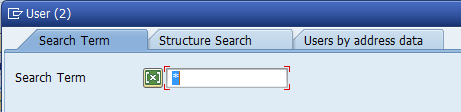 #7
#7
 #8#9
#8#9
# | Main activities | Tips / Best practices | Key points |
1 | Click on the icon " |
|
|
2 | Click on "Search Term" and search for the position to assign the user |
|
|
3 | Double click on the position |
|
|
4 | Right click on the position |
|
|
5 | Click on "Assign" |
|
|
6 | Click on "Holder – User" |
|
|
7 | Enter the user ID |
|
|
8 | Tick the correct user |
|
|
9 | Click on icon " |
|
|
Modify approval position
Change user
Before we can change a user from a Technical approval position there are some checks that need to be done.
- Check if user to remove has other approval position
Go to BP2 – Tcode PPOSA_BBP
 #1#2#3#4#5
# | Main activities | Tips / Best practices | Key points |
1 | Click on "Search Term" and search for the position to assign the user |
|
|
2 | Enter the user ID |
|
|
3 | Click on the button " |
|
|
4 | Double click on the user |
|
|
5 | Check the approval positions for the user |
|
|

If the user has only one position you should contact the Application Manager to confirm if the user is a company leaver.
If the user has several approval positions but is not leaving all of them there is no need to contact.
If the user is indeed a company leaver you need to remove him from the approval position first and after this deactivate the user. To do this please see operating procedure SRM7 – How to Deactivate a user.
- Check if the user has Shopping Carts or Work items pending
To check the shopping carts and work items please see operating procedure - SRM7 – Transfer Shopping Carts and Work Items between users.
- Check if the user substitute is created on Procurement organization structure
Go to BP2 – Tcode PPOSA_BBP
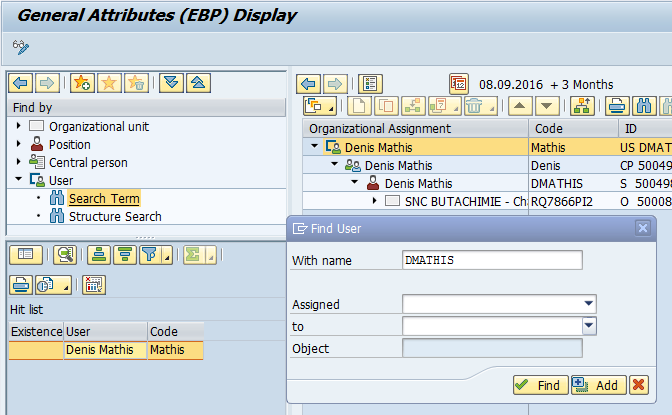 #1#2#3#4#5
# | Main activities | Tips / Best practices | Key points |
1 | Click on "Search Term" and search for the position to assign the user |
|
|
2 | Enter the user ID |
|
|
3 | Click on the button " |
|
|
4 | Double click on the user |
|
|
5 | Check if user is created |
|
|
If the user is not created in the Procurement Organization structure you need to contact the Application Manager to confirm where to create the user in the structure.
After the confirmation you need to create the user. To create the user see operating procedure SRM7 – How to create a user
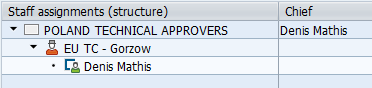
When you have all the information and the checks are all done, you can proceed with the change of user. To do this you will assign the substitute to the position and then delimit the user to remove.
Go to BP2 – Tcode PPOSE
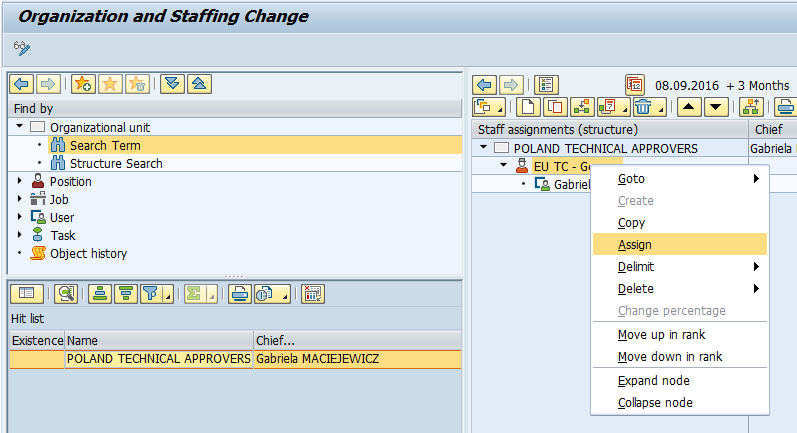 #1#2#3#4
 #5
#5
 #6#7
#6#7
 #8#9
#8#9
 #10#11#12
 #13
#13
# | Main activities | Tips / Best practices | Key points |
1 | Click on "Search Term" and search for the department above the position |
|
|
2 | Double click on the department |
|
|
3 | Right click on the position |
|
|
4 | Click on "Assign" |
|
|
5 | Click on "Holder - User" |
|
|
6 | Enter the user ID |
|
|
7 | Click on icon " |
|
|
8 | Tick the square to select the user |
|
|
9 | Click on icon " |
|
|
10 | Right click on the user to remove from the position |
|
|
11 | Click on "Delimit - assignment" |
|
|
12 | Enter the end date | Should be a yesterday date in order to the user disappear from the position |
|
13 | Confirm if the user to position is correct |
|
|
Change Extended attributes
Go to BP2 – Tcode PPOSA_BBP
 #1#2#3#4
# | Main activities | Tips / Best practices | Key points |
1 | Click on the icon " |
|
|
2 | Click on "Search Term" and search for position |
|
|
3 | Double click on the position |
|
|
4 | Select the tab "Extended attributes" |
| On this level you can change the "Product Categories" and "Locations" |
Delimit approval position
Before we can delimit a Technical approval position there are some checks that need to be done.
- Check if user to remove has other approval position
If the user has only one position you should contact the Application Manager to confirm if the user is a company leaver.
If the user has several approval positions but is not leaving all of them there is no need to contact.
If the user is indeed a company leaver you need to remove him from the approval position first and after this deactivate the user. To do this please see operating procedure SRM7 – How to Deactivate a user.
- Check if the user has Shopping Carts or Work items pending
To check the shopping carts and work items please see operating procedure - SRM7 – Transfer Shopping Carts and Work Items between users.
- Check if the extended attributes of the position to delimit are under another approver responsibility
The extended attributes "Locations" and "Product Categories" of the position should be under another position. To do this please confirm with the Application Manager to which position they should be transferred.
After the transfer you can delete the attributes of the position and proceed to delimit the position.
When you have all the checks done, you can proceed with the removal of approval position. To do this you will delimit the user from the position, delimit the position and then delimit the department if needed.
First we will delimit the user from the position
Go to BP2 – Tcode PPOSE
 #1#2#3#4#5#6

# | Main activities | Tips / Best practices | Key points |
1 | Click on the icon " |
|
|
2 | Click on "Search Term" and search for the department where the position is |
|
|
3 | Double click on the department |
|
|
4 | Right click on the user |
|
|
5 | Click on "Delimit - assignment" |
|
|
6 | Enter the end date | Should be a yesterday date in order to the user disappear from the position |
|
Now we will delimit the position from the department and the department.
Go to BP2 – Tcode PPOSA_BBP
 #1#2#3#4#5#6
# | Main activities | Tips / Best practices | Key points |
1 | Click on the icon " |
|
|
2 | Click on "Search Term" and search for the department where the position is |
|
|
3 | Double click on the department |
|
|
4 | Right click on the position |
|
|
5 | Click on "Delimit - assignment" |
|
|
6 | Enter the end date | Should be a yesterday date in order to the user disappear from the position |
|
To delimit the department (If needed)
 #1#2#3#4#5
# | Main activities | Tips / Best practices | Key points |
1 | Click on "Search Term" and search for the department above the department to delimit |
|
|
2 | Double click on the department |
|
|
3 | Right click on the department to delimt |
|
|
4 | Click on "Delimit - assignment" |
|
|
5 | Enter the end date | Should be a yesterday date in order to the user disappear from the position |
|
REFERENCES
ATTACHMENTS
No document attached.
End of document