


| Status | Approved |
| Owner | |
| Stakeholders |
Key Design Principles and Guidelines
Clarity First
- Every model should be immediately understandable to its intended audience
- Avoid unnecessary complexity
- Focus on communicating the process flow clearly
These are important for employees to understand how their work areas interface with others, and enhanced cross-functional collaboration.
Standardisation
- Use the consistent modelling patterns, symbols, and layouts described in this document.
- Apply the same level of detail for similar processes
- Ensure uniform naming and labelling
Following these principles creates a basis for effective communication between employees in different departments
Appropriate Detail
- Include only information relevant to the model's purpose
- Maintain consistent levels of detail and granularity within a model
- Create sub-processes for highly repeatable strings of activities within an L4, in order to facilitate ease of legibility and comprehension. See section 3.3.5. Sub-Processes
Maintainability
- Design imperative models to be easily read and updated
- Consider separating large and complex processes into smaller Level 4’s
- Do not use "optional" processes and tasks - instead model these as different paths in the process using Gateways.
- Maintain a neat and orderly layout of objects
- Document modelling decisions and exceptions
| ID | Design Principle and/or Guideline |
|---|---|
| KDP1 | Clarity - Every model should be immediately understandable to its intended audience |
KDP2 | Standardisation - Use consistent modelling patterns, symbols, and layouts |
| KDP3 | Appropriate Detail - Include only information relevant to the model's purpose |
| KDP4 | Maintainability - Design imperative models to be easily updated |
Key Benefits
- Improved model readability and comprehension
- Consistent process documentation
- Models can be used as a key foundation upon which training documentation can be built and maintained
- IT Systems are captured through the integration with LeanIX
- Enhanced collaboration across teams
- Security requirements are captured through the use of swim lanes
- Risks and Controls are captured and linked appropriately
- More comprehensive use of automated testing tools
- Simplified model maintenance
- Accelerated onboarding for new modelers
- Efficient process analysis and optimisation
- Allows for ongoing process improvement long beyond the project lifecycle.
Modular Business Processes
Process Model Definition and Usage
The SyWay Business Process Architecture is a structured inventory providing a hierarchical representation of all business processes in scope of the SyWay Project. It describes “what we do”.
In Signavio, the Folder Structure provides a vertical list of Processes, a hierarchical decomposition from Level 1 Group Processes e.g. Finance, down to Level 4 Processes containing Level 5 Process Steps. By navigating through the four levels of Processes, one will understand how processes are functionally clustered, including the Process Steps that form the basis of the day-to-day activities.
Implementing a well-designed Process Architecture is essential to be able to define and understand integration points between processes, teams and departments.
Process Decomposition
For an effective enterprise system implementation, it is vital that the lowest level of process decomposition corresponds to Process Steps which are supported by a clearly defined set of Objects and Elements, such as transactions, documentation, systems, roles and more. A Process Step should describe a logical unit of work activity, carried out by one person, that can be measured in terms of time and cost.
The main model types used to describe the levels of the SyWay Process Architecture are:
- Value Chain Diagram at Levels 1 and 2
- Modelled using the Value Chain
- Business Process Model at Levels 3 and 4
- Modelled using the Business Process Diagram (BPMN 2.0)

| Level | Description | Example |
|---|---|---|
| 1 | Also known as Process Groups, are composed of subordinate Level 2 Processes, also known as Macro Processes. | 06. Supply Chain |
| 2 | Represent a group of highly cohesive Level 3 Processes. | 06.04. Manage Global Trade Enterprise Structure |
| 3 | Represent a group of Level 4 Processes, which describe activities that are ordered according to their position in time and space. | 06.04.01. Create Administrative Unit |
| 4 | A Process, modelled as a flow of precise and chronological sequence of Process Steps. This is the foundation upon which the Syensqo Solution is built. They have predecessor and successor relationships to each other and should be modelled as such. The process flow is used to determine scope, boundaries and integration points with other processes. | 06.04.01.01. Assign Plants to Admin Unit |
| 5 | Also known as Process Step: a logical unit of work at the lowest level of business process decomposition, carried out by a person in a defined business Role. Decomposing any further leads to a procedural level. A Process Step achieves a business result and uses data or information as inputs and creates data or information as outputs. | 06.04.01.01.010. Select Plant |
Signavio Process Manager vs Signavio Collaboration Hub
Signavio Process Manager - Modelling
Signavio is the primary tool used for creating process models via the Quickmodel function, and editing via the BPMN editor.
A folder structure is displayed on the left hand side of the screen, which is used to navigate the Signavio architecture, including the modular, SyWay process decomposition, as described in the section above. The process process models are maintained in the 02.Shared Documents folder.
Revisions of process models can be viewed by expanding the pane at the bottom of the window. Use this functionality to compare different revisions of the same model, to revert back to different revisions, and collaborate on best design.
Predefined reports are available via the reporting tab, and diagrams can be exported or printed in various formats.

Signavio Collaboration Hub
Signavio Collaboration Hub is the primary tool for reviewing and sharing process models with a wider audience.
When first launching Collaboration Hub, click your initials in the top right of the screen and select View > Preview to access process models still in the Design phase. The folder structure on the left has tabs for Reports, Favourites, and within Shared Documents, the 02. Detailed Design folder structure seen in the Process Manager view.
Navigate through the folder structure down to level 4, view process models, leave comments for other team members or view Fact Sheets on individual processes for review and learning.
The same Predefined reports are available via the Reports tab, and diagrams and fact sheets can be exported or printed in various formats.

Modelling Standards

SyWay Signavio Modelling Convention Checks
A modelling convention consists of modelling guidelines regarding notation, labelling, process structure and diagram layout. The modelling convention check can be run manually whilst modelling and by default, will always run upon saving changes to a model.
Click the Review button when saving changes to open a pop-up window in which you can highlight each Error, Warning and Hint provided. All errors must be resolved prior to sign-off.
A Modelling Convention Report can also be run on one or multiple models in the explorer, containing a summary of SyWay modelling convention violations.
General Layout
- Models flow from left to right, top to bottom.
- One should be able to sense the passage of time from left to right
- Model parallel paths one above the other
- Maintain consistent spacing between elements
- Avoid overlapping elements and connection lines
- Avoid crossing sequence flows wherever possible
- Align elements horizontally and vertically where logical
Overlays
Overlays are created to display different layers of information when viewing a process model. Look for the icon in the top right of the process model window to toggle overlays on and off.
Depending on the size of your window, you may have to click the chevron first to display the remaining ions.

Model Size
Large processes may be candidates for separation into two (or more) smaller level 4 processes.
Value Chain Object & Element Usage
Value Chains are a visual repository of subordinate processes, arranged sequentially, using the Collapsed Process object. No connections are required between these objects.
BPMN Object & Element Usage
The usage of the various structural objects and elements available in the SyWay Business Process Architecture, as set out in this Standard, is enforced by Signavio configuration and governed by the SyWay Signavio Modelling Convention checks.
Events
- Start events: Always begin a process with a labelled start event
- Assign preceding process to Start Events via the Custom Attribute “preceding process”
- Rename event to match the name of the preceding process
- End events: Always end a process with at least one labelled end event
- Assign subsequent process to End Events via the Custom Attribute “subsequent process”
- Rename event to match the name of the subsequent process
- Intermediate events: Use to model process integration
- Every Start and End event must be paired with an Intermediate event
- The final Intermediate event in a process must match the first Intermediate event in the subsequent process
- See example below

Process Steps
- Process Steps should not be copied between process models, as each must be assigned a unique Level 5 identifier which assigns it to a single Level 4 process.
- Multiple process steps may be assigned to the same Process Step object in the Dictionary.
- The Signavio Key Users and BPM team maintain the Process Step Dictionary category to remove duplicates and align the objects with this Standard.
- Use task types appropriately:
- A User task is used to depict a single action which is performed by a User accessing an application or system (e.g. SAP).

- A Manual task is used to depict a single action which is performed manually. It is expected to be performed without the aid of any system or application.

- A Service task is an automated action that starts automatically when the sequence flow arrives. If any User involvement is required, it should be a User task.

- A Script task is used to depict an automated action for which there is no Executable e.g. it is part of Config.

Gateways
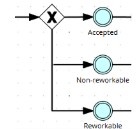
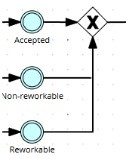
- Gateways can be either one in, many out (diverging), or many in, one out (converging), but never both.
- Only the following Gateway types are to be used:
- Exclusive gateway (XOR): Only one path is chosen

- Inclusive gateway (OR): One or more paths are chosen

- Parallel gateway (AND): All paths are executed simultaneously

Connectors
- Use sequence flows (the default connection type) for the normal flow within a pool

- Use the different Association connectors to connect Data Objects to process steps, making use of the different directions to describe the nature of their relationships, for example, describing whether a document is an input to, or an output of a process step.
- Avoid using data objects and associations unless data flow is critical to understanding
System Interfaces
- System Interfaces are used and referenced directly in the course of a process.
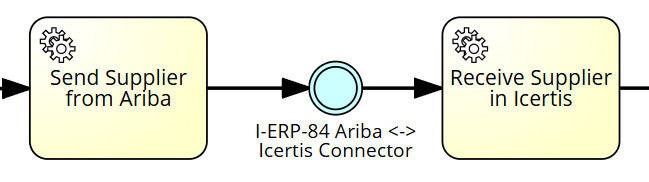
- They are modelled using an Intermediate Event between two Process Steps
- The systems assigned to the “sending” and “receiving” process steps must match the systems maintained in the sending and receiving system attributes of the event

- If multiple Build cards are assigned to an interface, all must be assigned to the relevant process steps.
- Interfaces are captured as part of the Custom Development Register in Jira
- If the Interface you wish to model is not available, please contact either Alex Helme or Niclas Palmstroemer
Executables (Fiori Apps, T-codes, URLs, Programs, etc.)
- Executables are objects that are run to execute a specific task. They fulfill process steps, and can be one of the following:
- Fiori Apps
- Loaded from the relevant SAP Fiori Catalogue
- May execute GUI transactions (t-codes) in the background
- Any Executables not included in the SAP Fiori catalogue must be approved by the Integration Lead, Bhargavi Narahari
- URL (SaaS)
- Program
- Fiori Apps
- Assign Executables to process steps via either of the two Custom attributes “Primary Executable”, or "Associated Executable"
- It is the executable that is always required to perform the step.
- Only one executable can be assigned to the Primary Executable field.
- Associated Executables include apps executed in the background, drill down apps, display apps, any other secondary apps that can be triggered in the execution of the assigned process step.
- Multiple Associated Executables can be added
- It is the executable that is always required to perform the step.
Object Details & Creation
Object | Definition | Creation method Via tool dialog entry and/or on a specific diagram type. | Appearance on Process Diagram? |
|---|---|---|---|
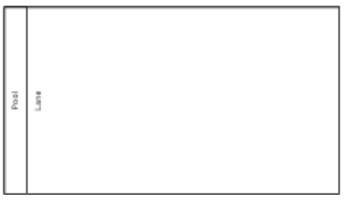
Lane (Swim Lane) | A Lane is a sub-partition in a BPMN Pool. It is used to represent a logical grouping of process steps, executed by a given Business Role. Therefore, Swimlanes represent the Process Role executing the steps. Automated / System steps (Service Tasks, Script Tasks) may sit in any Lane. | On a Process Diagram, click the Lane object symbol and pick an existing Lane (from “Available Lanes”). Ensure you check the List of Available Lanes before creating a new one. The tool also allows the creation of a new Lane from the “Available Lanes” section. Once created this new Lane is added to the “Available Lanes” section and is ready to be picked for the diagram. |
|
Object | Definition | Creation method Via tool dialog entry and/or on a specific diagram type. | Appearance on Process Diagram? |
|---|---|---|---|
Process Step | A logical unit of work, transactional in nature, to be executed in order to complete a process. At least one Executable must be assigned to each Process Step (of type User or Service ). | Process Steps should be created in the Level 4 process in which they are executed . Process Steps must not be re-used as they are to be assigned a unique Identifier as part of their mandatory attributes. | There are only four Task types allowed. Note the different icons in the top-left of the Objects: A User task A Manual task A Service task
A Script Task |
Object | Definition | Creation method Via tool dialog entry and/or on a specific diagram type. | Appearance on Process Diagram? |
|---|---|---|---|
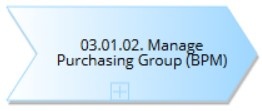
Collapsed Process | A collapsed process represents a business process that is linked to another process model. Used to represent Level 2 and Level 3 processes on Level 1 and Level 2 Value Chain models. | On a Value Chain model, click and drag the Collapsed Process symbol onto the model. Click the plus icon on the object to link it to another model. |
|
Data Object | Modelling objects used to represent input or output documents, or Custom Developments with the exception of Interfaces (see System Integration section of this table below). These are not technical objects with attributes, therefore Custom Dev objects must still also be assigned to the relevant Process Step attribute | On a Process Diagram, click and drag the Data Object symbol onto the model and type the identifier of the custom development you require. Once the custom development Dictionary has been populated, you can select the appropriate object from the list. | |

Object | Definition | Creation method Via tool dialog entry and/or on a specific diagram type. | Appearance on Process Diagram? |
|---|---|---|---|
Gateway | Gateways are used to control how Process Steps and flows interact as they converge and diverge within a Process. Gateways must follow one of the following rules:
| On a Process Diagram:
To change the type:
| There are 3 types of gateways allowed by this standard:
Exclusive gateway is used to create alternative paths within a process flow. Only one path is taken.
Inclusive gateway creates alternative paths which are not mutually exclusive. One or many of the paths can be executed.
Parallel gateway is used to create parallel flows. Each path is executed simultaneously.
|


Object | Definition | Creation method Via tool dialog entry and/or on a specific diagram type. | Appearance on Process Diagram? |
|---|---|---|---|
Event | An event is something that occurs during a Process. These events affect the flow of the diagram and usually represent a cause (trigger) or an impact (result) or outcome.
In Signavio, Message Events are also used to document System Interfaces between Process Steps. See the Interface section below, in this table.
| On a Process Diagram:
To change the type:
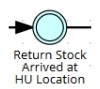
| There are four types of events allowed by this standard: Start events are green and are used to depict the start of a process. End events are red and are used to depict the end of a process. Intermediate Events are blue and can be used to depict an important event resulting from a process step within the process flow, and more commonly are used to model process integration. They are also used to model system interfaces (see next page). Intermediate Timer Events (found in the “Catching Intermediate Events” section) are blue and are used to depict the passage of time |



Object | Definition | Creation method Via tool dialog entry and/or on a specific diagram type. | Appearance on Process Diagram? |
|---|---|---|---|
System Interface (Intermediate Event) | Represent an interface between two Systems . Interfaces are maintained centrally in the Dictionary and can be inserted between two process steps using an Intermediate event.. | On a Process Diagram, add an Intermediate Event between two process steps: Both steps must have the correct System assigned as part of their mandatory attributes Once the Interface Dictionary has been populated, you can select the appropriate object from the list. If the Interface you wish to use is not available from the Dictionary, please contact either Alex Helme or Niclas Palmstroemer | |
Executables (Fiori Apps & T-codes) | Executables are objects which fulfill process steps, and can be one of the following:
| Assign to an L5 Process Step via the Custom Attributes “Primary Executable” and "Associated Executable". Once the Executable Dictionary is populated, you may select the appropriate object from the drop-down. If the Executable you wish to use is not available, you can create it as an "Executable Suggestion" - these are periodically reviewed and triaged. |
|

Naming Standards
Process Names
- Use verb-noun format (e.g., "Process Invoice" rather than "Invoice Processing")
- The identifier should be before the name in the correct format (full stop at the end of the identifier then a space before the name e.g. 04.01.01.01. Process Invoice)
- Be specific and descriptive
- Capitalise the first letter of each word (e.g., "Approve Customer Order")
- Avoid acronyms in titles unless universally understood
Process Step Names
- Use verb-noun format (e.g., "Enter Customer Data")
- Be concise but descriptive (5 words or less when possible)
- Use sentence case (e.g., "Review credit application")
- Avoid technical jargon unless required for clarity
Event Labels
- Use past tense for events that have occurred (e.g., "Invoice received")
- Use to describe multiple outcomes of a process step
- Use descriptive language (e.g., "Payment deadline reached" rather than "Timeout")
- When used in process integration, the intermediate event should describe the outcome of the final step or steps. It is then copied to the beginning to the next process, where it becomes a starting condition for a path in that process.
- Keep labels concise but clear.
Model Organisation
The Folder Structure
In Signavio, the Folder Structure provides a vertical list of Processes, a hierarchical decomposition from Level 1 Group Processes e.g. Finance, down to Level 4 Processes comprising Level 5 Process Steps.
By navigating through the four levels of Process, you will understand how processes are functionally clustered, including the Process Steps that form the basis of our day-to-day activities.
- The Folder Structure is organised by process stream and then decomposed by logical process category
- It is consistent across the organisation.
- Changes to the folder structure can only be made by the BPM members of the Integration team. Please contact either Alex Helme or Niclas Palmstroemer
- Clear naming patterns are to be used for processes and process steps.
- Verb-noun format
Revisions
- Whenever changes to a model are saved, a new Revision is created.
- Use the Activity Feed to review and compare Revisions, add comments, and revert to previous versions
- Subscribe to a model or folder to receive notifications when a change is made
- Document significant changes in the model description, including reasons for change if necessary.
Links and Relationships
- Create links between related models via process integration
- Use glossary terms to ensure consistent terminology.
Documentation Standards
Process Model Metadata
Mandatory Attributes for all Level 3 & 4 Process Models. Mandatory attributes are highlighted:
- Custom Attributes:
- Sign off Status
- POD
- Process owner
- Release
- Sub Function
- Main Attributes:
- Name (must match the Folder Name)
- Documentation (Description)
Process Step Metadata
Attributes for Level 5 Process Steps are separated into Custom and Main attributes. Mandatory attributes are highlighted:
Custom Attributes:
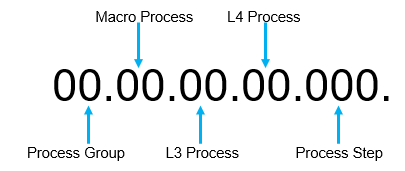
- Identifier
- The numerical identifier is used to make sure that the process or process step in the SyWay Process Architecture can be easily recognised
- The L5 section of the identifier must be 3 digits, e.g. 06.04.02.01. 010.
- The identifier must end in a full stop.
- Identifier
- Related Documents
- Assign relevant documentation to this field
- Config. Guides
- Functional Specs
- Technical Specs
- Input and output documents e.g. Reports
- Kinaxis Work Instructions
IT Attributes
- IT System (mandatory for User, Service and Script Tasks only)
- Mobile Device
- Check this box if the step is executed on mobile.
- NOTE: if a step can be performed both on mobile and computer, two process steps are required, one for each.
- Primary Executable (mandatory for User Tasks)
- Select from the list provided
- Only one Primary Executable per step
- Associated Executable
- Select from the list provided
- Multiple Associated Executables can be assigned
- Batch Job
- Select from the list provided
- Custom Development
- Select from the list provided
SSA Custom Attributes
- System Standard
- Mark this as 'Yes' if the task executed by this process step uses standard functional capabilities of the tool or platform (every L5 step that is a system step that does not have an associated custom development according to the custom development counting rules).
- Syensqo Standard
- Mark this as 'Yes' if the task executed by this process step is a single or standardized business process step applied across all GBU's/functions (every L5 that is not GBU or function specific), even if this is not a system-standard task.
- Automation
- Check this box if the task executed by this process step is, or could be, automated in some way, for example, an interface replacing manual tasks; SAP tasks replaced by an automated workflow, batch jobs, AI, RPA, Machine learning, etc.
- GBS
- Mark this as 'Yes' if the task executed by this process step is, or could be, performed by GBS/Share Services.
Process Controls Custom Attributes
- Process Control
- Mark this as 'Yes' if the Process Step is a process control, No if not. If Yes, all subsequent Process Control Custom attributes are mandatory.
- Control Description
- free text attribute to describe the control
- Control Execution
- select from Automated, Semi-Automated, or Manual
- Control Type
- select from Detective, Preventative, or Corrective
- Control Frequency
- select from a range of frequency options
- Risk Type 1, 2, & 3
- Use these to select up to 3 Risk types mitigated by the control
OCM Custom Attributes
- As Is
- Select whether the process step remains unchanged from the current solution or not.
HR Custom Attributes:
- Moment that Matters
- Fair and Inclusive Touchpoint
- Human Touchpoint
Finance Custom Attributes:
- SOX-relevant
Main Attributes:
- Name
- Use verb-noun format (e.g., "Enter Customer Data")
- Documentation (Detailed Description)
- Describe what the process step is doing.
- Task Type
- User Task
- Service Task
- Manual Task
- Script Task
- Loop Types
- Standard - a User task that can repeated until a different outcome is achieved.
- Parallel - a Service task that can run many times at the same time
- Sequential - a Service task that can be repeated many times one after the other
Review & Approval Process
Quality Check
Signavio implements BPMN governance checks at the point of Saving. You may save changes without addressing the errors by following the prompts, however before any model can be approved, it must pass these quality criteria:
- Adherence to this SyWay BPM Design Standard
- All Signavio Errors resolved
- Completeness of documentation
- Technical correctness (no broken links, correct use of gateways, etc.)
- Business accuracy (verified by process lead)
Approval Workflow
- Initial creation and revisions of each model are performed by the process modeller
- Business review by process owner and any other stakeholders
- Final approval by SyWay process governance team
- Peer reviews performed by Key Users and SMEs
- Technical review by BPM modelling experts from Integration team
| # | Task | Who is going to trigger the activity | How | Gatekeeper | Status | Sub Status |
| 1 | New L4 Requested | Process Owner | Email to Integration Team / Outcome of CR | Integration Team | N/A | |
| 2 | L4 is created by Process Modelling Team | Process Modelling team | Approval email from Integration Team | Process Modelling Team | 0 - Draft | |
| 3 | Process modelling done by the Process Owner from Pod | Process Owner | Signavio | Process Owner | 0 - Draft | |
| 4 | Process model reviewed by Process Modelling Team for Technical Compliance | Process Owner | Meeting | Process Modelling Team | 1 - Draft Complete | |
| 5 | Process model reviewed by Integration team representative | Process Owner | Email / Meeting | Integration Team | 2 - Integration Review Complete | |
| 6 | Process model presented in cross pod meeting | Process Owner | Meeting | Integration Team / Other team members | 3 - Cross Pod Review Complete | |
| 7 | Standardization Review | PMO / Process Modelling team | Meeting | Integration Team / Other team members | 4 – Business Process Reviews in Progress | Standardization review complete |
| 8 | Automation Review | PMO / Process Modelling team | Meeting | AI Consultant / Integration Team / Other team members | 4 – Business Process Reviews in Progress | Automation Review Complete |
| 9 | Jobs/roles review (GBS vs rest) | PMO / Process Modelling team | Meeting | GBS Consultant / Integration Team / Other team members / HR | 4 – Business Process Reviews in Progress | GBS Review Complete |
| 10 | PC Review | PMO / Process Modelling team | Meeting | Process Controls Consultant / Integration Team / Other team members / Risk and compliance | 4 – Business Process Reviews in Progress | PC Review Complete |
| 11 | SOD Review | PMO / Process Modelling team | Meeting | Security Consultant / Integration Team / Other team members / Risk and compliance | 4 – Business Process Reviews in Progress | SOD Review Complete |
| 12 | Process model updated with all attributes and changes from previous reviews | Process Owner | Signavio | Process Owner | 4 – Business Process Reviews in Progress | |
| 13 | Business Review | Process Owner | Signavio | Business Lead / Delegate | 5 – Business Process Reviews Complete | |
| 13 | QA Review | Process Owner | Meeting | Process Modelling Team | 6 - QA Complete | |
| 14 | BL Sign Off | Process Owner | Email / Meeting | Business Lead | 7 - Endorsed |
Publication
- Only approved models should be published to the Collaboration Hub
- Use the Preview option in the User Settings to view unpublished processes
- Publication includes communication to stakeholders
- Liaise with the Training team to ensure that training materials are updated to reflect new/changed processes.
Dictionary Management and Reusable Components
Dictionary and Glossary Management
- A centralized business Dictionary in is maintained Signavio Dictionary
- Link process elements to dictionary entries for consistent terminology
- Dictionary categories organize business terms by type
- Dictionary entries must include:
- Clear definition
- Example(s) of usage
- Owner/responsible party
- Related business rules (when applicable)
- Functional teams may only create Dictionary items in respective "Suggestions" folders.
- These items are reviewed bythe Integration team for suitability and approval.
Document Management
- Link relevant documents to process models using the document linking feature
- Use consistent document categories:
- Process policies
- Work instructions
- Forms and templates
- System documentation
- Regulatory requirements
- Document references must include:
- Document name
- Document type
- Version/revision number
- Location/system of record
- Owner/responsible party
Change Management
Change Requests
- Document requested changes using the Syensqo change request process
- Assess impact on related processes and systems
- Obtain approval from process owner before implementation
Revision Cycles
- Update models when business processes change
- All change requests and their status should be tracked
Archiving
- Archive obsolete processes rather than deleting them
- Archived processes by moving them to the 07. Process Archives folder
- Document reason for archiving and replacement processes (if applicable)