


| Status | Approved |
|---|---|
| Owner | TATARU-ext, Eugenia |
| Stakeholders | |
| Jira Request ID | ERP-497 - Getting issue details... STATUS |
| Jira Development ID | ERP-720 - Getting issue details... STATUS |
High- Level Specification
| Implementing System | GTS (S4) |
|---|---|
| Invoked by | ERP-718 |
| Business Process Reference | 12.02.01.01. Manage Classification Codes |
Functional Overview
The functional design of the system interface defines the API to be provided or consumed.
Syensqo uses Descartes (3rd party system) which is the market-leading global trade content for GTS that provides the most current regulatory data for for Customs Classification Codes (HTS). Harmonized Tariff Schedule codes are used to classify imported and exported goods. The first six digits are the international Harmonized System (HS) code, and the last four are specific to the U.S. and its import duties and statistical categories. New classification codes are always provided by Descartes on a regular basis via XML files.
The purpose of this system interface is to automatize the process by, uploading the list of Customs Classification Codes published by the Government into SAP GTS. The update should occur when a file is provided by Descartes. Updates can be received on a daily basis, hence the set up of the program will be marked as daily.
In terms of errors that can occur via the automatic upload, IT GTS users will get a notification within Fiori Launchpad in order to troubleshoot the problem (manual intervention).
The file movement (CPI-S/4) is covered via FS: ERP-718.
Scope and Objectives
While GTS is the leading system for classification codes and product assignment, this step is the prerequisite before classifying any product and before any export can happen in the system.
The emails that Descartes is sending to GTS IT team with the new classification codes will be replaced by this new automatization which follows one straight objective: to reduce the workload of man/hour which involves emails, dependency on an user action/availability or knowledge transfer within the team.
With the 3 different instances of GTS system for US, China and Rest of World, the HTS file must be available in all systems for the product-classification codes to happen.
Process Flow Diagram
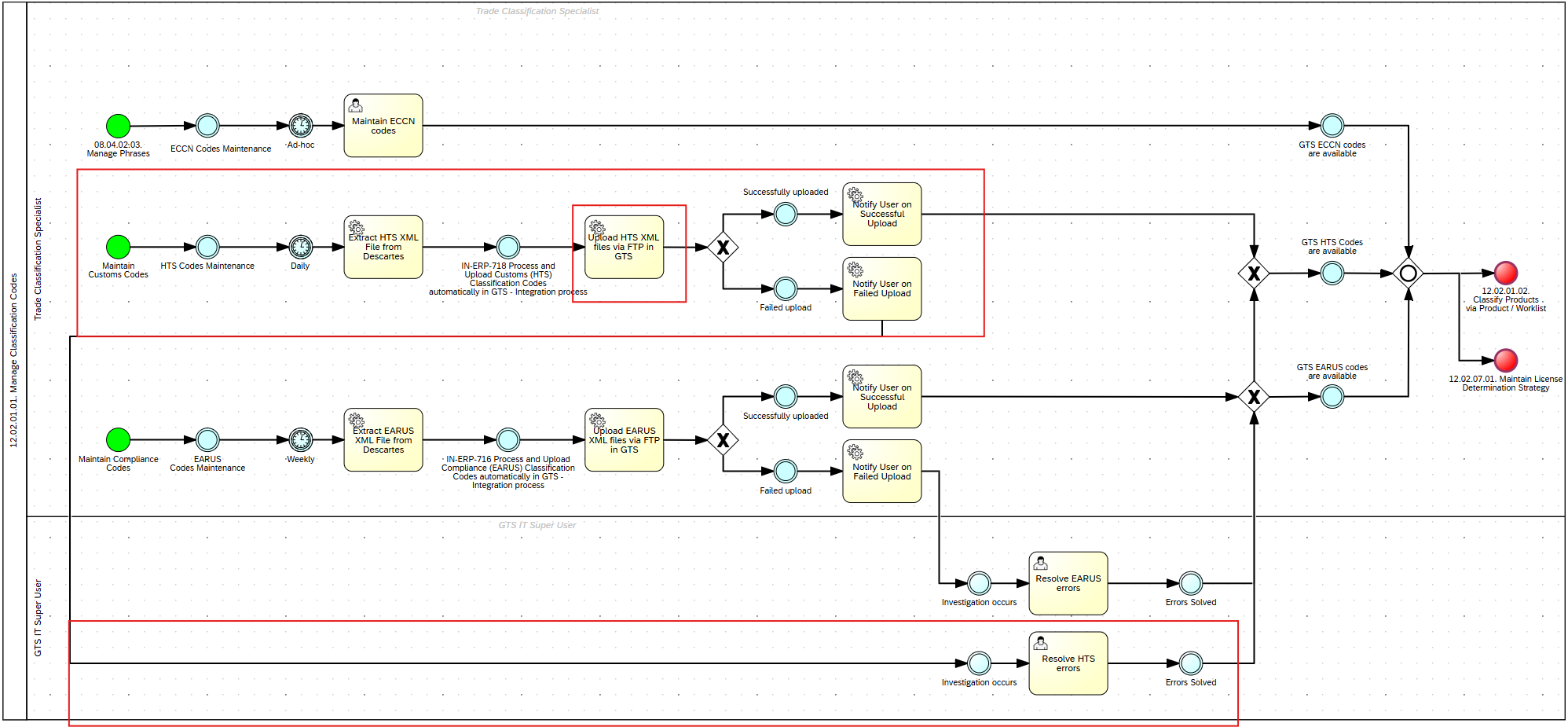
Step | Description | Comment |
|---|---|---|
1 | HTS XML codes published by Descartes | |
2 | File interface program to fetch the HTS XML file and place it in the application server | |
3 | Upload to GTS system using the standard transaction /n/SAPSLL/LLNS_UPL102 | Functional Specification will cover this part. |
4 | Notification is send to the GTS IT users if successful/failed | |
5 | If upload fails, log the details of the upload and GTS IT users to troubleshoot the error | |
6 | After a successful upload , the program will then archive the file from the directory. |
Assumptions
- SAP GTS E4H system will be available at the time of upload.
- Numbering schemes content & Legal Regulations will be configured in GTS system.
- Upload logs will be generated.
- Notification functionality will be handled by standard GTS Fiori Launchpad.
- Users listed under DL sco-digops-gts@syensqo.com will be used as basis to receive notification via Fiori whenever custom program runs successfully or fails.
Dependencies
Descartes must published first the XML content for HTS codes on his website.
Security, Integrity and Controls
- Uploading the file to an accessible file server (to be accessed by the Standard Program) is to be done securely through Cloud Connector.
- A dedicated GTS technical user will be created to process the application job.
- In the case of manual execution due to error processing, GTS IT Super User to manually upload the HTS Classification codes on an adhoc basis
Configuration Requirements
You have made the following settings in Customizing for the GTS system:
You have defined numbering schemes content in Customizing for the general settings. The numbering scheme contains the underlying structure for the numbers.
You have defined and configured the necessary legal regulations in Customizing and activated them for the application areas.
You have set up system communication.
You transferred products from your feeder system to the GTS system.
Special Requirements
Overwriting should be possible. Whenever there is an emergency and cannot wait for the interface program to run, the GTS IT user can login to the FTP server, download the XML file and then upload the file to GTS manually.. However, at the next run of the program this should overwrite the entries stated by the GTS IT user.
Design Rationale
Existing process is manual upload of EARUS XML file on a regularly basis and it needs to be replaced by this automated solution (run on a daily basis).
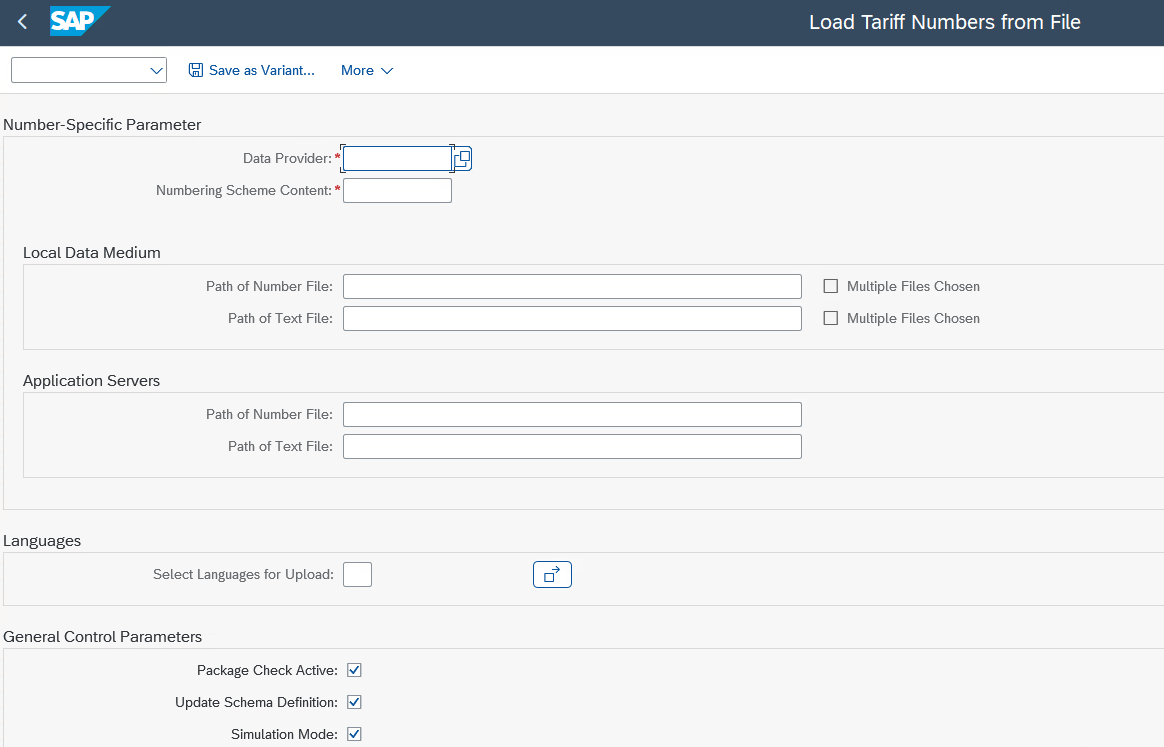
Variant for the file daily upload program of /n/SAPSLL/LLNS_UPL101 (/SAPSLL/NSC_NUM_UPLOAD_101).
→ Number specific-parameters:
- Data Provider: Descartes
- Numbering schemes content: HS****
→ Application Servers:
- Path of number file: application server.
→ General Control Parameters:
- Package check active: ticked
- Update Schema definition: ticked
- Simulation Mode: only when is controlled manually or testing purposes.
Additional explanation on some of the mentioned fields:
- Path of Number files → This is the path taken from the APP server.
- Package Check Active→ If this indicator is active a new version can only be loaded if all packages or files were loaded successfully for the previous version. If is deactivated you can upload a new version, although the previous version was not loaded completely (not recommended).
- Update Schema Definition → Displays whether scheme definitions are to be transferred from the upload file.
- Simulation Mode → If this indicator is selected, processing is only performed in the simulation mode and results cannot be updated to the database.
API Use
CPI part of Jira ERP-718 will trigger an event or custom proxy once the file has been picked successfully from Descartes site and dropped in the application server directory.
Data Structure
N/A
The following fields will be used to provide the required data structure of the interface:
| Parent | Field | Description | Mandatory (Y/N) | Data Type |
|---|---|---|---|---|
Calculation and Validation
N/A
| Parent | Field | Rule Type | Rule Instruction |
|---|---|---|---|
Processing Logic
Once the XML files are fetched from the Data Provider, these will be uploaded to GTS system using standard transaction /n/SAPSLL/LLNS_UPL102. This program will be scheduled to run daily (time TBD).
Delta or Full Load Requirements
First upload will be considered the initial upload for HTS XML classification codes → full upload.
After that, the rest are considered delta, whenever new codes shows up or changes.
Interface Alert & Monitoring
A notification via Fiori Launchpad (standard) is send to the GTS IT user if any error occurs during file upload in GTS, but also if upload was successfully executed.
Users listed under DL sco-digops-gts@syensqo.com will be added to a Custom Business Configurations:
| Key fields | Data Element | Data Type | Length |
|---|---|---|---|
| Client | MANDT | CLNT | 3 |
| User ID | SYUNAME | CHAR | 12 |
Language Requirements
English
User Interface Requirements
N/A
Volumetrics
N/A
Performance Consideration
For the XML size during upload, reach out to the owner of the FS to get the details to login to Descartes website and to do the technical check.
Error Handling
When a file has errors during upload the file is not archived from the directory. A notification is sent to the GTS IT user to check the error. Worst case, the user must upload manually the XML and do correction manually in GTS.
Those errors most of the time are configuration errors such as: "Errors occurred during the conversion of the XML file" or "No customs Tariff number found for determination procedure ABCDE (numbering scheme name)". Eventually for any type of error the notification trigger should be send to the GTS IT user to correct it afterwards.
If no file found the customs program will stop with an error ending the program.
Log requirements:
- Upload- File error when moving file from FTP site to Application server → Notification via Fiori Launchpad to the GTS IT users
- No file available at the time when the custom program is scheduled to run → End program
- Always upload the latest version of the zip file. If at the time of the extraction the version number is same as per the last run → End program.
Testing
How to Test
Test Conditions and Expected Results
| ID | Condition | Expected Results |
|---|---|---|
| 1 | Custom proxy to be executed to fetch the file from the file server and upload to GTS | File should be fetched from file server. Call standard program and upload the file to GTS system. |
| 2 | Upload an error file | File upload produces error and a notification to be triggered to users listed under DL sco-digops-gts@syensqo.com |
| 3 | Errors can occur during the upload to GTS. Several scenarios:
| 1.Symptom: Error like Solution: Go to 2. Symptom: Errors during the save process. Solution: Open the XML file in Notepad, check the encoding format (often 3. Symptom: Error message like Solution: Verify that the numbering scheme is not set to be manually created if you intend to upload it. For existing numbering schemes, if you are trying to create multiple entries for a single legal regulation, you may receive an error that an entry already exists. Carefully check the configuration settings for the legal regulation and ensure you are not creating duplicate entries. 4. Symptom: Errors occur while mapping data, but the file itself seems fine. Solution: This can be due to missing or duplicate data, which might require deleting old entries before re-uploading. Refer to SAP Notes, such as Oss note 1457745, for specific issues with duplicate entries. 5. Symptom: The tariff codes are assigned, but the material still appears in the worklist. Solution: Ensure that the material is correctly configured with the plant tab enabled. You may need to check the configuration of the material type in the feeder system (ECC) and verify that the plant segment is correctly set up in the |
Test Considerations/Dependencies
Test the file interface program ERP-718 and then test this interface.
Other Information
Development Details
Package
| Package Name | Parent Package |
|---|---|
Other Development Objects
| Object Type | Object Name | Purpose/High Level Logic | Design Rationale Reference |
|---|---|---|---|
4 Comments
INAMDAR-ext, Dig Vijay
KUMARAVELU-ext, Shruthi As discussed can you please check from security side so we can move ahead
INAMDAR-ext, Dig Vijay
TATARU-ext, Eugenia Please add more test conditions like if anything missing from configuration side then how system will behave
HEALY-ext, Michael
My security related questions where answered sufficiently.
KUMARAVELU-ext, Shruthi
Security review completed and the requirements have been noted for GTS tech user creation.