


High- Level Specification
| Parameter | Value |
|---|---|
| Application System | SAP S4/HANA SyWay |
| Business Process Reference | 06.10 Manage Inventory and Logistics 06.11 Manage Warehouse and Logistics |
Functional Overview
This mobile app will allow stock overview information to be displayed. This can be all stock for a storage location or limited to stock for a specific material, batch or storage bin etc. Drill down options will allow the user to see the information by stock type, batch, handling unit or storage bin level.
Scope and Objectives
This app will support stock overview reporting in IM and EWM.
Process Flow Diagram
Step | Description | Comment |
|---|---|---|
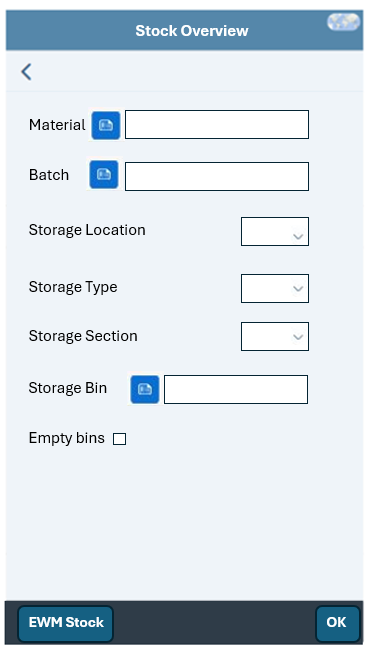
1. | Initial screen | The field selection for the report offers fields for material, batch and storage location. For plants with EWM, the user can additionally select on storage type, storage section and storage bin. There will also be a checkbox to allow empty storage bins to be reported. If the empty storage bin option is not used, empty storage bins will not be reported. The user can scan or enter the values for the selection fields. When the user presses the OK button, if a storage type of storage bin has been entered, the EWM stock screen will be shown (Step 6), otherwise the Stock Overview screen will be shown (Step 2). For plants with EWM, a button will allow the user to go directly to the EWM Stock screen (Step 6). This button will not show for IM only plants. |
2. | Stock Overview screen | Shows all stock by Material/Storage Location with the ability to search by material. Clicking on a material will branch to the Stock Type screen (Step 3) |
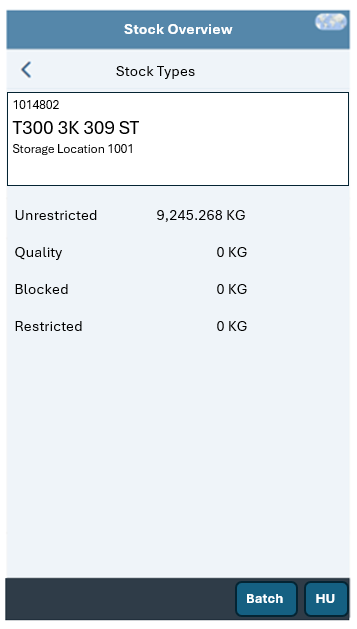
3. | Stock Type screen | Shows all stock for the selected material/storage location by stock type. For IM HUM storage locations, buttons will allow the user to display stock information per batch (Step 4) or per top level Handling Unit (Step 5). For EWM storage locations buttons will allow the user to display stock information per batch (Step 4) or the EWM stock details (Step 6). |
4. | Batch screen | Shows the same information as the stock overview screen, but per Material/Batch. Has a button to branch to the HU details screen for a selected batch, for IM HUM storage location or to the EWM Stock screen for EWM managed storage location. |
5. | Handling Unit screen (IM) | Shows the details of HU’s for material or material/batch in a given IM storage location with the ability to search the list for a given HU. Include a button to branch to the HU Display transaction. |
6. | EWM Stock screen | Shows the stock per storage bin, listing storage type, storage section, storage bin, handling unit, material, batch and EWM stock type. |
Assumptions
There will be no more than one EWM warehouse assigned to a plant.
Dependencies
None
Security, Integrity and Controls
The user must have material document display access for the selected plant. Check object M_MSEG_WMB for Activity 03 and the selected plant. If no access, show the message "No authorization for plant <9999>".
Configuration Requirements
None
Language Requirements
This app will be available in all SyWay languages.
See KDD055 - Multi-Language Support.
Special Requirements
None
Design Rationale
Functional Requirements
Initial Screen
The first screen will prompt to enter Material, Batch and Storage Location. The values for these fields can be scanned or typed.
If the plant of the user is using EWM there will be additional fields to enter Storage Type, Storage Section and Storage Bin. For EWM there will also be a checkbox to allow the user to report empty bins. These fields will not show for IM only plants.
If at least one storage location of the plant is active for EWM, then the plant is considered as an EWM plant.
For scanning, the field input needs to support the 2D GS1 Data Matrix barcode format or other agreed formats. Material numbers will use application ID 240. Batch will use application ID 10. Barcodes for storage bin will have no application ID.
Any combination of values can be entered with the following exceptions:
- Batch can only be entered in conjunction with a material number.
- Storage Location can only be left blank if a material or material and batch are entered.
- Storage Section can only be entered if a Storage Type has been entered.
- The empty storage bins option can only be used with all selection fields blank, or only storage type and or storage section populated.
The plant and EWM warehouse for the user have already been established at the time of logon to the handheld solution.
Once the selection screen has been entered, an OK button will take the user to:
- The Stock Overview Screen when the selection is not for a specific material
- The Stock Types Screen when the selection is for a specific material/batch
If the plant of the user is using EWM, an EWM Stock button will allow the user to go directly to the EWM Stock Screen.
Initial Screen Validation
Field | Table-Field name | Comments / Calculation / Field Manipulation / Input / Output / Validation rule / Value help |
Material | MARD-MATNR | A valid material from the plant of the user must be entered, otherwise display an error "Material <x> does not exist for plant <y>" |
Batch | MCHB-CHARG | Batch can only be entered in conjunction with a material number. This field should be greyed out until a batch managed material is entered. |
Storage Location | MARD-LGORT | Dropdown will only list storage locations for the plant of the user. |
Storage Type | /SCWM/AQUA-LGTYP | Dropdown will only list storage types for the EWM warehouse of the user. |
Storage Section | /SCWM/T302-LGBER | Drop down will only list storage sections for the storage type entered. |
Storage Bin | /SCWM/AQUA-LGPLA | When a storage bin is selected, clear any values entered for storage type and storage section. A valid storage bin for the warehouse must be entered, otherwise display an error “Storage bin <x> does not exist”. |
Empty Bins | /SCWM/LAGP-KZLER | Checkbox. Can only be switched on when all other selection fields are blank, or when only storage type and/or storage section are populated, otherwise display an error “Empty bins by warehouse, storage type of storage section only.” |
Stock Overview screen
The Stock Overview screen will display a list of material stock based on the selection. The quantity displayed will be the total quantity of the material in stock per storage location across all stock types. This is the same information reported in SAP transaction MB52, selecting by plant, batch and storage location and no zero stock lines.
The fields to be displayed for the Stock Overview are:
- Material number
- Material description
- Storage Location
- Quantity and UOM (Total for plant for all stock types)
A counter will show the total number of selected records.
Sort by Material Description.

The Search field will give the user the ability to filter the list. e.g. to allow searching for a specific material description.
Selecting a row in the table will take the user to the Stock Type screen.
Stock Type screen
The Stock Type screen will show the quantity of the material by stock type, based on the selection. This is the same selection as the MMBE transaction, selecting by material, plant, storage location, also select special stocks and special stock numbers e.g. Vendor consignment stock: K, Vendor: 29899, no zero stock lines and display level for plant and storage location.
If the location is handling unit managed (T001L-XHUPF = X) and the material exists in handling units, then a “Handling Units” button is displayed allowing the same material stock information to be displayed per handling units. This is the same selection as transaction HUMO selecting by material / plant / storage location. If the location is not handling unit managed, then this button will not be displayed.
If the material is batch managed (MARC-XCHPF), and the initial report selection was not by batch, a button “Batches” will allow the same material stock information to be displayed per batch. This is the same as the previous selection on MMBE but with the batch level selection switched on.
The fields to be displayed for the Stock Overview are:
- Material number
- Material description
- Storage Location
- Batch number (When selection is for a specific batch)
- Batch ID (When selection is for a specific batch)
- Expiry Date (When selection is for a specific batch)
- Unrestricted stock Quantity and UOM
- Quality stock quantity and UOM
- Blocked stock quantity and UOM
- Restricted stock quantity and UOM
Based on the selection, the stock quantities will either be the total for the storage location or the values for a specific batch.
Batch Screen
The Batch Screen will list of all batches in stock for the material, based on the selection. If the storage location is handling unit managed, then a button “>” will also be available on the batch record, to allow branching to the Handling Unit screen for the selected batch.
If the same batch has stock in different stock types, then the batch will be listed per stock type.
The material number and description will show at the top of the screen.
The fields to be displayed for the handling unit are:
- Batch number
- Batch ID
- Stock Type
- Quantity and UOM
- Expiry Date
Sort by Batch number.
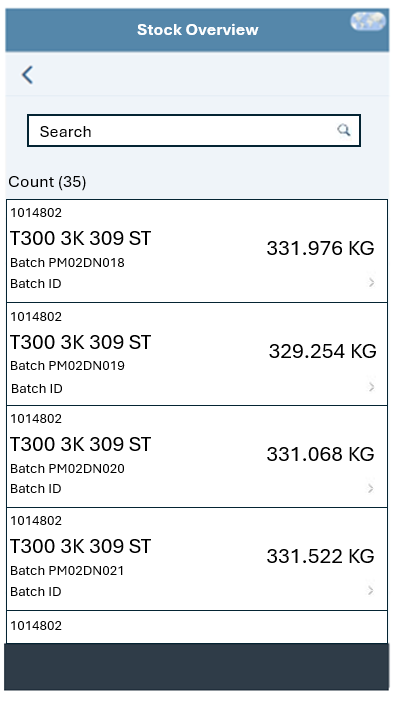
The Search field will give the user the ability to filter the list. e.g. to allow searching for a specific material description.
Handling Unit Screen (IM)
This screen will list of all handling units in stock for the material in an IM storage location, based on the selection. Only the highest-level handling units are displayed so if a box is on a pallet only the handling unit for the pallet is displayed.
The fields to be displayed for the handling unit are:
- Handling Unit
- Packaging Material. E.g. Pallet
- HU System status
- Material
- Batch number
- Batch ID
- Stock Type
- Quantity and UOM
- Expiry Date
Sort records by Material/Batch
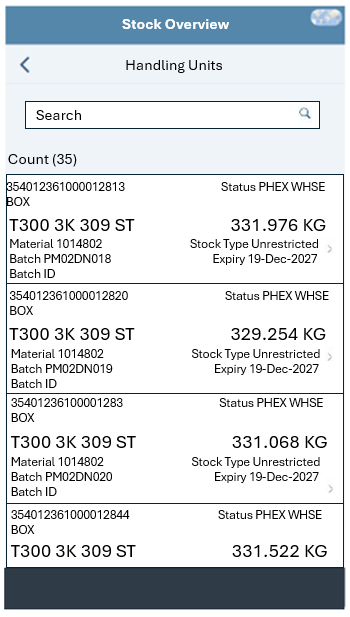
A button “>” per HU, will allow branching to the HU app, covered in FS ERP-788.
The Search field will give the user the ability to filter the list. e.g. to allow searching for a specific batch
EWM Stock Screen
This screen will list of all stock for the material in the EWM warehouse, based on the selection.
For HU managed materials, only the highest-level handling units are displayed so if a box is on a pallet only the handling unit for the pallet is displayed.
The fields to be displayed for each storage bin are:
- Storage Type
- Storage Section
- Storage Bin
- Handling Unit
- Material
- Batch
- Batch ID
- EWM stock type
- Quantity and UOM
- Expiry Date
When there is mixed stock in a bin, show separate records per material/batch.
Sort Records by Storage Type/Storage Section/Storage Bin.
Show a header record per Storage Type/Storage Section.
A total record count will show and also a record count per Storage Type/Storage Section.
When the empty bins option is used, this screen will also be displayed but only the empty storage bin information will be displayed.

For storage bins with HUs, a button “>” will allow branching to the HU Display app, covered in FS ERP-788.
The Search field will give the user the ability to filter the list. e.g. to allow searching for a specific storage bin.
Recommended UI Technology
This app will be developed using Neptune DXP Open Edition. The app will appear on the Neptune launchpad.
Application Screen
Wireframe or Mock-Up
See example screens in Functional Requirements section.
Screen Behavior
No special behavior required.
Screen Navigation
Standard navigation.
Data Integration
Stock Overview Screen
| Field | Table-Field Name | Comments / Calculation / Field Manipulation / Input / Output / Validation rule / Value help |
|---|---|---|
Material | MARD-MATNR | |
Material Description | MAKT-MAKTX | In language of user, as per the allowed system languages shown in KDD055. |
Storage Location | MARD-LGORT | |
Quantity | Total of MARD-LABST, MARD-INSME, MARD-SPEME and MARD- | |
UOM | MARA-MEINS | In language of user, as per the allowed system languages shown in KDD055. |
Stock Type Screen
| Field | Table-Field Name | Comments / Calculation / Field Manipulation / Input / Output / Validation rule / Value help |
|---|---|---|
Material | MARD-MATNR | |
Material Description | MAKT-MAKTX | In language of user, as per the allowed system languages shown in KDD055. |
Storage Location | MARD-LGORT | |
Batch | MCHB-CHARG | When selection is for a batch |
Batch ID | From CDS | When selection is for a batch |
Expiry Date | MCH1-VFDAT | When selection is for a batch |
Unrestricted-Use Stock | MARD-LABST (Sloc) MCHB-CLABS (Batch) | |
Quality Inspection Stock | MARD-INSME (Sloc) MCHB-CINSM (Batch) | |
Blocked Stock | MARD-SPEME (Sloc) MCHB-CSPED (Batch) | |
Restricted Stock | MARD-EINME (Sloc) MCHB-CEINM (Batch) | |
UOM | MARA-MEINS | In language of user, as per the allowed system languages shown in KDD055. |
Batch Screen
| Field | Table-Field Name | Comments / Calculation / Field Manipulation / Input / Output / Validation rule / Value help |
|---|---|---|
Material | MCHB-MATNR | Header section |
Material Description | MAKT-MAKTX | In language of user, as per the allowed system languages shown in KDD055. |
Storage Location | MCHB-LGORT | Header section |
Batch | MCHB-CHARG | |
Batch ID | From CDS view | |
Expiry Date | MCH1-VFDAT | |
Stock Type | Depending on quantity | "Unrestricted", "Quality", "Blocked" or "Restricted" depending on quantity. In language of user, as per the allowed system languages shown in KDD055. |
Quantity | MCHB-CLABS (Unrestricted), MCHB-CINSM (Quality), MCHB-CSPED (Blocked) or MCHB-CEINM (Restricted) | |
UOM | MARA-MEINS | In language of user, as per the allowed system languages shown in KDD055. |
Handling Unit Screen (IM)
| Field | Table-Field Name | Comments / Calculation / Field Manipulation / Input / Output / Validation rule / Value help |
|---|---|---|
HU | VEKP-EXIDV | |
Packaging Material | VEKP-VHILM | |
Material | VEPO-MATNR | For material selected |
Material Description | MAKT-MAKTX | In language of user, as per the allowed system languages shown in KDD055. |
Storage Location | VEPO-LGORT | |
Batch | VEPO-CHARG | |
Stock Type | VEPO-BESTQ | If MCH1-ZUSTD for the batch is "X" show stock type as "Restricted". |
Quantity | Cumulated quantity for HU/Material. See ERP-1003 for logic. | |
UOM | VEPO-VEMEH | In language of user, as per the allowed system languages shown in KDD055. |
Expiry Date | MCH1-VFDAT |
EWM Stock Screen
| Field | Table-Field Name | Comments / Calculation / Field Manipulation / Input / Output / Validation rule / Value help |
|---|---|---|
Storage Type | /SCWM/AQUA-LGTYP | |
Storage Section | /SCWM/LAGP-LGBER | For storage bin |
Storage Bin | /SCWM/AQUA-LGPLA | |
HU | /SCWM/AQUAHUIDENT | |
Material | /SCWM/STOCK_IW02-MATID | |
Material Description | MAKT-MAKTX | In language of user, as per the allowed system languages shown in KDD055. |
Batch | /SCWM/STOCK_IW02-BATCHID | |
Quantity | /SCWM/AQUA-QUAN | |
UOM | /SCWM/AQUA-VFDAT | In language of user, as per the allowed system languages shown in KDD055. |
Custom Tables
None
Master data
None
Configuration table
None
Tooltips
None
Front-End
This app can be executed on a mobile device or in desktop mode.
Mobile Services
Not applicable.
Authentication & Authorization
The user must have material document display access for the selected plant. Check object M_MSEG_WMB for Activity 03 and the selected plant. If no access, show the message "No authorization for plant <9999>".
Accessibility
Not applicable.
Volumetrics
This solution will be used at approximately 100 plants. The total users is estimated to be around 800.
Error Handling
Errors to appear in a pop up window that needs to be acknowledged by the user.
Testing
How to Test
Test Conditions and Expected Results
| ID | Condition | Expected Result |
|---|---|---|
| 1 | Display stock for a IM Non-HU storage location. (Stock Overview Screen) | All stock in storage location is listed correctly, sorted by material description and batch. |
| 2 | Display stock for an IM HU storage location. (Stock Overview Screen) | All stock in storage location is listed correctly, sorted by material description. |
| 3 | Display stock for an EWM storage location. (Stock Overview Screen) | All stock in storage location is listed correctly, sorted by material description. |
| 4 | Display stock for a specific material batch in an IM HU storage location. (Stock Overview Screen) | All stock in storage location is listed correctly, sorted by material description and batch. |
| 5 | Go to stock types screen | Stock information is displayed correctly by stock type |
| 6 | Go to batch screen | Stock information is displayed correctly by batch, sorted by batch |
| 7 | Go to HU screen | Stock information is displayed correctly by batch, sorted by material/batch |
| 8 | Display stock for a specific material batch in an EWM storage location. (Stock Overview Screen) | All stock in storage location is listed correctly, sorted by material description and batch. |
| 9 | Go to the EWM stock screen | All stock in storage location is listed correctly, sorted by storage type, storage section and storage bin. |
| 10 | Display stock for a specific storage type (EWM stock screen) | All stock in storage location is listed correctly, sorted by storage type, storage section and storage bin. |
| 11 | Display stock for a specific storage bin (EWM stock screen) | All stock in storage location is listed correctly, sorted by storage type, storage section and storage bin. |
| 12 | Display empty storage bins in a specific storage type (EWM stock screen) | All empty bins are listed for the storage type. |
Test Considerations/Dependencies
None
Other Information
Development Details
Package
| Package Name | Parent Package |
|---|---|
UI Implementation
UI Type | UI Name | Fiori Catalogue | Design Rationale Reference |
|---|---|---|---|
API Implementation
| API Type | API Name | Purpose / High Level Logic | API Product | Design Rationale Reference |
|---|---|---|---|---|
Other Development Objects
| Object Type | Object Name | Purpose/High Level Logic | Design Rationale Reference |
|---|---|---|---|
Appendix
See also
None