
HR - Accessing Employee Files Historical Space
INTRODUCTION
OpenText Extended ECM for SAP SuccessFactors combines information and document management features of OpenText Platform with employee records that are maintained in SuccessFactors.
Country HR professionals can view and manage documents of historical employees in their scope. Exactly what one can see or act upon depends on the specific country access role you hold.
ACCESSING EMPLOYEE FILE HISTORICAL PAGE
- Login to xECM historical by using THIS LINK.
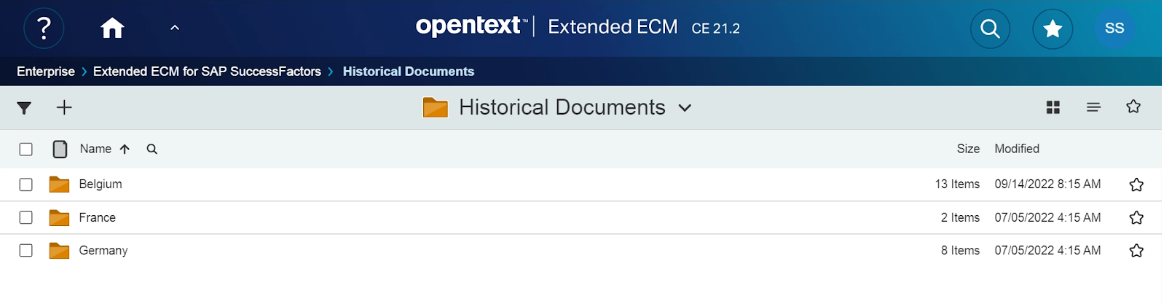
- After logging in, you will be directed to the Historical HomePage as shown below. You will be able to see the country folders depending on your access permissions.
If you identify any issues, have any questions or need general support, please either submit a request through ServiceOne or call our HR Operations colleagues.
HISTORICAL WORKSPACE FUNCTIONALITIES
Searching for the employee folder
Click on the  icon as shown below. Type in the employee name or the employee id and click enter.
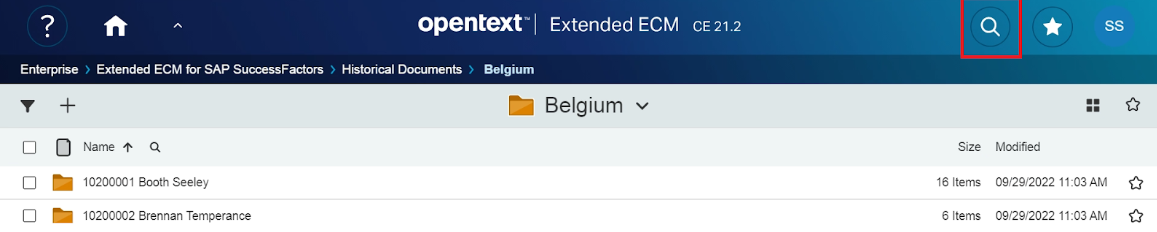
Type in the employee name or the employee id as shown below and click enter.

The search results will be shown as below.

Changing list view to grid view
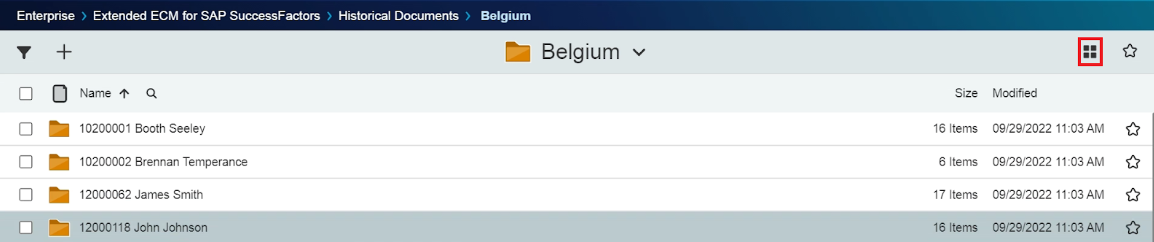
Click on the  Icon as highlighted below to change the view from list view to grid view.
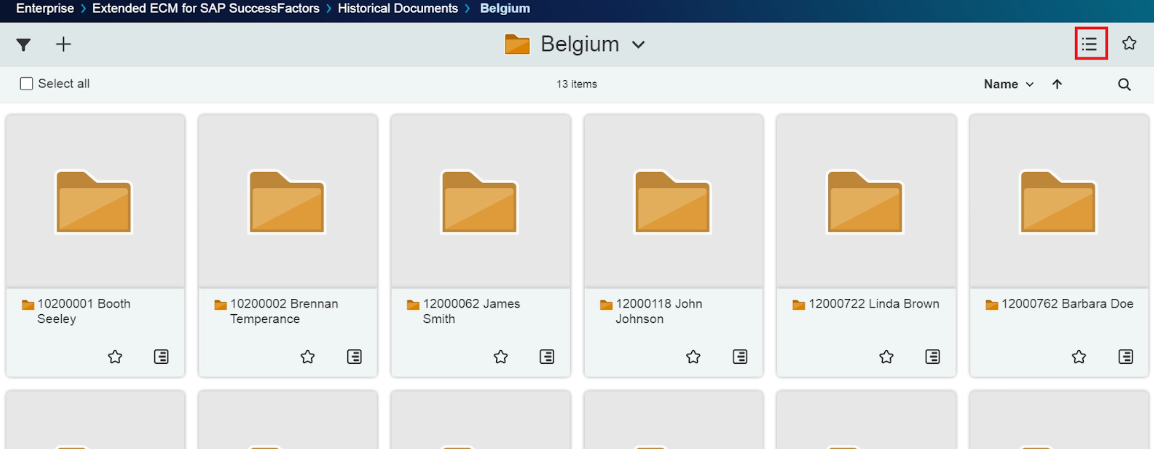
Again, click on  icon highlighted below to revert to the list view.
.”
HOW TO PERFORM ACTIONS WITH FILES
Once you are inside the employee folder, you can see the various documents of the employee.

Now, you can select an item(s) by checking the box like this  as shown below to perform certain actions. These actions are available in the menu tab. Additional actions can be accessed by clicking on the
  icon.
icon.
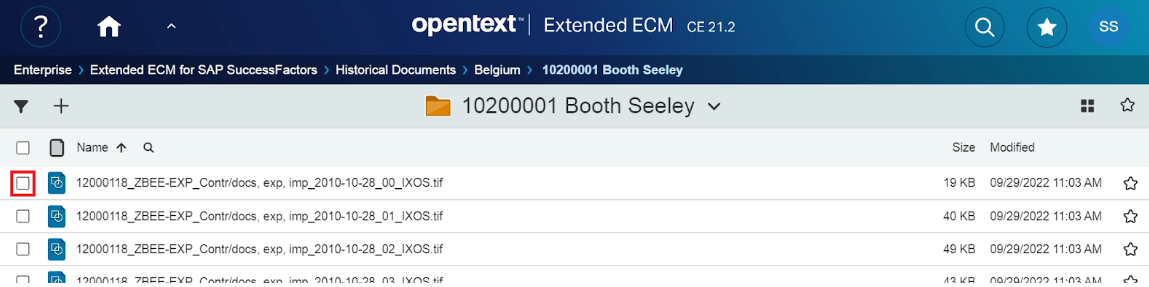

Please note:
Copy - It is used to Copy the document to another location. This doesn’t work so it is not to be used.
Send to-> Mail as link- This Feature needs a browser extension but that is not enabled in Syensqo environment so it cannot be used.
ACTIONS AVAILABLE HISTORICAL EMPLOYEE FILE SPACE
The various actions available and steps to perform are given below.
Copy link
This feature allows you to copy the folder link to the clipboard. Select the item and click on  .
.

The link will be copied to the clipboard. This is confirmed by the message pop up as shown below.

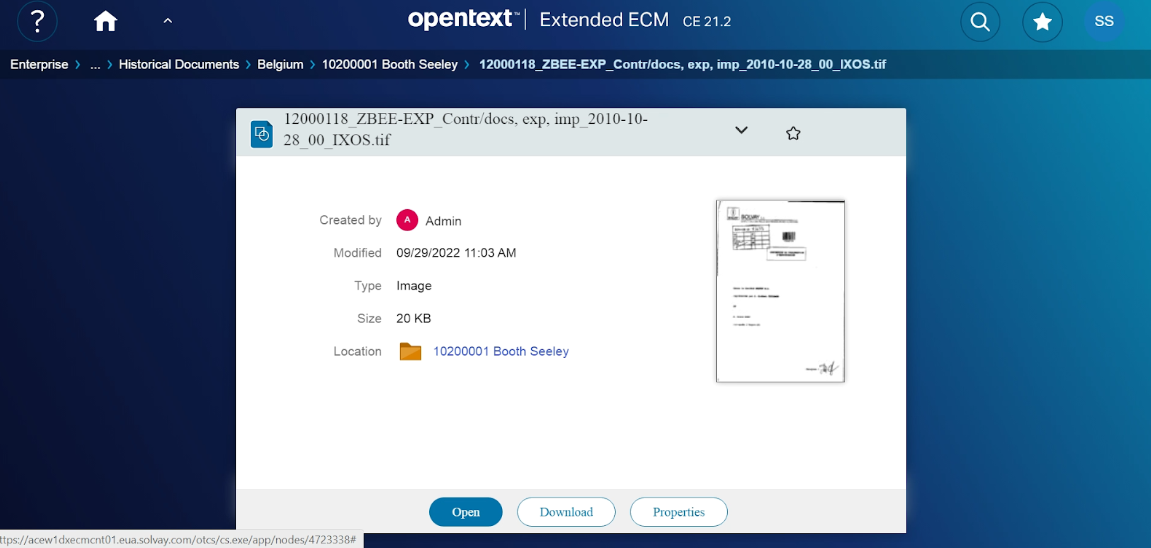
You can share this copied link with others who have relevant permissions and if they open this link in the browser, they can see this document details, can view and download that document as shown below.
View Permissions
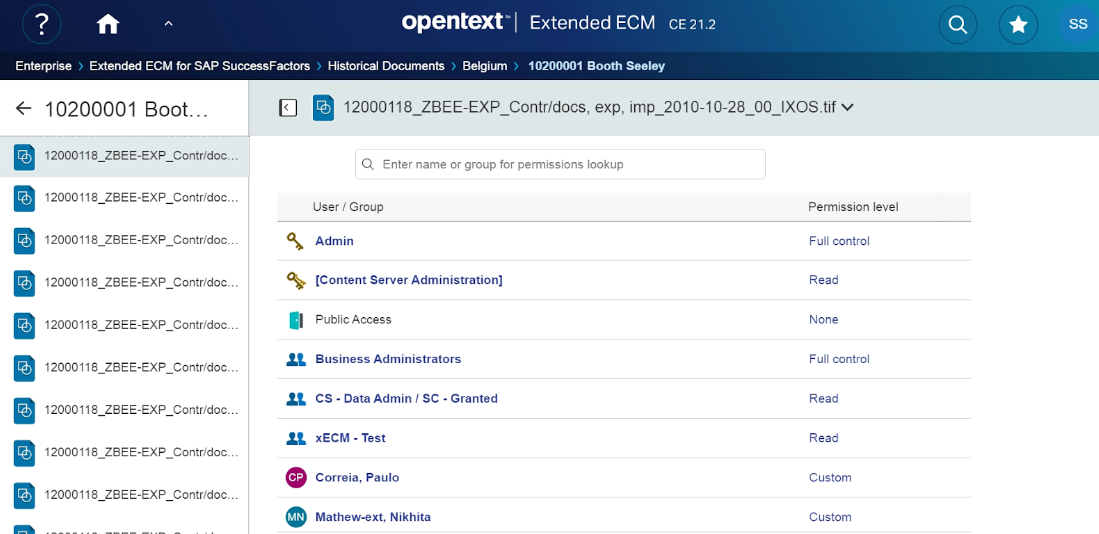
This feature displays the permissions that are granted to users and groups with respect to the selected document.
Select the item and click on  .
.

A window like the one below will display the permissions of the selected item.
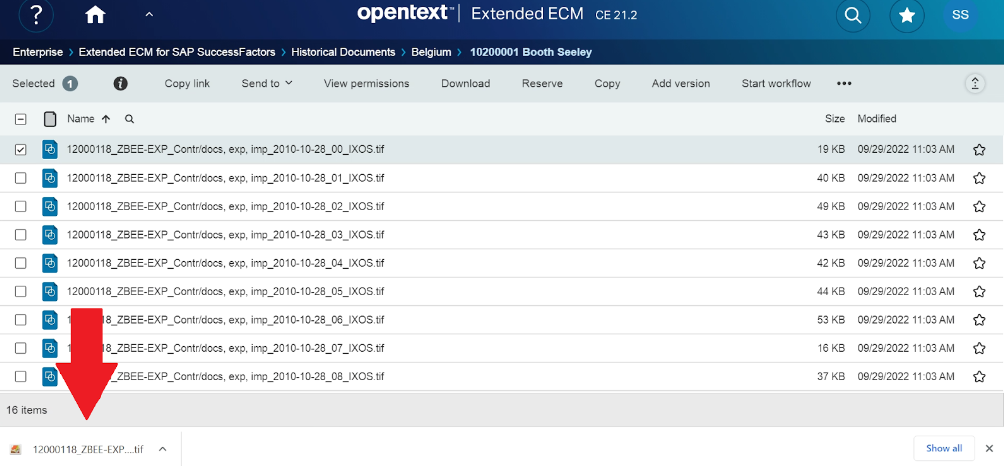
Download
This feature can be used to download the document into your local system. Select the item and click on  .
.

The file will start downloading to your system as shown below.
Search Documents
You can search for the required documents in the current folder by clicking on the magnifying glass icon as highlighted below.
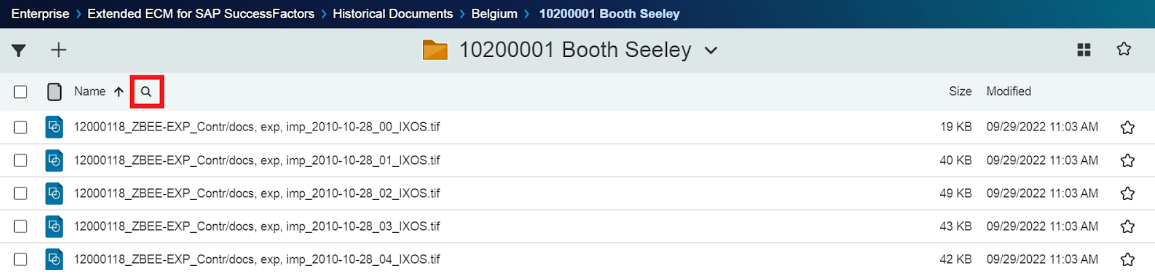
Type in the name of the document. You will find the document as shown below.

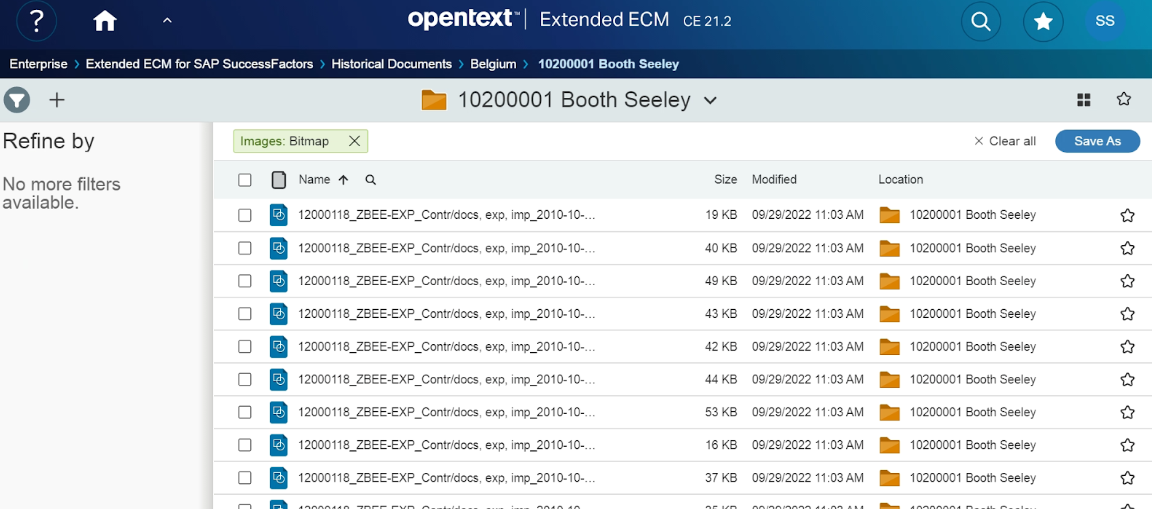
Filter documents
You can filter the documents by type by clicking on the filter icon  as highlighted below.
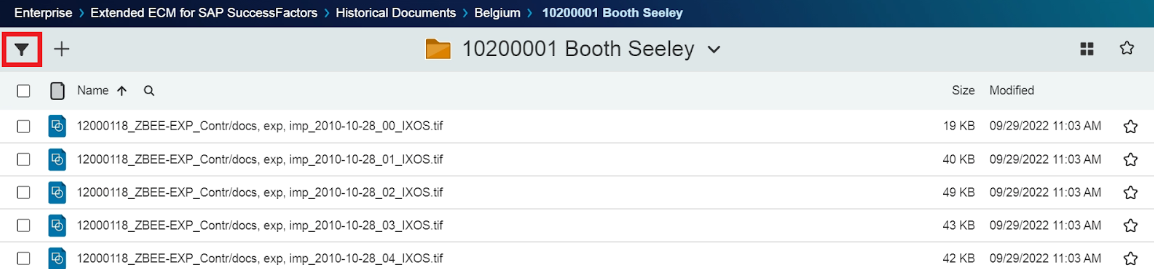
Now, a criteria selection screen will appear . Click on the required criterias to filter the documents as shown below.
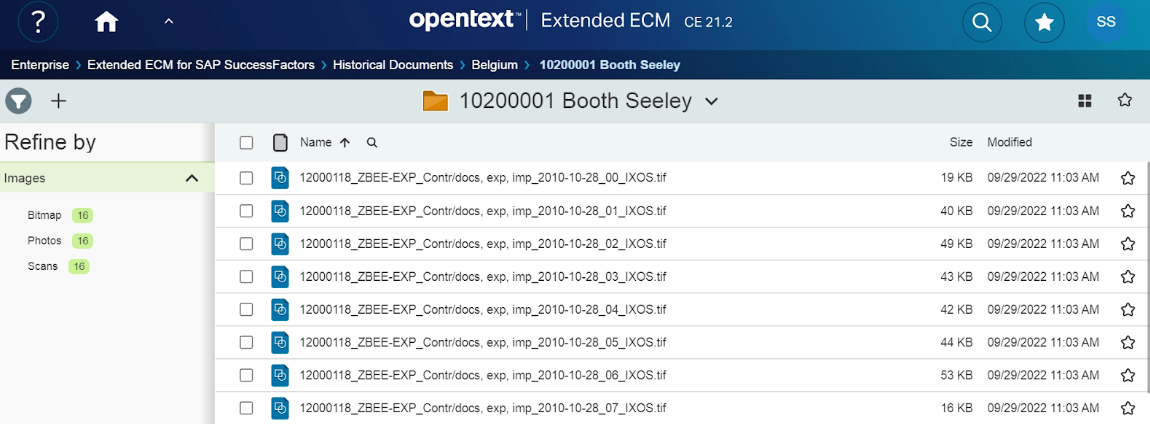
For example, clicking on the Bitmap filter criteria will list all the .tif files as shown below.
Adding Favorite Documents
Step 1: Navigate to the document you want to mark as favorite as shown below and click on  .
.

Step 2: A pop-up similar to below will be displayed. Change the name of the favorite as required and click on  as shown below.
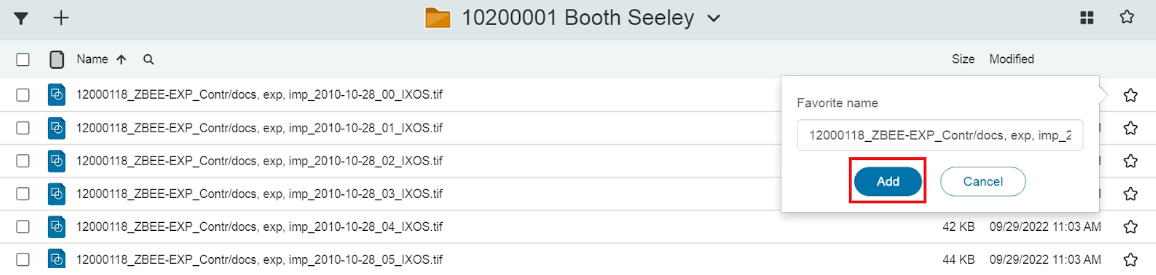
After successful favorite addition, The icon in front of the document will change from  to
to  as shown below.

Additional ways to perform actions on document
You can hover your mouse pointer over the document and additional actions will be displayed. The actions are explained below. These individual actions and steps to perform them are already explained above.
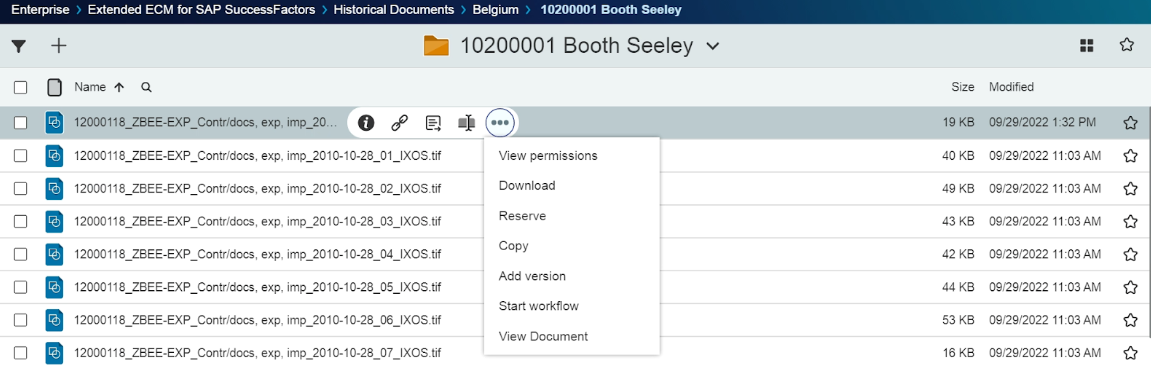
 - Properties : Displays the properties of the document.
 - Copy link : Copies the link of the document to clipboard
 - Send to -> Mail as link : This Feature needs a browser extension but that is not enabled in Syensqo environment so it cannot be used.
 - More actions like View Permissions, Download, Reserve, Copy, Add Version, Start Workflow and View Document.
If you identify any issues, have any questions or need general support, please either submit a request through ServiceOne or call our HR Operations colleagues.
Date last updated: