My Employee File in My HR Services
INTRODUCTION
The Employee File is a place where you can find all of your HR related documents in one place. This space will contain your documents that have already been loaded in your profile in My HR Services.
Note: Documents will be captured here as of go-live forward. Documents historically stored in IXOS (Belgium & Germany), YOU (Feedback), and eWS (some US documents) will be migrated by end June 2022. Documents stored locally will be gradually migrated over time.
Please note that due to legal constraints, Bulgaria and Russia are out of scope.
HOW TO ACCESS YOUR EMPLOYEE FILE
You access your personal Employee File via My HR Services - link here. Here you will find a tile under My Information called Employee File.

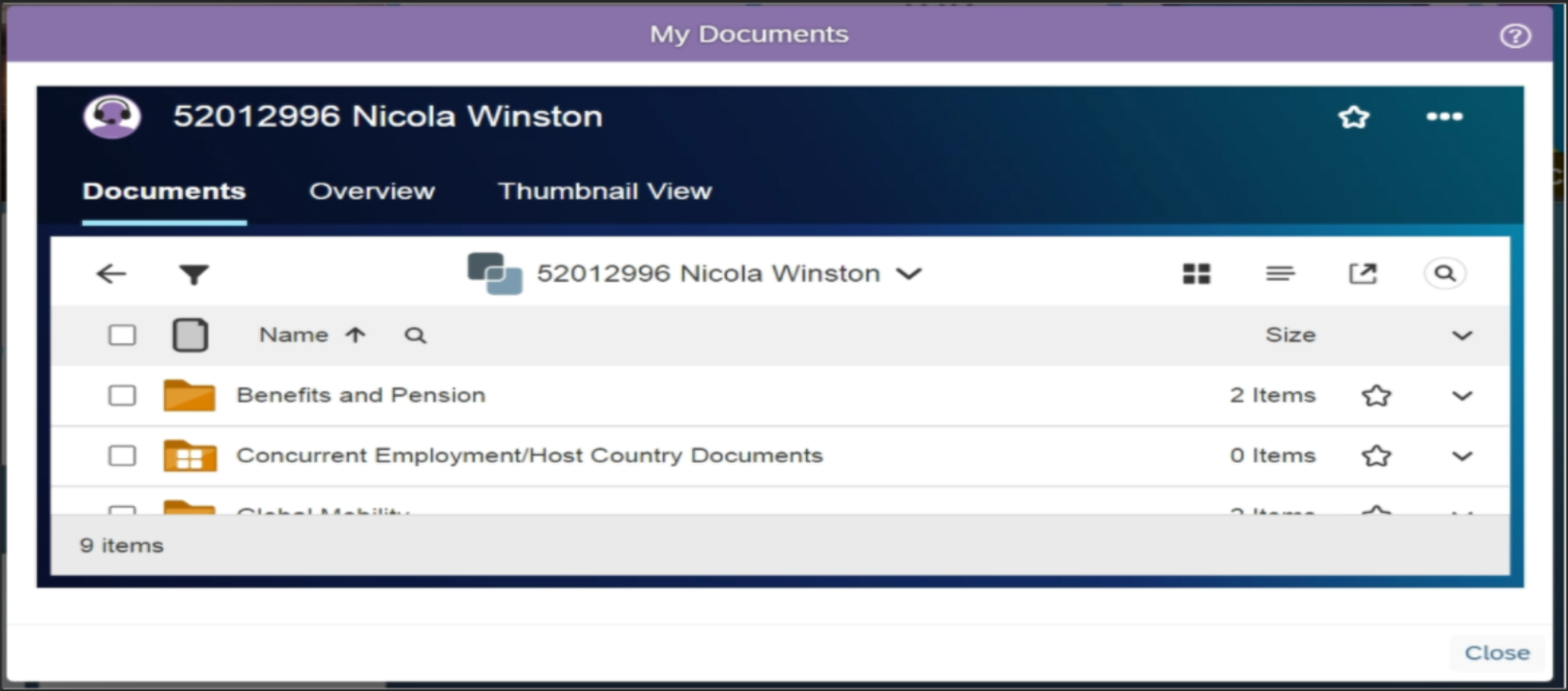
Just select this tile and you will be led to your personal workspace as shown below. Each of the tabs are explained below.
NAVIGATING THROUGH YOUR EMPLOYEE FILE WORKSPACE
Documents Tab - Here you will find a folder structure for the different document categories and within each the related sub-categories. Simply click on the folder to open and see what is inside and then click on the name of the document to open it.
Overview Tab - Here you can quickly access any folders or documents you mark as Favorite as well as Recently Accessed documents.
Thumbnail Tab - Here you can view the Thumbnail of documents in your Employee File.
HOW TO PERFORM ACTIONS WITH A DOCUMENT
Searching for a Document
The magnifying glass icon on the right side of the screen enables you to search for a document regardless of which folder it is stored in. Simply type the name or key word in the name of the document and click on the document name to open the document.
- Your search result will appear in one of two formats that you can toggle between by clicking the related icon:
- Standard View -

- Tabular View -

A) Standard view:
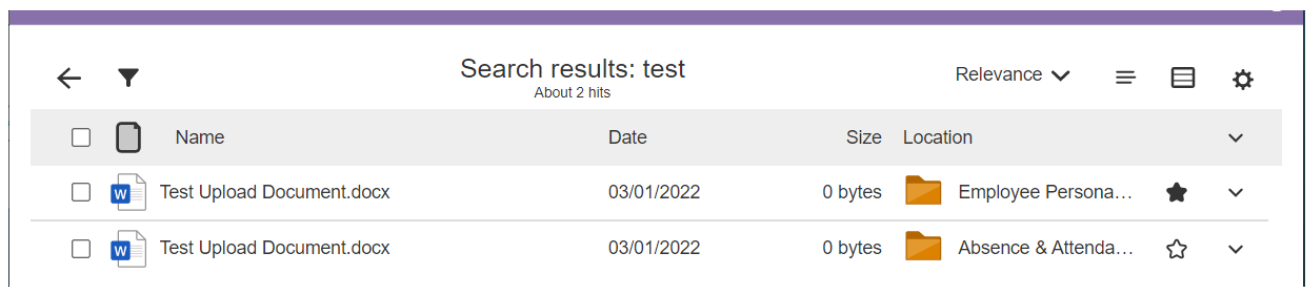
B) Tabular view:
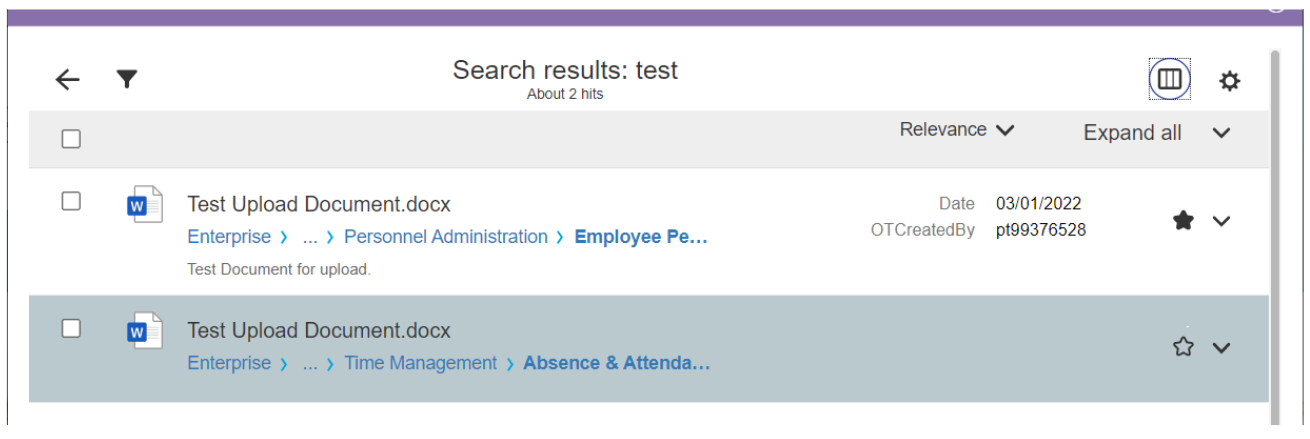
In Tabular View under each document name you will find the storage path of that document. In the example above you see this document is stored in the “Personnel Administration” folder and then a sub-folder “Emplo…”. To see the full path you can reduce the zoom level to 80% by clicking ctrl - and can enlarge by clicking ctrl +.

C) By Clicking on this  icon you can add the associated document to your Favorites which is displayed on the Overview tab.
NOTE: The magnifying glass icon shown on the left directly above the folders searches only what is visible on this screen so not particularly helpful in our context.
- You can filter documents stored in the files by clicking on the filter icon
 . From here you can refine the filter further. This can be a useful tool if you are looking for a particular type of document such as pdf or you are not sure of a key word in the name of the document.
 - List View and Grid View - Click on the
 icon to change to grid view and click on the
  icon to revert to the list view.
 - Display the folder descriptions by clicking on the
 icon.
icon. - Maximize the widget view by clicking on the
 icon
icon - STAR icon enables you to indicate that item as a Favorite. Favorites are displayed on the Overview tab.
- 3 Dots (top right corner). Clicking here gives you two options. One is “Copy Link” which you can then share via email, chat, etc. The second is “Mail as Link” - this functionality is not yet enabled for Syensqo. NOTE: Any link you share will only work if the recipient has the authorization to access your Employee File.
Marking Favorite Documents
You can mark Favorites at the document, folder and workspace level.
Step 1: Navigate to the document you want to mark as favorite as shown below and click on the star button:
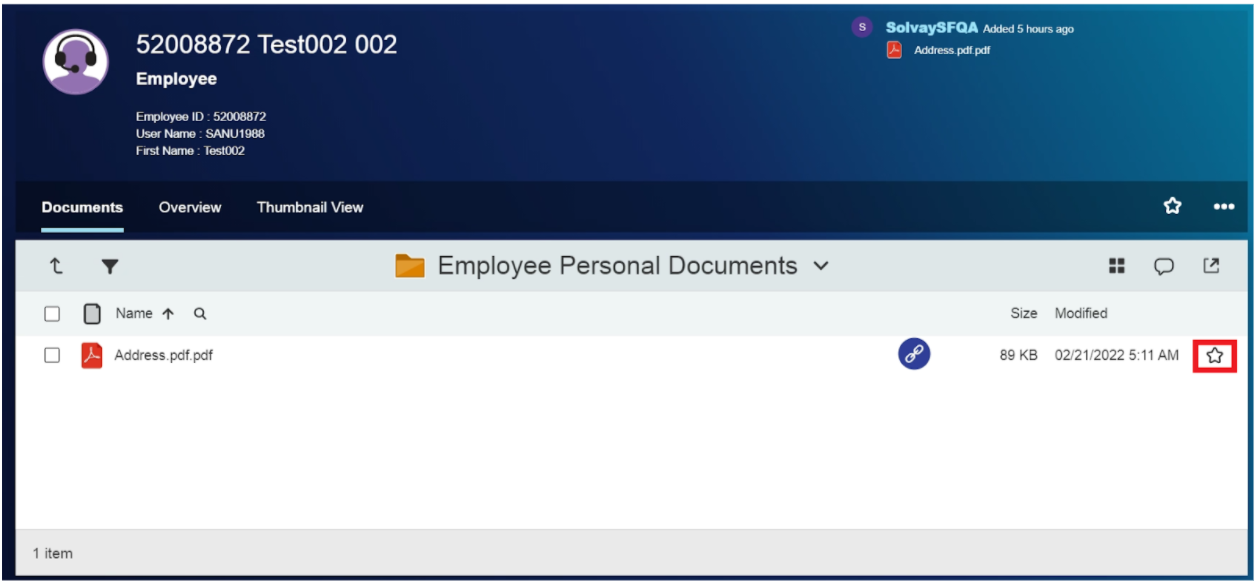
Step 2: A pop-up similar to below will be displayed. You can either leave the name as is or change it and click on "Add" as shown below:
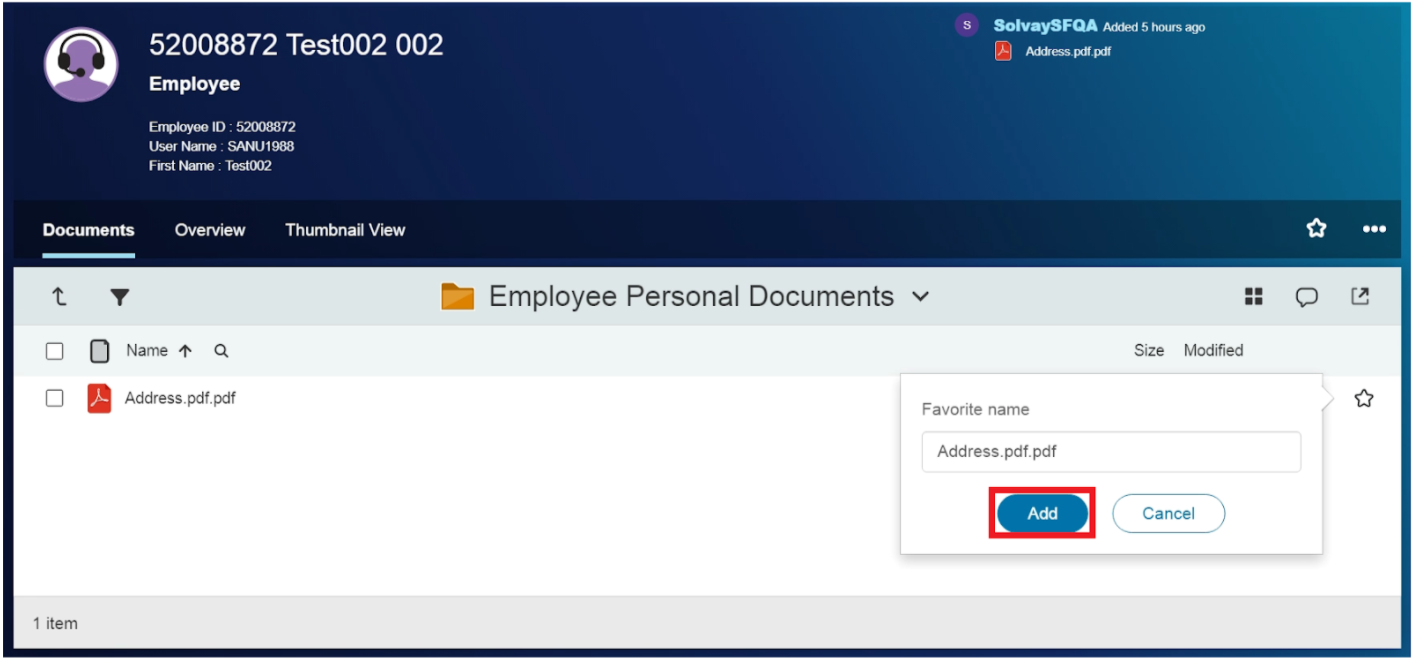
The icon in front of the document will change from to  and the document will now be included in the Favorites section on the Overview tab.
Additional Actions with Documents
When you select a document by checking the box to the left of the name, additional actions will be displayed just above. These are explained below.
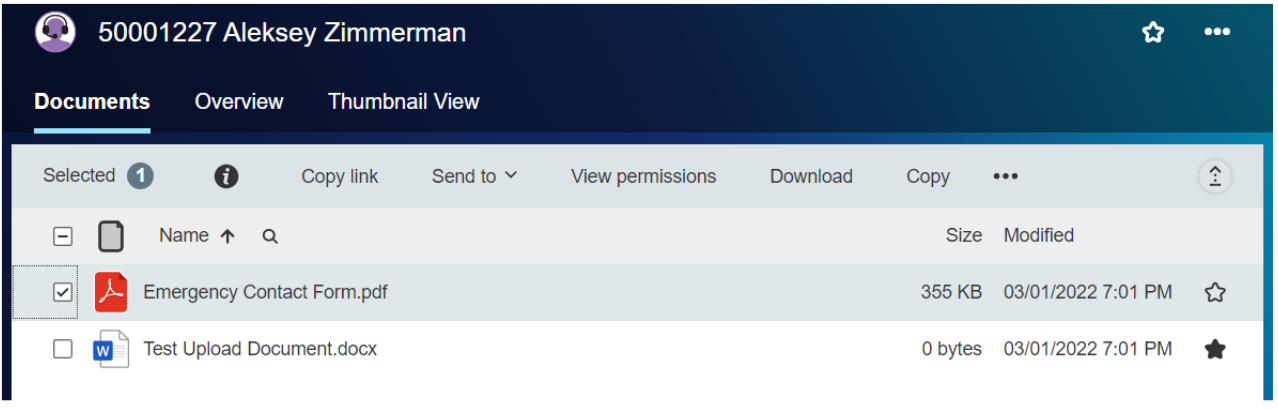
 - Displays the properties of the document.
Copy link - Copies the link of the document to clipboard. You can share this link with others however it will only work for them if they have the relevant permissions.
View Permission - Displays the permissions of the document.
Download - Can be used to download the document into your local system.
Copy, Delete Workflow, Sand end to/Mail as link - Please disregard.
MULTIPLE ASSIGNMENTS
An employee can have one or multiple assignments assigned to them during the course of their career. There are two distinct types: Concurrent Employment and Global Assignment. If you are in one or both of these categories you can access the related documents via a single profile.
Concurrent Employment
Concurrent employment is when an employee is assigned to more than one assignment at the same time. In such a case, the documents related to each assignment would be maintained separately.
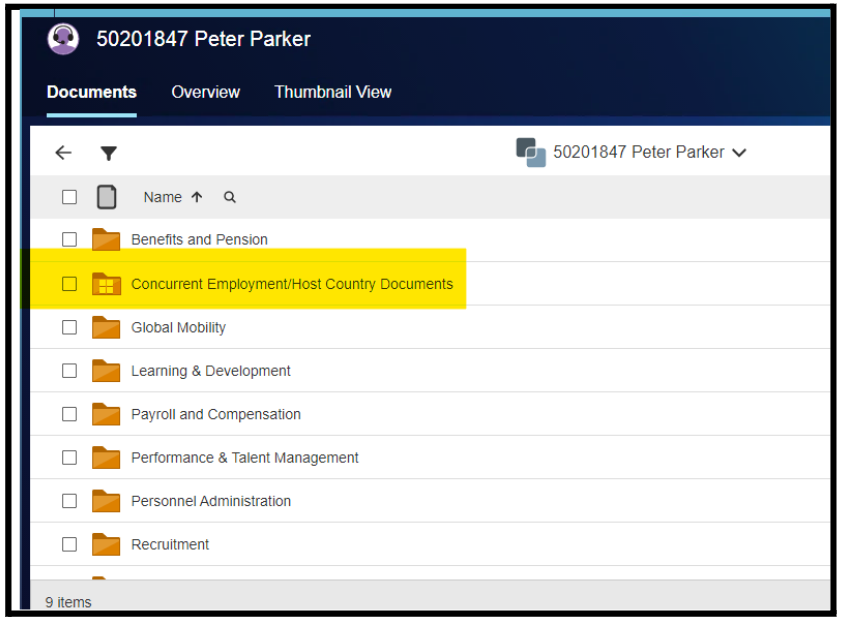
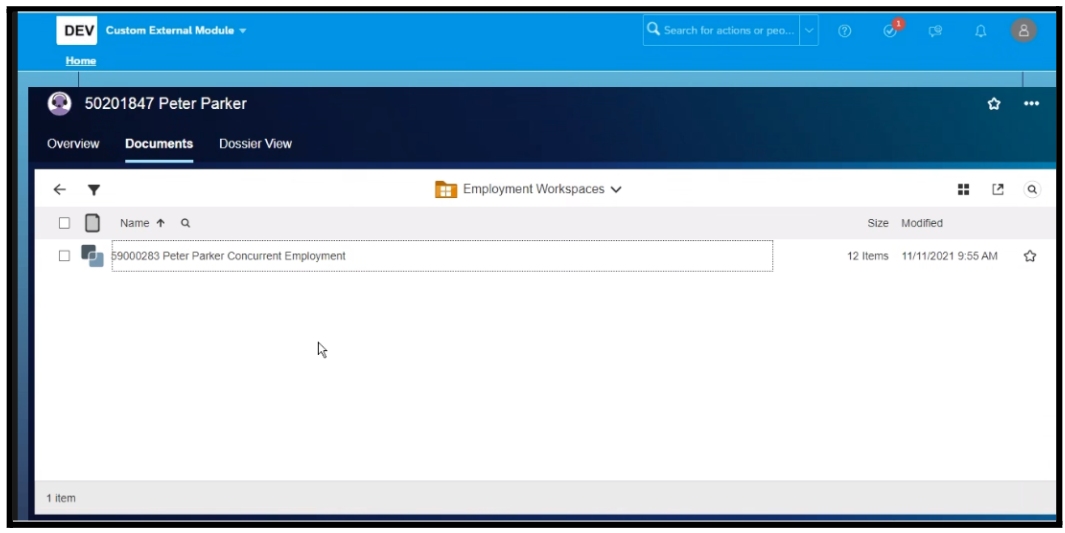
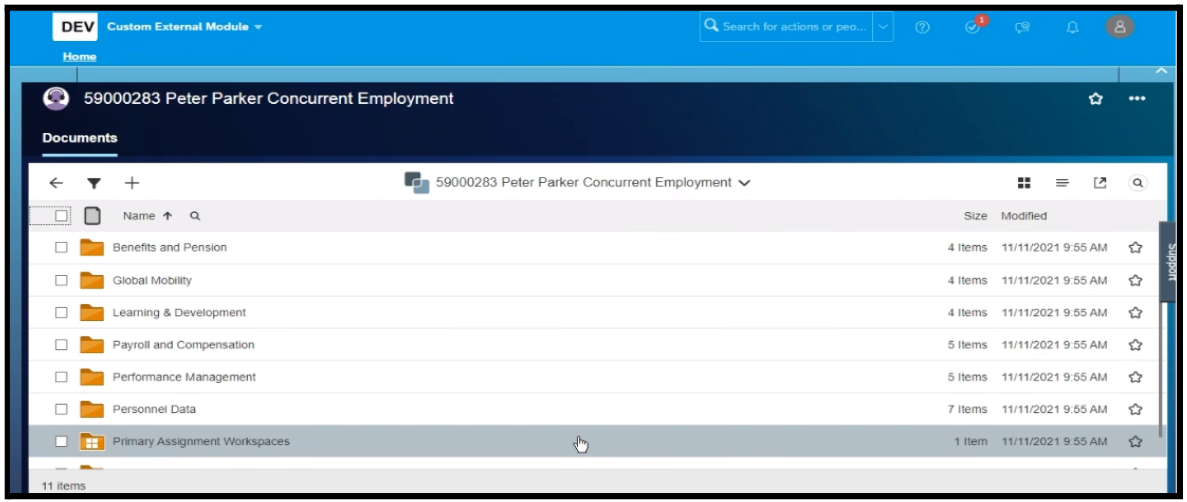
Find below a screenshot of the layout and folder structures.
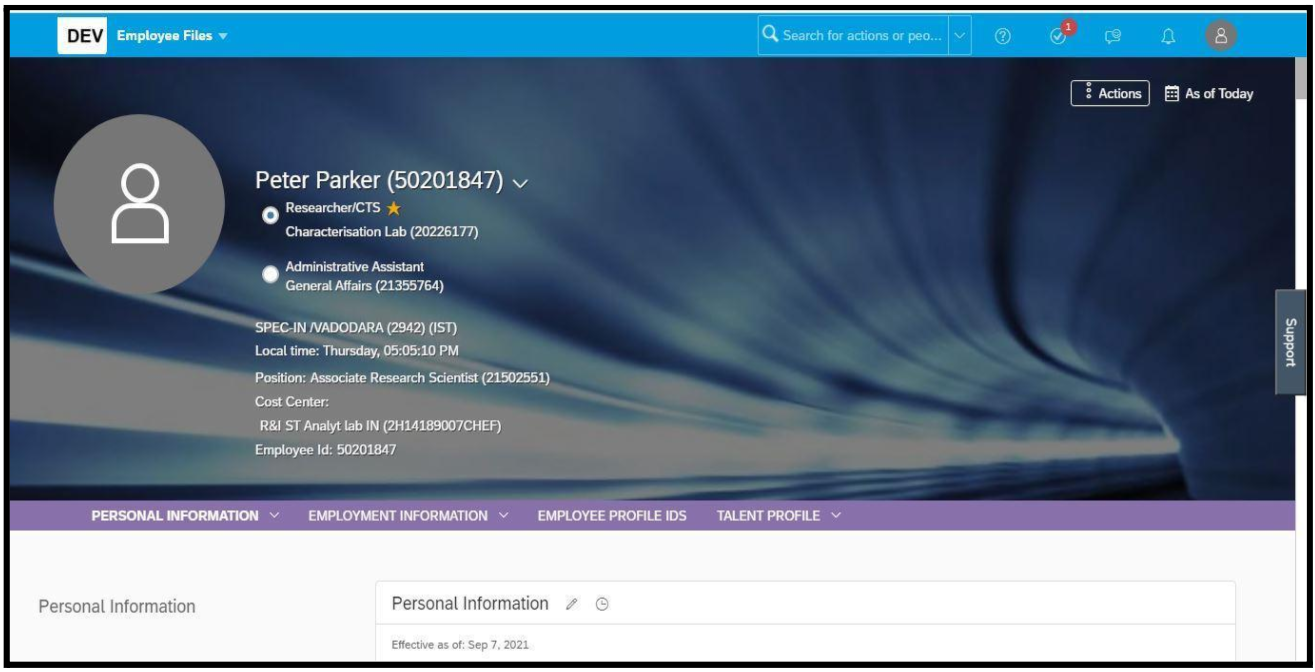
Using the Employee File tile under My Information, go to your Personal Employee File to see the folder structure. When you click on the “Concurrent Employment/Host Country Documents” folder then you will see your other assignment (Concurrent assignment in this case).
After clicking on Concurrent assignment, you will see the folder structure of your Concurrent Assignment as shown below.
To go back to the folder structure of your other assignment click on the “Primary Assignment Workspace” folder from the list.
Global Assignments
Due to a technical issue we are not yet able to launch Employee Files for anyone who has been or is an Expat since January 2018. Please know that we are working to resolve the issue. In the meantime, if you need assistance accessing any of your personal HR documents or those of anyone you manage, please contact our HR Service team who are available to support you with this.
Date last updated: