

Board structure
On monday.com, the structure of your board is very similar to what you can find on other spreadsheet software. Here, you'll find :
- Rows : maily meant for tasks
- Columns : meant to indicate the type of data.
- Groups : meant to organize data within your board (group by theme, by date, by market...)
One of the main strenght of the tool is the columns templates you can choose from to easily personalize your board.

Naming
The first column of your board will always be the name of your task. You can't move this column. It's especially important to keep in mind when importing data from an existing sheet.
Subitems
You can create subitems - or subtasks - under an already existing item. You can use different columns for your subitems than on your items.
However, the columns used in your subitems have to be the same for all your subitems accross different items and groups inside your board.
You can't create subitems for subitems.
Development
May 2020 : Subitems are currently being beta tested at monday.com, meaning that all the features are not available yet. For exemple, subitems don't appear on the Gantt view yet.
Columns template
There a lot of column templates to chose from on monday.com. You can see them all by clicking on "Adding a column" then by clicking on "View more". New templates are often added.
The most important one are :
- Status column : allows you to personalize your workflow
- Timeline column : allows you to enter dates and to access the Gantt view
- Person column : allows you to assign someone to a task
They are the most useful to manage your project, but you can of course use and explore other options depending on your needs.
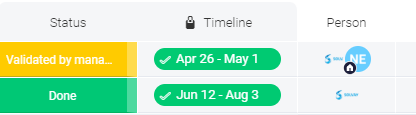
Status column
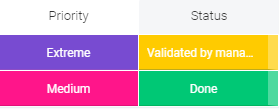
The status column helps you keep track of the advencement of your differents tasks, or by keeping important data regarding the task, such as priority.
You can have as many status column as you want in your board, to keep track of different informations, and you can personalize them with the statuses you want. The different labels you've created will apply to the whole column, even in different groups.
You can select what status(es) you want to consider to be your final status(es) by going into the column settings, then by choosing the colors corresponding to the status(es) you want to be you final status(es). This option is very useful combined to the Timeline column.
The main difference between statuses and a more classic dropdown list is that statuses can be used to automate the board and your workflows (See : Automations)
Timeline column
The timeline column helps you manage the start date and the end date of your different tasks.
The main difference between a timeline column and a more classic date column, also available on the tool, is that you can't have an accurate view of your project on your Gantt view if you're using date columns.
You can set up the timeline columns to have a visual representation of the advencement of your task by going into the column's option, then by selecting "Set as a deadline". You will then link your dates to a Status column, and monday.com can indicate you if the task is completed on time or overdue.

Person column
The person column allow you to assign someone to a task. You can only assign your board's subscribers to a task.
You can learn more on subscribers here :
 The best way to get IT support is to use the new
Service One Platform.
The best way to get IT support is to use the new
Service One Platform.