

Access Your Campaign Statistics
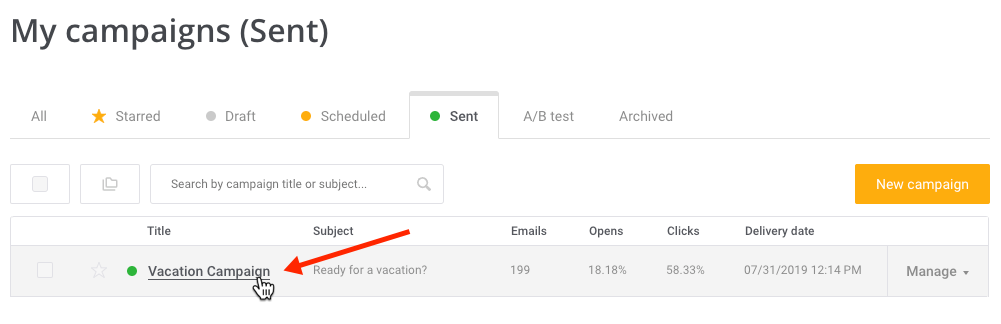
To track your sent campaign statistics, simply go to the Campaigns page and click on the campaign name.
Overview Tab
The Overview tab offers a full summary of the key statistics for your campaign.
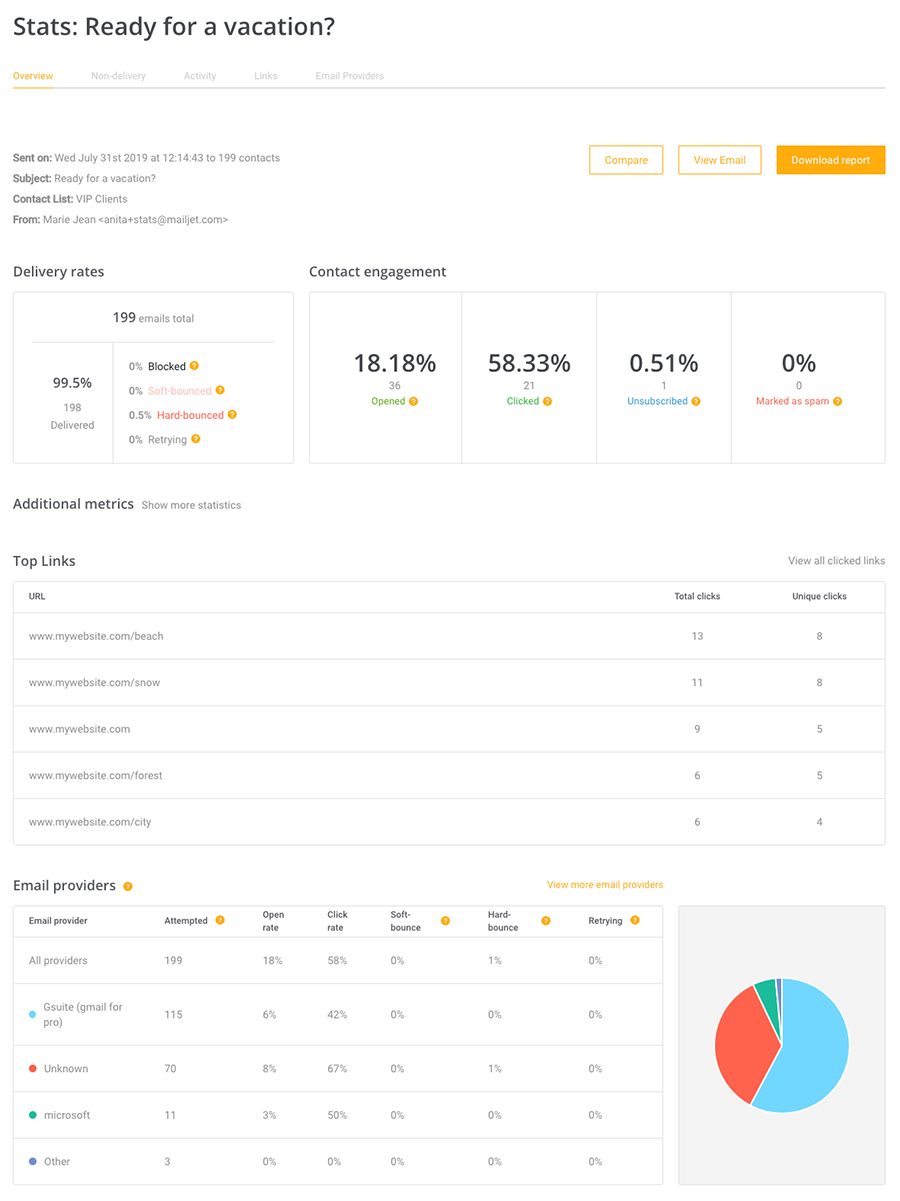
At the top, you will see general details for the campaign such as sent date, subject, contact list, any applied segments, and the sender name & address.
"Sent" Emails
An email that is “sent” means we are attempting to deliver it and waiting for an update from the destination server. An update can take a couple seconds to a few hours.
"Delivered" Emails
If an email has the “delivered” status it means that it was successfully sent and accepted by the recipient server.
"Opened" emails
The Open Rate is the percentage of unique ‘opens’ based on the total number of emails delivered.
"Clicked" Emails
The Click Rate accounts for successfully delivered emails with at least one click (excluding those clicks where an unsubscribe occurs).
"Unsubscribed" Emails
The Unsubscribe Rate is related to the number of delivered emails, and indicates the number of people who opted out of your list using the unsubscribe link.
Emails reported as "Spam"
The percentage of emails reported as Spam is based on the total number of emails delivered.
Spam complaints are made when the recipient believes an email is unsolicited. Spam is typically aimed at marketing emails; whereas transactional emails usually do not warrant spam complaints.
On the right-hand side you have three options:

Compare - Compare this campaign's results to other campaigns to identify the most appealing content.
View Email - View your sent campaign in a new browser tab.
Download report - Downloads a campaign report to a CSV file showing the event stats for each contact (clicks, opens, unsubs etc).
- Download reports (see above)
- Download charts
- go to "Statistics"

 The best way to get IT support is to use the new
Service One Platform.
The best way to get IT support is to use the new
Service One Platform.