

| Procedure | Screen capture |
|---|---|
Problem If you are getting error messages when trying to import your content, it may be because the delimiter in your CSV file is not in the correct format. Solutions There are two options to resolve this issue:
Using the second option to change the file format will ensure that the file can be imported successfully in the future without changing the delimiter value. This second option can also be used to ensure that special characters are uploaded correctly (for example, without reformatting, non-English characters like 是 or ñ may not show correctly upon import). | 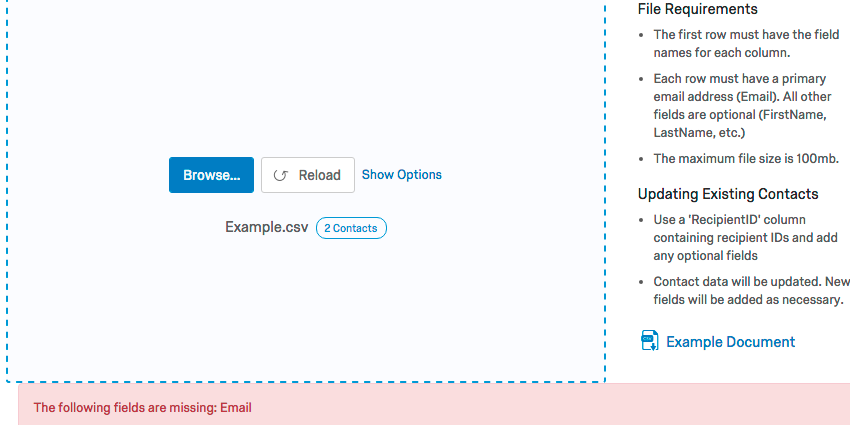 |
First solution: TO MANUALLY CHANGE THE DELIMITER
| 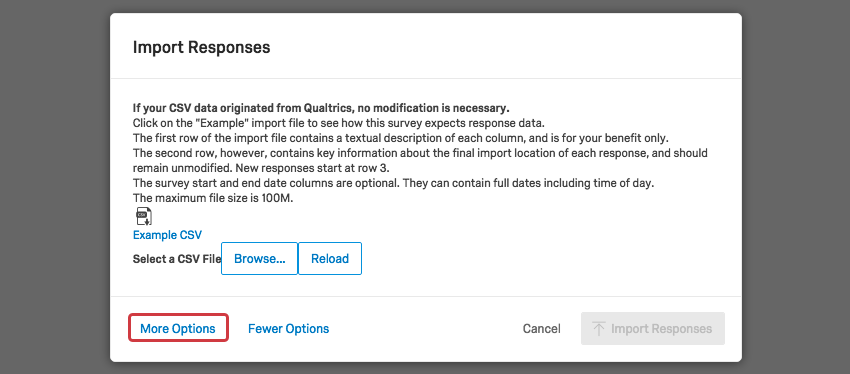 |
| 4. Change the delimiter from Comma to Semicolon (or the ; symbol). |
|
Second solution: TO CHANGE THE FILE FORMAT
| |
| TIP: If you make any changes to the CSV file on your computer, you will need to go through steps 1–4 again to be able to upload the edited file. |


 The best way to get IT support is to use the new
Service One Platform.
The best way to get IT support is to use the new
Service One Platform.