Page tree

An ACTIVE user occupies 1 license seed and is paid by DT. 

Did you know that every 1-2 months, there is a script to disactivate INACTIVE users to optimize license cost? Please be responsible and offboard users who no longer needs the license.

  1. Go to this URL: https://admin.atlassian.com/o/6fb8b2b6-5300-4535-a1da-d6519dfe89cf/users
  2. After verification that the user does not exist, then proceed to add new user.
  3. Click on the "INVITE USERS" button on top right
  4. Enter the email address of the user. You can add up to 10 email addresses at one time, separated by a comma.
  5. Select Users at Jira Product.
  6. Click on "Invite users" button.

This will send a notification by email to the user on behalf of ATLASSIAN.

User needs to accept from the email invitation.

image-2025-3-5_15-0-29.png

If user is INACTIVE/Suspended, you need to reactive user so that he/she can use JIRA again.

  1.  Go to this URL: https://admin.atlassian.com/o/6fb8b2b6-5300-4535-a1da-d6519dfe89cf/users
  2.  Enter email address of user in the search bar.
  3. Click on the user name to go to the detail page.
  4. Ensure that account has 'Users' roles on Jira Product
  5. Click on ••• select "Restore access".
  6. This will be autosave and the user is ACTIVE again and be able to connect into JIRA.

image-2025-3-5_15-6-6.png


If user is INACTIVE/Suspended, you need to reactive user so that he/she can use JIRA again.

  1.  Go to this URL: https://admin.atlassian.com/o/6fb8b2b6-5300-4535-a1da-d6519dfe89cf/users
  2.  Enter email address of user in the search bar.
  3. Click on the user name to go to the detail page.
  4. Click on ••• select "Suspend access".
  5. This will be autosave and the user is ACTIVE again and be able to connect into JIRA.

image-2025-3-5_16-46-8.png


A user needs to be assigned to a JIRA project, if not, there is no point of having a JIRA LICENCE.

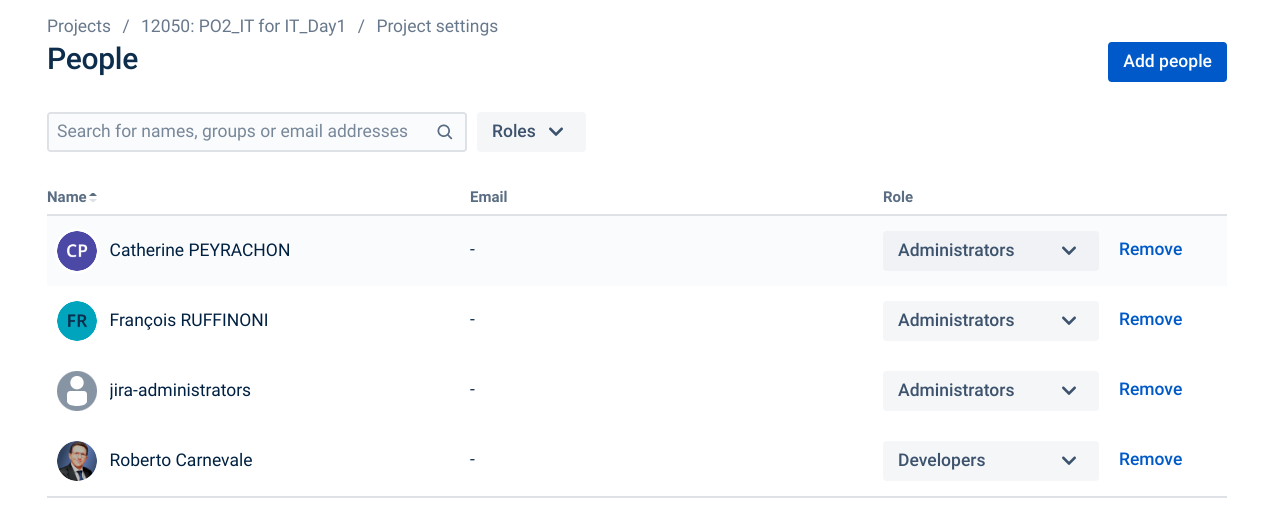
  1. Once the user has been created, the user needs to be added to a specific Jira project.
  2. Go to the JIRA project.
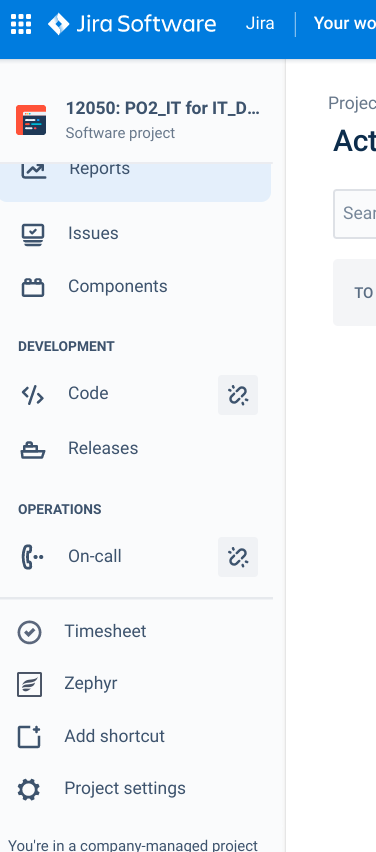
  3. On the left panel, click on PROJECT SETTINGS > PEOPLE
  4. Click on the "ADD PEOPLE" button on top right.
  5. Start entering the email address of the user.
  6. Assign him/her a role.
  7. Click on the "ADD" button.

This will add the user to the JIRA project.

A JIRA group allows for easy configuration of grouping for a set of roles.

  1. Go to this URL: https://admin.atlassian.com/o/6fb8b2b6-5300-4535-a1da-d6519dfe89cf/groups
  2. Search for group and click on group name go to detail page.
  3. Click 'Add group members'
  4. Input 'email addresses' and click 'Add people'.

image-2025-3-5_15-12-13.png

image-2025-3-5_15-16-4.png


image-2025-3-5_14-43-56.png


The best way to get IT support is to use the new Service One Platform.