

When you upload a file, such as an image or document, it will be attached to the current page.
To upload a file you'll need the 'Add Attachments' space permission.
Upload a file/image
- Click on the icon
 or
or - Go to Insert > Files and images and upload a file.

or

- Click on "Attached to this page" and "Upload files"
You can attach multiple files at a time.

Insert a file into your page
- Go to Insert > Files on the editor toolbar and select any of the previously uploaded files, or
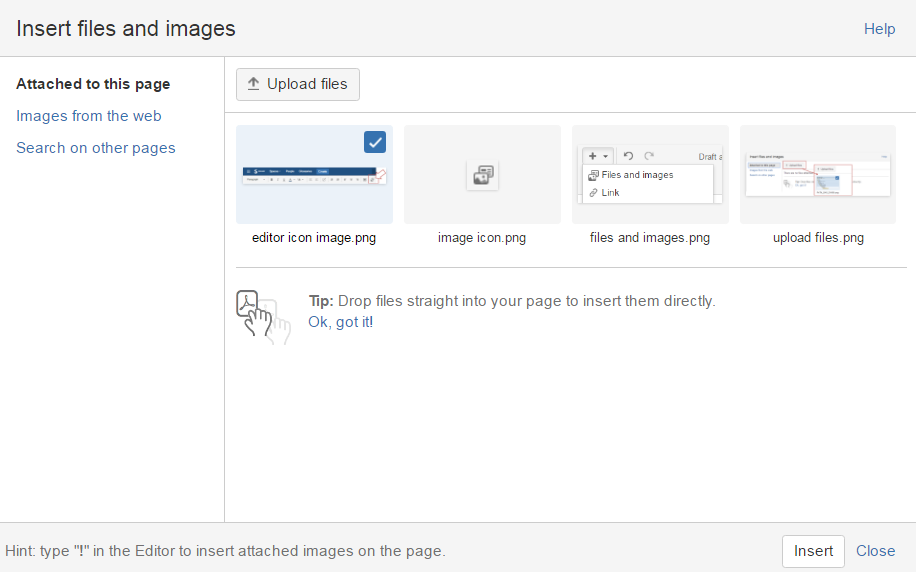
- Your file will appear on your page as a thumbnail. Click the thumbnail to resize it or to switch to showing the file as a link.

File versions
If you upload a file with the same name as an existing attachment on the same page, Confluence will overwrite the existing attachment. Version history is kept for all attachments.
Click on the icon  to display all versions

Insert a file attached to another page
You can display a file that's attached to a different page of the same Confluence site, if you know the name of the file.
To display an image attached to a different page:
- Go to Insert > Files and choose the Search on other pages.
- Enter the name of the file.
- Choose whether to search the current space or All Spaces and choose Search.
- Select the file from the search results and choose Insert.

- give an explicit name to attachment (including image)
- avoid generic name such as "screen shot"
- avoid non English character in attachment name
- it's possible to change an attachment name via the attachment menu "property "
 The best way to get IT support is to use the new
Service One Platform.
The best way to get IT support is to use the new
Service One Platform.