Let’s say that you are invited to a meeting, and you want to know who are the people that will be joining. It would be funny if all the pictures were of animals, nature, cartoons… but in the end, it would not help you.
A professional picture has a huge impact in someone’s first impression. It doesn’t have to be boring, of course, but it must show who you are, like a brand.
When it comes to having your picture in the organizational charts, or your google email, the keyword here is PROFESSIONAL. It should be a portrait of you, and not pets, children or objects (let’s save those for other social networks). Take off your mask and show the company your big smile!
To sum up, the photo should be of you and only you, as you would come to work. And remember, it’s available for everyone at the company to see.
Need some tips on how to have a great profile picture? Check this video.
But… What if you don’t like pictures?
Well, let’s go to option B: Keep the avatar as is.
Below you can find the steps you need to follow if you want to change your picture/avatar.
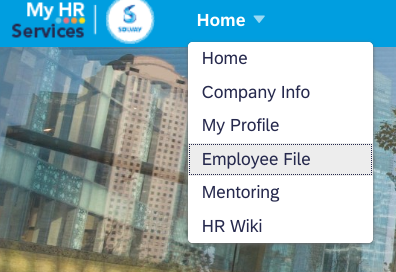
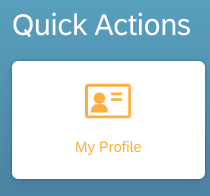
Step two: Click on ‘Home’ and select ‘My Employee File’ or you can directly access ‘My Profile’ on the homepage
Step three: Now place your mouse cursor over the picture, there will be ‘Edit Profile Picture’ message pop up, Click on it.
Step four: Select your profile picture and Save
Now, the picture will be available on your Employee Profile.
UPLOAD A PICTURE TO YOUR PROFILE HEADER
You can also edit your background profile image!
Would you like to personalize a little more your profile? It’s possible by editing your background. Please remember that your profile is available for any SCo Syensqo employee, so choose wisely.
Expand
title
CLICK HERE TO READ THE INSTRUCTIONS
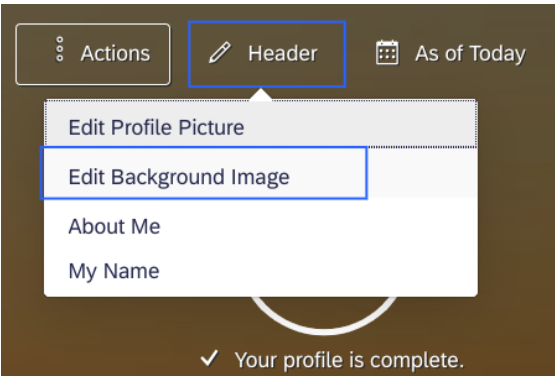
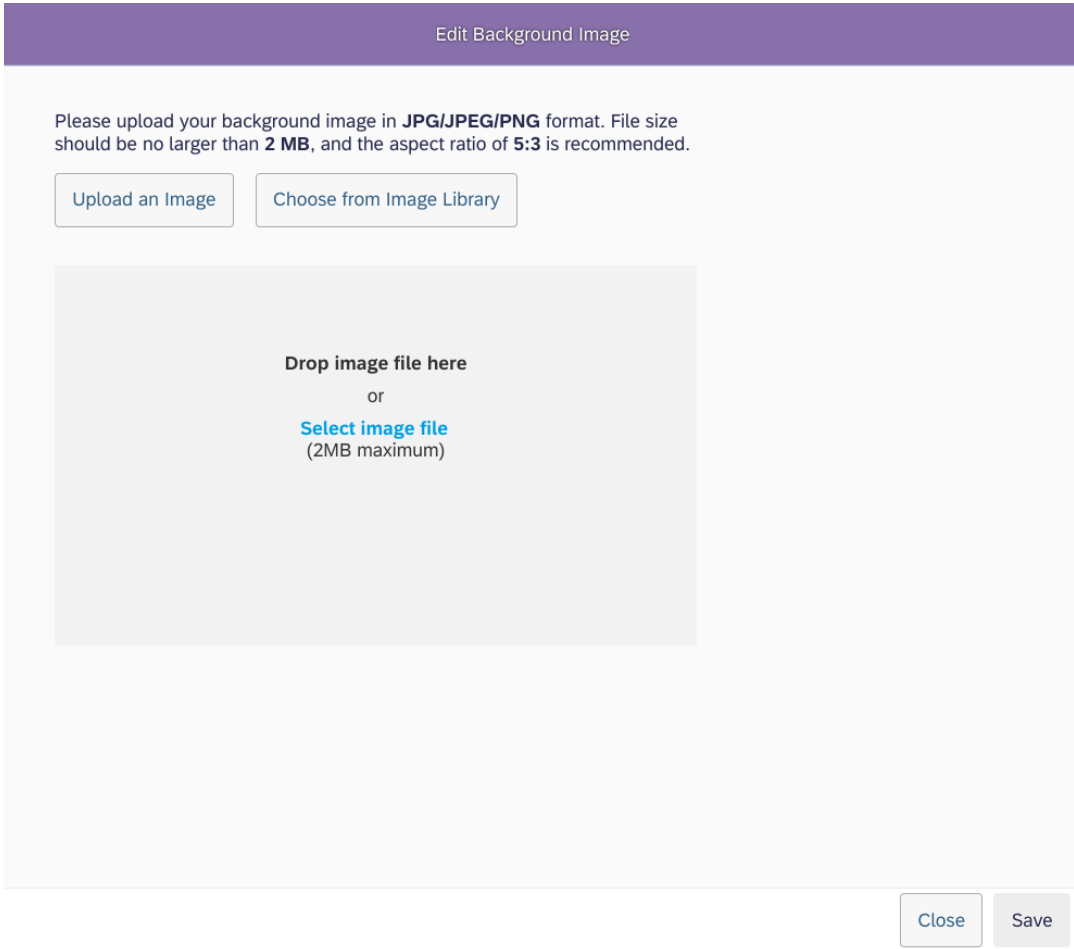
In the top right corner of your screen click on "Header" and click on "Edit Background image":
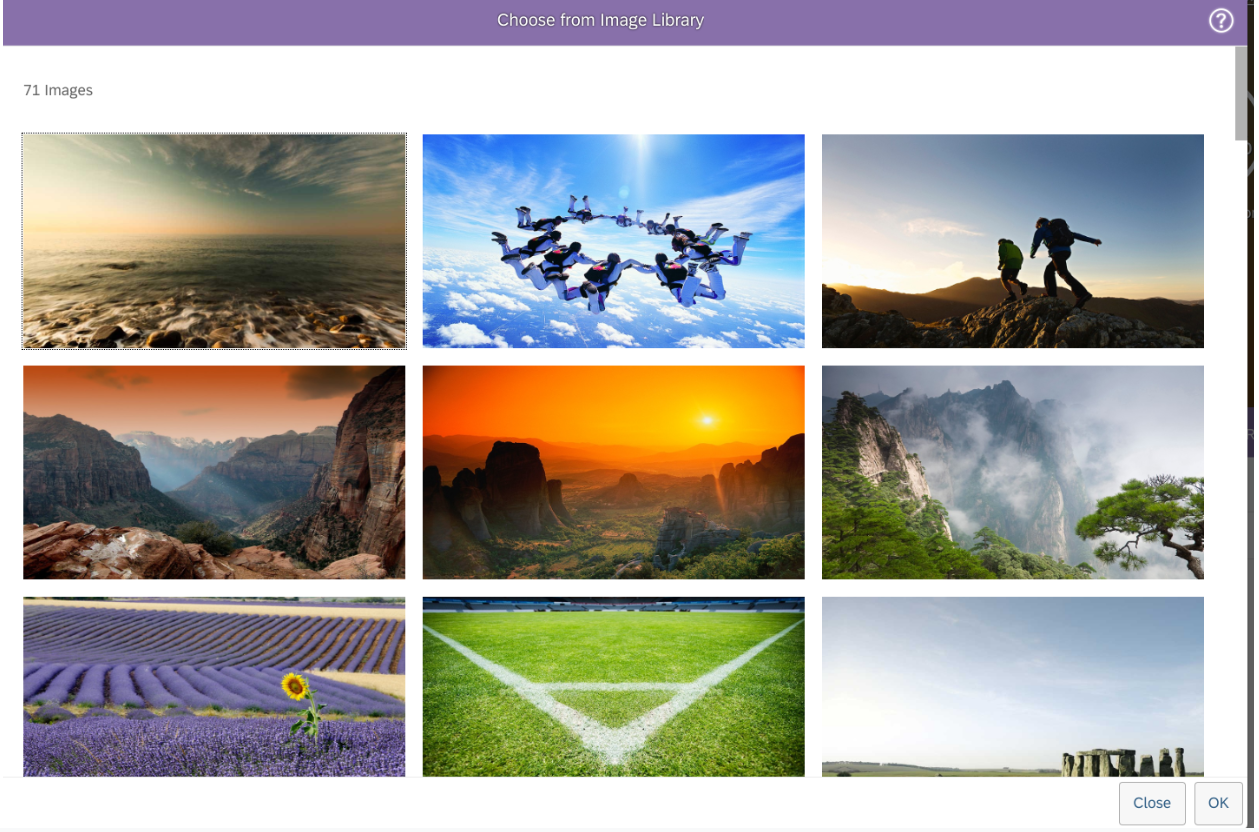
You can choose to upload from an Image Library such as the SCo’s Syensqo’s Library(make sure you have your VPN connection on) or Upload from your drive(just make sure not to upload any internet pictures for intellectual property reasons).