Page tree

Versions Compared

Key

  • This line was added.
  • This line was removed.
  • Formatting was changed.
Comment: change layer margin to -20px
Content Layer
padding50px 100px 100px 50px
background-repeatno-repeat
margin-20px
background-size100%
background-imageWiki (1400 x 300 px) (1400 x 250 px) (1400 x 150 px) (38).png
id1051820542
Content Column
width100.00002%
id1051820555
Content Block
background-colortransparent
padding100 px 100 px 150 px 100 px
margin100 px
id1051820554


Content Layer
margin-85px
id1925176407
Content Column
width70%
id1925176409
Content Block
id1925176412
SP Horizontal nav group
color#FF5630
SP Horizontal nav item
anchor1258113742
nameEmployee
SP Vertical nav group
color#FF5630
SP Vertical nav item
anchor2111431999
nameMy Time Management & The Time App in My HR Services
SP Horizontal nav group
color#FF5630
SP Horizontal nav item
anchor1593130870
nameTime Management

The information below should answer any questions you have about your time management:

  • Discuss your questions/doubts/concerns with your Manager.  Help them understand and support you;
  • The contact center will support you for more details;
  • Also if you have an error in your pay as a result of an error in time management, please raise a ticket or call the contact center;

WHAT WILL CHANGE IN THE FUTURE?

There are many changes being implemented in the next couple of months, here is what to expect:

  • A self-service tool is being implemented that will give you direct access to updated information.
  • Some countries/sites have implemented a self-service tool. To know more about this topic, please visit your country/site page here.
SP Horizontal nav item
anchor1447981619
nameThe TimeApps and how to Access it

The TimeApps is used by you as an employee to to enter leaves and/or time events and requests. 


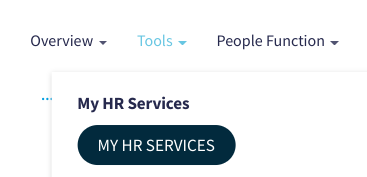
The “Time Management App” can be accessed through “MY HR SERVICES” via Syensqo's The Hub:

[Click on the image to be redirected to My HR Services]


OR via our HR Wiki header above:


Then, click on the icon labeled “TimeApps”:


As an Employee, there are 5 tiles available on the Time Management App, but this can depend on your access. For example, you may or may not have the tile “My Time Events” due to your country specifications.

What you will see on the Time Management App: 

  1. My Leave and Time Requests;
  2. My Time Events (clock in & clock out);
  3. My Time Statements;
  4. My Team Calendar;
  5. My Work schedule.


SP Horizontal nav item
anchor983353787
nameThe Activities You can Perform on the TimeApps
  • Submission of absences & attendances;
  • Record time events (if applicable);
  • Request for work schedule substitution.
SP Horizontal nav item
anchor658252077
nameHow to Perform these Activities on the TimeApps

Below you will find the procedures and the videos for each of the activities you can perform on the Time App as an Employee:

My Leave and Time Requests

Select the video tutorial in your language here.

My Time Events

Select the video tutorial in your language here.

My Time Statements

Select the video tutorial in your language here.

My Work Schedule

Select the video tutorial in your language here.

My Team Calendar

Action Button
new-windowtrue
textCLICK HERE TO ACCESS THE PROCEDURE
urlhttps://docs.google.com/document/d/1tpJt9fydPrS55e0DqcykDWJ6xZzF-XxIhYGJNXkcl0I/edit?usp=drive_link

Select the video tutorial in your language here.

Other relevant procedures:

How to create a Substitution Request

How to edit or delete a submitted Substitution Request

(which has not yet been approved)

Action Button
new-windowtrue
textCLICK HERE TO ACCESS THE PROCEDURE
urlhttps://docs.google.com/document/d/1kx2EZPLW2dS2_0j1P-uB_T5eqY9RvGK5Gtf294xRCbc/edit?usp=drive_link

SP Horizontal nav item
anchor352582225
nameUseful Links


SP Vertical nav item
anchor693085228
nameUSA Payment Information Update
SP Horizontal nav group
color#FF5630
SP Horizontal nav item
anchor1703914554
nameIntroduction

If maintaining your personal data up to date is crucial for an accurate profile, payment information is also key, because this indicates how you want to get paid: check or direct deposit.

Important notes:

  • Please ensure Start Date reflects the correct start date of the pay period you want the change to be reflected in;
  • Always refer to the USA payroll calendar to identify the correct dates:
  • If the start date is not in line with the pay period, it could result in two direct deposit amounts hitting the secondary bank accounts.
  • It could take up to 2 pay periods for payment bank changes to reflect on your pay checks. Do not close your previous bank account until the changes are successfully implemented.
  • Employees can have only 1 Main Account and several Secondary/other accounts.
    • Main Payment Method is the Main/Primary Account
    • Payroll is the Secondary/other account
SP Horizontal nav item
anchor226846617
nameTips to Help You Update your Payment Information
  1. Go to My HR Services and click on View My profile


       2. To update your information, follow these steps:
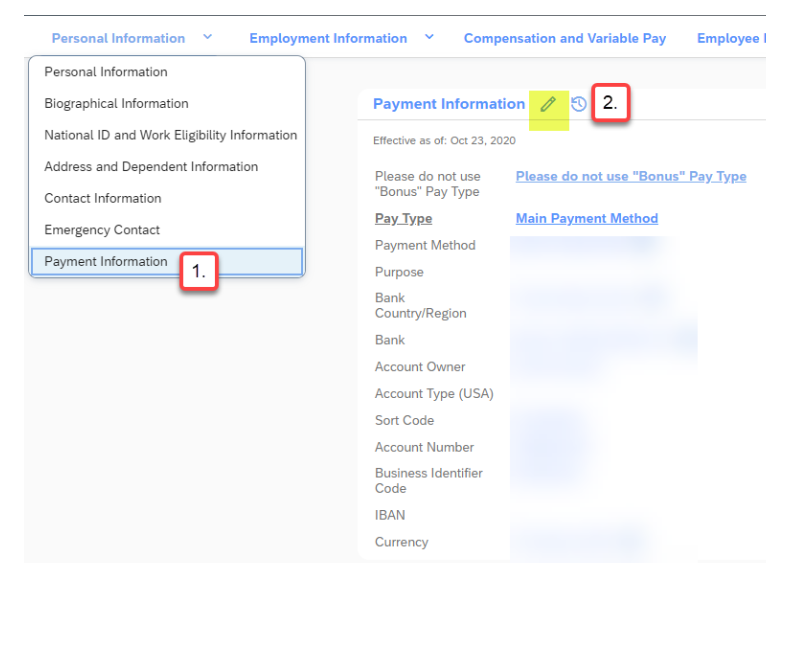
    1. To add a check as a payment method, please follow these steps

Please update only the highlighted fields. 

    • Date: Must be the start date of the pay period you want the change to be reflected in.
    • Pay Type: Every employee must have a Main Payment Method Set up.


2. To add a bank transfer or direct deposit as a payment method

3. To add your Bank information as a payment method

Update the following fields:

  • Date: Must be the start date of the pay period you want the change to be reflected in.
  • Pay Type: Every employee must have a Main Payment Method Set up. This is the primary bank information.
  • Note: If you wish to have your funds Direct Deposited, please choose Bank Transfer on the drop down menu or “check” if you want to receive it via check (not recommended).
  • Bank: Please enter routing number
  • Account Type (USA): Specify checking or savings


To add an additional account: To transfer a portion of your net pay to a secondary account, you can either choose a percentage or an amount.

Please enter the following information:

  • Date: Must be the start date of the pay period you want the change to be reflected in.
  • Pay Type: Payroll
  • Note: If you wish to have your funds Direct Deposited, please choose Bank Transfer on the drop down menu or “check” if you want to receive it via check (not recommended).
  • Bank: Please enter routing number
  • Account Type (USA): Specify checking or savings
  • Account Number: This is the account number where you want your funds to go to 
  • Percent: Percentage of the fund that you want to receive in your account or Amount: The portion of your fund that you want to receive in your account.


4. How to stop/cancel/delete bank

If you delete the Main Payment Method, please add a new account for this Pay Type, otherwise there will be a payroll error and this will cause a delay in your payment.

  • Refer to Step 1 on how to add Main Account.


If you have any questions please open a ticket via SyRa.


Important notes:

The field of Sort Code (In the US known as Routing Number) is locked/blocked and no update must be done in this field. 

To update your bank account you only need to insert information on the "Bank” field by entering the routing number. Upon entering the routing number in the Bank field, it automatically updates the number in the Sort Code.

If for any reason your form gets rejected, it might be linked to the fact that the bank information is not in our database in these situations please create a ticket in Service One.


SP Horizontal nav item
anchor1795053683
nameManager
SP Vertical nav group
color#FF5630
SP Vertical nav item
anchor1072872549
nameThe Time App in My HR Services for Managers
SP Horizontal nav group
color#FF5630
SP Horizontal nav item
anchor1345000958
nameThe Time App and how to access it

The Time App is used by you as an employee to to enter leave and/or time events and requests. 


The “Time Management App” can be accessed through “MY HR SERVICES” via TheHub:

OR via our HR Wiki header above:

Then, click on the icon labeled “Time Apps”:


As the manager, the additional tiles to manage time and work schedule of your direct employees in the team as follows:

  1. My Inbox
  2. My Time Events 
  3. Manage Work schedule 
  4. My Leave and Time Requests 
  5. My Report
  6. My Time Statement
  7. Additional Feature in My Team Calendar
SP Horizontal nav item
anchor1307215943
nameTimeApp Activities

Below you will find the Standard Operational Procedures for each of the activities you can perform on the Time App as an Manager:


Access My Inbox 

Manage Work Schedules

Access My Leave and Time Requests

Access My Rerport

Access Time Statement

Additional Feauture in My Team Calendar


SP Horizontal nav item
anchor2314
nameHR
SP Vertical nav group
color#FF5630
SP Vertical nav item
anchor514172129
nameTime Management & The Time App
SP Horizontal nav group
color#FF5630
SP Horizontal nav item
anchor313998421
nameActivities on the Time App

As HR staff, the Time APP will be used for you to enter or approve leave and/or time events (depending on the profile), or to run time reports and maintain time master data (Payroll Team).

  1. Change and/or cancel a Leave of Absence
  2. How to perform a Leave of Absence
  3. Management of Delegation 
  4. TimeKeeper Management


Below you will find the Standard Operational Procedures for each of the activities you can perform on the Time App:


Change and/or cancel a Leave of Absence

How to perform a Leave of Absence

Management of Delegation 

TimeKeeper Management

SP Horizontal nav item
anchor1385184771
nameLeave of Absence

Leave of Absence (LOA) is defined as any time away from work outside of routine absences such as Time Off or sick days. Leave of absence is used for a long-term absence of an employee, being full-time or part-time absent, with an active or inactive status depending on the case.

Responsibilities

For Employees Included in Reorganization Projects

  • LOA details are submitted by Site HR in the restructuring program files

  • People Services processes the LOA

For Employees not Included in Reorganization Projects

  • LOA request is submitted by Site HR (or employee directly depending on leave type) via ticket to Payroll.

  • LOA can only be registered by Payroll role in My HR Services (Time off portlet of employee’s profile).

For detailed information, please refer to the Mobility / Garden Leave in My HR Services page

Action Button
new-windowtrue
textOperating Procedure for Payroll
urlhttps://docs.google.com/document/d/10XsS7SuXm4I1VhQZclnzww-f1rLhao3ogj2qBLxW6FE/edit?usp=drive_link