Versions Compared

Key

  • This line was added.
  • This line was removed.
  • Formatting was changed.
Expand
titleStep 1: How to get Authorization Data
  •  Login to SAP and execute Transaction code "SU53".

Image Added


  • In the “Display Authorization Data screen (SU53)” click on “Text View” button.

Image Added


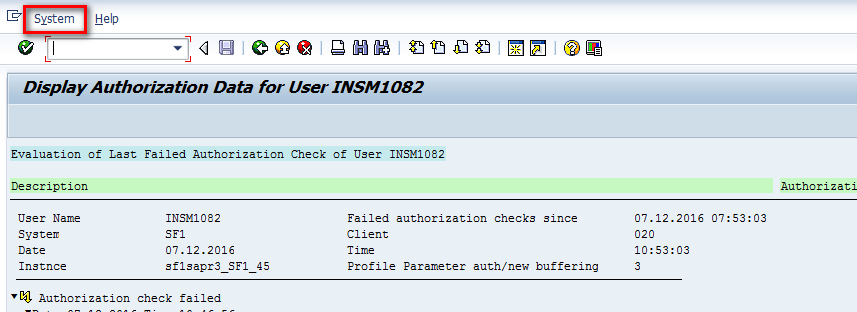
  • Click System button in Text view screen

Image Added


  • Then in System drop-down select
    • Go through “List” -> “Save” -> “Local File”.
      Image Added

  • In the popup to save file Choose the option "Unconverted" .
    Image Added


  • Change directory to the preferred one and click “Generate”.

Image Added


  • Allow the creation of the ".txt" file in the previously chosen directory.

Image Added


  • Now you have the ".txt" file with the authorizations of your user. 
Expand
titleStep 2: How to Create a Ticket in Freshdesk and Attach the file ".txt"

Image Added


  • Click on "New" button and select "Ticket" button in drop-down.

Image Added


  • Fill the fields with the options shown in the image below.
  • The fields Sub type, IS-Category and Application must be filled with the options correspondent to the stream of the user that is requesting the authorizations.

...

Fill the fields with the options shown in the image below.
  • Attach the .txt file with the authorizations to the description of the ticket
    Image Added

    Image Added

    Image Added

  • After Filling all the details Click on Submit button and submit it.
    Image Added

Image Added