Attention!
Dear PSL contributor, you will not be able to create pages in the space for the foreseeable future due to the global documentation project, This action is being reserved to process experts, administrators and IS to ensure consistency and avoid duplication while the documents are under review.

Page History
| Excerpt | ||
|---|---|---|
| ||
User guide for the library AODOcs SBS - Procure to Pay - Accounts Payable |
| Info |
|---|
To access the library SBS SBS - Procure to Pay - Accounts Payable |
Click on the icon of the library or click here

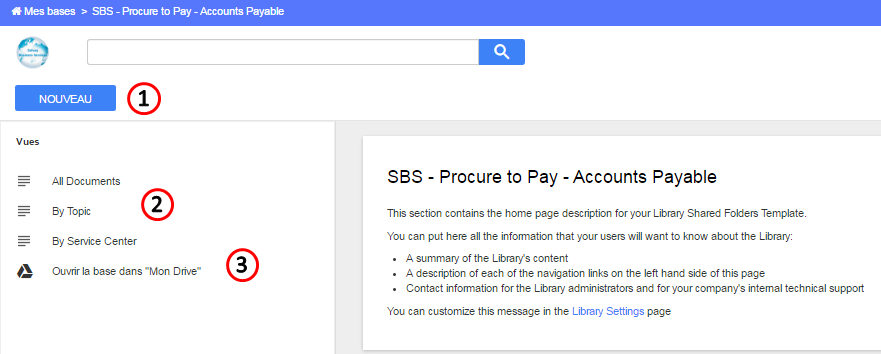
The homepage is displayed. You can
| Table of Contents | ||
|---|---|---|
|
1. Import or upload a document
| Info |
|---|
To import a document you must be part of the google group $AODocs.PtP Accounts Payable-Contributors If you are not, ask the manager of the group to be included. |
Upload a document by clicking the button  then
then 

- Click "Upload" to select files from your computer, select the file and click

or Google Drive to select a document stored in your google drive, select the file and click

Note You can only attach files owned by yourself

| Anchor |
|---|
|
|
| Note |
|---|
If you can not find a value in a list, you can add it manually |
- Center (=service center) * (mandatory)
Document language (optional)
- Document zone, select the Zone and then the country * (mandatory)
- Select the document type * (mandatory)
- Folder: by default select "Accounts payable"
- Process * (mandatory)
- Sub Topic * (mandatory)
- Topic * (mandatory)
- SAVE by clicking


2. View existing documents
2.1 Using the search bar
Enter the name of the document in the search bar and click 

2.2 Using a predefined view
Select a predefined view:
| Note |
|---|
Views are managed by the administrator of the library |

All documents to display all documents
(note: it corresponds to the view "All documents" that was used in the former library in Teamsite)

By Topic to browse by Topic
(note: it corresponds to the view "By Topic" that was used in the former library in Teamsite)

By center to browse by Service center
(note: it corresponds to views "Bangkok", "Curitiba" & "Lisbon" that were used in the former library in Teamsite)

Click  to filter the content of your library
| Note |
|---|
Filters are managed by the administrator of the library |


3. Open the library in your google drive
You can open the library in your google drive by clicking 

You can also open the library from your drive by clicking on "open an AODOcs library" and select your library
| Tip | ||
|---|---|---|
| ||
Click the star |


| Warning | ||
|---|---|---|
| ||
Go to AODOCS to find user guides and trainings |
Overview
Content Tools
Tasks