Page tree

Versions Compared

Key

  • This line was added.
  • This line was removed.
  • Formatting was changed.
Content Layer
background-color#ff6541ff
id1051820542
Content Column
width100.00002%
id1051820555

Content Block
background-color#ff6541ff
id1051820554

Jira The Basics

Content Layer
padding50px 150px 150px 50px
background-repeatno-repeat
margin-20px
background-size100%
background-imageSCo Banner Confluence.png
background-positiontop
id1987359919


columnReach out to Solvay and guide you through the process of asking support from Solvay.
content-
background-colortransparent
width100.00002%
id1987359920
content-layer
id224354230

Assess the “architecture review board - ARB”. 

To go the the ARB the Architecture Impact Analysesneeds to be done. 
Content Column
width70%
id224354241
Below is a Jira tutorial video to show you step-by-step Jira basic features.

Guardians Meeting Purpose

The goal of the meeting is for you to present to the Guardians your Initiatives in 15 minutes, using the One-Pager Template provided by the Portfolio Team, according the phase where you are (Envision, Strategize, Plan or Roll-out).  

To secure a slot at the Guardians Meeting and present your initiative, all you have to do is contact the Portfolio Team ( Simon Mertens or Mégane Junqueira) at least one working day in advance and ask for a slot for the next meeting.

The Guardians

Meet The Guardians of the House & their roles within the Portfolio Process. 

Content Block
background-color$whiteColor
id224354240

Image Removed

Content Block
background-color#f0f0f0ff
border-radius30px
id1057146458
On

In this Page you will find: 

Expand
titleClick to Explore

Table of Contents

minLevel2
Embedded Google Drive File
slide6
urlhttps://docs.google.com/presentation/d/1k7fX1G7wsoWvYy-m0Y47sc0pqY23SWWuEcri6buRkJI/edit?usp=drivesdk
fullwidthtrue
height600

The Guardians are here to assist you on your journey to getting your initiative approved! They play a crucial role in determining whether your initiatives meet the right requisites to become reality.

Guardians Contacts

GuardianNameChecks Needed
Roadmap & Portfolio

Florence Henriet

Simon Mertens 

Strategic fit is analyzed during the Guardians Meeting.

Enterprise Architect Owen Pettiford

maxLevel2


Jira Project

Jira Project Definition

A Jira Project represents a Syensqo IT initiative (for example: Pricing, customer Portal, Lab Booster, ERP Rebuild, etc.) 

Projects is the module you will use the most.


Content Block
background-color#f0f0f0ff
border-radius30px
id1057146458

Click on (1) Projects → Click on (2) View all projects →  Search and find the name of the IT Initiative(s) you are working on.

Content Block
background-color#f0f0f0ff
border-radius30px
id1057146458

Note 1: Use the favorite Jira feature (Star icon) to mark your Jira Project(s) as your favorite so that it shows up as the first option(s) in the Projects menu.  

Note 2: If you are admin of your Jira project, you can modify the configuration of you project by clicking on Image Addedat the bottom of the left panel.


Create a Jira Project

To create a Jira Project (Space), please create a SyRa Ticket or contact SHAIKH, Sahil


Issue

Issue Definition

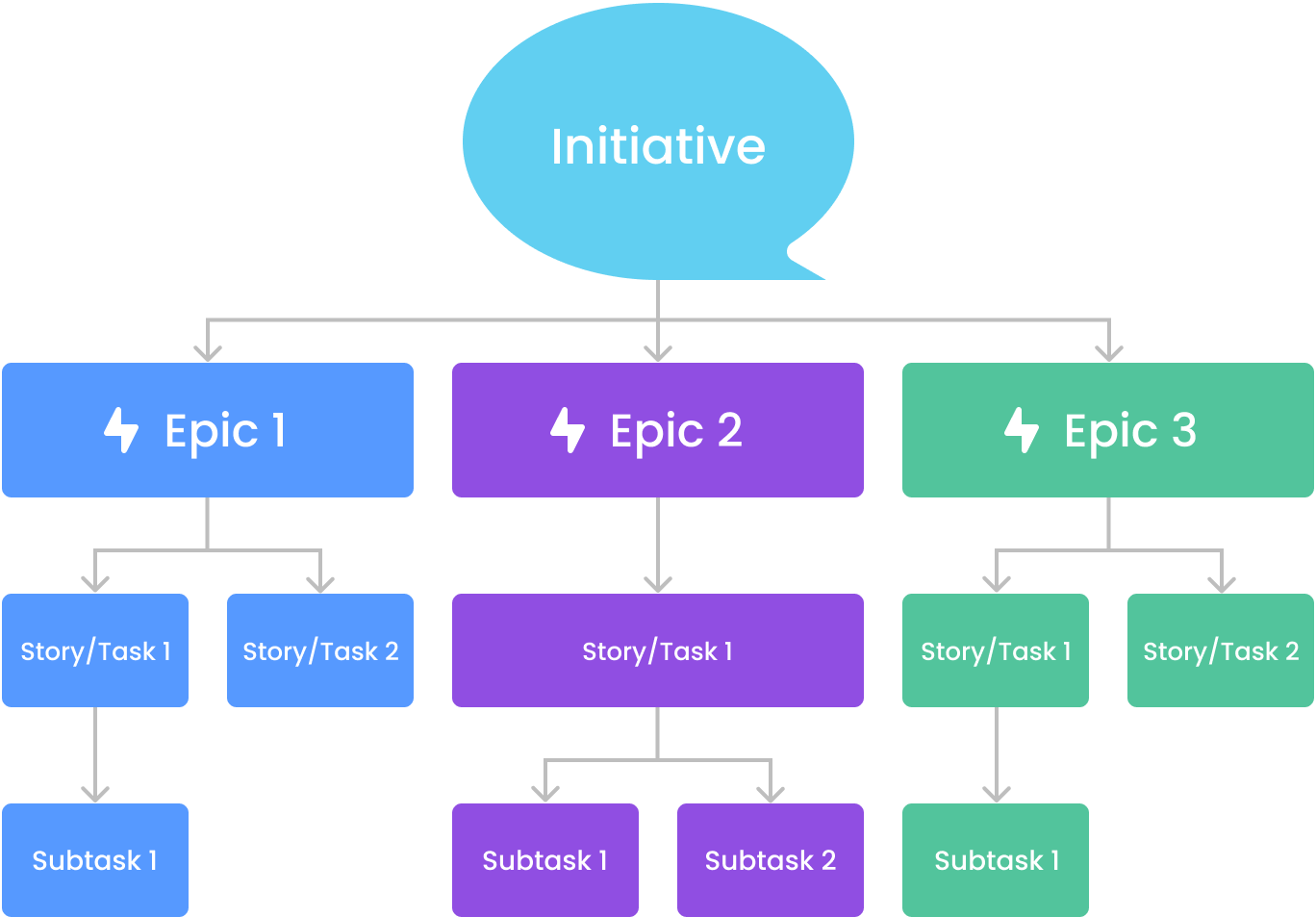
In Jira, an issue is a generic term for any task, bug, story, epic, or work item that needs to be tracked and managed within a project. It represents an unit of work that a team needs to complete.


Below represents the hierarchy between the different type of issues:

Hierarchy

Issue Type

Definition

#1

Image Added

IT Initiative (like the One-Pager)

#2

Image Added

In Jira, an Epic is a large body of work that is broken down into smaller, manageable issues such as stories, tasks, or bugs.
It represents a high-level objective that typically spans multiple iterations.

#3

Image Added

Image Added

Image Added 

Image Added

A bug is an issue that represents a defect, error, or unexpected behavior in the system.

A spike is a research or exploration task used to gain knowledge or reduce uncertainty before implementing a feature. Spikes help teams make informed decisions about architecture, tools, or technical solutions.

A Story in Jira represents a small, independent unit of work that delivers value to the user. It is written from the user's perspective and describes a feature, functionality, or improvement needed for the product. See HERE for more information on how to create a User Story

A task is a standard work item representing a piece of work that needs to be done but does not fall under a Bug or Story. Tasks are often used for technical work, operational activities, or general to-do items.


#4

Image Added

A Subtask is a smaller unit of work that breaks down a Story, Task, Bug, or Spike into more manageable pieces. It is used when a larger work item needs to be divided among multiple team members.


Create an Issue

You create Jira issues to track your team work within your project.

You can create these issues from:

Content Block
background-color#f0f0f0ff
border-radius30px
id1057146458

Within a column of your board or backlog (if you have the option) by clicking Image Added:

  • With this option you do not need to fill out the all the fields within the issue, only the title called the summary in Jira.
Content Block
background-color#f0f0f0ff
border-radius30px
id1057146458

The top main menu by clicking the Image Added button

  • Fill out the necessary fields to create the issue (Be careful fields marked with a red Asterix are mandatory)
Content Block
background-color#f0f0f0ff
border-radius30px
id1057146458

To create a subtask: within a story/task/bug, click the Image Added button and click Image Added

Content Block
background-color#f0f0f0ff
border-radius30px
id1057146458

Note 1: When you need more information about what to select or type in a Jira field, HOVER on the title of the field, the tooltip icon "i" will show up, HOVER on the "i" and you will see a description if any.

Note 2: If there is no description please, contact Jira admins to ask or add/update description.

Main issue fields:

FieldsDescription
SummaryThis is the title a Jira issue
Issue Types
Image Added   

Image Added

Image Added

Image Added

Image Added

Image Added

Image Added

Parent

To link parent issue. The issue on top of the issue being created or edited.

Example:

  • If the issue is an Epic/Feature, its parent can be an Initiative
  • If the issue is a Story/Task/bug, its parent can be an epic/feature

Image Added

TeamThe team that will work on the issue
Start dateThe start date of the issue
Due dateThe due date of the issue
Content Block
background-color#ffe1d9
border-radius30px
id1057146458

television WATCH Jira Demo

Video 4 - How to create an Issue? (e.g., Epic, Task)


Automation Rule to Create Epics (Milestones) - How to use it? 

We have created a new Automation Rule in Jira to make your work easier, especially if you are managing a Waterfall project.

Portfolio and SyWay have agreed on the following recommended structure, which is strongly advised for initiatives using the Waterfall methodology—particularly those impacting SyWay. The structure is as follows:

  • Plan [Design] – (Initiative/Sub-Initiative Name)
  • Deliver [Build] – (Initiative/Sub-Initiative Name)
  • Deliver [Test] – (Initiative/Sub-Initiative Name)
  • Deliver [UAT] – (Initiative/Sub-Initiative Name)
  • Deliver [Deployment] – (Initiative/Sub-Initiative Name)
  • Go-Live – (Initiative/Sub-Initiative Name)

Replace (Initiative/Sub-Initiative Name)with your actual initiative or sub-initiative name

Content Block
background-color#ffe1d9
border-radius30px
id1057146458

television WATCH Jira Demo

Video 6 - How to use the Automation Rule to Create Epics Template (Milestones)


Boards

Boards Definition

Boards are a fundamental component of Jira, serving as a visual representation of work being done within a project. Here's a detailed look at their definition and functionality:

  • A Jira Project can have one or multiple boards;
  • An IT Initiative can have multiple scopes/teams, then multiple boards;
  • A Board encompasses a group of issues being worked on by one team;
  • The Board(s) in a Jira project can be found at the top of the left panel.

Issues travel though multiple statuses from the first to the last column of the board. 

Note: If you are admin of your Jira project, you can configure your board by clicking the Image Added at the top right corner of your screen.

Create a board

Within your Jira Project:

Content Block
background-color#f0f0f0ff
border-radius30px
id1057146458

Click the selection field on the top of the left panel under "Planning" and Click Image Added

Content Block
background-color#f0f0f0ff
border-radius30px
id1057146458

Choose between a Scrum or a Kanban Board

Content Block
background-color#f0f0f0ff
border-radius30px
id1057146458

Select "Board from an existing project" and choose the current project you are in

Content Block
background-color#f0f0f0ff
border-radius30px
id1057146458

Give it a name and save

Content Block
background-color#f0f0f0ff
border-radius30px
id1057146458

Once create go to the Image Added at the top right corner of your screen and click "Configure Board"

Content Block
background-color#f0f0f0ff
border-radius30px
id1057146458

Go to columns to edit the columns of your board

Content Block
background-color#ffe1d9
border-radius30px
id1057146458

television WATCH Jira Demo

Video 2 - How to create a Board?


Plan (Timeline)

A Plan shows you the whole hierarchy of your issues in a Timeline format (Gantt Chart).

Content Block
background-color#f0f0f0ff
border-radius30px
id1057146458

To access a Plan, Click on Image Added button in the top menu and pick an existing Plan

Note: Use the favorite Jira feature (Star icon) to mark your Timeline(s) as your favorite so that it shows up as the first option(s) in the Plan menu.  

Content Block
background-color#f0f0f0ff
border-radius30px
id1057146458

Once you are in the selected Plan: you can either choose the Timeline (Gantt Chart) or the List view (selected fields):  Image Added

Content Block
background-color#ffe1d9
border-radius30px
id1057146458

television WATCH Jira Demo

Video 3 - How to create a Plan (Timeline)?


Search

Content Block
background-color#f0f0f0ff
border-radius30px
id1057146458

In the top right corner you can conduct a search though Jira to find specific issue(s) you are looking for


Team

Content Block
background-color#f0f0f0ff
border-radius30px
id1057146458

In the top menu you can create a team and add your team members

Content Block
background-color#f0f0f0ff
border-radius30px
id1057146458

You can select the team(s) in you IT Initiative

Content Block
background-color#ffe1d9
border-radius30px
id1057146458

television WATCH Jira Demo

Video 5 - How to create a Team?

ProcurementAlexis BLANCHER

Impact on Procurement is checked with Alexis, his team will assist you & the correct buyer is allocated.

Compliance & Cyber Security

Claude Pichereau

Benjamin POISSONNET

Compliance & Cybersecurity Checks → Simple Compliance Questions & Full SIP Assessment.
Controlling

Pranav Narang

Validation of the Workload & Cost and ensures the correct financials rules are followed and request the needed WBS for the Initiative.
TSA

Stephan Siegel

Reach out to Solvay and guide you through the process of asking support from Solvay.
Separation Program

Jean-Claude Rondeau

Content Column
background-color#ff6541ff
columnalternate
width30%
id1925176410


USEFUL LINKS

Content Block
background-color#ff6541ff
id1925176413
Content Block
background-color#f0f0f0ff
border-radius30px
id1057146458
  • Simon Mertens  
  • Mégane Junqueira
    Expand
    titleSchedule Meeting Slots
    Video Tutorials
    Content Block
    background-color#f0f0f0ff
    border-radius30px
    id1057146458

    Action Button
    new-windowtrue
    textRequest Jira Access
    urlhttps://solvay-dwp.onbmc.com/dwp/app/#/knowledge/KBA00015401/rkm

    Content Block
    background-color#f0f0f0ff
    border-radius30px
    id1057146458

    Action Button
    new-windowtrue
    link99. (do not use) JIRA Issues - Workflows
    textJira Workflows

  • Guardians Weekly Meeting Minutes
  • Guardians Meeting Agenda

    Content Block
    background-color#f0f0f0ff
    border-radius30px
    id1057146458

    Action Button
    new-windowtrue
    linkJira Our Setup
    textJira Our Setup

    Expand
    titleMore Info

    Mégane Junqueira

    Content Block
    background-color#f0f0f0ff
    border-radius30px
    id1057146458

    Action Button
    new-windowtrue
    textLearn with Atlassian
    urlhttps://www.atlassian.com/software/jira/guides/projects/overview#what-are-key-elements

    Expand
    titlePage Owner