
Process Overview - Request Privileged Access (Requester POV)
Table of Contents minLevel 2 absoluteUrl true
...
- Add fields: Document ID, Change Action, Old/New values, Changed by, Timestamp.
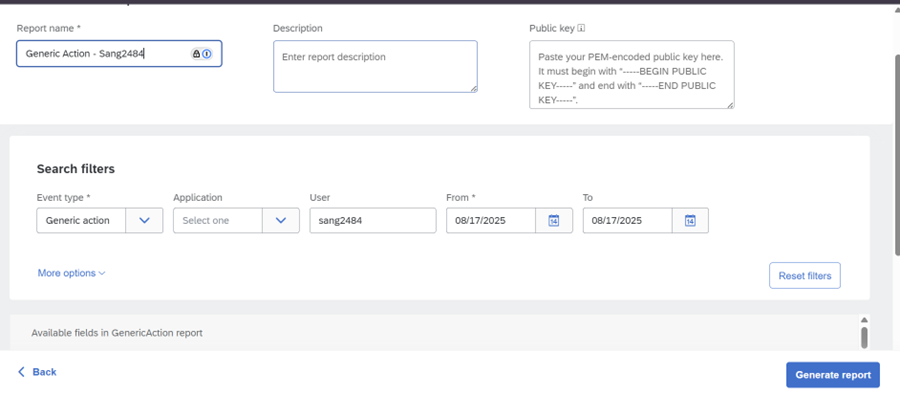
- Set Filters (date range, document type, user).
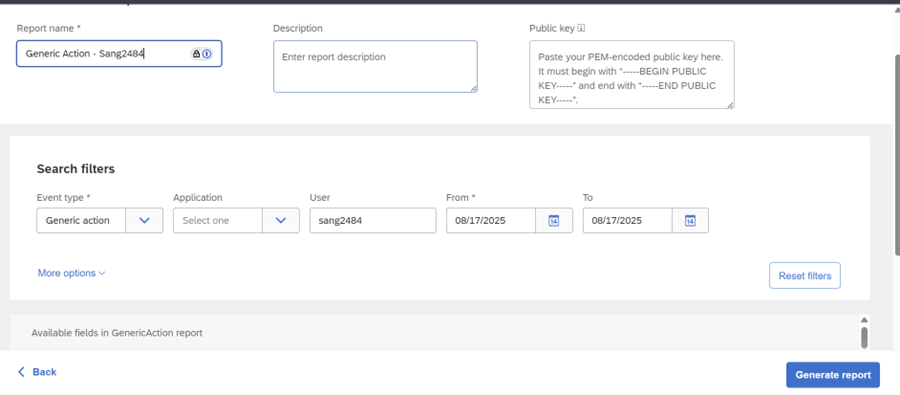
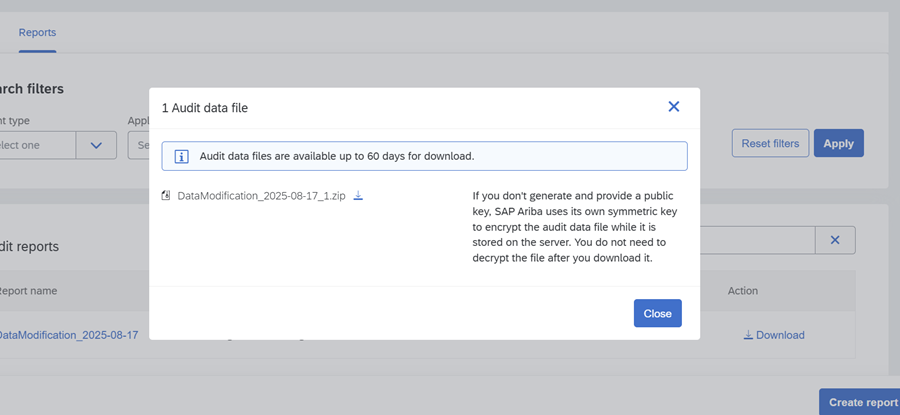
- Run & Export (CSV/Excel).

The Field Attributes contains the detail of the changes, however this is unformatted
This can be formatted by text to columns

And manual formatting

Step 4:
...
Automated extraction (APIs)
Audit Search API: Request API access, generate Client ID/Secret, run search jobs, download results.
- Analytical Reporting APIs: Define reporting view, submit job, retrieve results programmatically.
- Continuous ingestion: Audit Search API.
Considerations while exporting change logs
- Time zones: Audit timestamps are server-side.
- Real vs Effective User: Check both.
- Filters first, export second to avoid large files.
- ICM encryption: Requires key upload and local decryption
...
- Below page will be displayed after clicking on the Create Request button.
Provide the below information for the PAM access request.
- Reason for Request: PAM for SAAS Application
- Priority: Select High, Medium, Low as per the urgency basis
- Description: Why emergency access request is raised and what will be done in the system(mandatory for approval)
- Duration of access requirement in the description section(Mandatory for approval)
- Manager and Email address will be populated automatically.

Step 5: Submit Request
- Click on the Submit Request

- Click on OK, to check request status

- Check request status for access request information.

Step 6: Receive email notification for submission
- The user receives an email notification confirming that the access request has been submitted successfully.

Step 7: Receive email confirmation for approval status
- The user receives an email confirmation on the approval or rejection status of the access request.

Step 8: Login and Use of Privileged Access in Target Applications
- Once the access request is approved and provisioned, the user may log in to the respective application, such as SAP Ariba or Icertis, and perform activities using the granted privileged access.