
Overview
In this View, you will find information about process on assesment of supplier. The goal of this questionnaire is assess the supplier in different domains:
- Environment
- Labor practices & Human rights
- Fair business practices
- Sustainable Purchasing
Table of content
| Table of Contents | ||||
|---|---|---|---|---|
|
| Note |
|---|
CSR questionnaire should be made at Supplier Group level, and is valid for all suppliers of the group. |
Step-By-Step
| Note |
|---|
|
Status colour Blue title Step 1
1- In Tabs => Click on “Accounts”


Status colour Blue title Step 2
On the supplier group page,
scroll downgo to
thethe "CSR Assessments" related list and click
inon the button "New
CSR Assessement"".
Choose Solvay CSR Questionnaire and the click on the "Next" button


| Status | ||||
|---|---|---|---|---|
|
1- Verify that the name of your supplier is the right one on the field "Account".
"Valid From": by default today, but you can chance and chose the date you want the CSR
to be valid from
"Valid To"
, chose: by default it is valid for 3 years, but you can chance and chose the date you want the CSR to
be valid
to…to.
. - In the field at the right of the text"Due Date", chose the date you want the
CSR to be due by the supplier.answer.
5- Click on the "Status" dropdown menu. And choose the status "Sent“
6- Click in the button "Save" at the top of the page


| Panel |
|---|
Help supplier (I connect with the link) |
Status colour Blue title Step 4
Stay on the CSR page and review the information required with the supplier
Under the
RFICSR detail, click on the
link"Link"
infor the "URL for Supplier"
typeMake sure you are not a robot by clicking on "I am not a robot"Fill in the form and save it


You can see the supplier page, and help the supplier to fill the questionnaire and up load document.

| Status | ||||
|---|---|---|---|---|
|


| Panel |
|---|
Receive the answer from the supplier |
Status colour Blue title Step 5
You received by email the updated CSR from the supplier.
Click on the link in the mail. If asked, connect to your Convergence account via the Solvay Google Account

| Panel |
|---|
Request more information |
Step 5 DescriptionStatus colour Blue title Step 5 6
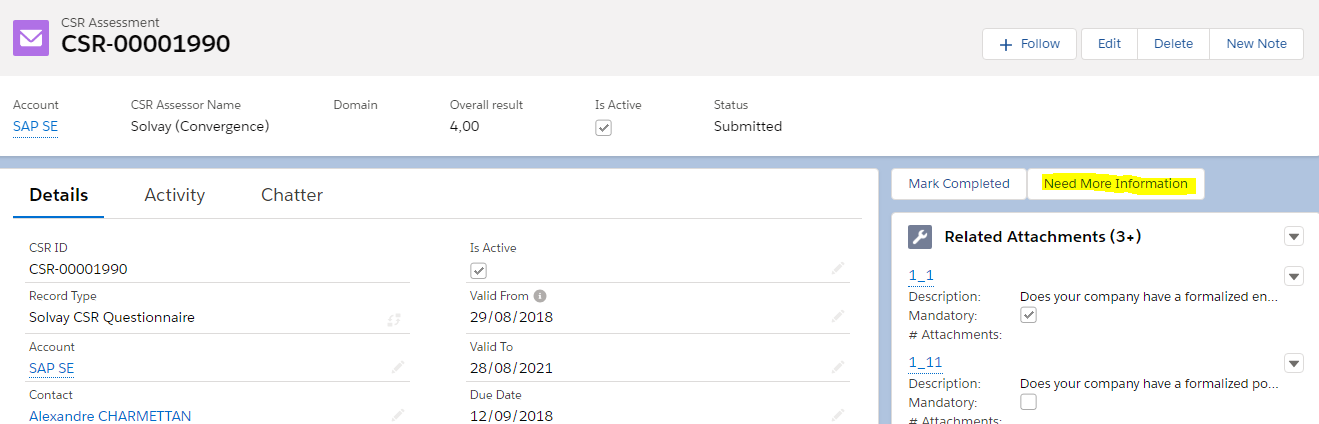
If you need to request more information, click on the button "Request more information“
| Note |
|---|
Please note that you can also change the status manually to "Need more information" but in this case, no mail is sent. |
Related articles
Need help?
7
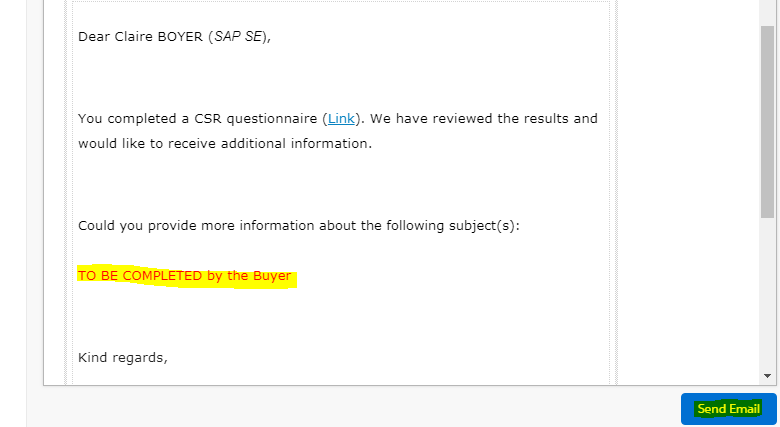
1- Request the information you need .
2- Click on "Send Email"

| Panel |
|---|
Receive the answer from the supplier
|
| Panel |
|---|
Complete the CSR |
6Step 6 DescriptionStatus colour Blue title Step 8
Verify that you have all the information you need to complete the CSR Assessment”
Go back to the top of the form and click the button "Mark Completed"

Related articles
Need help?
| Include Page | ||||
|---|---|---|---|---|
|
| Viewtracker | ||
|---|---|---|
|