

BW - Introduction
Business Warehouse (BW) is the SAP tool to extract reports with data coming from the transactional systems (mainly RCS). Users can use Analysis, an excel add-in, to connect to BW and then select a report to launch. The result of the report will directly be displayed in Excel.
Reports are organised by Applications (represented as 'Roles" in the Analysis) corresponding to functional areas. Each user is given access to one or more Applications based on needs.
Is BW the right tool for your reporting needs? Check the Reporting tools guide
Getting BW installed
Requesting Installation
To get BW installed on your PC you need to request it from your local SBS - IS - Infrastructure support. You cannot install SAP Business Intelligence by yourself.
Checking the Installation
To use BW you need to have the "Analysis for Microsoft Excel" tool installed.
To check the installation :
- Select "START" button
- Click on "All Programs"
- Search for the "SAP Business Intelligence" folder
- Open the "SAP BusinessObjects Analysis" folder
- Select Analysis for Microsoft Excel
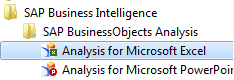
- Double Click Analysis for Microsoft Excel and verify that you have the "Analysis" Ribbon in the top bar

If you did not find the "SAP Business Intelligence" Folder, you need to contact your SBS infraservice desk support and request them to install Analysis for Microsoft Excel.
Getting a BW Account
To get a new BW account (or to modify/delete your existing account) the process is different depending on the server.
WBP Server ()
User request through BW online form. It can be for the user him/herself or for others(up to 10) who needs the same access.
- After submission, there will be a ticket
automaticallycreated in the SBS Support portal. - Customer Support team will ensure the form/Content is duly filled and transfer the ticket to
Authorization team (IS-SD-Authorization group). - Authorization team will ask for validation from some Key contacts. This take several days due to required approvals (Based on the applications and perimeter the Authorization team will request several approvals).
- Once access is validated, Authorization team will create the account and inform User the new user/password by email.
Note: After your first connexion you have to change the transient password sent.
PQ1 Server (Solvay Legacy)
For PQ1 BW access there is currently no form. To request an access to this system, Please create a Freshdesk ticket, using the link below:
https://sbs-support.solvay.com/helpdesk/tickets/new
Please provide the scope (finance, purchasing....) and which reports you are interested in.
The support team will determine your access based on your explanations.
Getting Training
How to join an existing session:
http://issp.solvay.com/issp/training/session/list.do
to look for the list of the next BW Analysis course fill in the right handside fields of the screen with the following information.
| Fields to fulfilled in : | Selected entries |
|---|---|
 |  |
 |  |
- Then click on search and you will get as hereunder a list of the next sessions.
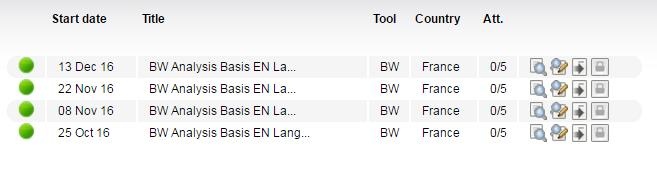
- to get more information about the course click the : Analysis course link
How to request a new session on ISSP :
http://issp.solvay.com/issp/training/course/list.do
Password Reset and Unlock Account
WBP Server
For Account unlocking and password resets on WBP, you can use SAP GRC CUP
PQ1 Server (Solvay Legacy)
Please send an email to SBS Support.
Contents for this page :
Links to sub-pages :
if you are not able to find the solution in the self help portal, please send an email - SBS Support to our customer support team.
 The best way to get IT support is to use the new
Service One Platform.
The best way to get IT support is to use the new
Service One Platform.