
After making the decision to depart the company, you need to inform your Manager or your Site HR, and if you have an employment contract or union agreement that states how much notice you should give, abide by it.
Can the restrictive covenants for sensitive roles impede me from taking a job outside of Syensqo?
Here is the procedure to follow if you are in a sensitive role and want to resign.
When you have given notice that you’re leaving your job and turned in your official resignation, there are still some things you should do to ensure a smooth transition:
- Read the Offboarding article in the HR Wiki.
- Take the time to inform the colleagues who've supported you, and who you would like to keep in touch with, that you are resigning, retiring, or starting a new chapter of your lif
If you are new to Syensqo's Wiki space, you may need to link your Google Drive in order to see embedded documents.
Follow the instructions here.
Before your last day of work, please ensure to:
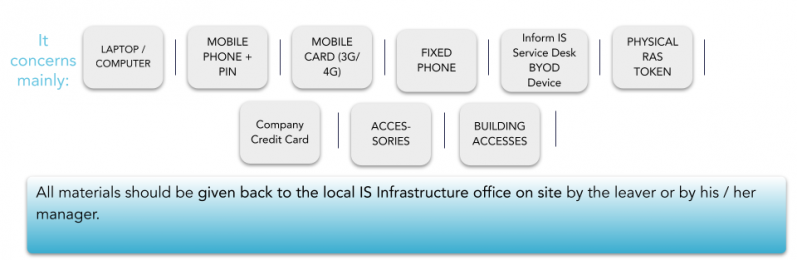
- Remind your manager to book a meeting with your local infrastructure team to return your equipment (PC, Phone, Sim Cards, etc...);
Store all Syensqo documents in Google Drive;
Transfer Google drive ownership to the relevant person (access the detailed procedure);
Transfer ownership of meetings in Google calendar (if applicable);
Submit any outstanding expense reports and settle any outstanding balance on Corporate Card (if applicable);
Open a Service One ticket requesting cancellation of your Fed Ex Account (if applicable);
Delete any personal information from your computer, your emails or your Google Drive including any photos after transferring what is important;
Deliver the Company’s card to the Travel Expenses team, Line Manager or Site HR (if applicable). If you can't deliver the card to the responsible team, please destroy it;
- Please open a ticket to the T&E team requesting to cancel you card;
Deliver the access card (badge) to the site contact (facilities/HR etc.).
Ensure you agree to an “Out of office notification” message with your Line Manager / Syensqo assignment supervisor. Please be aware this cannot be set once your account is deactivated. It must be set before you log out for the last time;
Deliver the assets to the local Service Desk on their last day of work (if applicable).
Important Notice
If not permanently on site, you should leave all your equipment at the front desk of the site you are attached to after having received approval from your Line Manager / Syensqo assignment supervisor, and in compliance with the country's legal requirements.
The Local IS Infrastructure on site must be informed in advance to ensure they are able to check the equipment with you.
You are about to leave Syensqo and you are wondering ...
... for how long will Syensqo retain various data concerning you?
... if you have some control over your personal data?
Find the answers in your local Employee Privacy notice!
Point of attention: Syensqo as an employer undertakes to keep personal data only for the retention period indicated in the Employee Privacy notices. You are invited to store information (e.g. pay slips) by your own means if you need to keep them beyond this period, e.g. when you will retire.
Below is the current employee privacy notice, please select your country:
- Belgium - DE - FR - NL
- Croatia
- Czech Repulic
- France
- Germany
- Great Britain
- Italy
- Luxembourg DE - FR
- Netherlands
- Poland
- Portugal
- Romania
- Spain
- Specific Regulations (APAC, Brazil, China)
For the generic Employee Notice in English, please click here
Why this Moment Matters?
Exit Management is a key part of the leader’s role as you will lead the relationship with the employee to ensure that this Moment that Matters is experienced as positively as possible with a focus on business continuity, while the role of the Site HR Partner is to ensure compliance by giving guidance and support on the technicalities.
Please look at the exit management process visual for managers.
The following scenarios are in scope:
- INVOLUNTARY SEPARATION (restructuring, poor performance, misconduct);
- VOLUNTARY SEPARATION (resignation);
- MEDICAL INCAPACITY (long term);
- RETIREMENT (legal retirement where it applies).
What to do as a Leader?
Partner with the employee’s Site HR all along the process: from the moment an initial separation intent or request is communicated until when all practicalities regarding the separation have been completed.
As a Leader, these guidelines will help you organize the departure of your new team member. You will have to start termination action in My HR Services as well as submit Offboarding request to remove all to deactivate IT access and remove assets. The offboarding procedure is mandatory and applies to the whole group without any exception.
Exit Management is a key part of the leader’s role. You make the final decision. Dedicated Site HR Partner are there to support you for all employment types (cadre and non-cadre). Below is a step-by-step guide for you to follow:
Step one: Discuss
This mandatory step requires you to discuss the separation intent or request with relevant parties (N+1) and inform the employee’s Site HR Partner.
IMPORTANT: You should also check in My HR Services (employee Profile) whether the employee holds a Sensitive Role and consult the process for additional steps & decisions related to Sensitive Roles. If you have questions, the Site HR Partner is able to advise you.
Step two: Evaluate/ Decide
- Evaluate, with the Site HR, the right type of solution to take your decision.
Think about the decision making criteria, who else to involve in the process and how you can avoid making biased decisions.
Step three: Create an action plan
- If a decision is taken to proceed with the separation, start by creating an action plan. Click here to download the template.
Step four: Communicate
Notify employee of the separation decision and rationale.
Discuss and confirm to the employee the separation date, package (if any) and other necessary terms based on action plan, supported by the employee’s Site HR Partner.
As a Leader you need to plan and prepare for difficult conversations and lead the discussion with courage and empathy. Here you can find a communication toolkit to prepare yourself.
Step five: Finalize the action plan and record separation in My HR Services
- As soon as possible, enter separation details (date, reason etc) in My HR Services to process the request. You will receive an automated confirmation when this is completed.
This action will be reviewed and approved by the Site HR.
Next Steps
- Start the Offboarding process as soon as possible.
The offboarding procedure is mandatory and applies to the whole group without any exception.
To launch the separation of your team member, the first action you need to do is record termination in My HR Services.
The termination action is owned and initiated by the Manager.
Below are the step-by-step instructions on how to enter the separation details in My HR Services.
Finding Employees
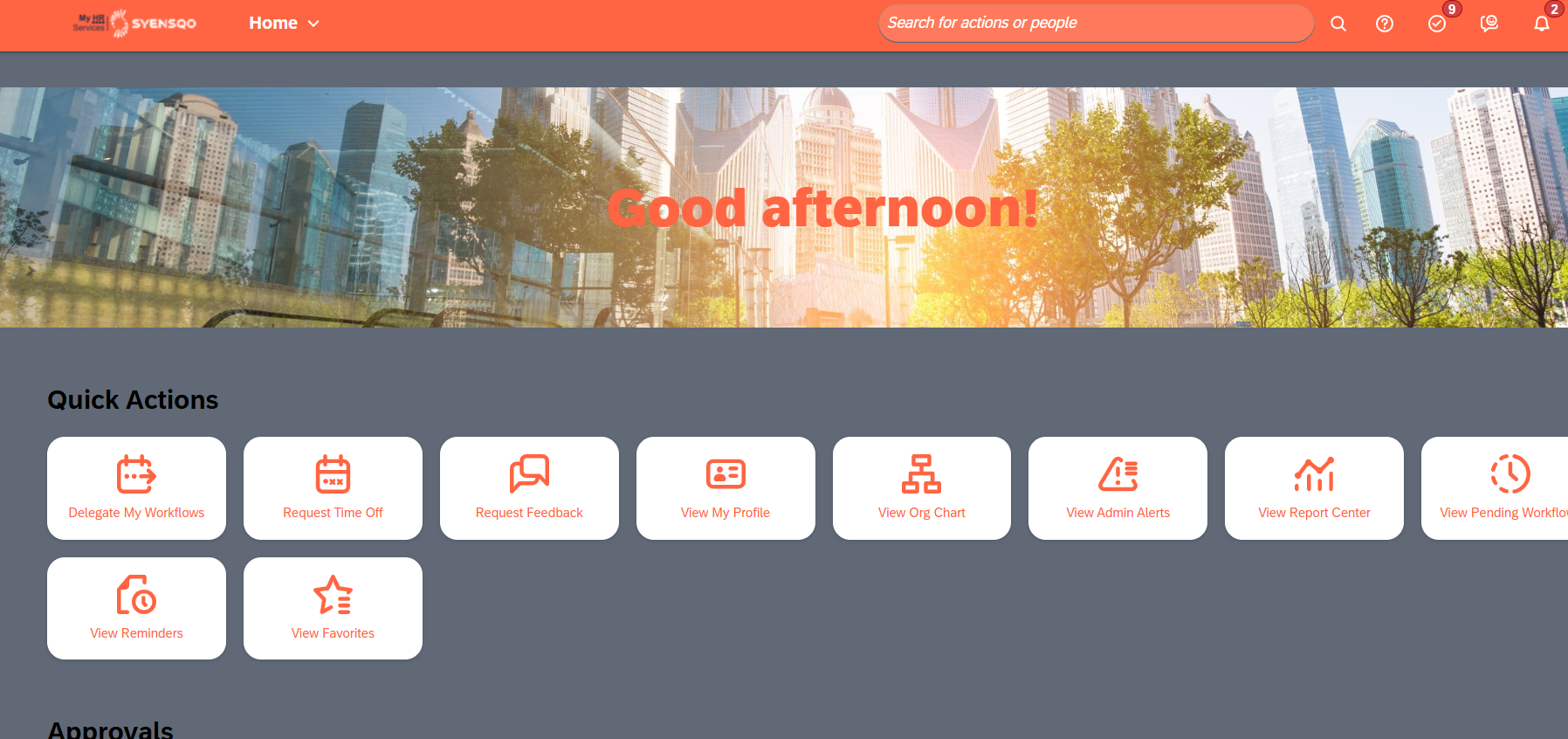
You have two ways to find employees in My HR Services:
- Option 1: by using the “Org Charts” tile you can see below and selecting the employee from the list;
- Option 2: by typing employee name in the “Search for actions” box on the top right hand corner of the image below.
Recording a Termination
There are four steps to follow:
Recording the termination.
Deactivating a position - if applicable.
Transferring Job Relationships - if applicable.
1 - Recording the termination
- To record a termination, click on “Actions”
- Select option “Terminate”

- The following information will need to be filled out next:
The termination date is the date when the relationship between the employee and the company ends.
The Last Date Worked is the effective last working day of the employee, which can be prior to the Termination date and followed by paid or unpaid leave.
Choose between the termination reason options : Resignation, Retirement or Other Termination Reason.
Set OK to Rehire to ‘YES’ if you would agree the company to rehire the employee in the future. In case the employee had any action that doesn't fit the company and it is needed to prevent more actions like that in the future, select ‘NO’.

- The following information will need to be filled out next:
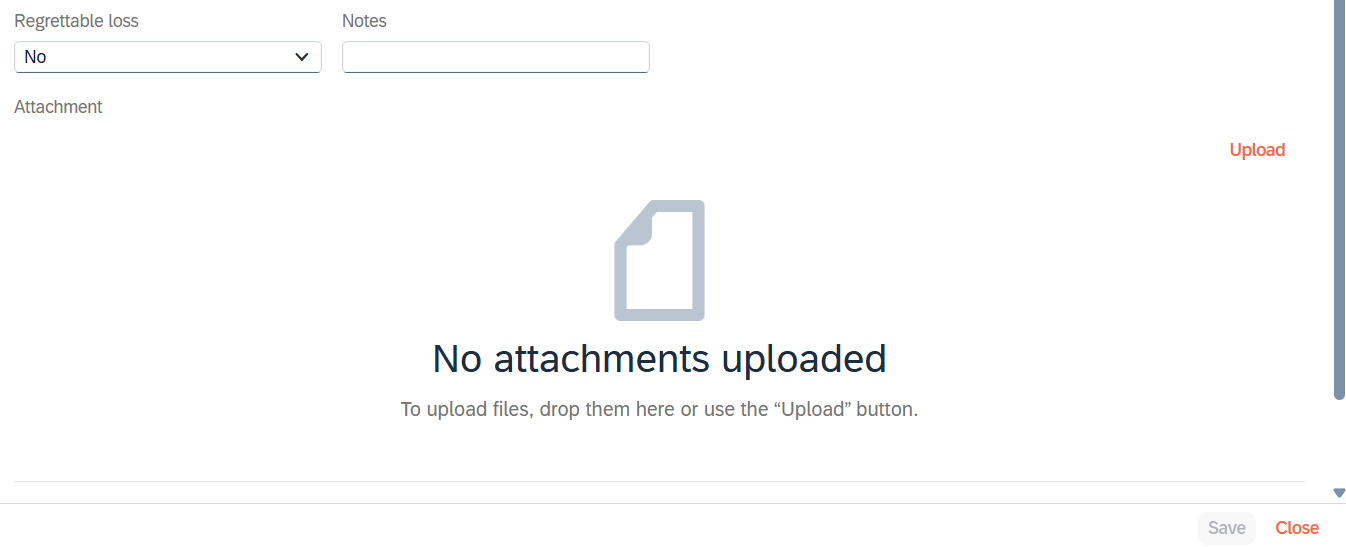
Regrettable loss concerns the voluntary resignation of an employee belonging to one or more of the following populations: S23+, EKAM, or part of a Talent Pool (Emerging Leader, Future Top Leader, or Top Leader).
Insert Notes to provide any details regarding the termination situation. The field is mandatory in case “Other termination reason” was selected.
You may choose to upload any relevant document if needed and provided, like resignation letter etc.
2 - Deactivating the position (if applicable)
If the position is to be deactivated in case you will not rehire on the position when it becomes vacant, follow these steps:
Choose Deactivate Position.
Click on Save to submit the termination request for approval.

Note: "Deactivate Position" is not always editable, mainly when direct reports or vacant positions are still assigned to a manager’s position. The best practice is to first maintain the lower-level positions before recording the termination. See more about this below:
- Correct the higher-level position (hierarchy) of the position

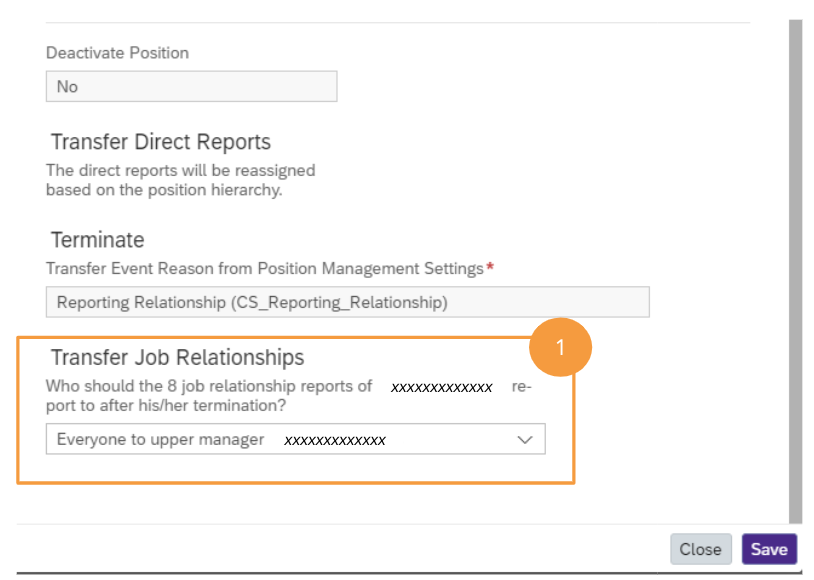
3 - Transferring job Relationships (if applicable)
Transfer Job Relationships will appear for some employees like:
- Manager with a Compensation planner role used during the Compensation campaign.
- Strategic Business Partner.
- Site HR Partner.
Job relationships grant some authority to review and approve changes for a determined scope.
Select to whom you’d like to transfer this authority after the termination: upper manager, to another person, individually to other persons or terminate (no transfer of the authority).
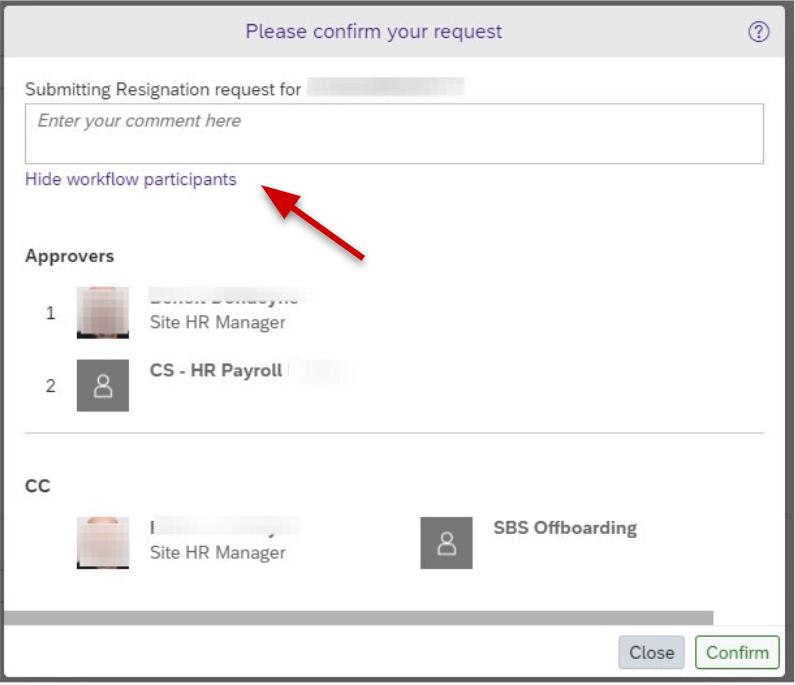
The last step of the Termination request is to confirm the request.
On this screen you can Enter a comment if needed, as well as review the Workflow Participants :
- Site HR Partner is the 1st step approver
- Payroll is the final approver
You will be notified by email once each step is processed by the different actors.
Remember that you can always go back to your pending request to check its status, add comments, withdraw etc … via the “Pending Requests” tile on the Home Page.
Wait for HR confirmation to start the Offboarding procedure.
Simply put, Syensqo needs to ensure that its information, intellectual property, and assets are safeguarded. Currently, only 44% of leavers who have IT and/or badge (physical) access have their accounts deactivated within five days of leaving Syensqo, this means that we have a high % of leavers that, if so inclined, could take our data with them. And that’s scary….. We need your help to improve this.
To address this security concern and reduce the risk for Syensqo, an Offboarding process will automatically trigger, 5 business days before the last working day, on behalf of the managers of Syesnqo Employees and Supervisors of contingent/external workers or their delegates. This process should only start for workers who have IT access requirements - such as a computer, a network account, email, Third party access or remote access to Syensqo systems, etc.
As the direct supervisor of Syensqo employee or the Supervisor of an external worker (contractor, temp, consultant, etc…), you are responsible for ensuring their IT and Site accesses are terminated on time so that data remains safe.
The offboarding tasks can be followed up by the manager or supervisor in Service One platform in section “My activity”.
We want to make this as simple as possible!
Please have a look at the exit management process visual for managers.
Note: If you have a worker who does not have any IT accesses, please follow your local site guidelines.
Important to remember
If you haven't recorded the action of termination in My HR Services yet, please first refer to Managing an Employee Termination/Resignation procedure.
The Offboarding process can be initiated once the Payroll team has validated the termination request in the HR System done by the Manager.
An Offboarding Service Request will be generated automatically 5 business days before employee last working day, to deactivate IT access and remove assets, so as manager, your only action will be to follow and monitor the request tasks.
The Offboarding activities will be generated automatically 5 business days before the leaver’s last day of work.
If you need to anticipate the Offboarding please change the end of assignment date on this request.
If you change the end of assignment date/termination date to a past date, please submit an Onboarding question ticket for IT Onboarding/Offboarding team.
Example(current day = 05/05/2024 and you change to 05/04/2024)
As a supervisor you must follow and monitor the Offboarding Service Request for the deactivation of IT access and remove assets (if applicable).
If you need to reactivate the user (re-onboard) please contact SBS HR service line request.
If you want to extend it's employment please submit this request ,and cancel the "Offboarding overview" request generated in your “Activity” in Service One.
If the user is already deactivated and you need to reactivate the user (re-onboard) please contact SBS HR service line request.
- An Offboarding request will be triggered through the Service One Digital Workplace Platform -> Offboard Employee or Contingent Worker;
- The Offboarding ticket will be generated at least 5 days before the last working day of the employee or external, after the termination done by the Manager in HR system.
- Once this Service Request is generated, the Manager, IT, Facilities & other relevant stakeholders are notified and will take the required actions on their side;
- If the leaver does not have any IT accesses please follow your local site Offboarding process.
For both Syensqo employees and external workers, you will receive a confirmation message with a link to check the status of the Offboarding activities.
Store all Syensqo documents in Google Drive;
Transfer Google drive ownership to the relevant person(s);
Delete any personal information from his / her computer, Google Drive, or email;
Deliver the Company’s Citi card to the Travel Expenses team, you or Site HR (if applicable);
Deliver the access card (badge) to the site contact (Facilities/HR etc.);
Deliver the assets to the local Service Desk on their last day of work (if applicable).
Definition
Mobility / Garden leave is a Leave of absence which identifies the period of paid inactivity, during which an employee stays away from the workplace and is in the process of terminating their employment. This usually occurs during Restructuring programs for example.
Process
This inactivity period is recorded in My HR Services to set a correct employment status (Inactive leave), correct headcount reporting, exclusions from mandatory training, or other HR processes etc ... Contact your Site HR Partner who is responsible for this process.
In line with the People Engagement Journey the process of exit management is led by the Manager. This deployment highlights the focus on the empowerment and accountability of leaders to make people decisions.
The Site HR Partner continues to play a direct and crucial role in the exit management process by ensuring local compliance and supporting the Managers through the process to successfully terminate an employee.
Please have a look at the exit management process visual for managers.
The following scenarios are in scope:
- INVOLUNTARY SEPARATION (restructuring, poor performance, misconduct);
- VOLUNTARY SEPARATION (resignation);
- MEDICAL INCAPACITY (long term);
- RETIREMENT (legal retirement where it applies).
When an employee requests to leave the company or the manager decides to terminate an employee, the procedure below is required in order to successfully terminate the employee:
Step one: Check/Discuss
For involuntary separation: Review if there are legal implications & contractual obligations.
For voluntary separation: check if there are bonding agreements (i.e. non compete).
For medical incapacity: start the assessment procedure, consulting labor physician (if needed) and according to local legislation.
Evaluate the right type of solution and recommend alternative actions to the Manager who decide how to proceed.
Discuss with Unions/working council (as needed).
Step two: Prepare
- If a decision is taken to proceed with the separation, contact the payroll to calculate the severance (as needed)*.
- Apply the NEW approval Matrix to the involuntary separation package (where Settlement Agreement is Required).
- Support the Manager with the action plan preparation (if needed).
*NEW: The Manager will have to discuss and agree with the N+1 the implementation of the non compete for Sensitive Roles and confirm the payment agreed in the addendum.
Step three: Execute
- Support the Manager with the communication to the employee.
- Prepare separation documents (when needed) and get it signed and stored in My HR Services - Employee file.
- Check, change, and approve in MY HR Services the separation details entered by the manager & attach the link to relevant documents stored in My HR Services - Employee file.
Manager and HR will be notified after payroll data check and approval.
- Note: Site HRs in the UK, please fill out this Termination Form so the UK Payroll team can perform the termination action in the payroll system.
As Site HR Partner, you will receive Termination approval workflows and see the approval requests in your email or directly on My HR Services main screen:
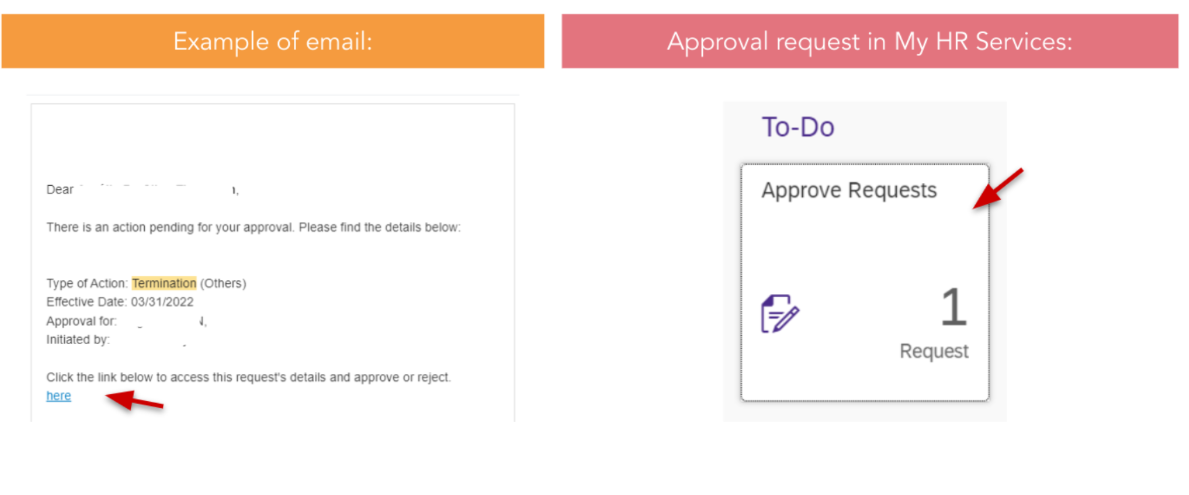
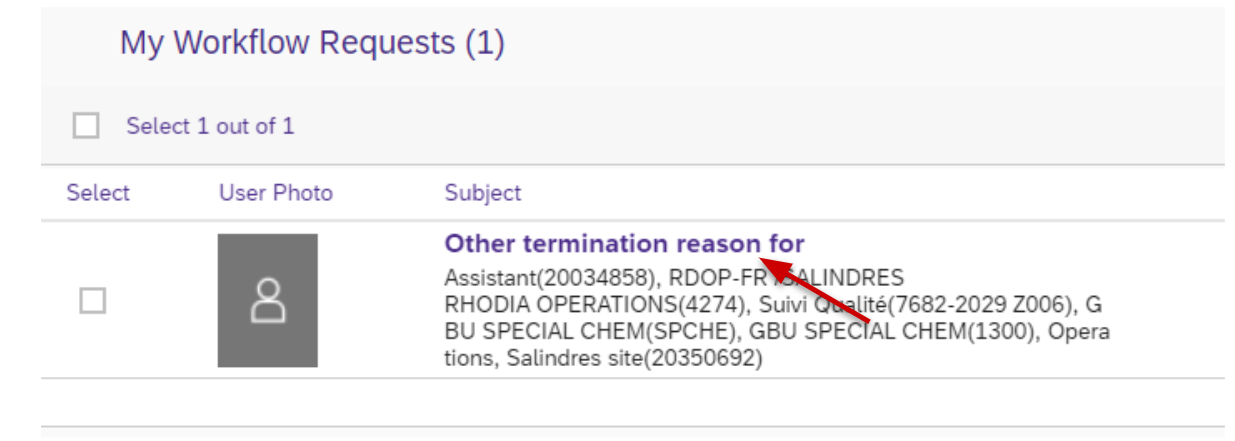
- Once you open the Approval request - click on the name of the Request on the left side to review the details of the request:
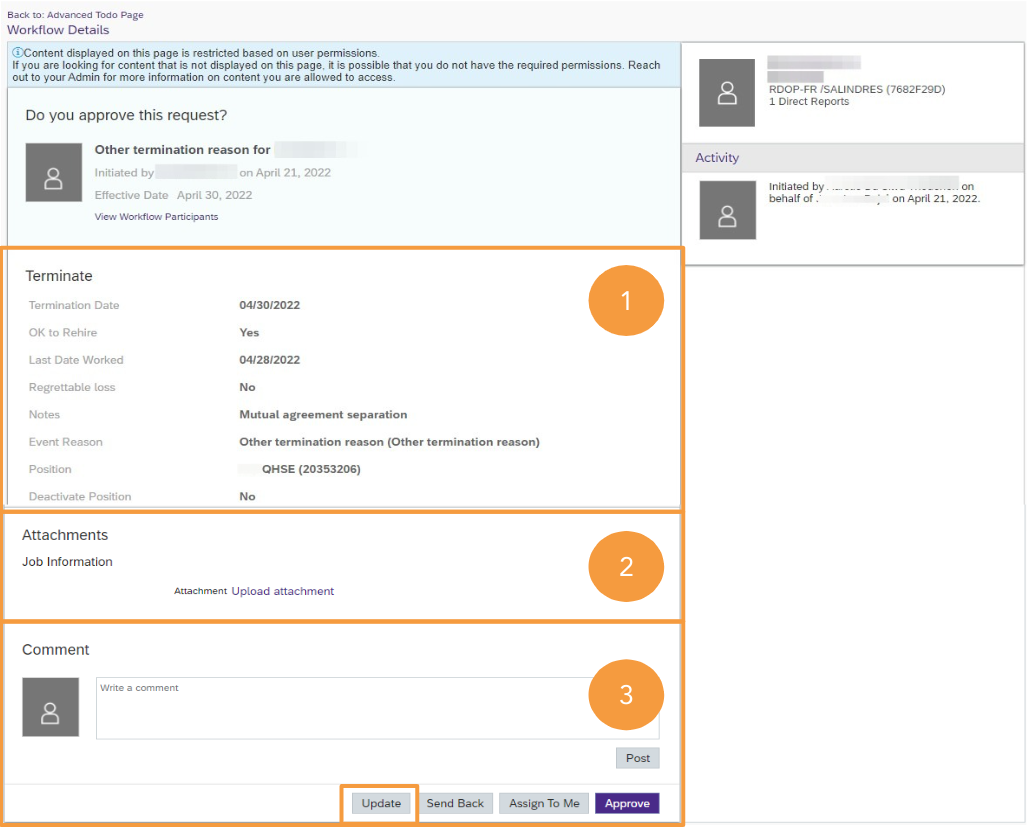
Then the following information will need to be filled out:
- Review the Termination Details provided by the Manager.
- Points of attention:
- Regrettable Loss: is it matching with the definition?
- Last Date worked: is it adjusted to reflect the effective last working day if prior to the termination?
- Event reason: in case of Other Termination Reason, check Notes provided and click on "Update" button to adjust the Termination Reason.
- Points of attention:
2. Upload Attachment to share to Payroll Teams about the termination if needed.
3. Share in the Comment section any relevant information or link to the Documents already stored in the ‘Employee File’ tool. Update the workflow (see next slide) to complete the Covenant Package terms and the Termination Reason if applicable.
Then the following information will need to be filled out:
Edit the Termination Reason when “Other termination reason”.
This is a “dummy” termination reason for managers to cover everything but Resignation or Retirement. New termination reasons will progressively be added
As Site HR Partner, you have access to all global and local termination reasons that match each situation. Choose accordingly.
Confirm if a Covenant Package Payment for Sensitive Role is required as per the manager’s indications.
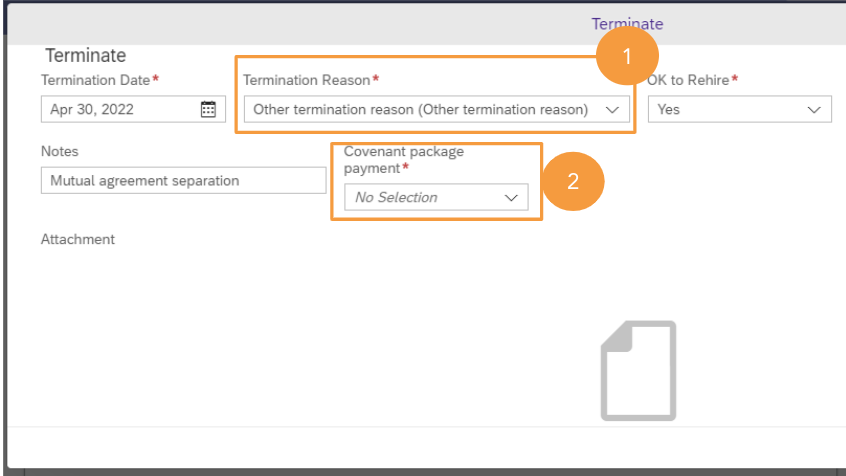
Once you save, the workflow is submitted to the Country Payroll.
As Site HR, my responsibility for employees in the scope of any restructuring program is:
- To consult WDA’s suppressed position files and fill in the information concerning the employee, indicating:
- Holidays Start/End dates
- Leave of absence: Mobility/Garden Leave Start/End dates (if applicable)
- Last Date Worked
- Termination Date and Termination Reason
The Workforce Administration team will proceed with the position changes, record the Leave of Absence, and process the Termination in Success Factors.