Overview
Each space has its own space menu accessible from the following icon on the left: 
The space menu is a selection of existing pages (mostly, "Editorials"), organized in a flat or hierarchical way:

It allows visitors to navigate into your space independently from the tiles on your main page.
This operation need to use the "Tridion Content Manager" instead of the better known "Site Edit". |
Table of contents
Step-by-step
Step 1: Open the space menu component | |||||
|---|---|---|---|---|---|
1. Reach the following Tridion Content Manager path (click the link): |  | ||||
2. According to your entity, reach your space sub-folder. Example: \SW W1 ONE Master\Building Blocks\Component\1 ONE\Function\Finance\ |  | ||||
| 3. Double click the space menu component in this folder | 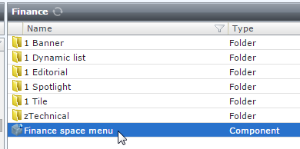 | ||||
| 4. Keep the default "Edit the parent item", then press "OK" |  | ||||
Step 2: Understand the space menu component structure | |||||
Name: Tridion internal name (keep as it is) Title: Space home page name (keep as it is) One "Link" block for each menu item, containing:
Example of levels management - "Finance" space menu:
| Click and zoom to better view this very long picture
| ||||
| |||||
Step 3a: Update a space menu item | |||||
Identify the link block to update, then update the Section title and/or Link
|  | ||||
Step 3b: Add a space menu item | |||||
| 1. Identify the link block your need to insert your item after | | ||||
2. Press the  button beside it to insert a new empty "Link" block under it button beside it to insert a new empty "Link" block under it |  | ||||
3. Fill-in the 3 fields of this new block.
|  | ||||
Step 3c: Remove a space menu item | |||||
Identify the Link block to remove, then press the
|  | ||||
Step 3d: Reorder a space menu item | |||||
| 1. Identify the Link block to reorder, then drag its handle (see below) |  | ||||
| 2. Drop it at the correct place among the Link blocks. Until you release the mouse button, its choose place is identified by a large Green line (see below). |  | ||||
Step 4: Save & Close then Publish | |||||
| 1. When you finishes to update, press "Save & Close" |  | ||||
2. Back to your Space folder in the Tridion Content Manager, ensure the space menu component is selected, then press "Publish" |  | ||||
3. Tick "Staging" and Untick "Live", Go to the "Advanced" tab, then tick "Also Publish/Unpublish in Child Publications", Press "Publish" |  | ||||
4. To publish it in Live, repeat the 2. and 3. points, but ticking "Live" instead of "Staging"
| |||||
 to select it.


 button