Overview
Each space have its own space menu accessible from this left button: 
The Space menu is just a selection of existing pages (mostly, "Editorials"), organized in a flat or hierarchical way, at your choice.

This operation need to use the "Tridion Content Manager" instead of the better known "Site Edit". |
Table of contents
Step-by-step
Step 1: Open the space menu component | |||||
|---|---|---|---|---|---|
1. Reach the following Tridion Content Manager path (click the link): |  | ||||
2. According to your entity, reach your space sub-folder. Example: \SW W1 ONE Master\Building Blocks\Component\1 ONE\Function\Finance\ |  | ||||
| 3. Double click the banner component in this folder | 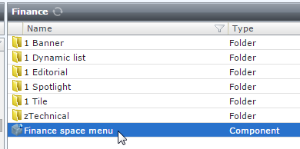 | ||||
| 4. Keep the default "Edit the parent item", then press "OK" |  | ||||
Step 2: Understand the space menu component structure | |||||
Name: Tridion internal name (keep as it is) Title: Space home page name (keep as it is) One "Link" block for each menu item, containing:
Example of levels management - "Finance" space menu:
| Click and zoom to better view this very long picture
| ||||
| |||||
Step 3a: Update a space menu item | |||||
Identify the link block to update, then update the Section title and/or Link
|  | ||||
Step 3b: Add a space menu item | |||||
| 1. Identify the link block your need to insert your item after | | ||||
2. Press the  button beside it to insert a new empty "Link" block under it button beside it to insert a new empty "Link" block under it |  | ||||
3. Fill-in the 3 fields of this new block.
|  | ||||
Step 3c: Remove a space menu item | |||||
Identify the Link block to remove, then press the
|  | ||||
Step 3d: Reorder a space menu item | |||||
| 1. Identify the Link block to reorder, then drag its handle (see below) |  | ||||
| 2. Drop it at the correct place among the Link blocks. Until you release the mouse button, its choose place is identified by a large Green line (see below). |  | ||||
Step 4: Save & Close then Publish | |||||
| 1. When you finished to update, press "Save & Close" |  | ||||
2. Back to your Space folder in the Tridion Content Manager, ensure the space menu component is selected, then press "Publish" |  | ||||
| 3. Tick "Staging", Untick "Live", then press "Publish" | |||||
3. To publish it in Live, repeat the 1. and 2. points, but ticking "Live" instead of "Staging"
| |||||
 to select it.


 button