
Step One - Managing an Employee Termination/Resignation
The offboarding procedure is mandatory and applies to the whole group without any exception.
Why this Moment Matters?
Exit Management is a key part of the leader’s role as you will lead the relationship with the employee to ensure that this Moment that Matters is experienced as positively as possible with a focus on business continuity, while the role of the Site HR Partner is to ensure compliance by giving guidance and support on the technicalities.
Please look at the exit management process visual for managers.
The following scenarios are in scope:
- INVOLUNTARY SEPARATION (restructuring, poor performance, misconduct);
- VOLUNTARY SEPARATION (resignation);
- MEDICAL INCAPACITY (long term);
- RETIREMENT (legal retirement where it applies).
What to do as a Leader?
Partner with the employee’s Site HR all along the process: from the moment an initial separation intent or request is communicated until when all practicalities regarding the separation have been completed.
As a Leader, these guidelines will help you organize the departure of your new team member. You will have to start termination action in My HR Services as well as submit Offboarding request to remove all to deactivate IT access and remove assets. The offboarding procedure is mandatory and applies to the whole group without any exception.
MANAGE SEPARATIONS AND EXITS
Exit Management is a key part of the leader’s role. You make the final decision. Dedicated Site HR Partner are there to support you for all employment types (cadre and non-cadre). Below is a step-by-step guide for you to follow:
HOW TO INITIATE A TERMINATION IN MY HR SERVICES
To launch the separation of your team member, the first action you need to do is record termination in My HR Services.
The termination action is owned and initiated by the Manager.
Below are the step-by-step instructions on how to enter the separation details in My HR Services.
→FINDING EMPLOYEES
You have two ways to find employees in My HR Services:
- Option 1: by using the “Org Charts” tile you can see below and selecting the employee from the list;
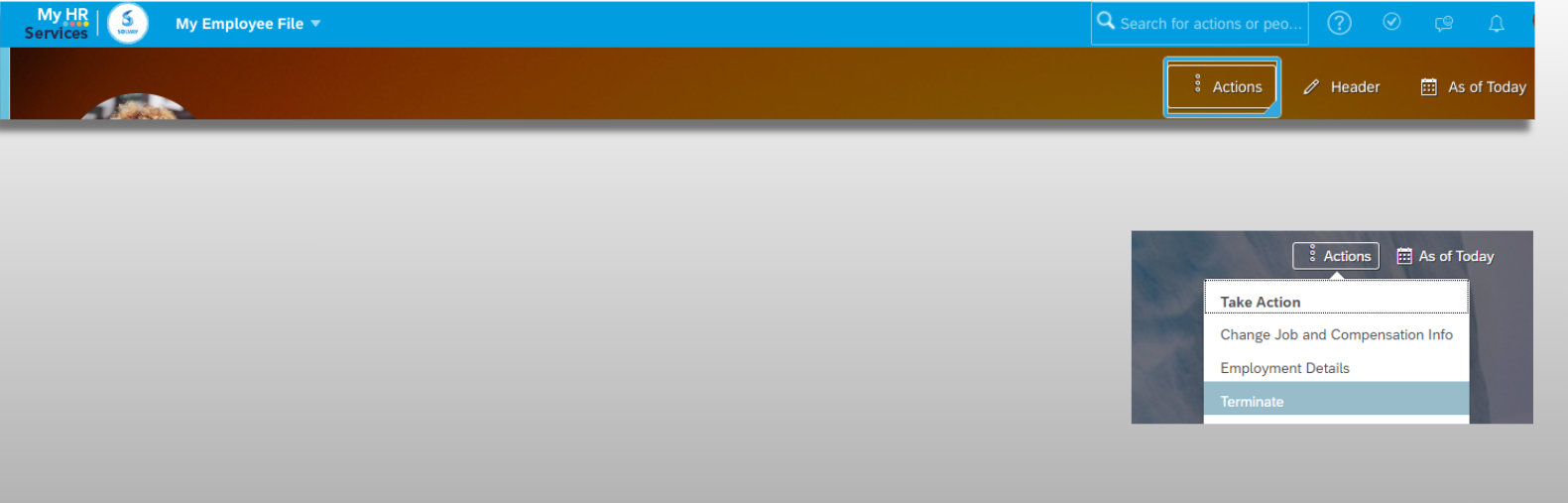
- Option 2: by typing employee name in the “Search for actions” box on the top right hand corner of the image below.

→RECORDING A TERMINATION
There are four steps to follow:
Recording the termination.
Deactivating a position - if applicable.
Transferring Job Relationships - if applicable.
Recording the termination.
- To record a termination, click on “Actions”
- Select option “Terminate”
- The following information will need to be filled out next:
The termination date is the date when the relationship between the employee and the company ends.
The Last Date Worked is the effective last working day of the employee, which can be prior to the Termination date and followed by paid or unpaid leave.
Choose between the termination reason options : Resignation, Retirement or Other Termination Reason.
Set OK to Rehire to ‘YES’ if you would agree the company to rehire the employee in the future. In case the employee had any action that doesn't fit the company and it is needed to prevent more actions like that in the future, select ‘NO’.

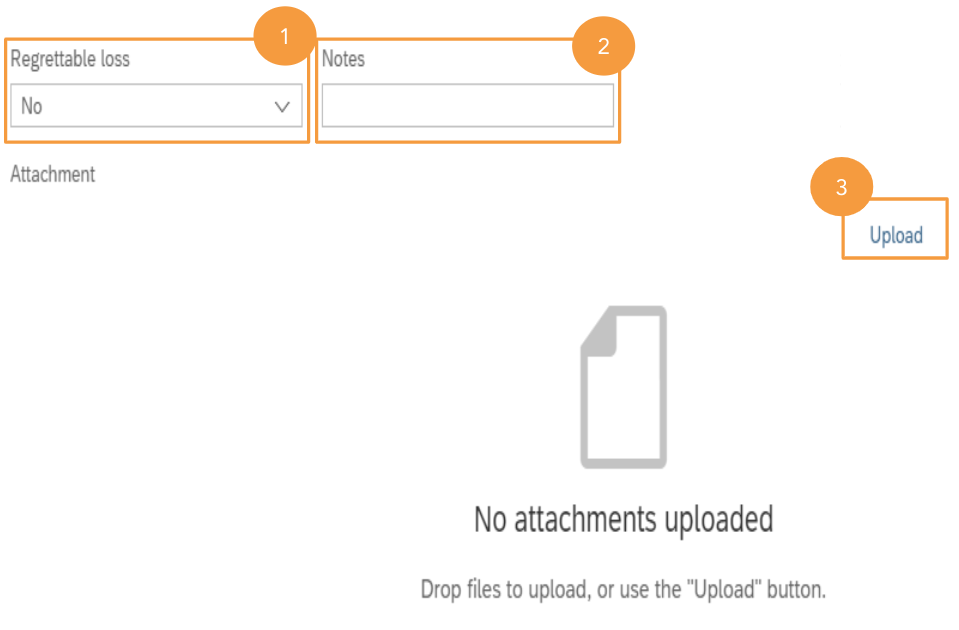
- The following information will need to be filled out next:
Regrettable loss concerns the voluntary resignation of an employee belonging to one or more of the following populations: S23+, EKAM, or part of a Talent Pool (Emerging Leader, Future Top Leader, or Top Leader).
Insert Notes to provide any details regarding the termination situation. The field is mandatory in case “Other termination reason” was selected.
You may choose to upload any relevant document if needed and provided, like resignation letter etc.
Deactivating a position - if applicable.
If the position is to be deactivated in case you will not rehire on the position when it becomes vacant, follow these steps:
Choose Deactivate Position.
Click on Save to submit the termination request for approval.
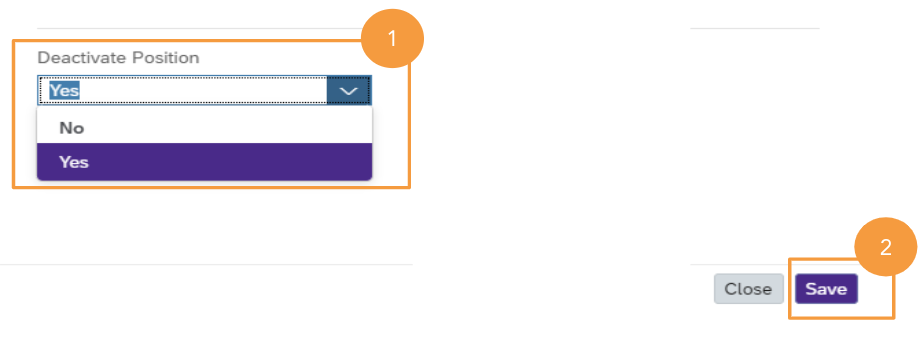
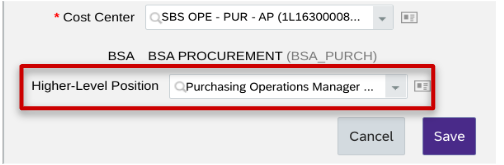
Note: "Deactivate Position" is not always editable, mainly when direct reports or vacant positions are still assigned to a manager’s position. The best practice is to first maintain the lower-level positions before recording the termination. See more about this below:
- Correct the higher-level position (hierarchy) of the position
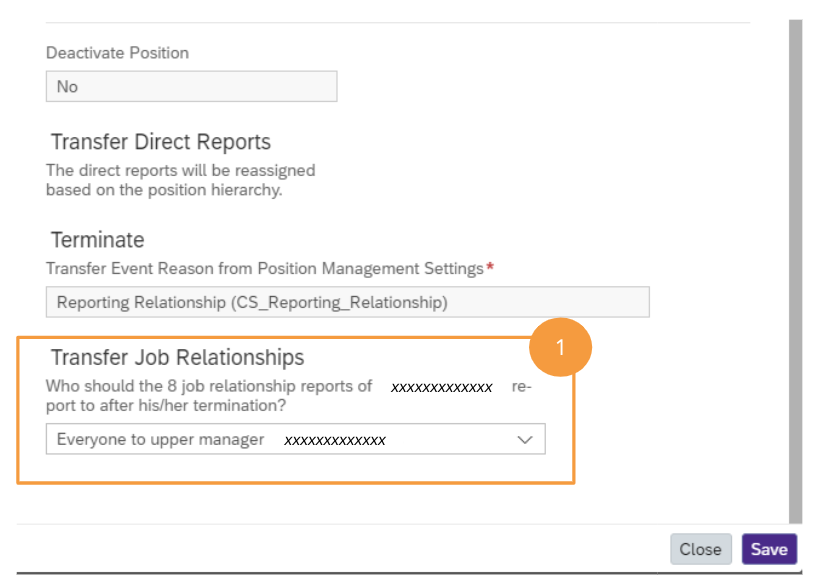
Transferring Job Relationships - if applicable.
Transfer Job Relationships will appear for some employees like:
- Manager with a Compensation planner role used during the Compensation campaign.
- Strategic Business Partner.
- Site HR Partner.
Job relationships grant some authority to review and approve changes for a determined scope.
Select to whom you’d like to transfer this authority after the termination: upper manager, to another person, individually to other persons or terminate (no transfer of the authority).
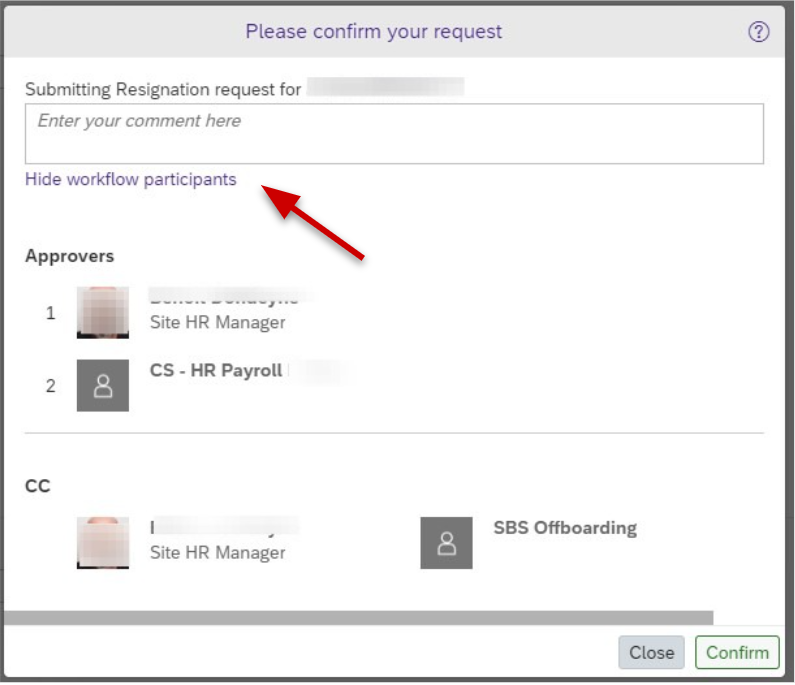
The last step of the Termination request is to confirm the request.
On this screen you can Enter a comment if needed, as well as review the Workflow Participants :
- Site HR Partner is the 1st step approver
- Payroll is the final approver
You will be notified by email once each step is processed by the different actors.
Remember that you can always go back to your pending request to check its status, add comments, withdraw etc … via the “Pending Requests” tile on the Home Page.
- Wait for HR confirmation to start the Offboarding procedure
→STEP TWO: Preparing an Employee & External Worker Offboarding
Date last updated:
USEFUL LINKS
Supporting Material
Supporting Documentation